How to Stream OBS to Discord with Sound
If you build your stream in OBS — scenes, overlays, alerts — you do not need a virtual camera to show it in a Discord voice channel: you can share the OBS window itself. The one setting everyone misses sits in the share picker: without Also share system audio, your viewers see the picture in silence. The recording runs Discord in Chrome, on a demo server, with OBS 31.0.3.
- SystemWindows (browser)
- AppDiscord web app
- Also works onDiscord desktop app (the same Share Your Screen picker)
- Last verifiedOctober 28, 2026
Every screenshot below is taken from the actual recording on this device — no stock images.
Before you start
- Start OBS first, so its window exists, and put the scene you want to show on the program output.
- In the Discord desktop app the picker looks slightly different, but the audio switch is in the same place at the bottom.
Steps
Join a voice channel and click Share Your Screen
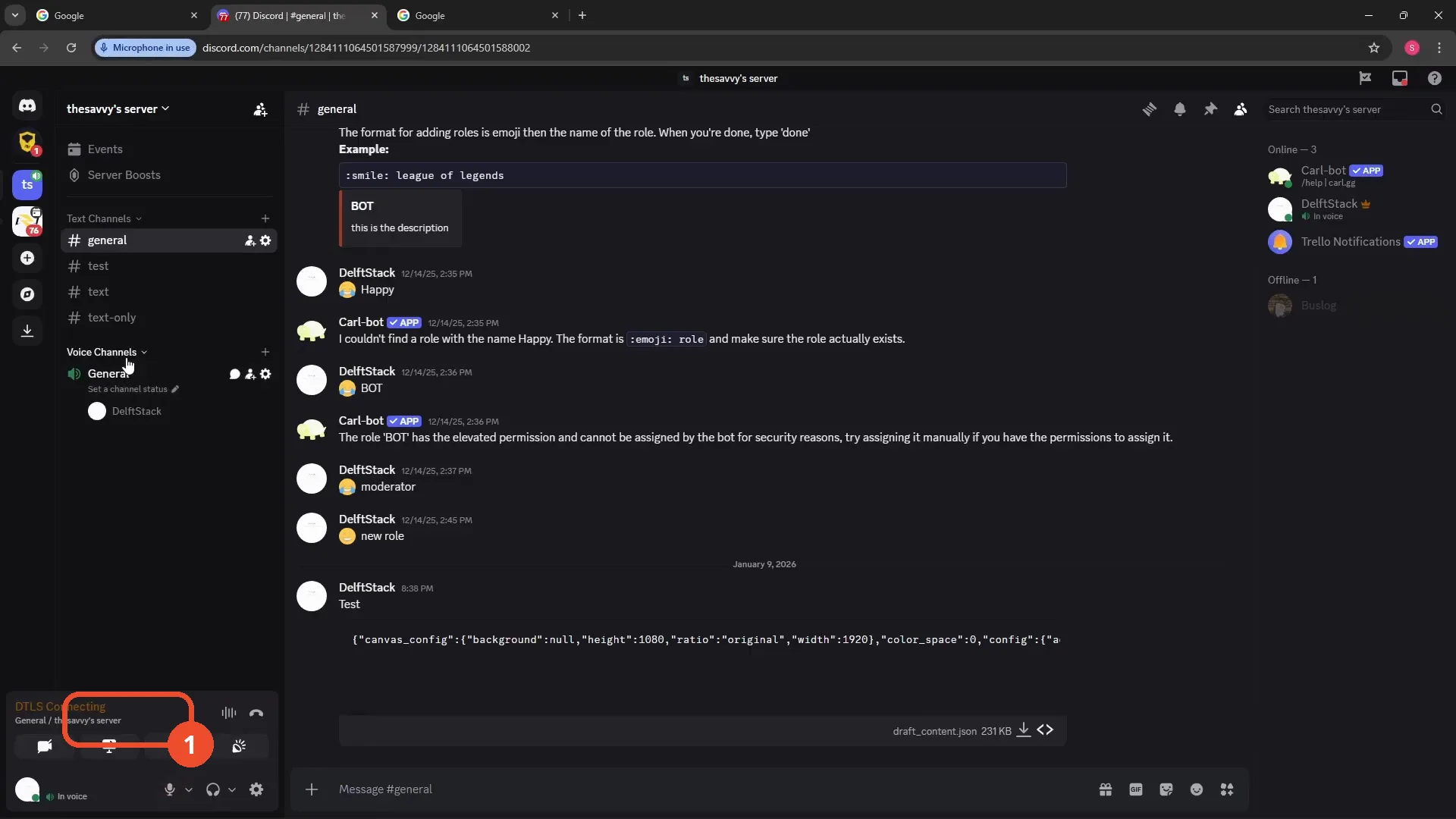
Join a voice channel — here, General — and click Share Your Screen in the voice panel at the bottom left. (The panel still says DTLS Connecting in this shot; the buttons work as soon as you are connected.)
Select the OBS window
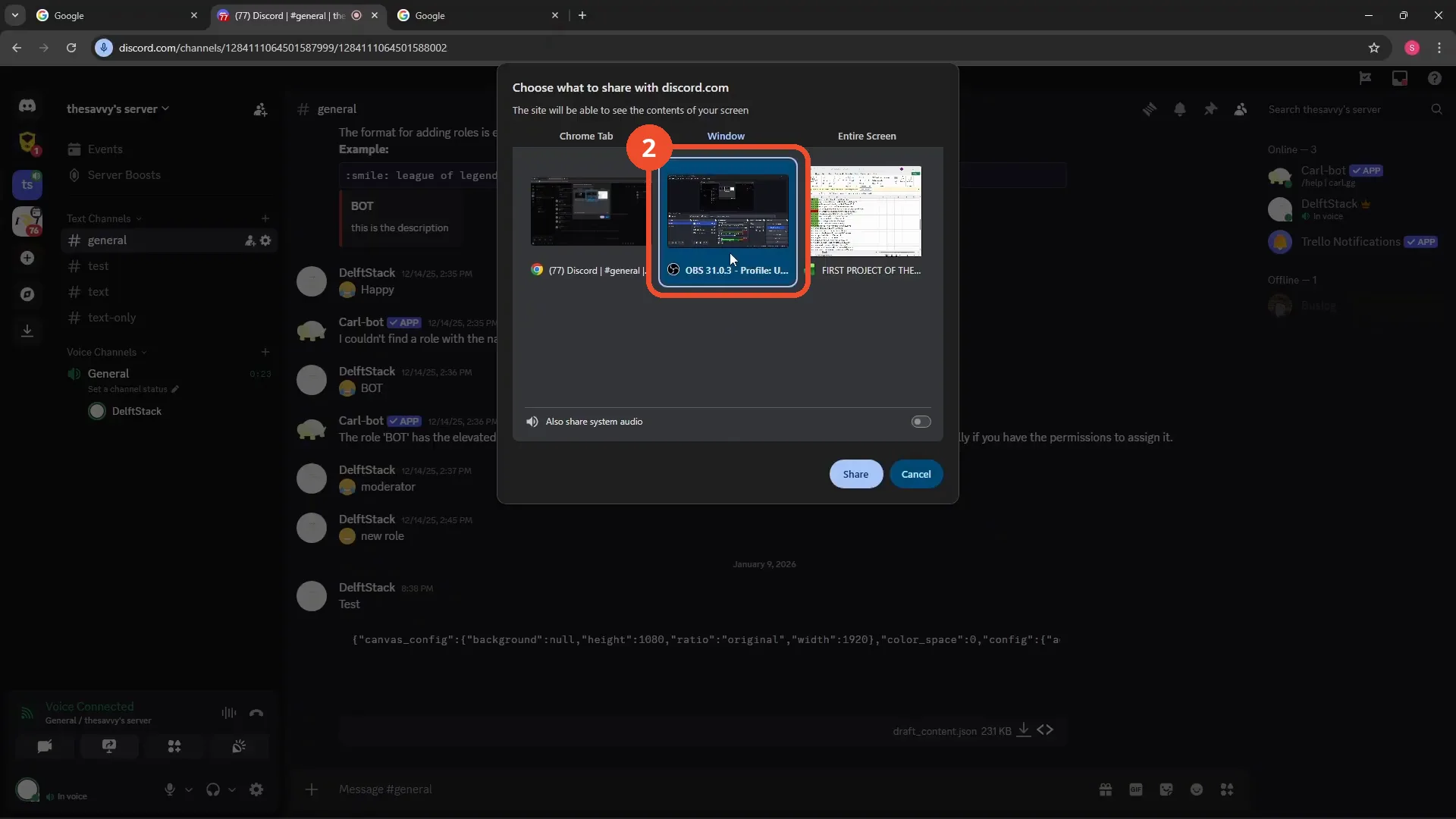
In Choose what to share, open the Window tab and select the OBS window.
Turn on Also share system audio
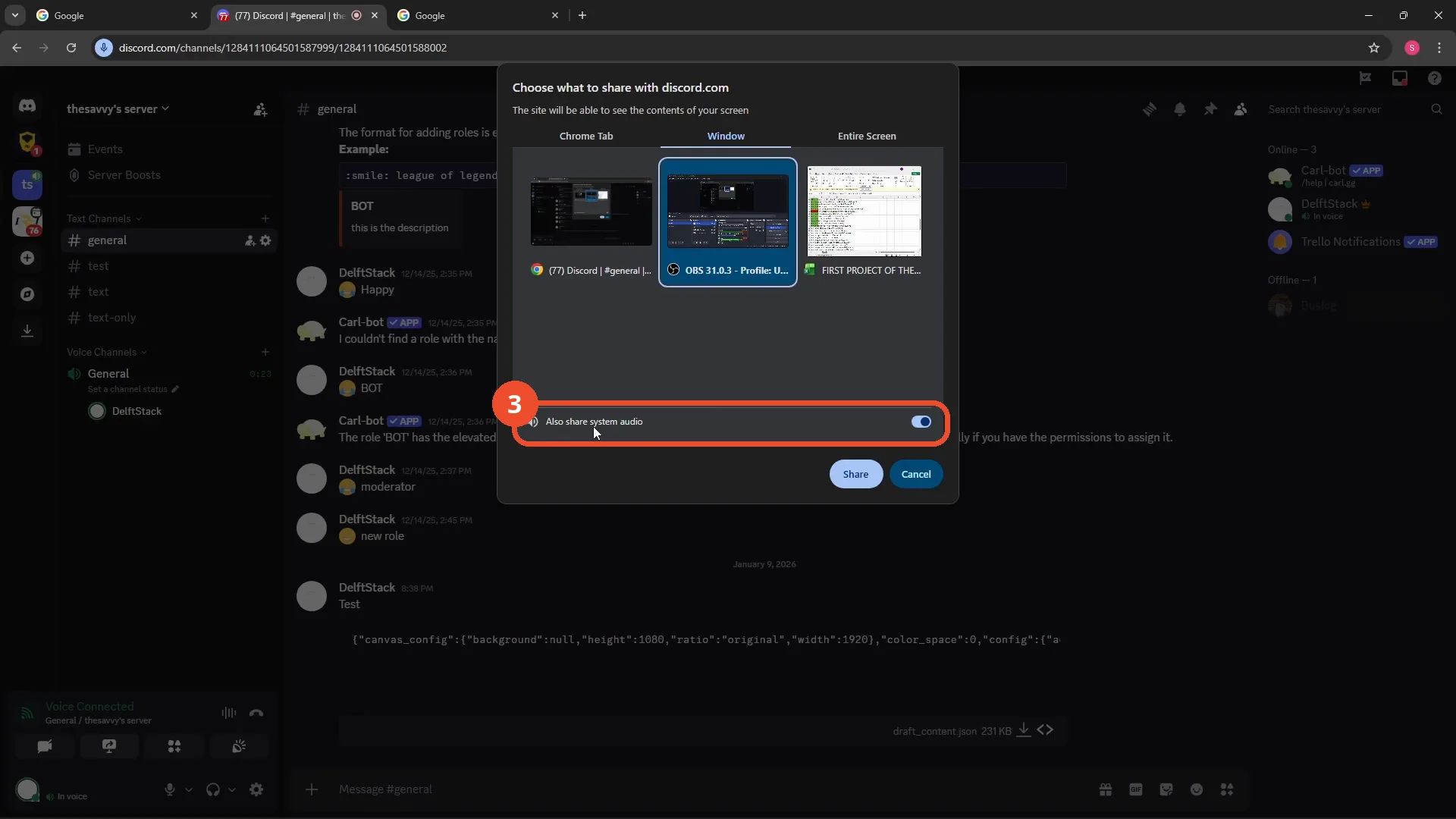
Switch on Also share system audio at the bottom of the picker. This is the step that carries OBS’s sound — game, music, alerts — into the channel. Leave it off and the stream is silent.
Click Share
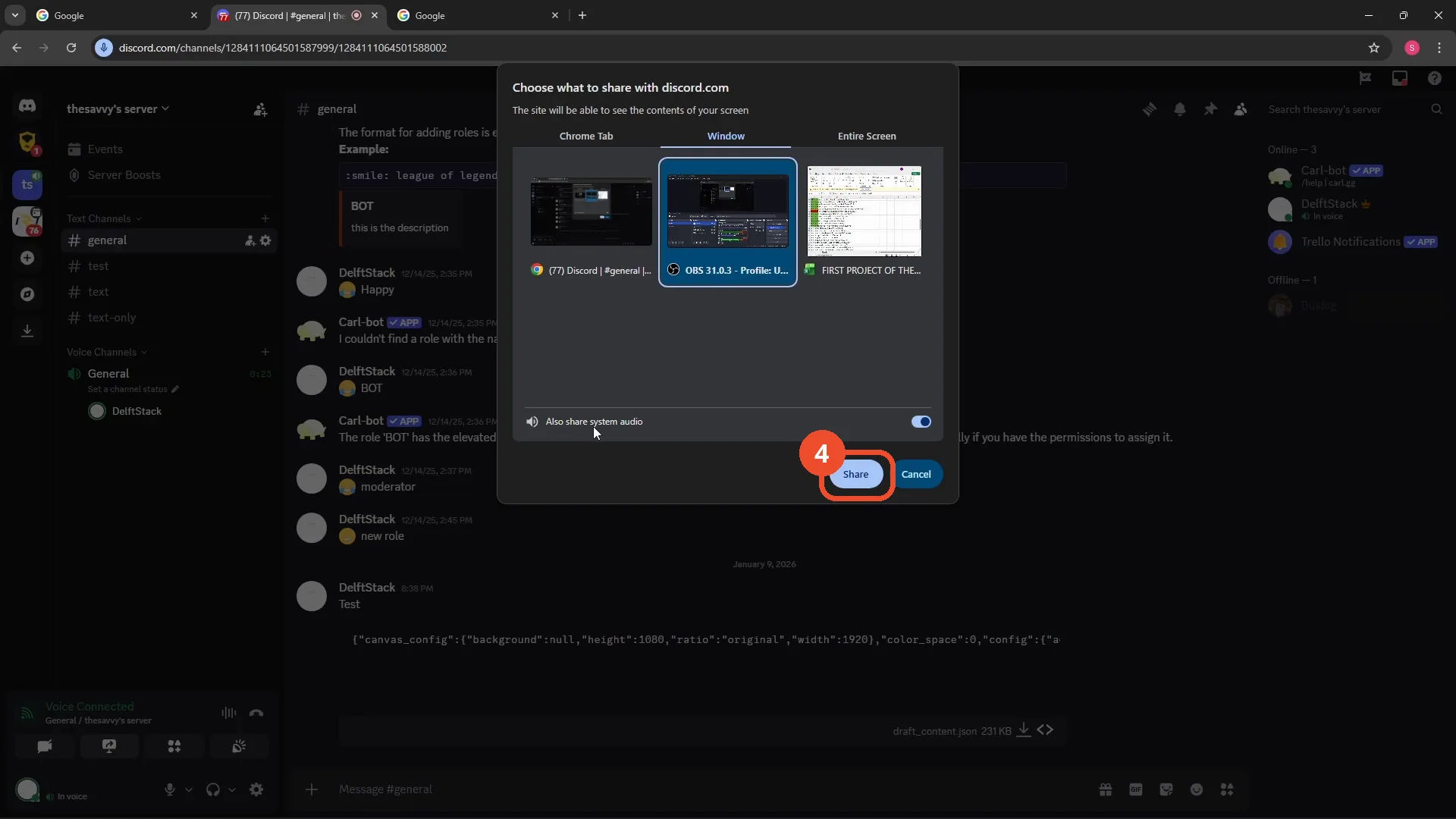
Click Share to go live with the window and its audio.
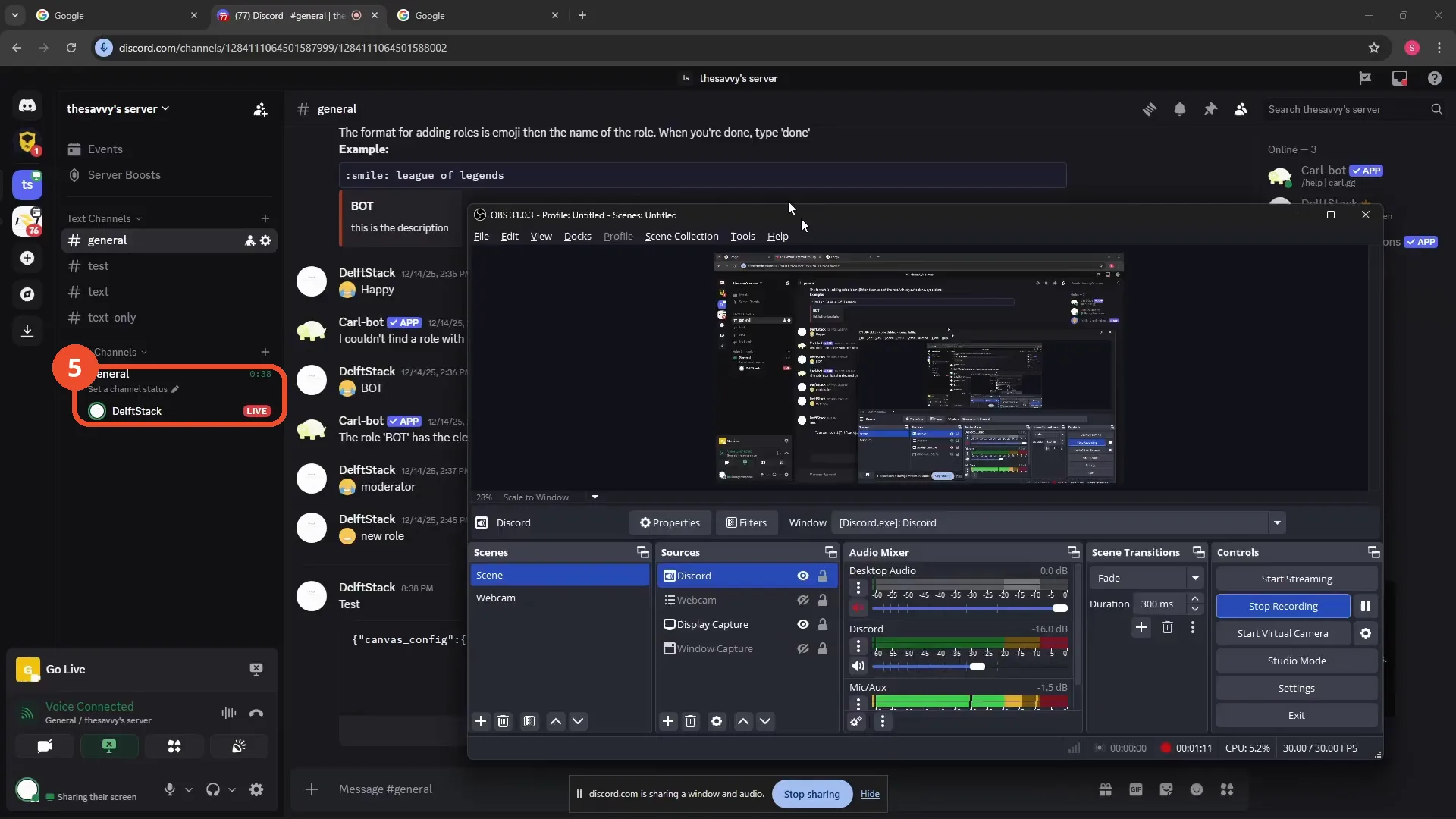
You are live — check the LIVE badge
The channel list now shows a red LIVE badge next to your name, and the bar at the bottom confirms discord.com is sharing a window and audio. The OBS window itself stays in front in this recording — your viewers see exactly its program output.
Good to know
- Sharing a window instead of the entire screen keeps notifications and other windows private — viewers only ever see OBS.
- Viewers hear everything OBS outputs, mixed as OBS has it. Balance game, music and microphone in the OBS audio mixer; Discord adds no separate volume for shared audio.
More on Discord
- How to Stop Spotify From Pausing on Discord
- How to See Who Owns a Discord Server
- How to Make Discord Open on a Second Monitor by Default
- How to Remove Someone from a Discord Group
- How to Self-Assign Roles in Discord Using ProBot
- How to Scan a QR Code with the Discord Mobile App
- How to Add Someone to an Ongoing Discord Voice or Video Call