How to Stop Spotify From Pausing on Discord
Your music stops every time you talk in a Discord voice channel. As the recording explains it, Spotify pauses when it detects that your microphone is being transmitted for a stretch (about 30 seconds at a time) — and Discord’s automatic mic detection keeps that transmission almost permanently “live”, even when you are not saying anything. The fix is to stop Discord from triggering it: calm down the mic detection, remove the game integrations, and switch off the Spotify setting that restarts playback sessions. Three short stops, in two apps.
- SystemWindows
- AppDiscord (desktop app)
- Also works onDiscord on macOS (the same settings)
- Last verifiedOctober 28, 2026
Every screenshot below is taken from the actual recording on this device — no stock images.
Before you start
- You need both apps open: Discord for steps 1–4 and Spotify for step 5.
- Nothing here requires Nitro or Spotify Premium; every setting used is in the free versions.
- If Spotify is not pausing but lowering its volume instead, that is a different feature (Windows audio ducking) — this guide is for full pauses.
Steps
Open User Settings
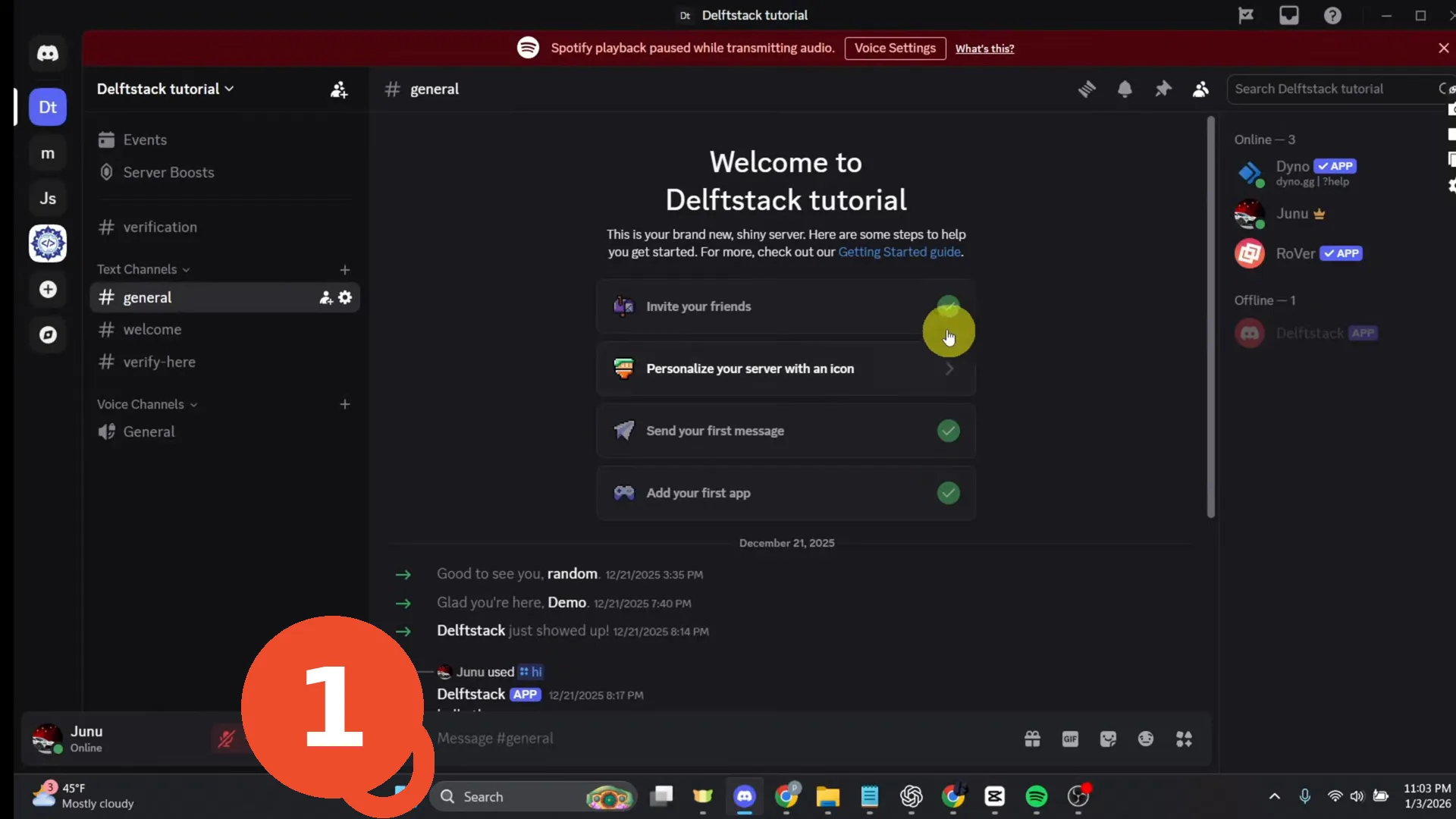
In Discord, click the gear icon next to your name at the bottom left — that opens User Settings.
Turn off Automatically Adjust Input Sensitivity
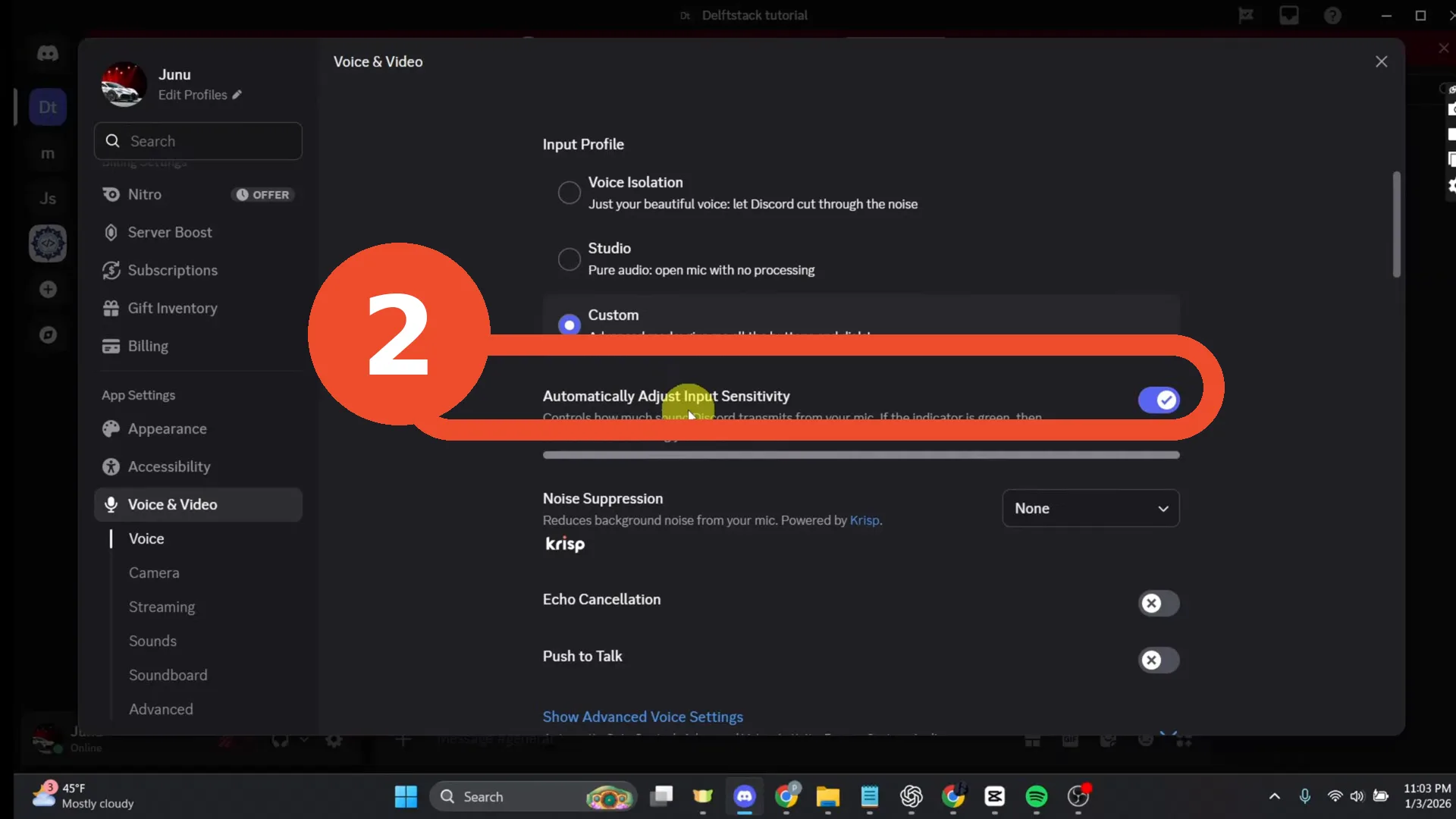
Go to Voice & Video and turn off Automatically Adjust Input Sensitivity. With automatic detection on, Discord opens the mic for background noise all the time, which is what keeps tripping Spotify’s pause. Set the manual sensitivity slider so it only opens when you actually speak.
Check Registered Games
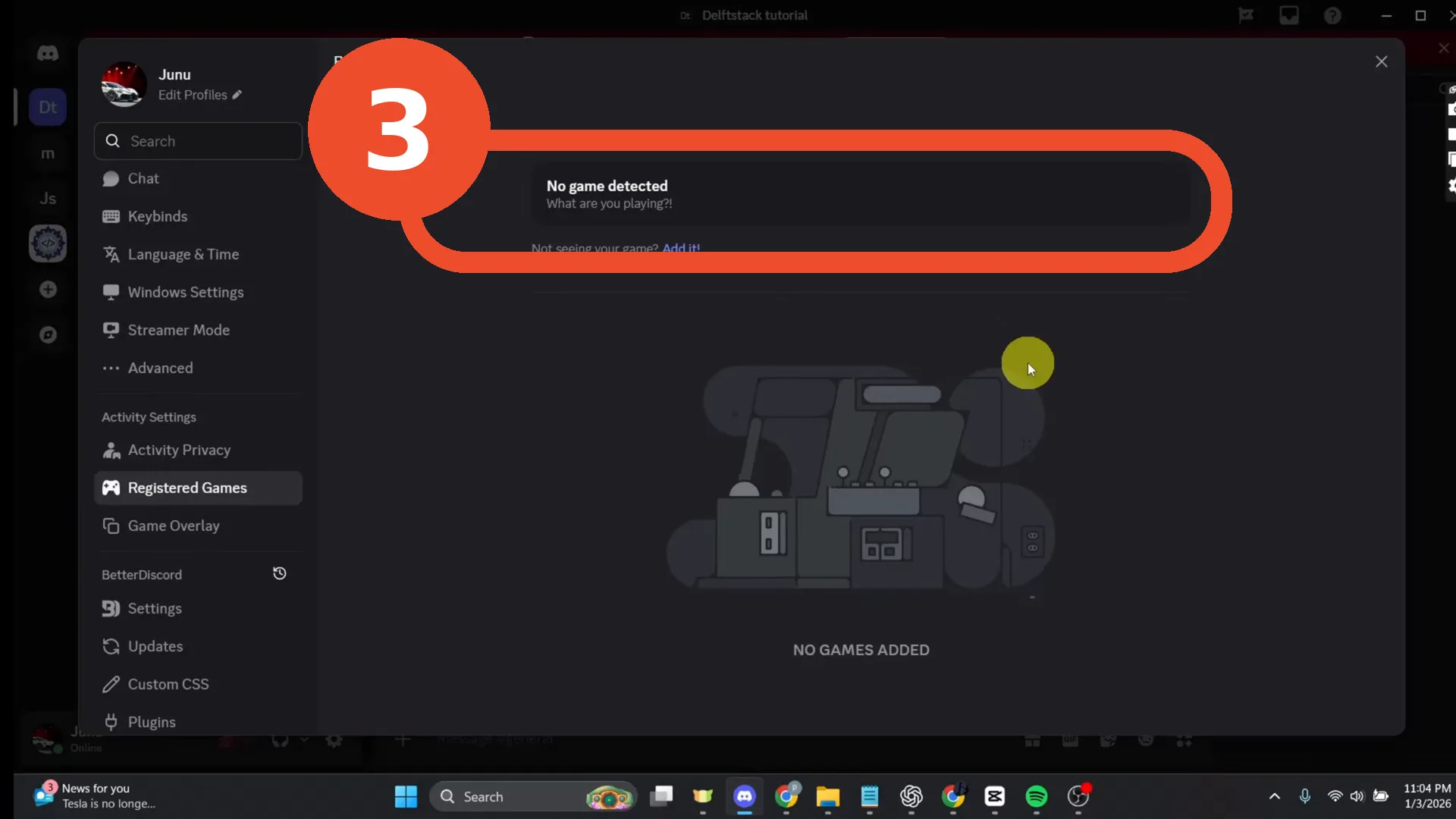
Under Activity Settings → Registered Games, check whether Spotify (or the game you play) is registered. A registered app gets activity and overlay hooks into Discord; if Spotify is listed here, remove it or turn its overlay off. In this recording nothing is registered — the page shows “No game detected”.
Turn off the Game Overlay
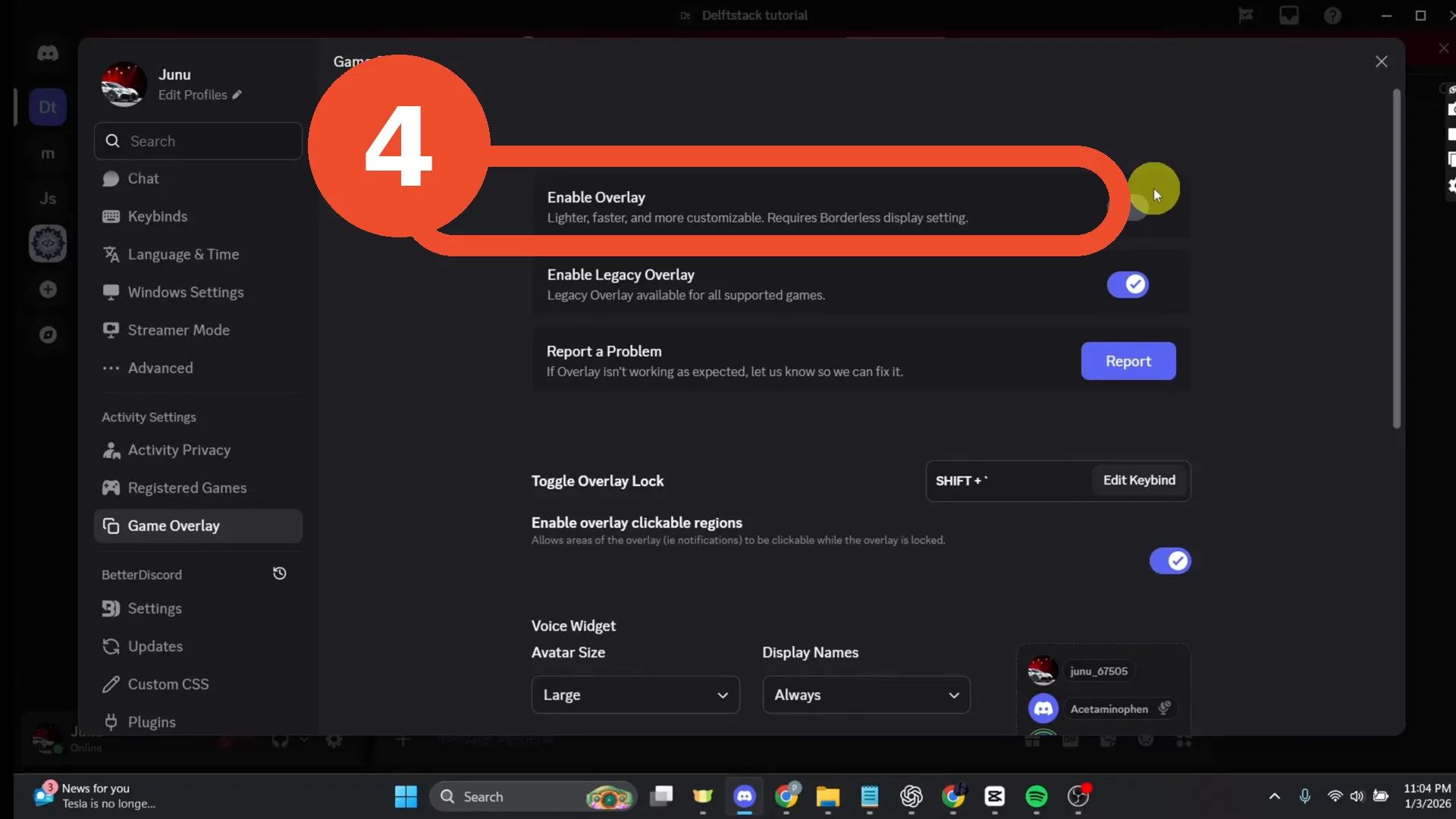
Open the Game Overlay page and turn Enable Overlay off. The overlay injects into full-screen apps and is a common second cause of playback interruptions; legacy overlay underneath can stay as it is.
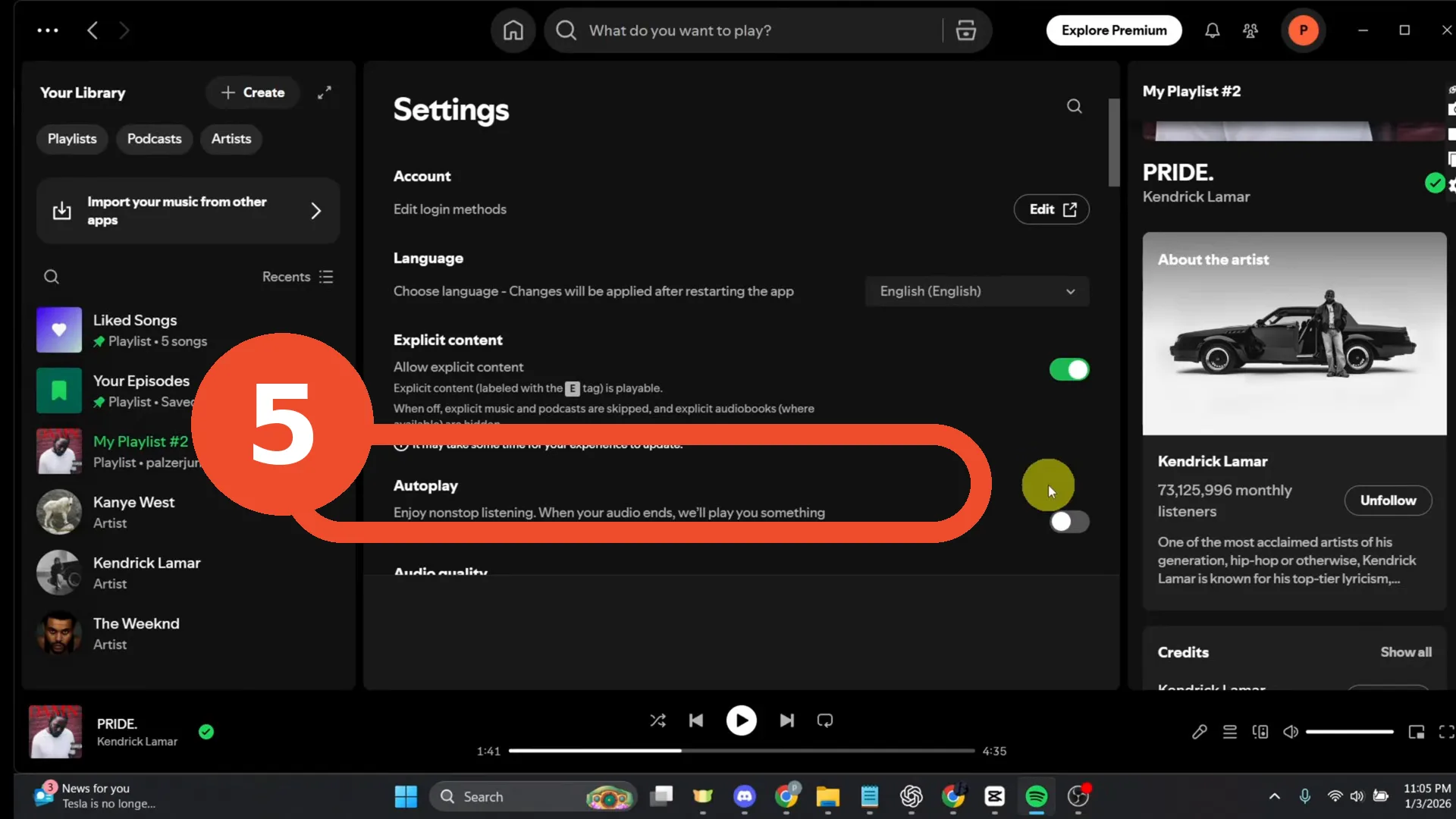
Turn off Spotify Autoplay
Finally, in Spotify: open Settings and turn Autoplay off (in the Playback section). With Autoplay on, Spotify starts a new generated session whenever your audio context changes — which is when the pauses bite. The recording leaves Explicit content on; only Autoplay changes.
If Spotify still pauses
- Do the steps in order and then rejoin a voice channel — the sensitivity change only applies to new transmissions.
- Check the same Voice & Video page for Echo Cancellation and noise suppression: extra audio processing also keeps the mic “hot”.
- If it only happens with one game, register that game manually on the Registered Games page and disable its overlay there instead of globally.