How to Stop Discord From Opening Automatically on Windows Startup
Stop Discord launching every time Windows starts: switch off Open Discord on Startup in Discord’s own Windows Settings, then confirm it is gone from Task Manager’s Startup apps.
- SystemWindows
- AppDiscord desktop app
- Last verifiedNovember 6, 2026
Every screenshot below is taken from the actual recording on this device — no stock images.
Steps
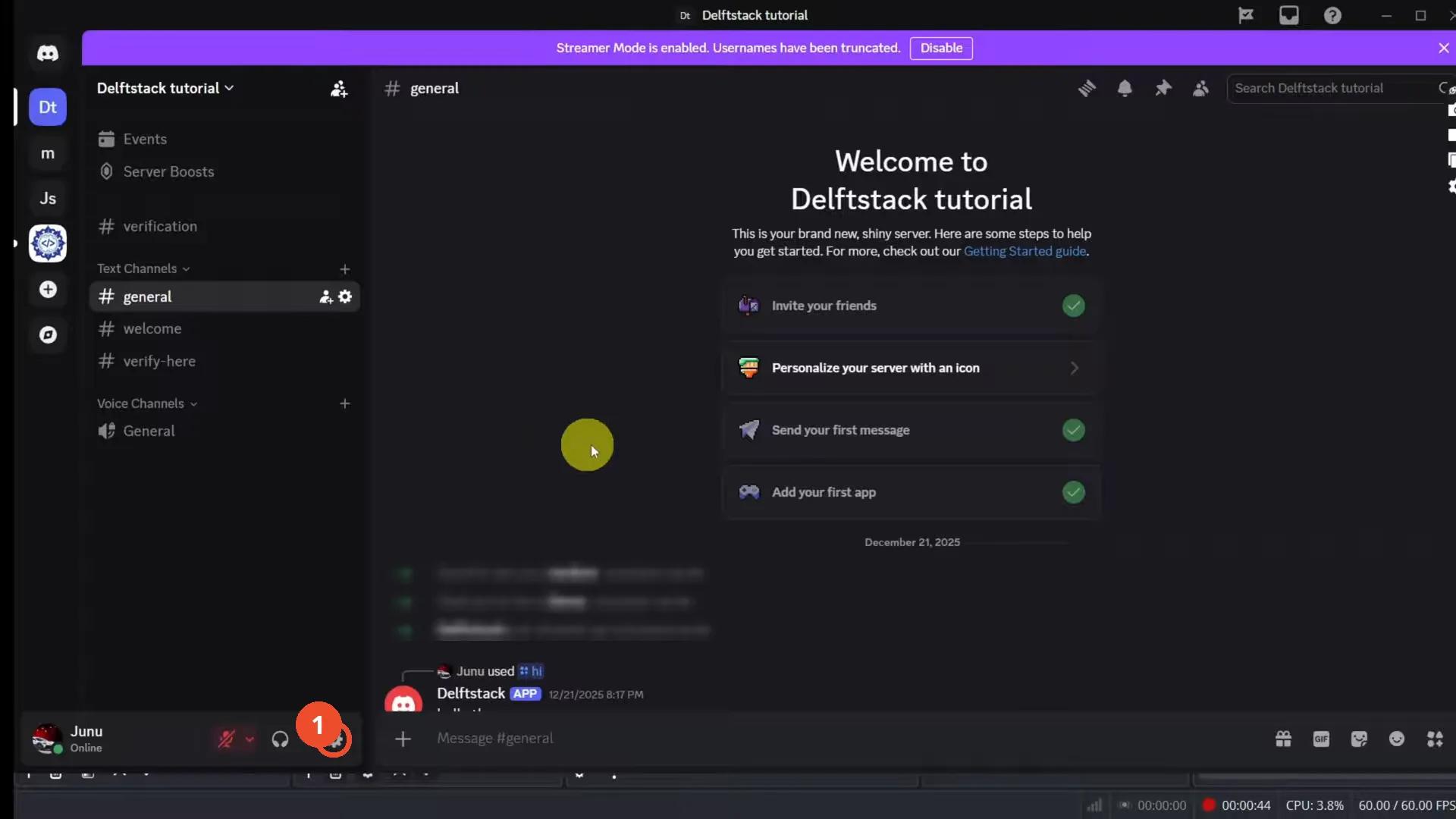
Open Discord and click the gear icon
Open Discord and click the gear icon at the bottom left, next to your profile, to open User Settings.
Open Windows Settings
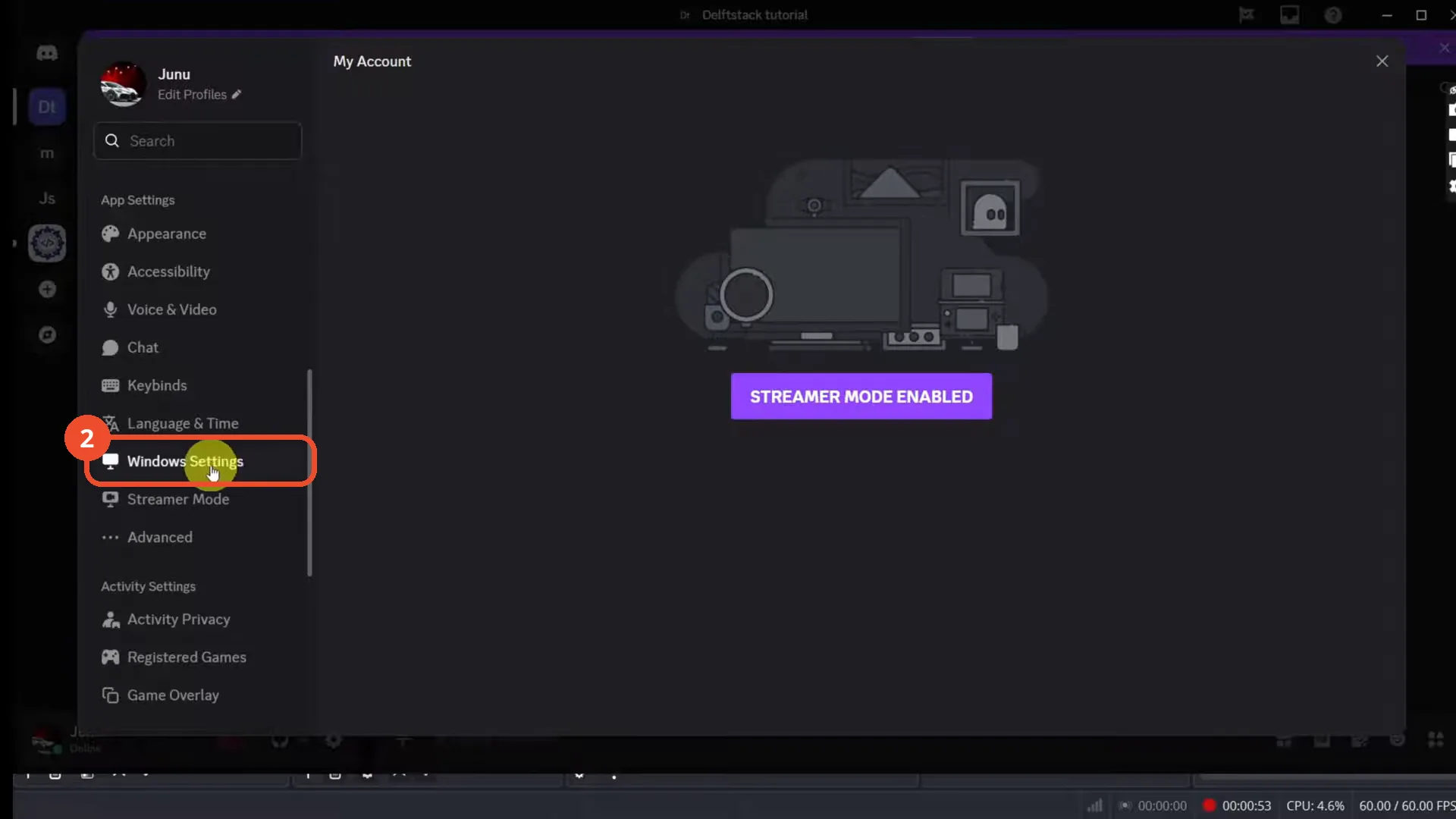
In User Settings, scroll down the left menu to App Settings and click Windows Settings.
Turn off Open Discord on Startup
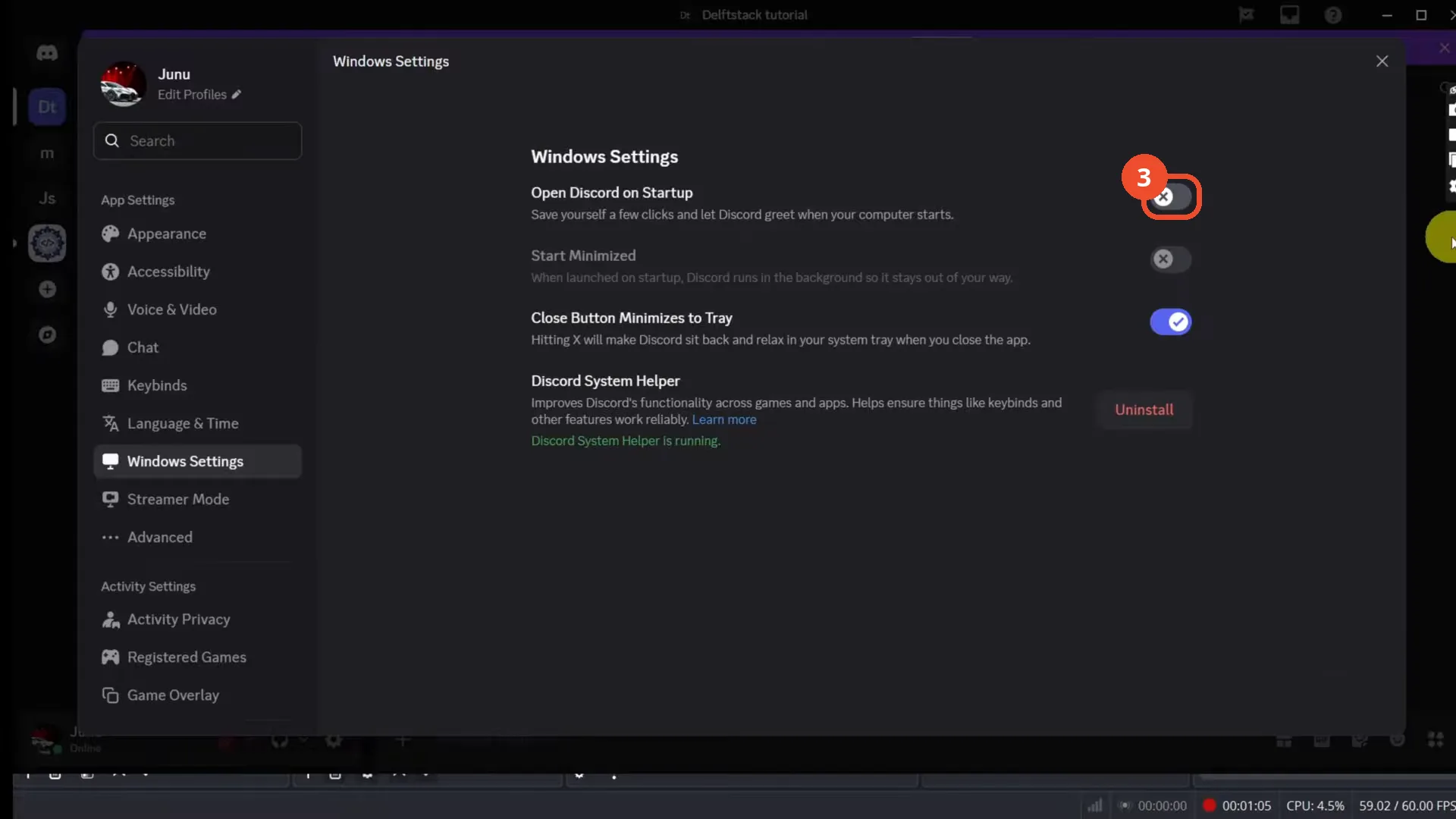
Switch off Open Discord on Startup at the top of the page. The toggle turns grey with an X — Discord will no longer launch when your computer starts.
Check Task Manager Startup apps (optional)
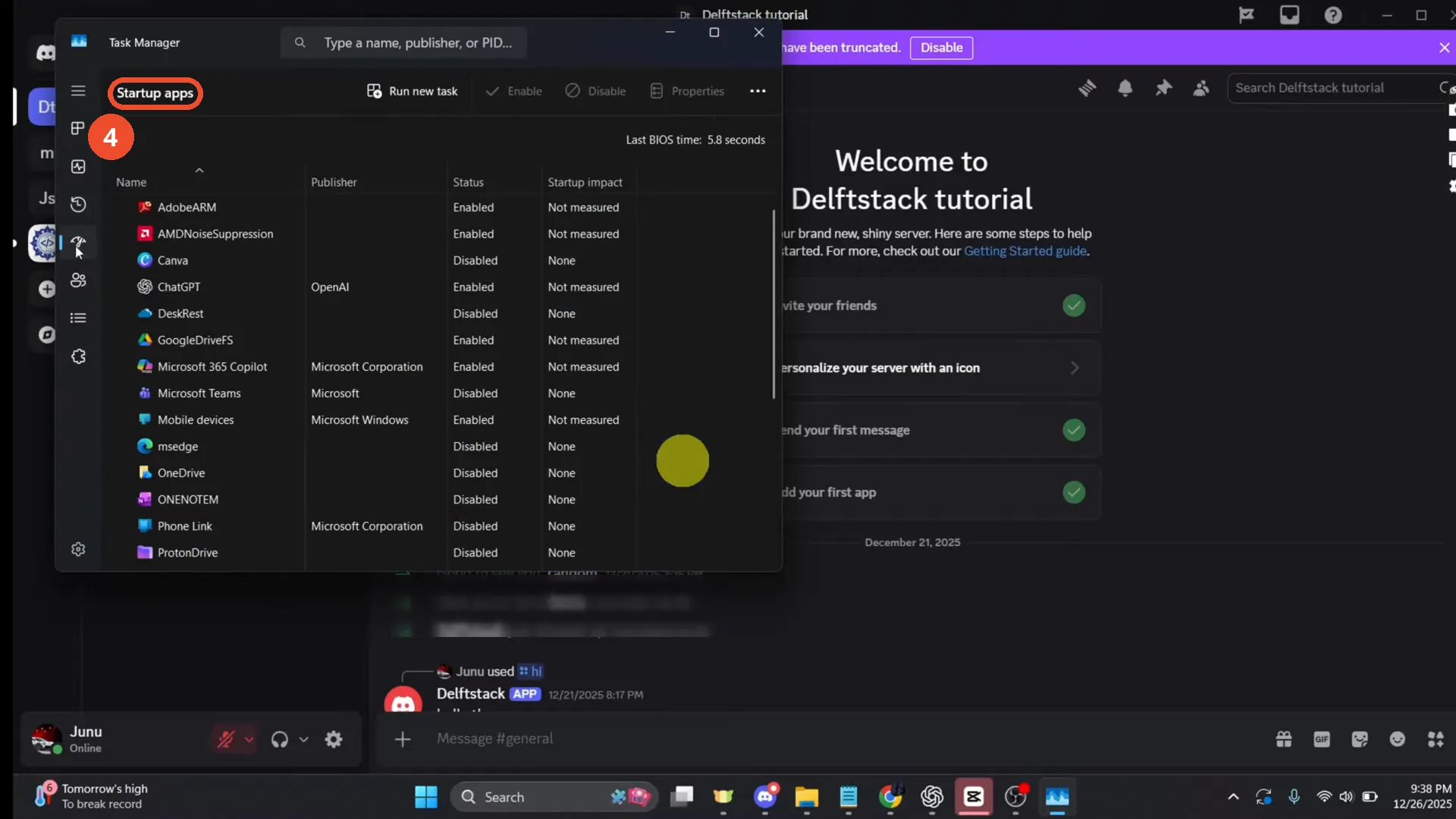
As a second check, press Ctrl+Shift+Esc to open Task Manager and open Startup apps. Look for Discord in the list: after step 3 it is gone from the list, which confirms startup is off. If you still see Discord listed as Enabled, right-click that Discord row and choose Disable.
Good to know
- Turning off the in-app switch is the fix: once it is off, Discord removes itself from Windows startup, so there is nothing left to disable in Task Manager.
- In the recording, the Task Manager right-click lands on the ChatGPT row, not on Discord — Discord has no row in the Startup apps list at that point. Do not disable another app’s row by mistake; the narration’s “right-click Discord and Disable” step is not what the film shows.
- Start Minimized and Close Button Minimizes to Tray are separate settings on the same page and do not control startup.
- This stops Discord launching at login. It does not sign you out or change anything inside Discord.
More on Discord
- How to Stop Spotify From Pausing on Discord
- How to See Who Owns a Discord Server
- How to Make Discord Open on a Second Monitor by Default
- How to Remove Someone from a Discord Group
- How to Self-Assign Roles in Discord Using ProBot
- How to Scan a QR Code with the Discord Mobile App
- How to Stream OBS to Discord with Sound
- How to Create a Discord Server Template Link
- How to Make Your Name Invisible on Discord
- How to Send a Discord Friend Request
- How to Turn Off DMs on Discord
- How to Enable Age-Restricted Commands on Discord Mobile
- How to Zoom In and Out on Discord
- How to Create a GIF and Share It in Discord
- How to Exit Full Screen on Discord
- How to Send Files Through Discord
- How to Skip a Line in Discord
- How to Find Gradient Role Settings in Discord (Nitro Required)
- How to Make an Animated Discord Banner GIF in CapCut
- How to Add Discord Audio to OBS
- How Discord Text-to-Speech Works (TTS Explained for Text Channels)
- How to Highlight Text in Discord on Desktop
- How to Add Someone to an Ongoing Discord Voice or Video Call
- How to Fix Discord Freezing When Closing Valorant
- How to Type in Bold on Discord
- How to Add a Welcome Channel to Your Discord Server
- How to Listen to Spotify with Friends on Discord
- How to Italicize Text in Discord
- How to Hide Game Activity on Discord
- How to Add a Music Bot to Discord
- How to Search and Find Discord Servers Using Discovery