How to Send Files Through Discord
Files go into Discord through the + button next to the message box. Pick the file, review it in the attachment dialog, add a message if you like, and send — other members can then download it from the channel. Demonstrated on the Discord web app in Chrome on Windows.
- SystemWindows
- AppDiscord web app
- Also works onDiscord desktop app (the same + menu and Upload a File option).
- Last verifiedOctober 31, 2026
Every screenshot below is taken from the actual recording on this device — no stock images.
Steps
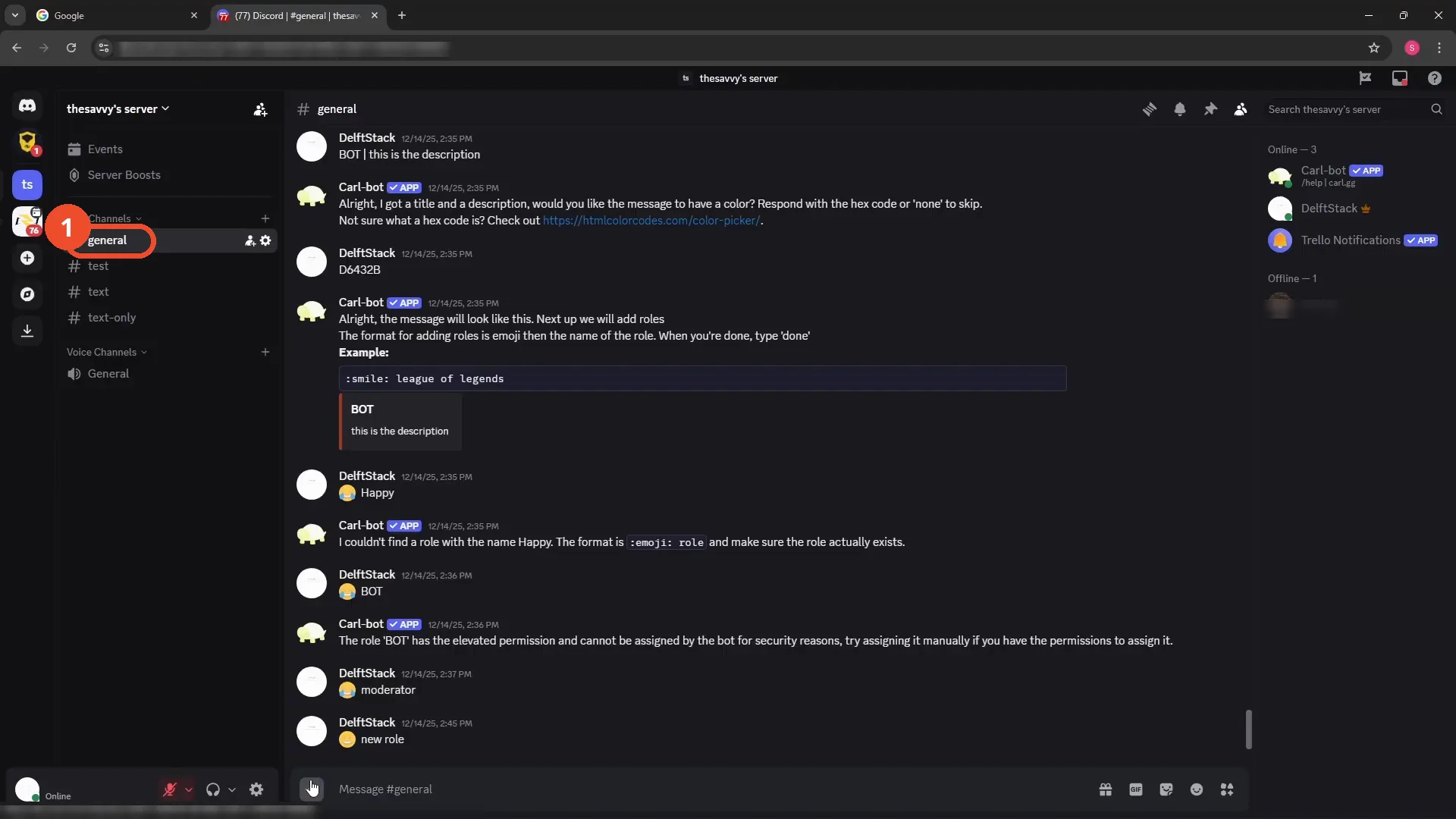
Open your server and channel
Open Discord (the website or the app), go to one of your servers, and open the channel you want to send the file to — here, #general.
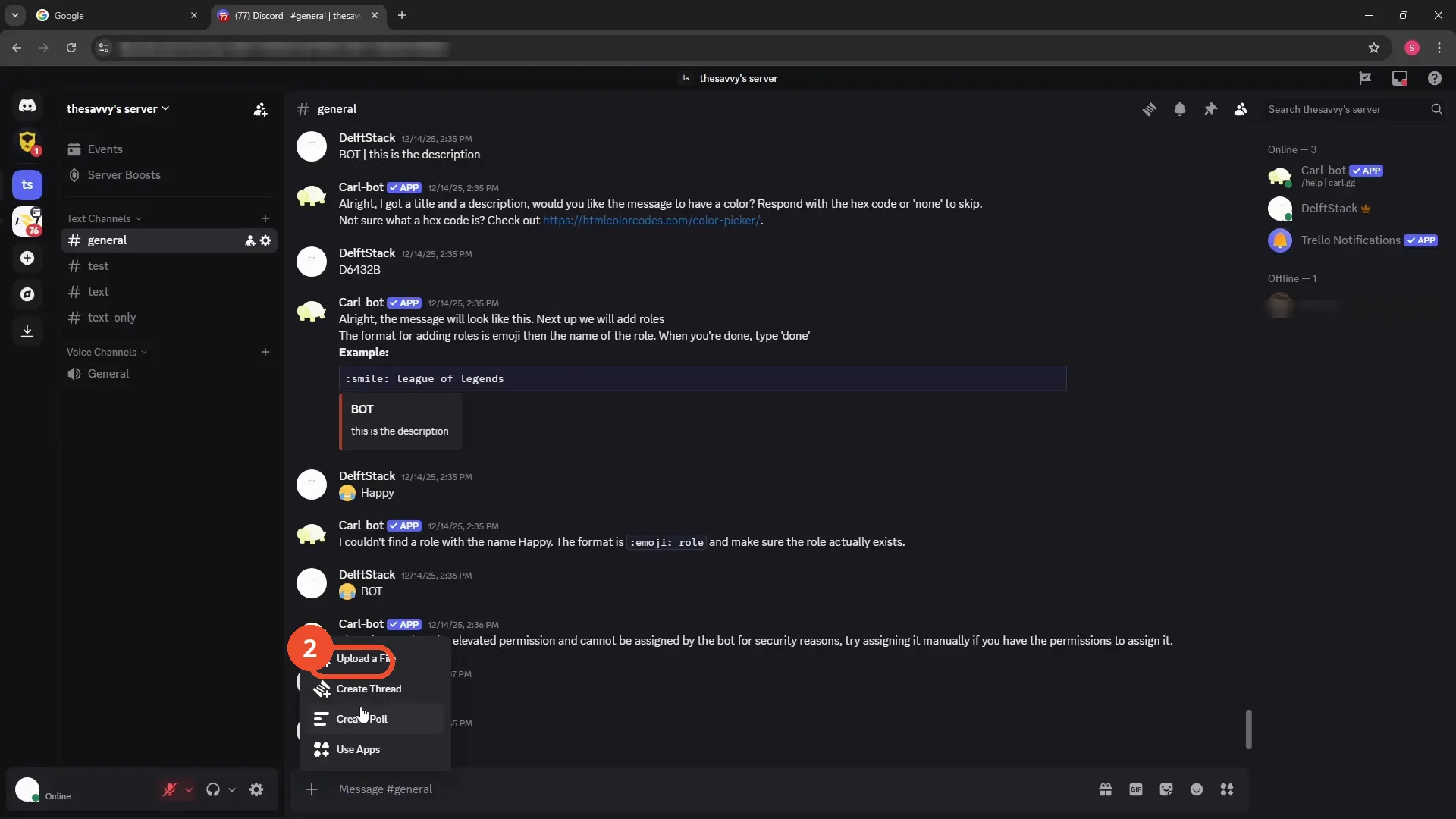
Click + and choose Upload a File
Click the + icon at the left of the message box, then choose Upload a File from the menu.
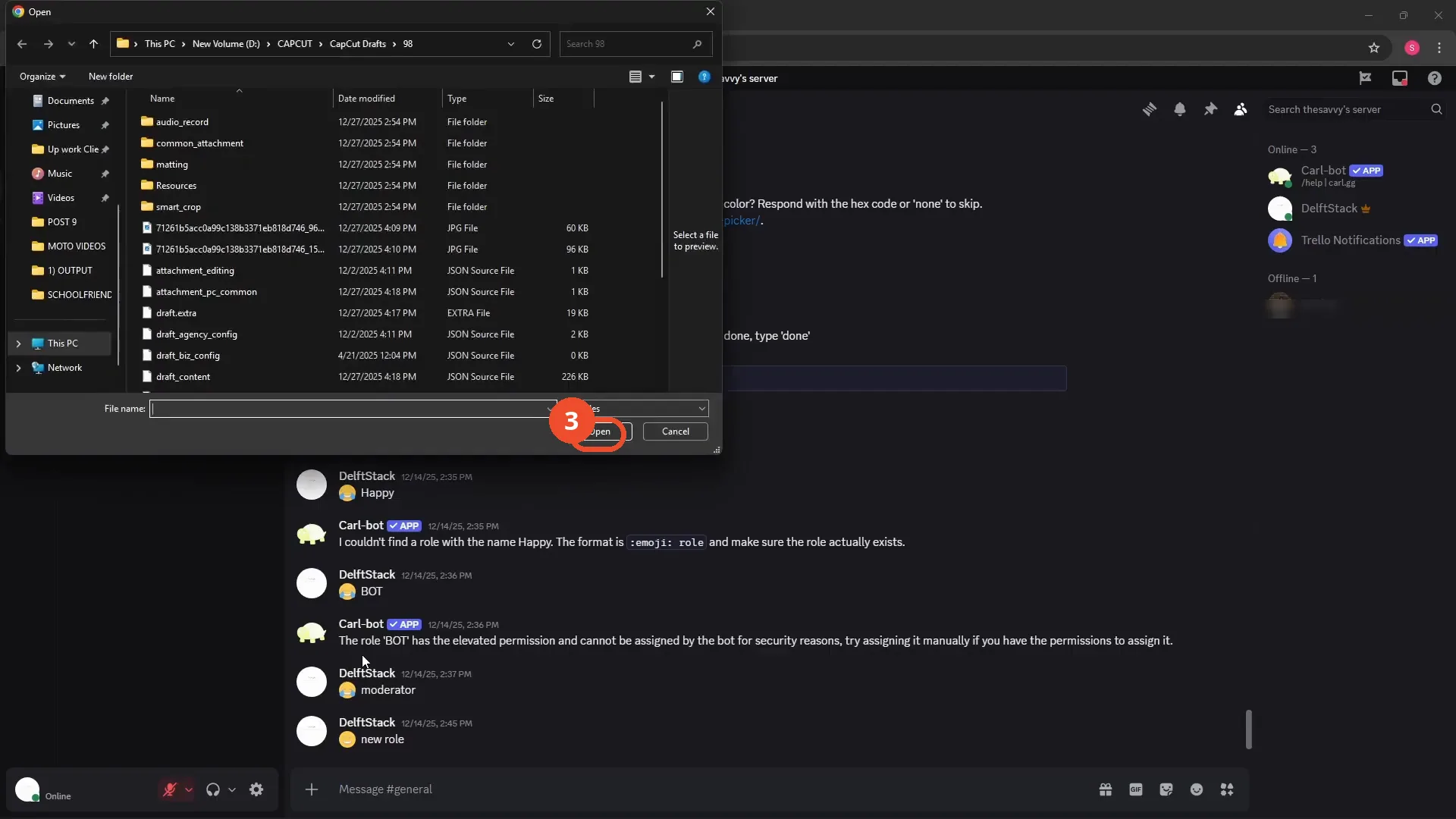
Pick the file and click Open
In the file picker, locate the file you want to send and click Open. The demo picks a JSON source file.
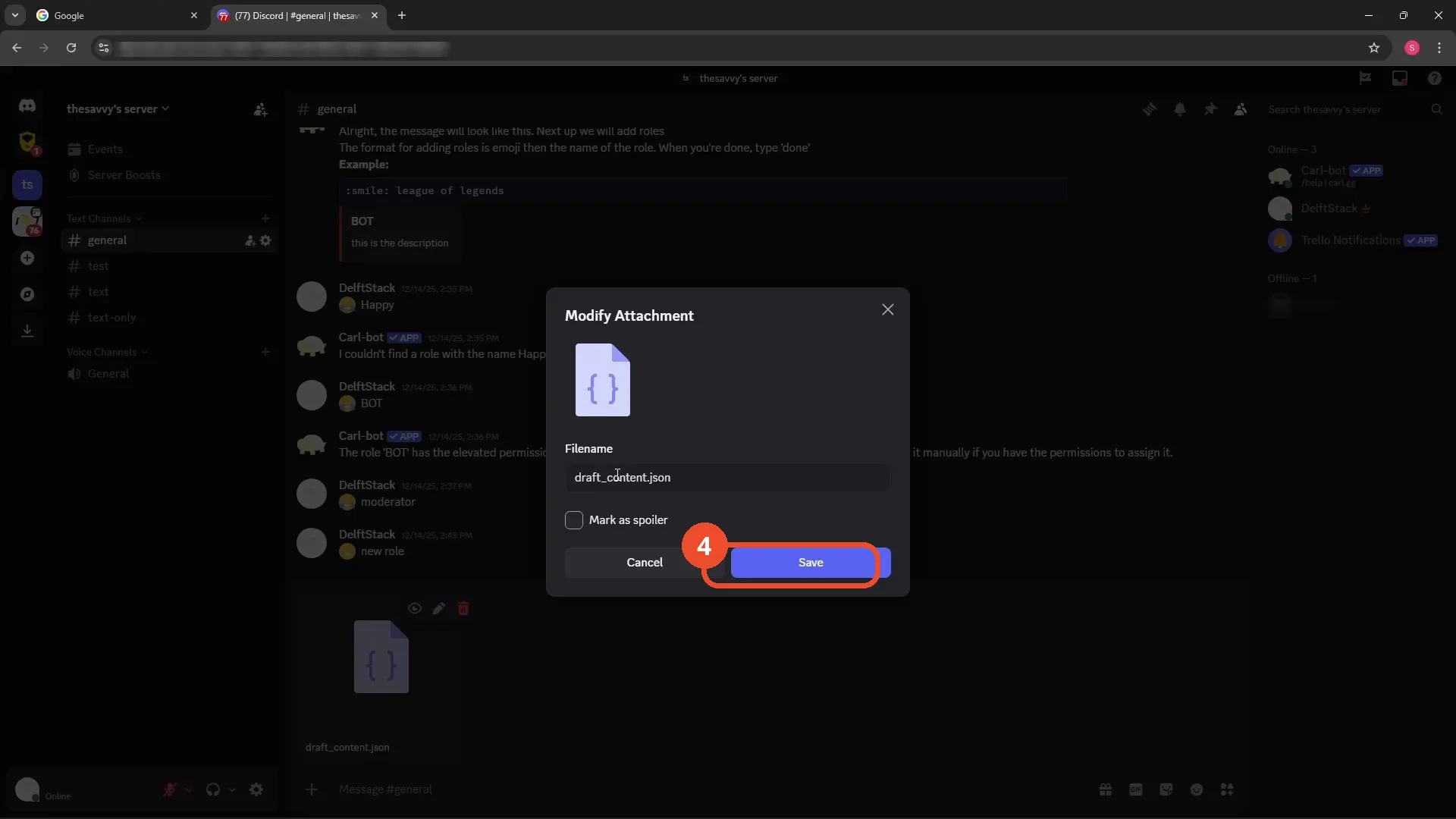
Review the attachment and save
In the Modify Attachment dialog you can rename the file and tick Mark as spoiler if you want it hidden until clicked. Click Save, then type a short message about the file in the message box if you like.
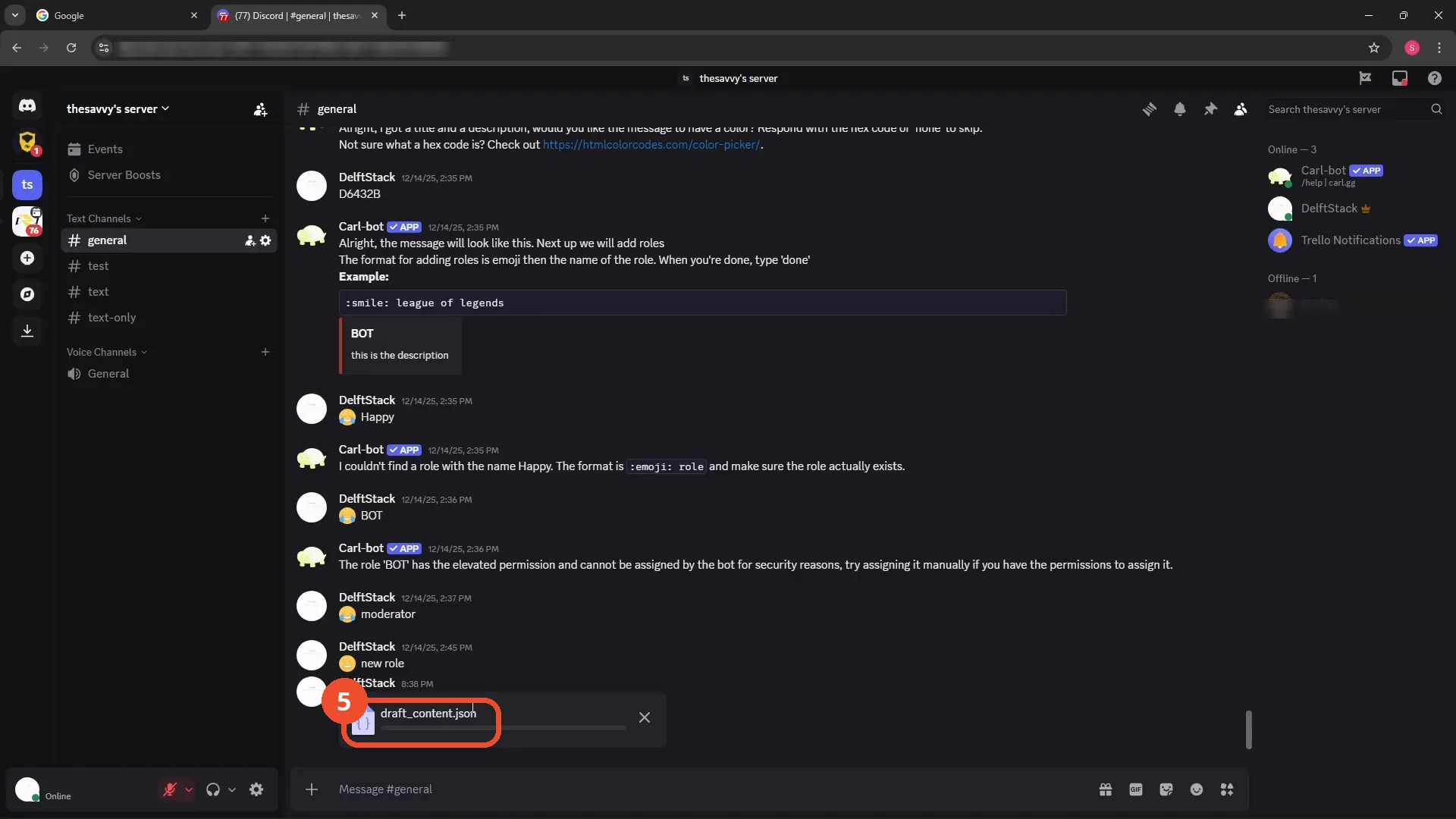
Send the file
Send the message. The file now appears in the channel, and other members can open or download it from there.
Good to know
- Any file type Discord accepts can be sent this way; the demo sends a JSON source file.
- Tick Mark as spoiler in the attachment dialog to hide the file until members click it.
- You can rename the file in the Modify Attachment dialog before sending.
- Sent files stay in the channel so other members can download them later.
More on Discord
- How to Stop Spotify From Pausing on Discord
- How to See Who Owns a Discord Server
- How to Make Discord Open on a Second Monitor by Default
- How to Remove Someone from a Discord Group
- How to Self-Assign Roles in Discord Using ProBot
- How to Scan a QR Code with the Discord Mobile App
- How to Stream OBS to Discord with Sound
- How to Create a Discord Server Template Link
- How to Make Your Name Invisible on Discord
- How to Send a Discord Friend Request
- How to Turn Off DMs on Discord
- How to Enable Age-Restricted Commands on Discord Mobile
- How to Zoom In and Out on Discord
- How to Add Someone to an Ongoing Discord Voice or Video Call
- How to Create a GIF and Share It in Discord
- How to Exit Full Screen on Discord