How to Send a Discord Friend Request
Discord has two ways to add someone: send a friend request by username, or bring them into your server with an invite. Both are shown here.
- SystemWindows
- AppDiscord desktop app
- Also works onDiscord web app (the Friends page looks the same)
- Last verifiedOctober 29, 2026
Every screenshot below is taken from the actual recording on this device — no stock images.
Steps
Open Direct Messages
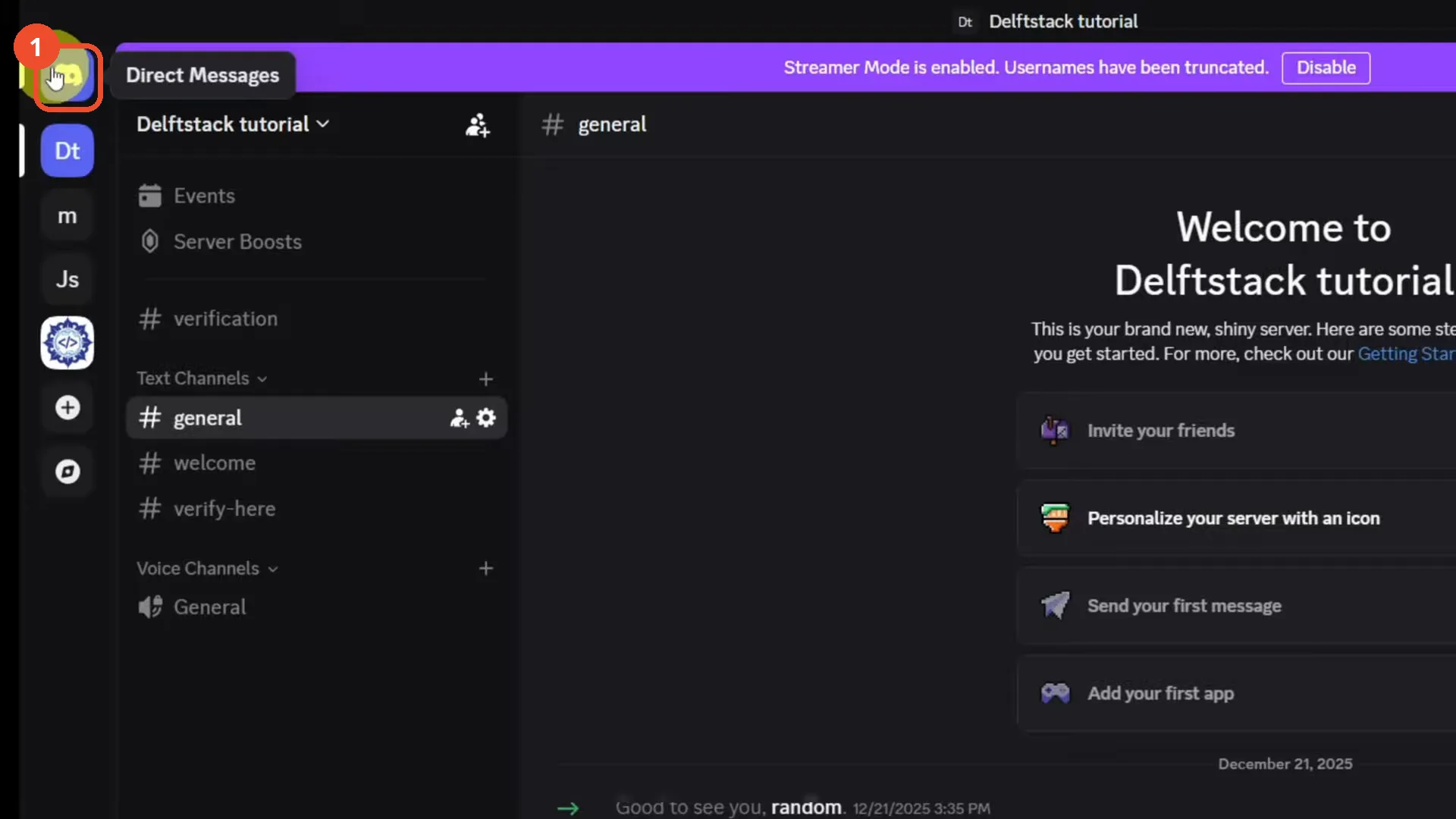
In Discord, click the Discord logo at the top left to open Direct Messages.
Open Add Friend
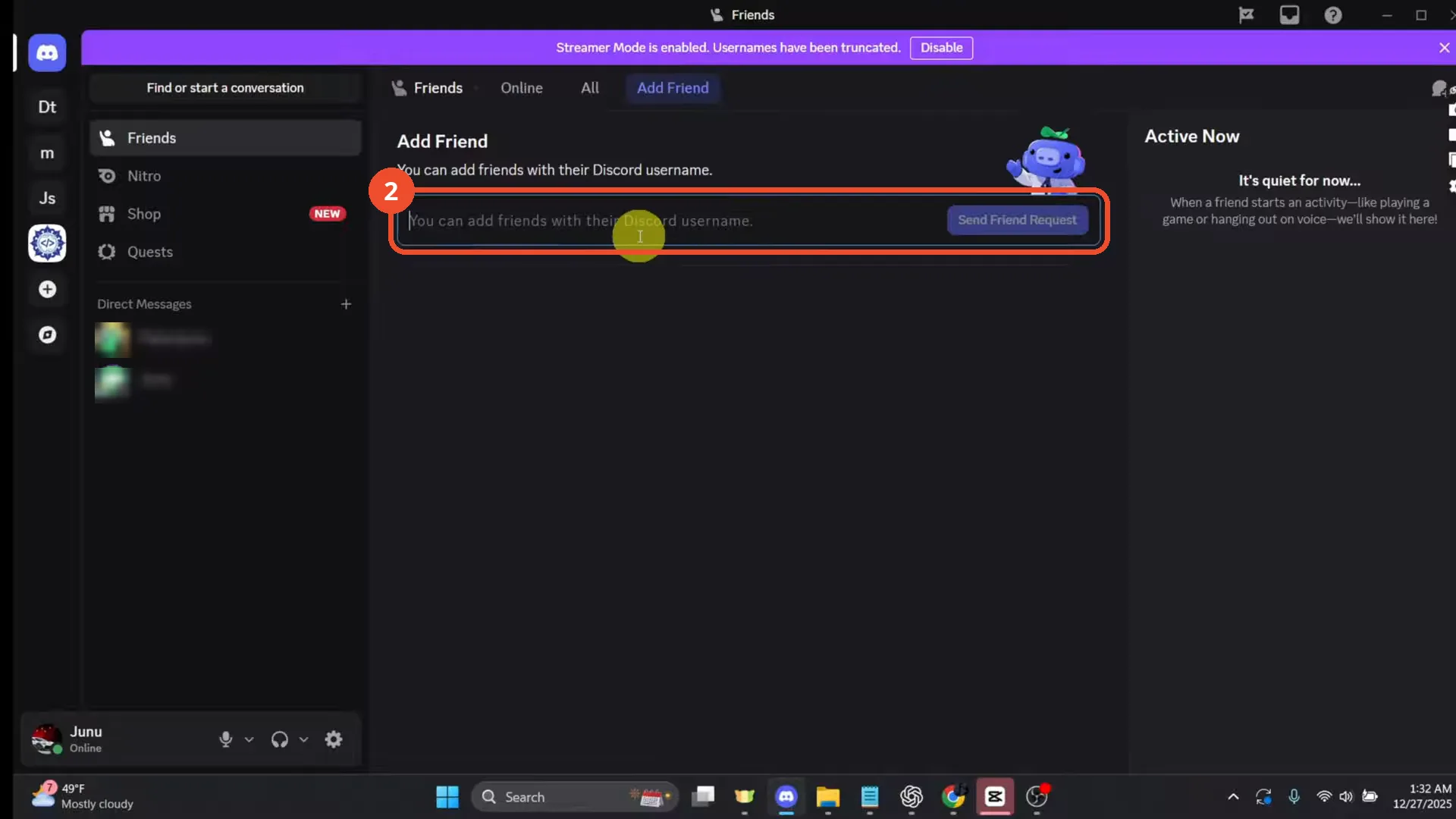
At the top of the Friends page, click Add Friend. Type the person’s exact Discord username in the field.
Send the friend request
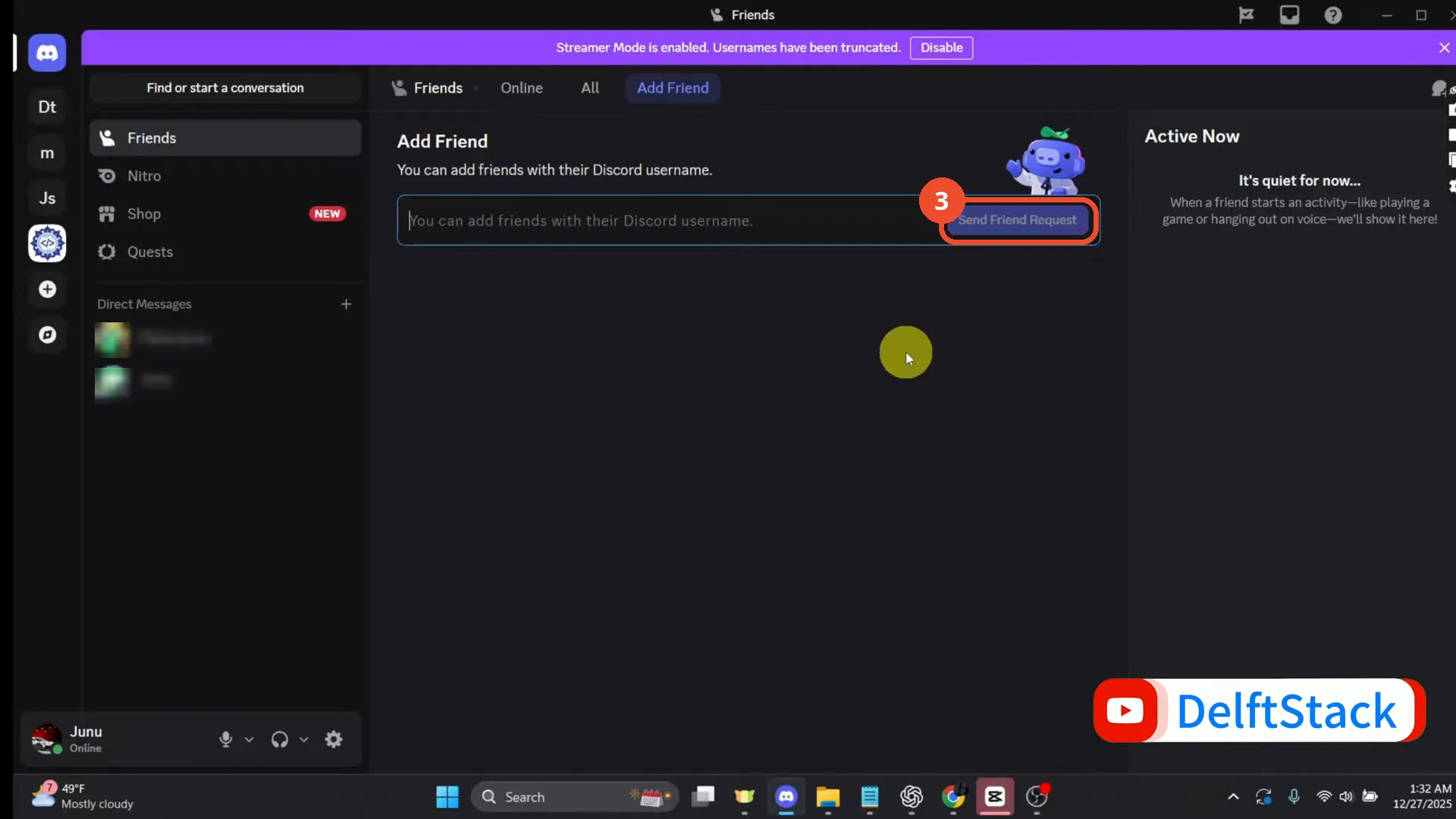
Type the username, then click Send Friend Request (the button activates once text is entered).
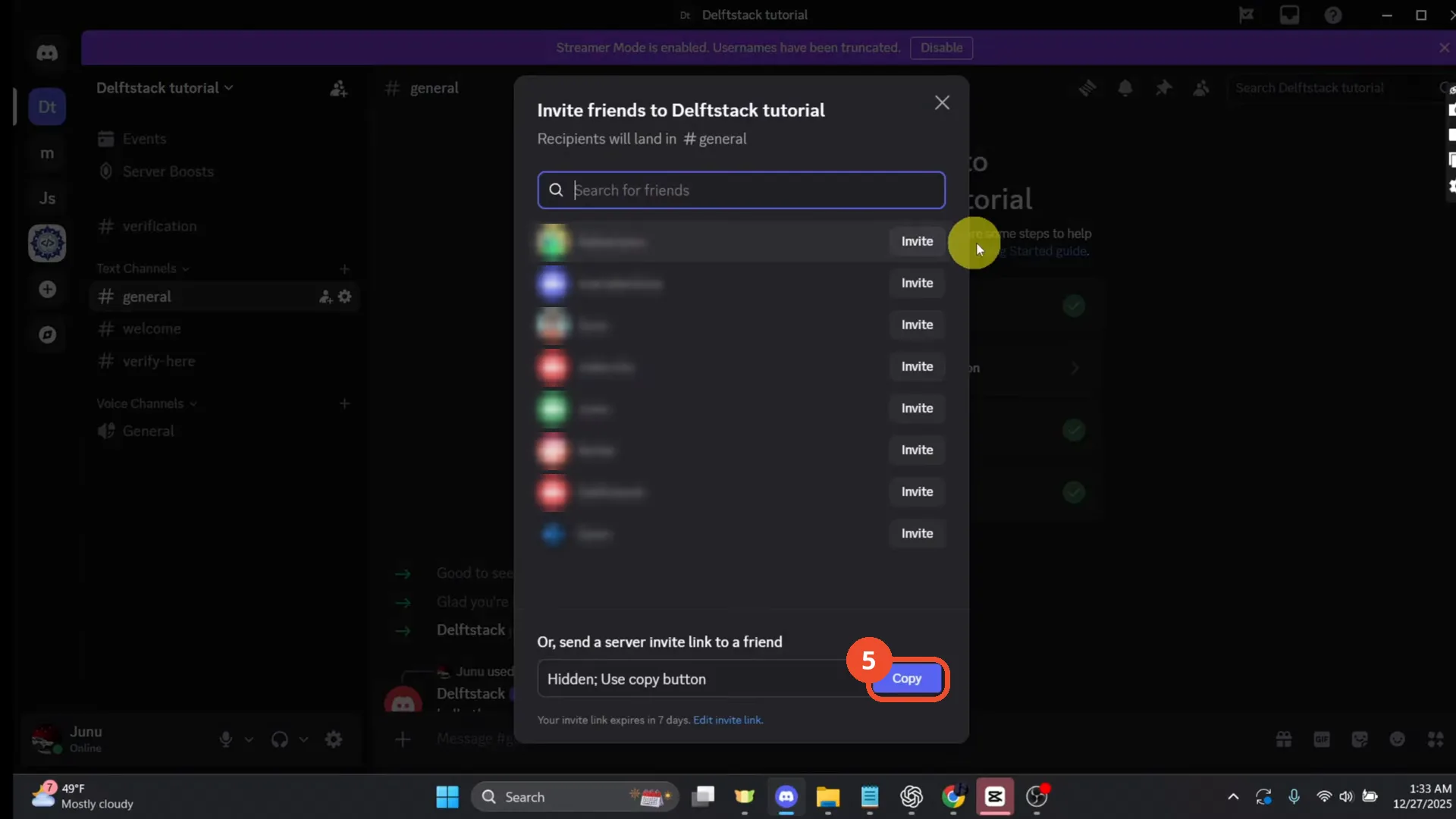
Open the server invite dialog
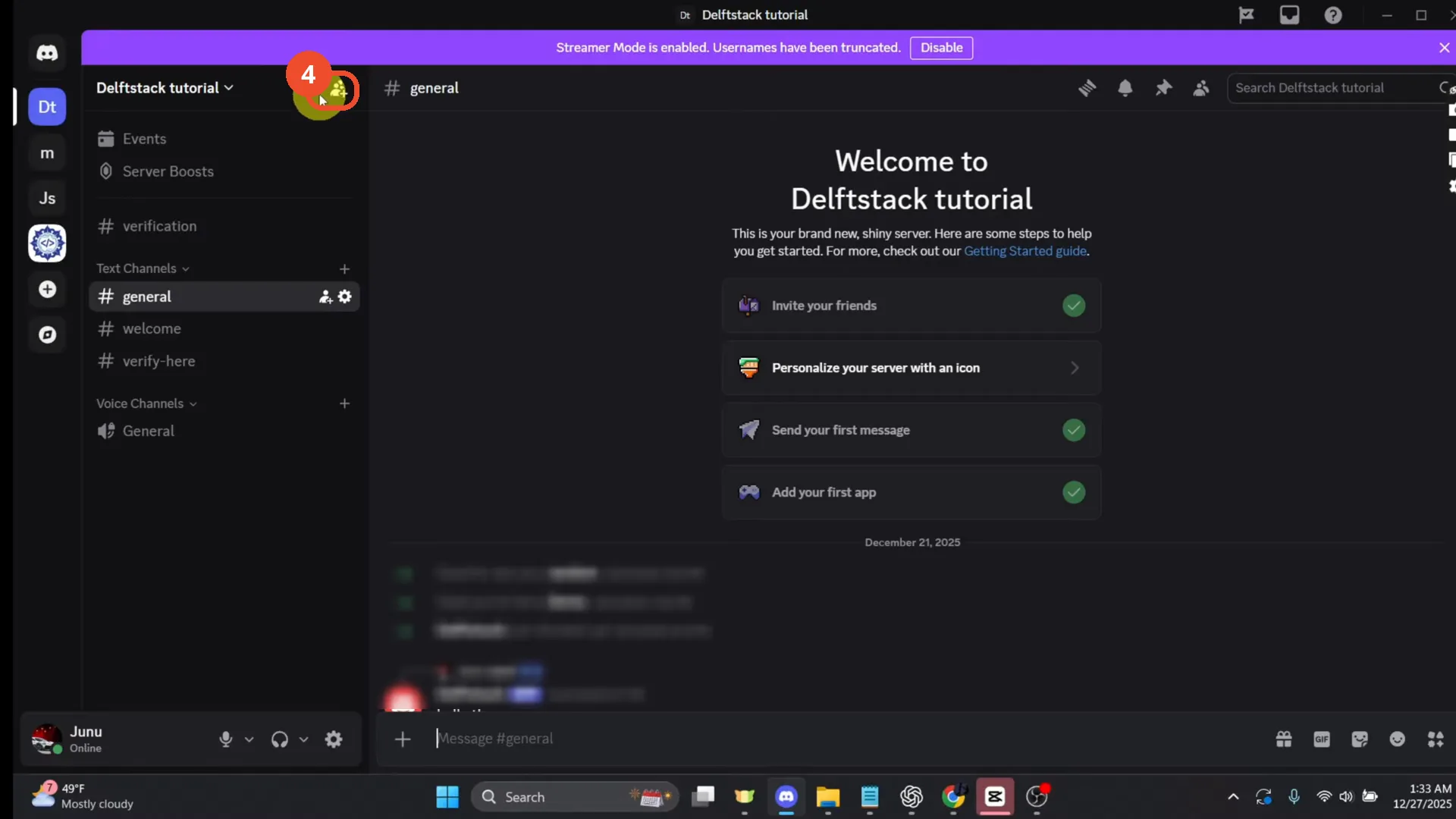
Or, from a server, click the invite (person with a plus) icon at the top of the channel list to open Invite friends.
Invite a friend or copy the link
Click Invite next to any friend, or scroll down and click Copy to send the server invite link anywhere. Recipients land in #general, and the link expires in 7 days.
Good to know
- Discord no longer uses name#1234 tags — the Add Friend form asks only for the username, so no numbers are needed.
- A friend request does nothing until the other person accepts it; until then it sits in Pending.
- The server invite link in the video expires in 7 days — use Edit invite link if you need a longer-lived one.
More on Discord
- How to Stop Spotify From Pausing on Discord
- How to See Who Owns a Discord Server
- How to Make Discord Open on a Second Monitor by Default
- How to Remove Someone from a Discord Group
- How to Self-Assign Roles in Discord Using ProBot
- How to Scan a QR Code with the Discord Mobile App
- How to Stream OBS to Discord with Sound
- How to Add Someone to an Ongoing Discord Voice or Video Call
- How to Create a Discord Server Template Link
- How to Make Your Name Invisible on Discord