How to Self-Assign Roles in Discord Using ProBot
Reaction-role bots are the classic way to let members pick their own roles, and ProBot’s take on it uses buttons instead of emoji reactions: you post one message, attach a button per role, and members click to give themselves a role and click again to drop it. The recording builds the whole thing in the demo server “Delftstack tutorial”: four plain roles (role 1–role 4) already exist, ProBot gets added, an embed goes to #general, and the last shot shows the role badges landing on the test profile.
- SystemWindows (browser)
- AppDiscord web app + ProBot dashboard
- Also works onAny Discord server where you can manage roles
- Last verifiedOctober 28, 2026
Every screenshot below is taken from the actual recording on this device — no stock images.
Before you start
- You need the Manage Roles permission on the server — without it you cannot create roles or authorize the bot.
- Create the roles before opening ProBot; the dashboard can only hand out roles that already exist.
- Role order matters: a bot can only assign roles that sit below its own role in Server Settings → Roles. Step 4 is the one everyone forgets.
Steps
Create the roles first
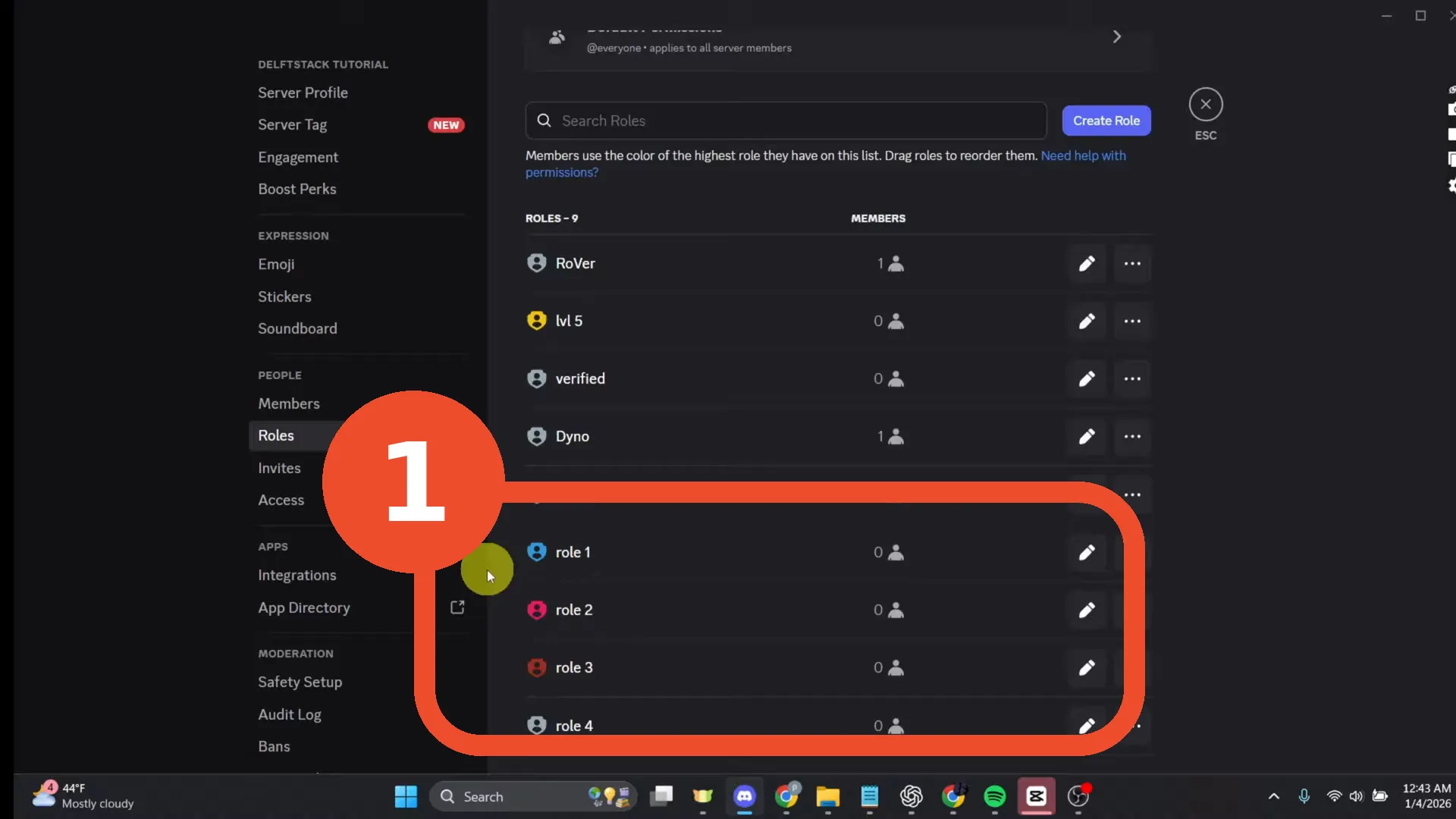
In Server Settings → Roles, create every role members should be able to pick. The demo server keeps it simple: role 1, role 2, role 3 and role 4.
Find ProBot in the App Directory
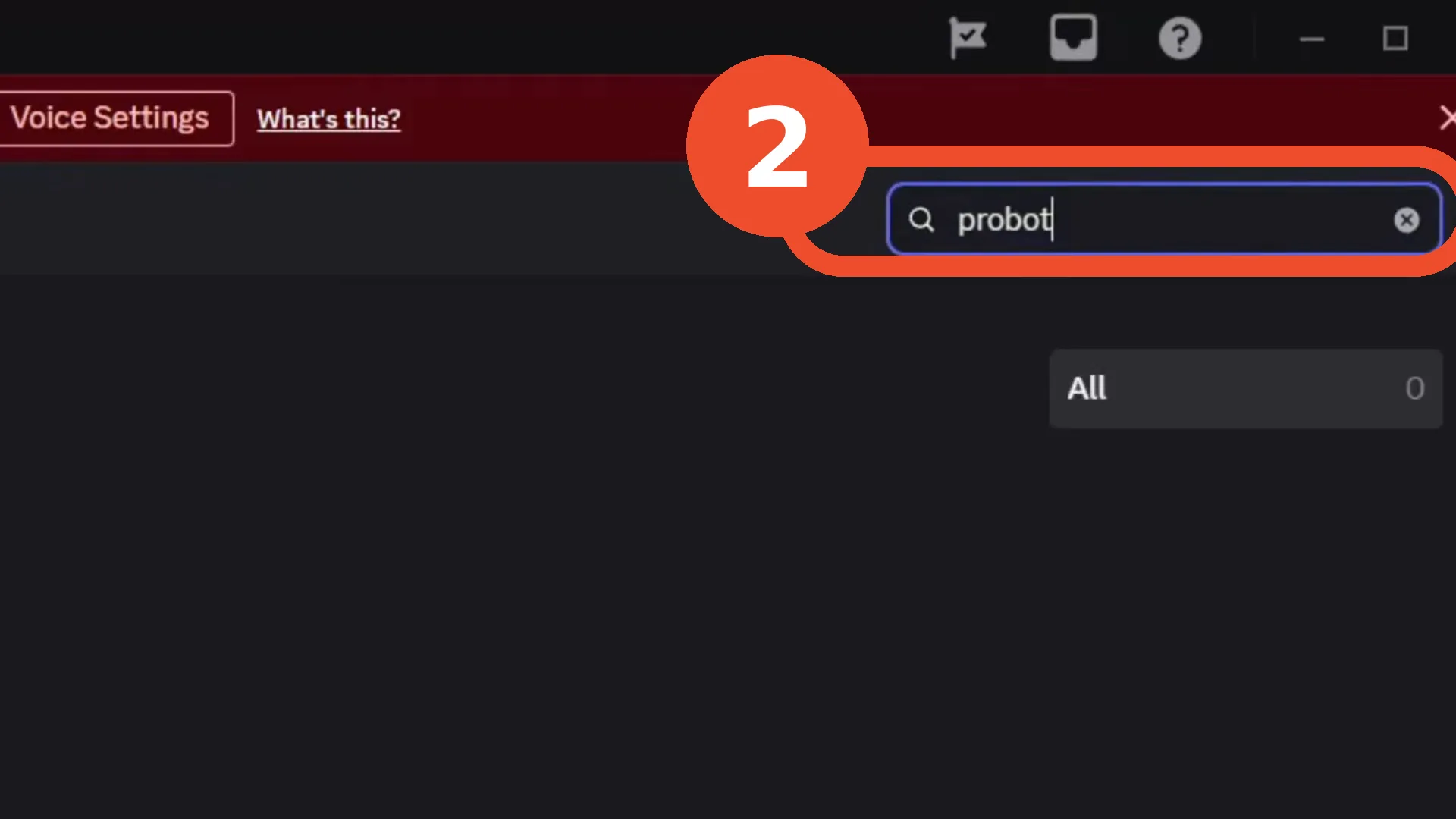
Still in Server Settings, open App Directory and search probot.
Authorize ProBot for your server
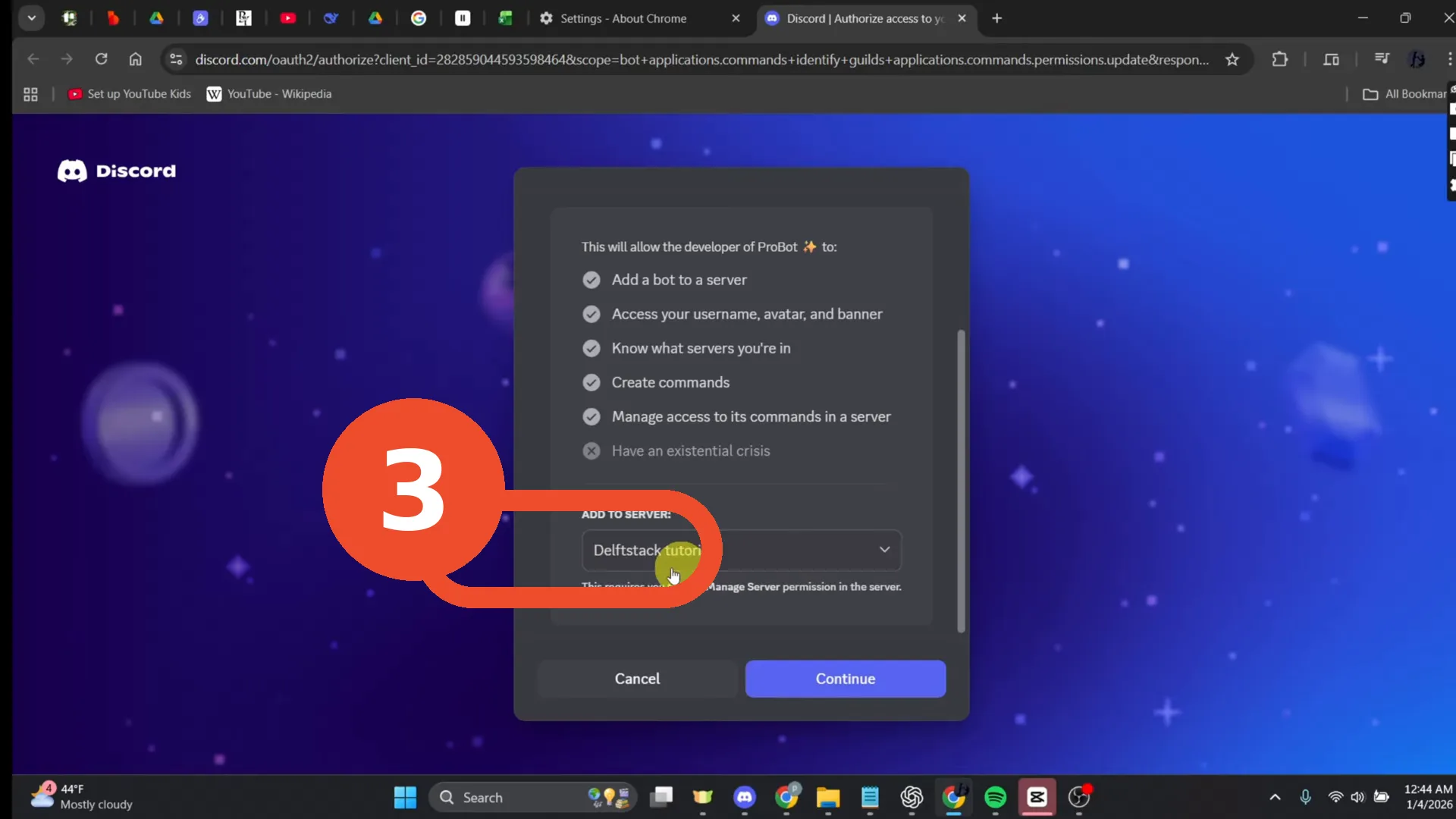
On ProBot’s page, add it to your server: choose the server in the Add to server dropdown (here: Delftstack tutorial) and click Continue, then approve the permissions.
Move the ProBot role above your roles
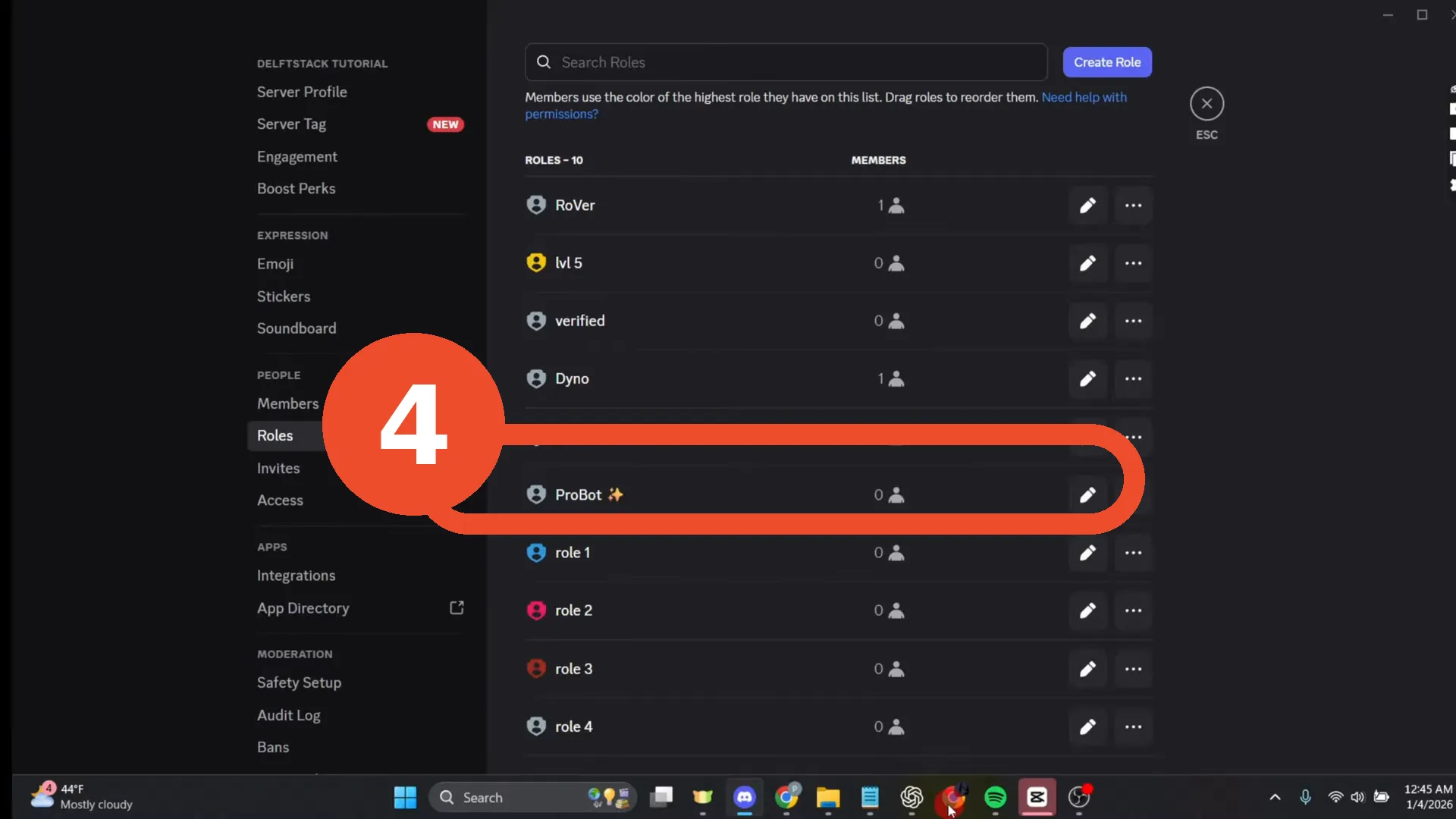
Back in Server Settings → Roles, drag the new ProBot role above the roles it must hand out (here: above role 1). If ProBot’s role stays below yours, assigning will silently fail.
Create the embed in ProBot
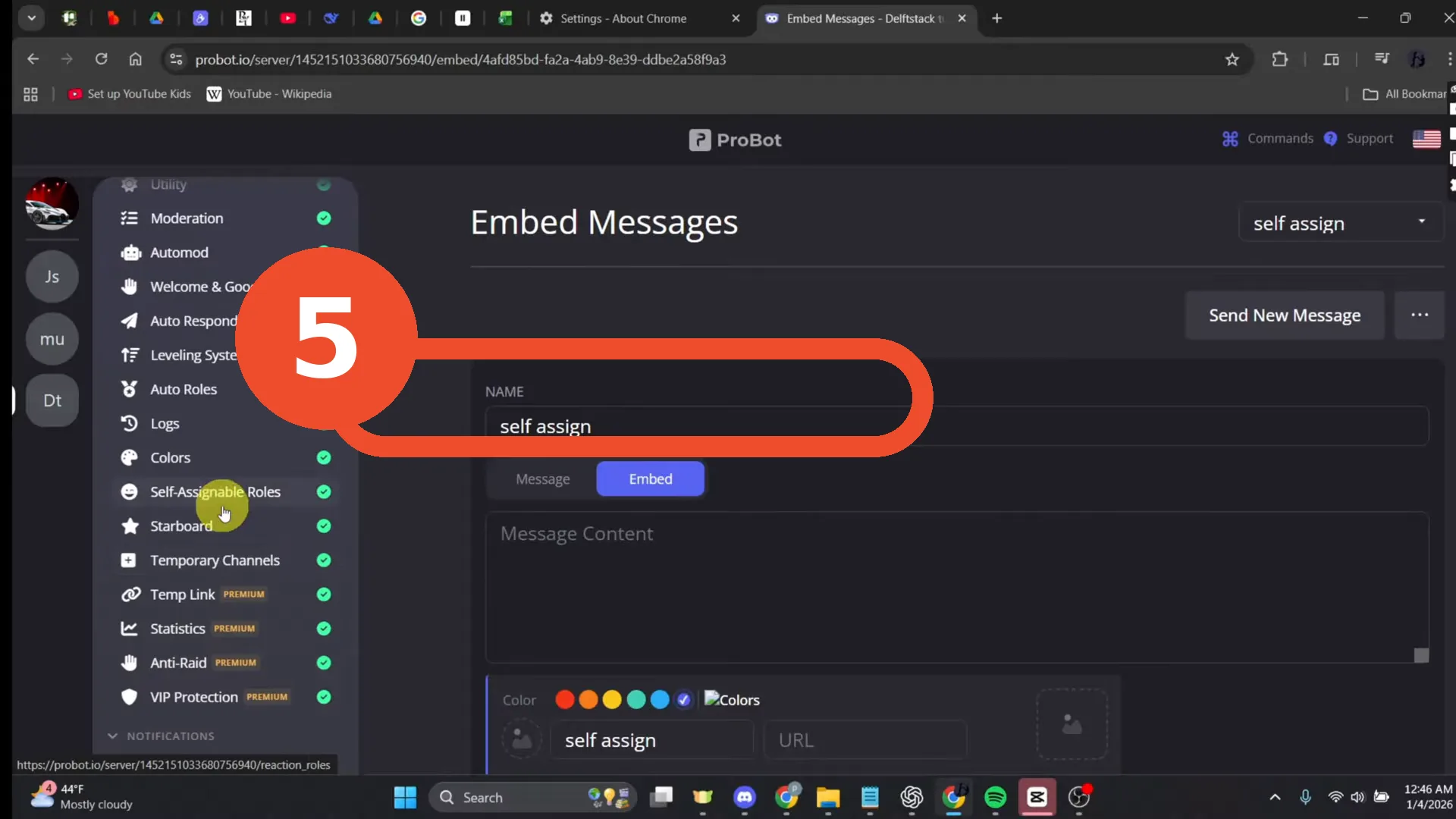
Open the ProBot dashboard for your server → Embed Messages and create the message members will see. The recording names it self assign and writes a short “choose a role” text as an embed.
Send the embed to a channel
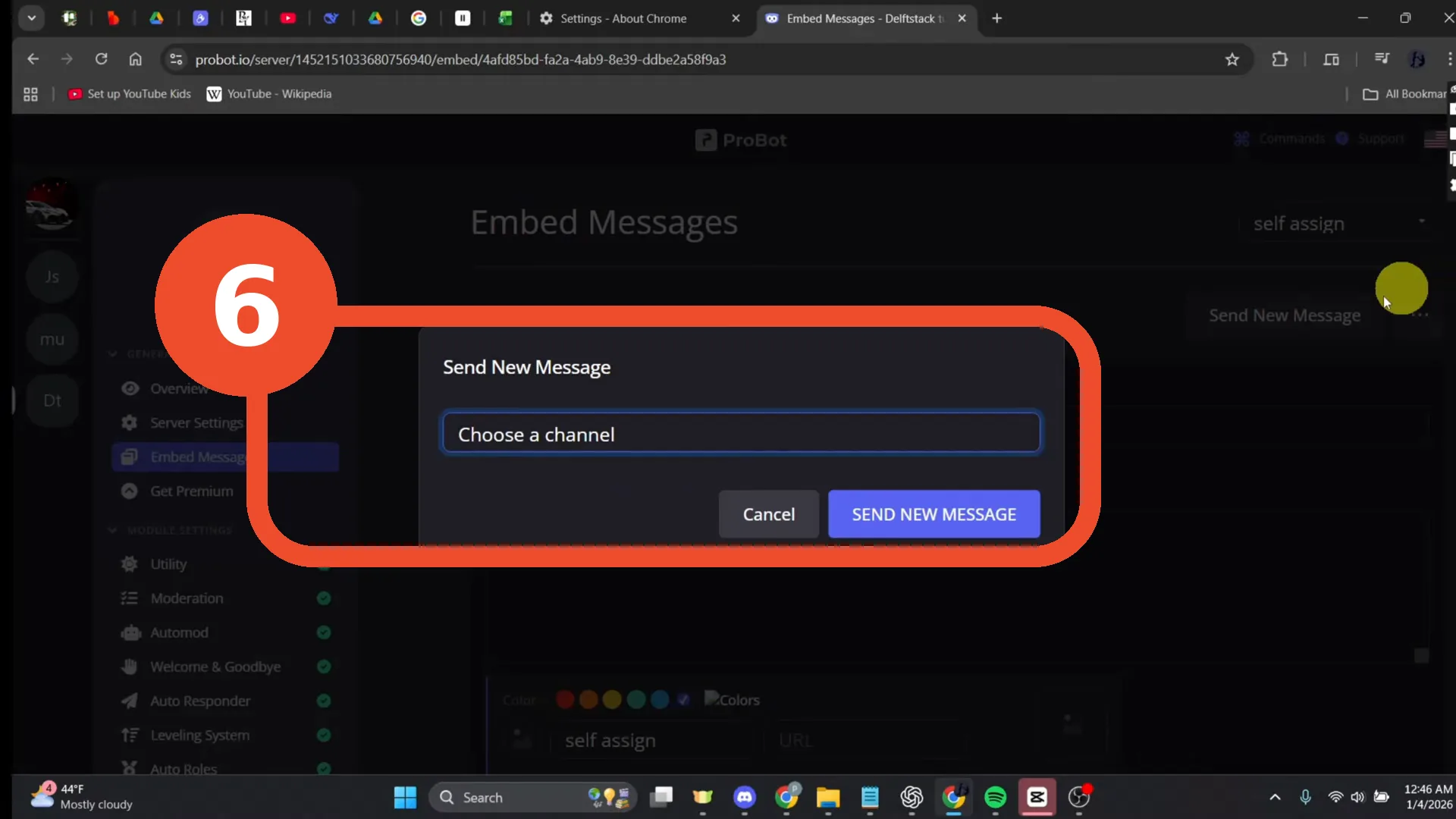
Click Send New Message, choose the channel (#general) and press SEND NEW MESSAGE. The embed now exists as a real message in your server.
Select that message in Self-Assignable Roles
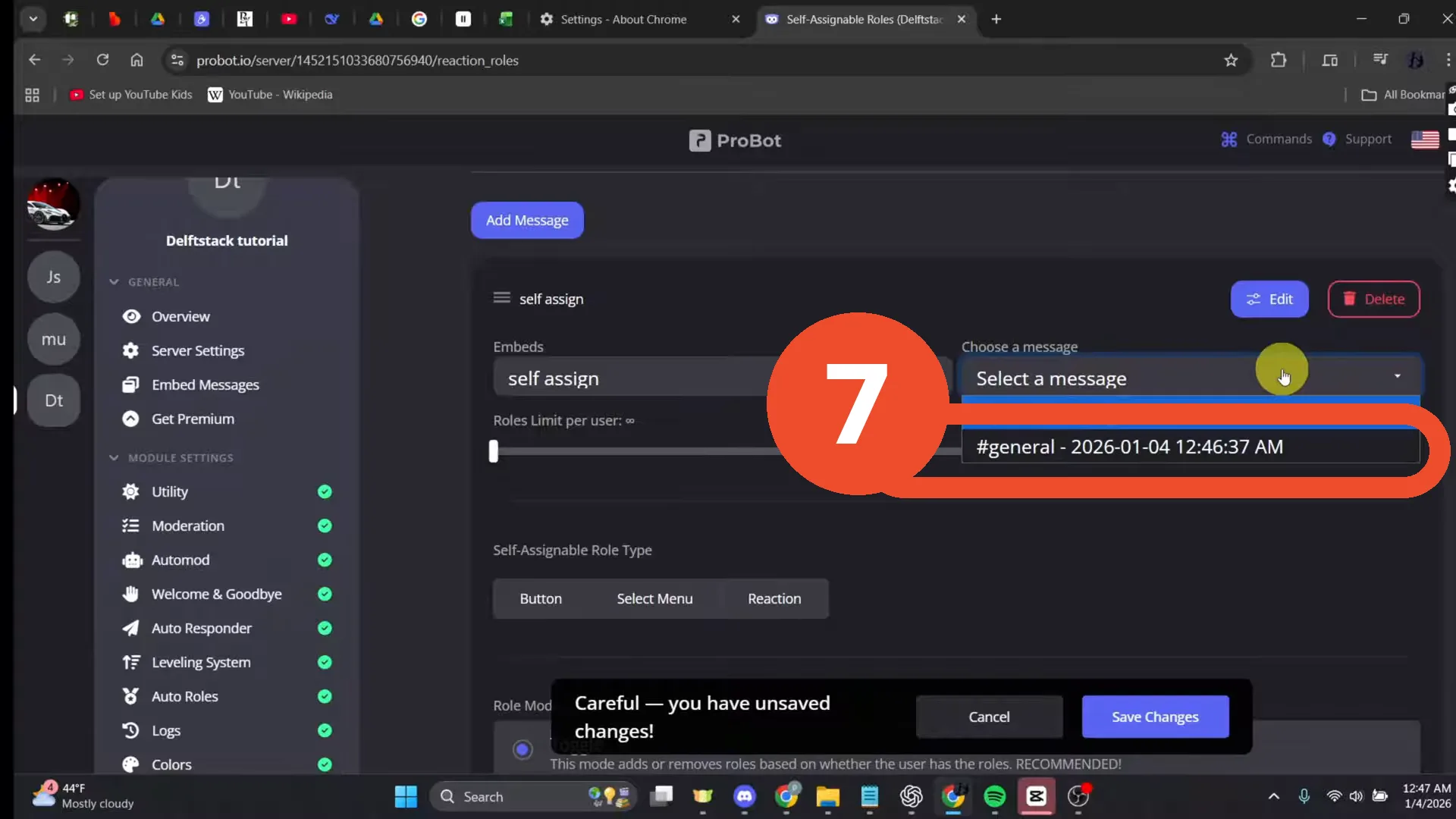
In the dashboard, open Self-Assignable Roles and, under Choose a message, select the message you just sent — it is listed by channel and timestamp (#general - 2026-01-04 12:46:37 AM in the recording).
Add one button per role
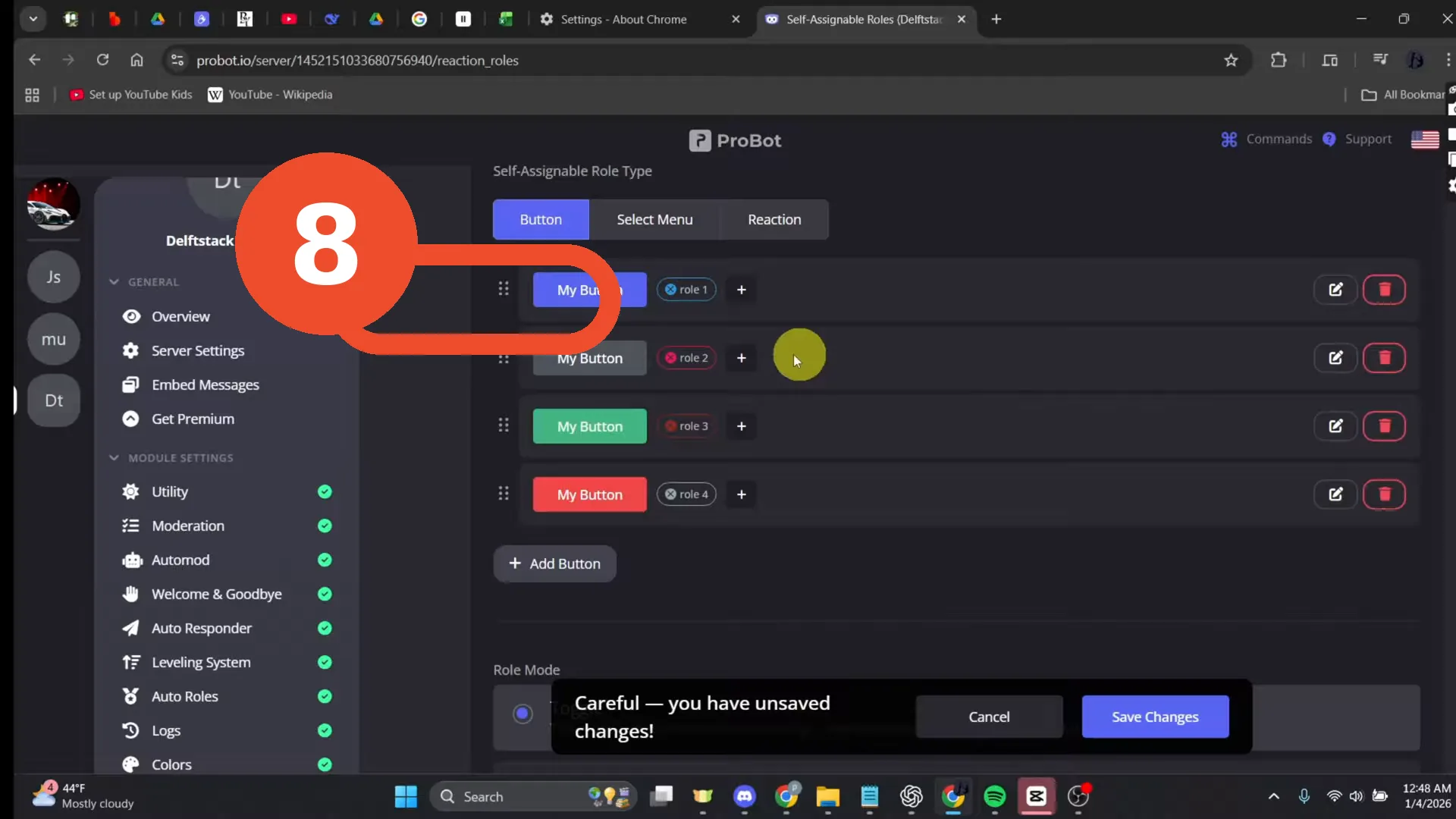
Set the type to Button. For each role: add a button, pick its colour, bind the role, and label the button with the role’s name (the recording works through role 1 to role 4 the same way).
Set Role Mode to Toggle and save
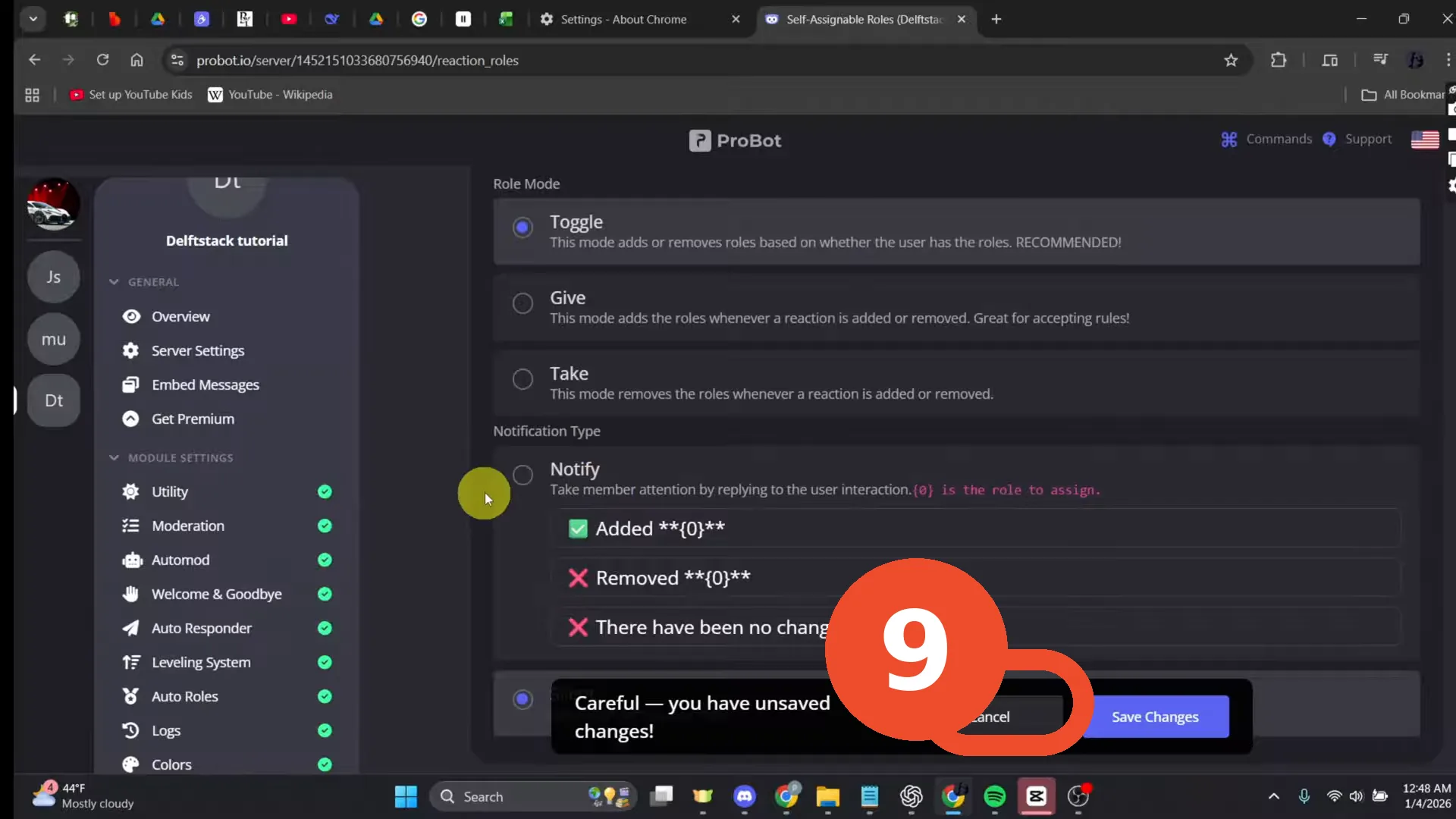
Under Role Mode choose Toggle — one click assigns the role, the next click removes it — then click Save Changes.
Test the buttons in Discord
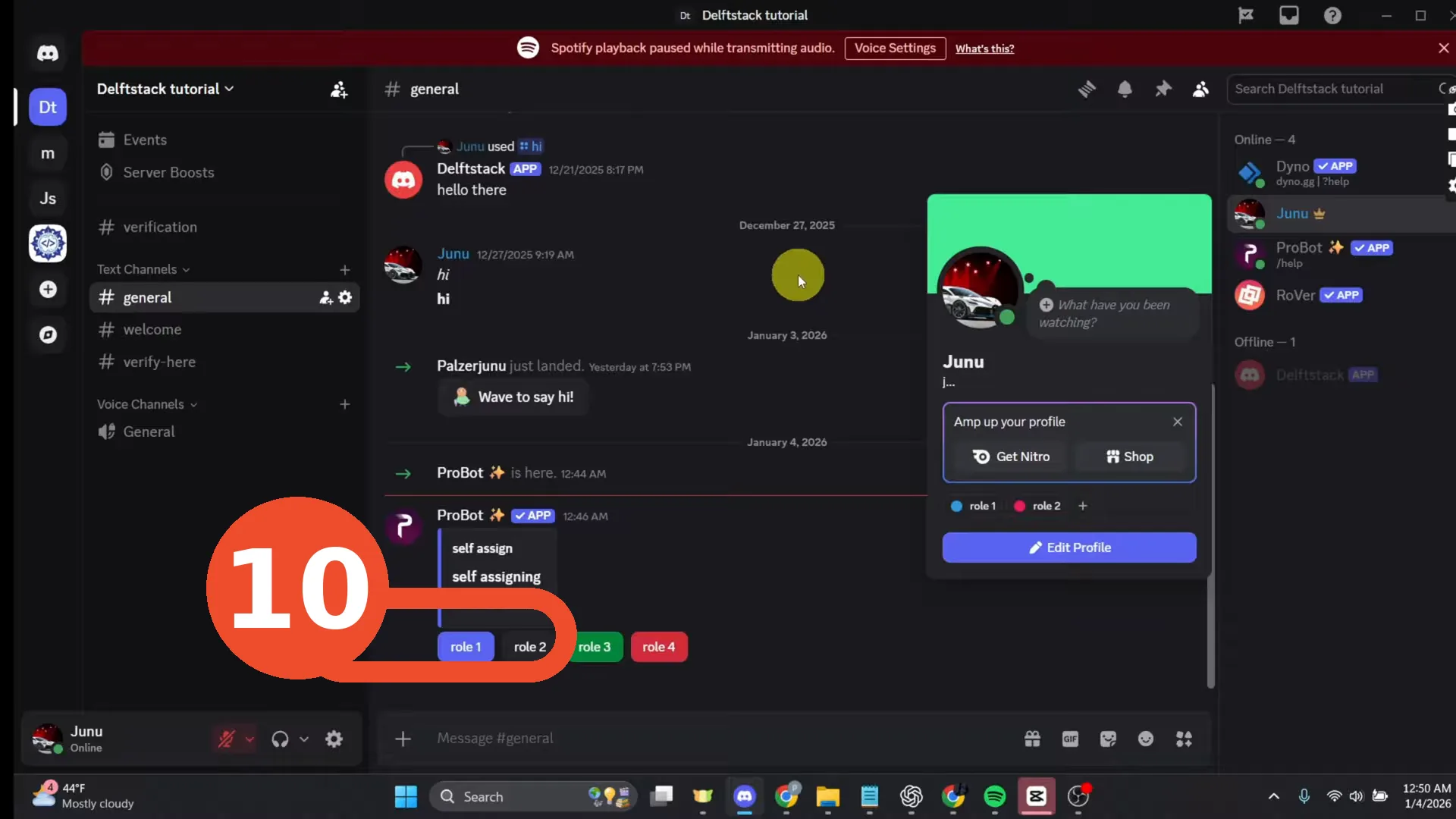
Back in Discord, click a role button under the ProBot message. Your profile pop-out immediately shows the roles you picked (role 1 and role 2 here) — the setup works end to end.
If the buttons do nothing
- Re-check step 4 — ProBot’s own role must sit above every role it assigns; this is the cause in most failed setups.
- Make sure you saved in the dashboard: the “Careful — you have unsaved changes!” bar means your edits are not live yet.
- Roles with administrator or other elevated permissions cannot be handed out by the bot for security reasons — self-assign cosmetic and opt-in roles only.