How to Search and Find Discord Servers Using Discovery
Find Discord servers for a game or topic with Discovery: open Discover, search for what you like, preview a server, and join it.
- SystemWindows
- AppDiscord desktop app
- Last verifiedNovember 6, 2026
Every screenshot below is taken from the actual recording on this device — no stock images.
Steps
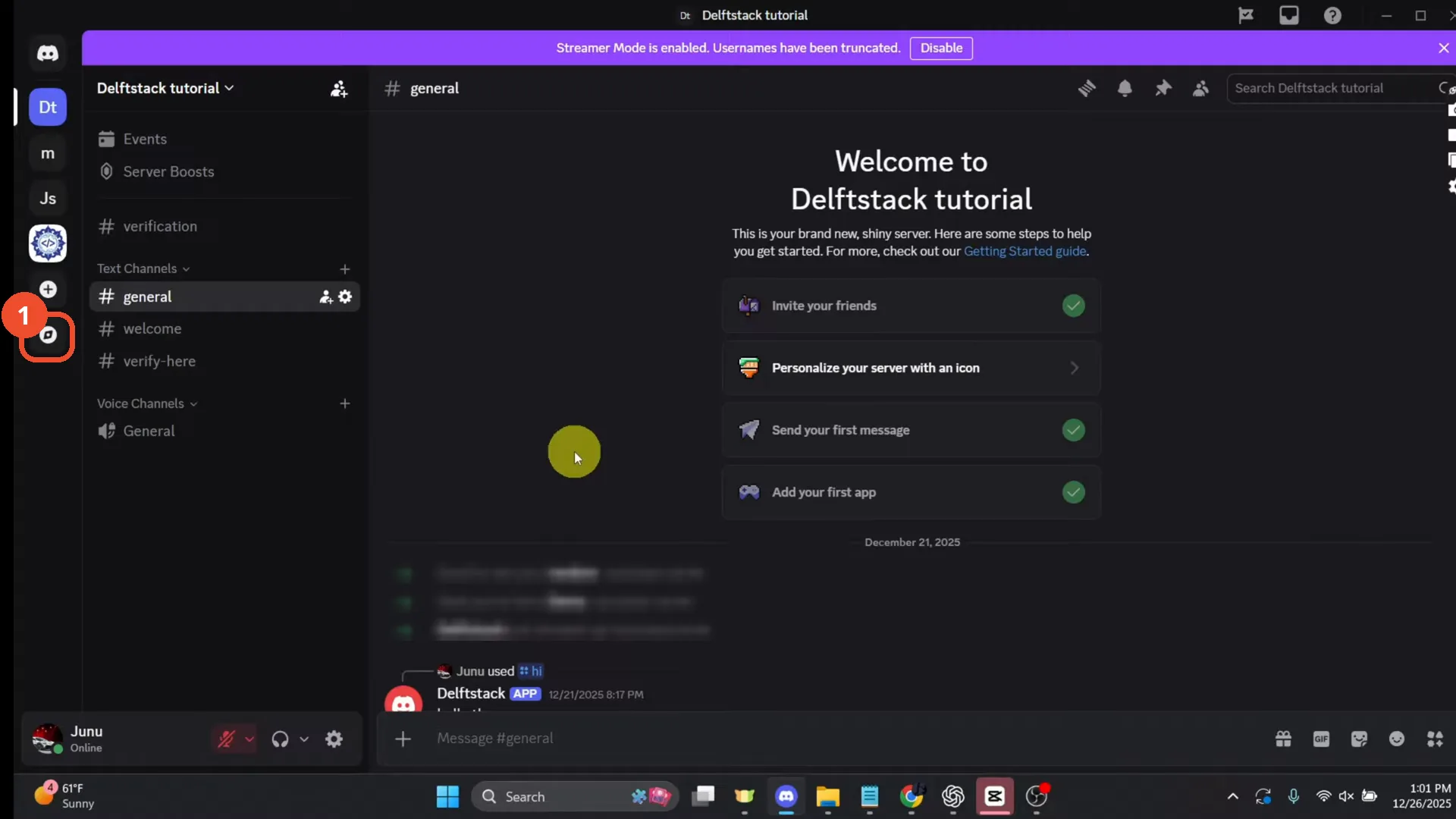
Open Discord and click the Discover icon
Open Discord and click the compass icon at the bottom of the left-hand server rail to open Discover.
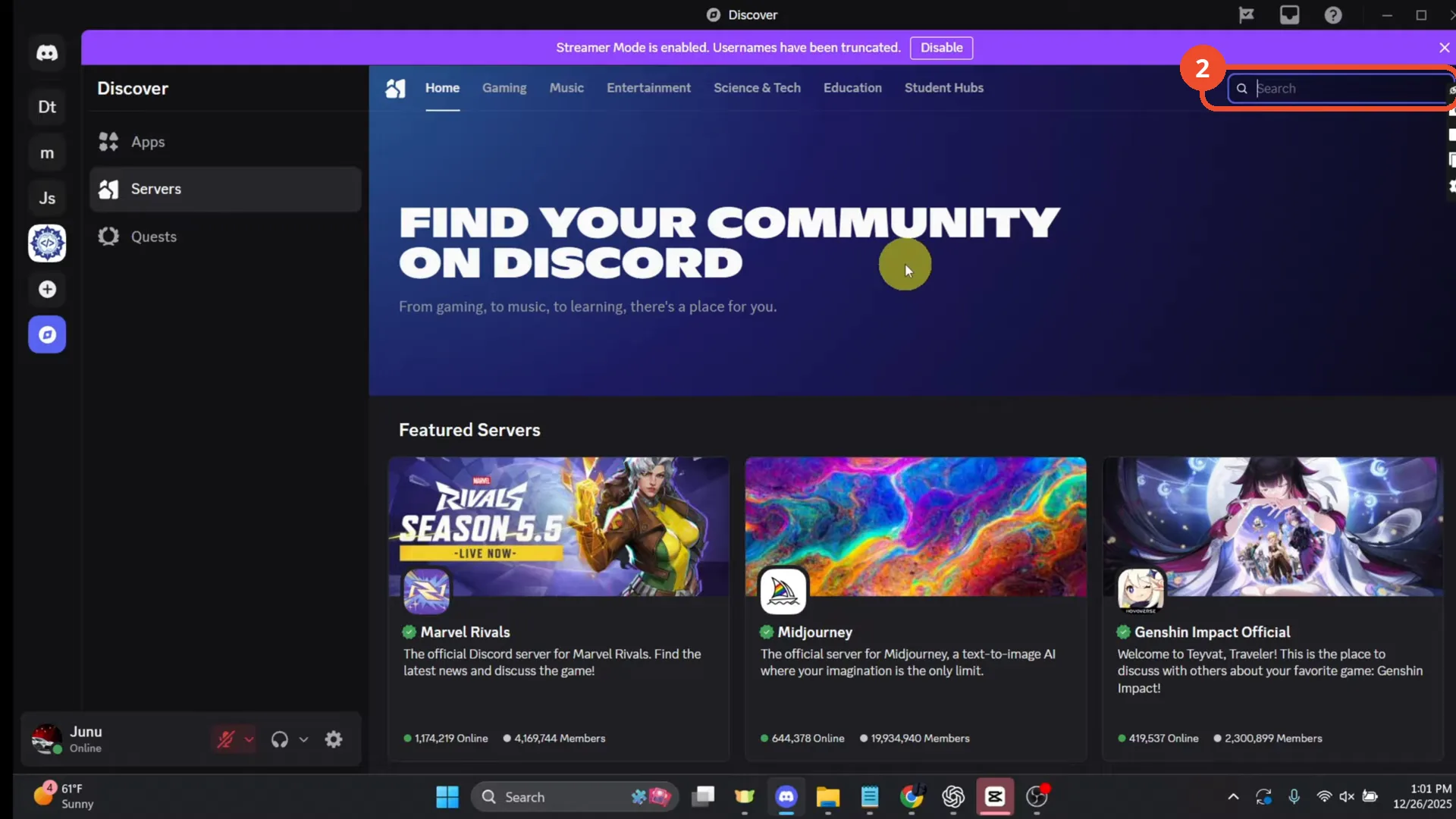
Click the Search box on the Servers page
On the Discover page, make sure Servers is selected on the left, then click the Search box at the top right.
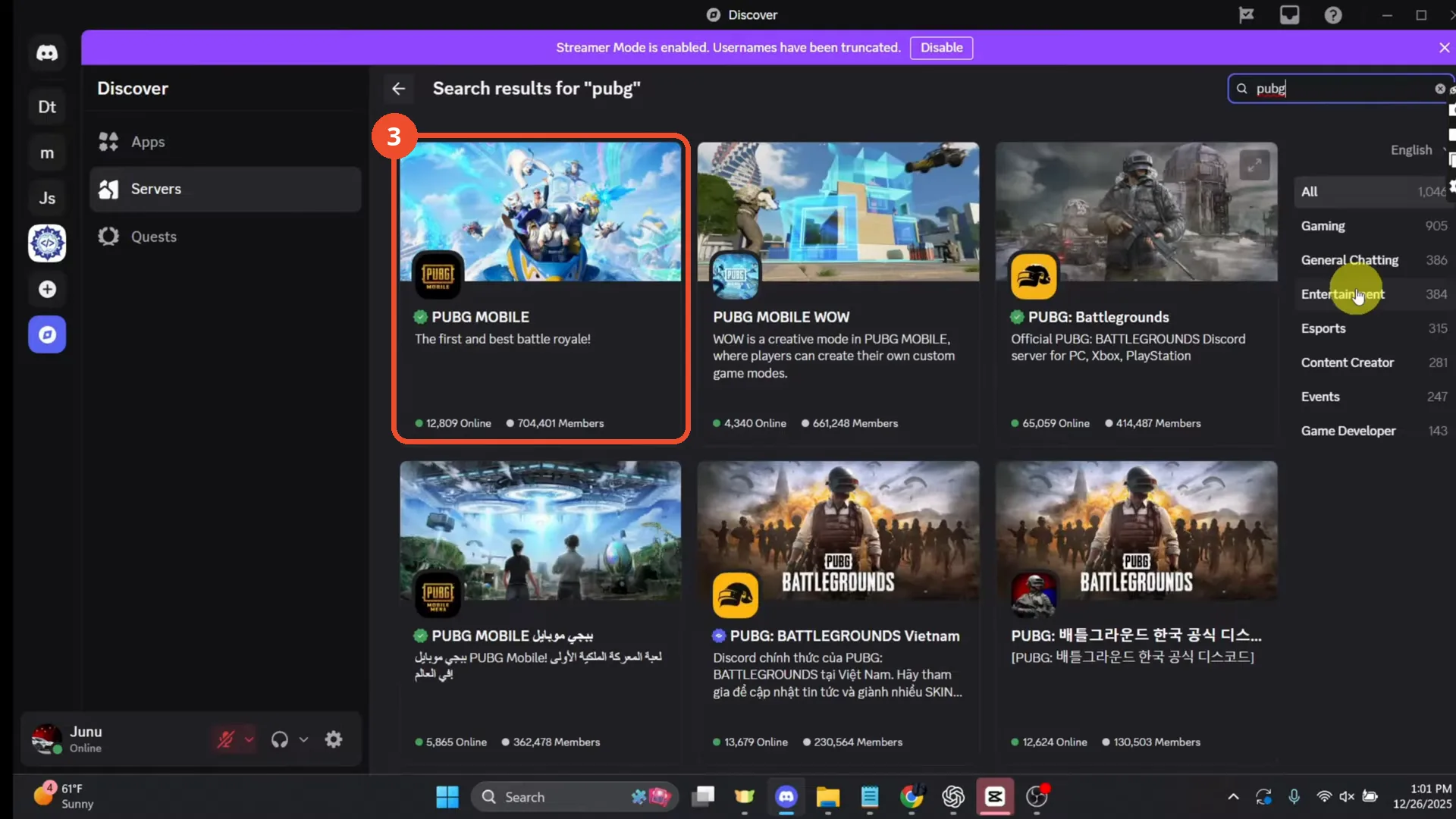
Type what you are looking for
Type a game or topic — PUBG here — and Discord lists matching servers. The first result, PUBG MOBILE, shows 12,809 people online and 704,401 members.
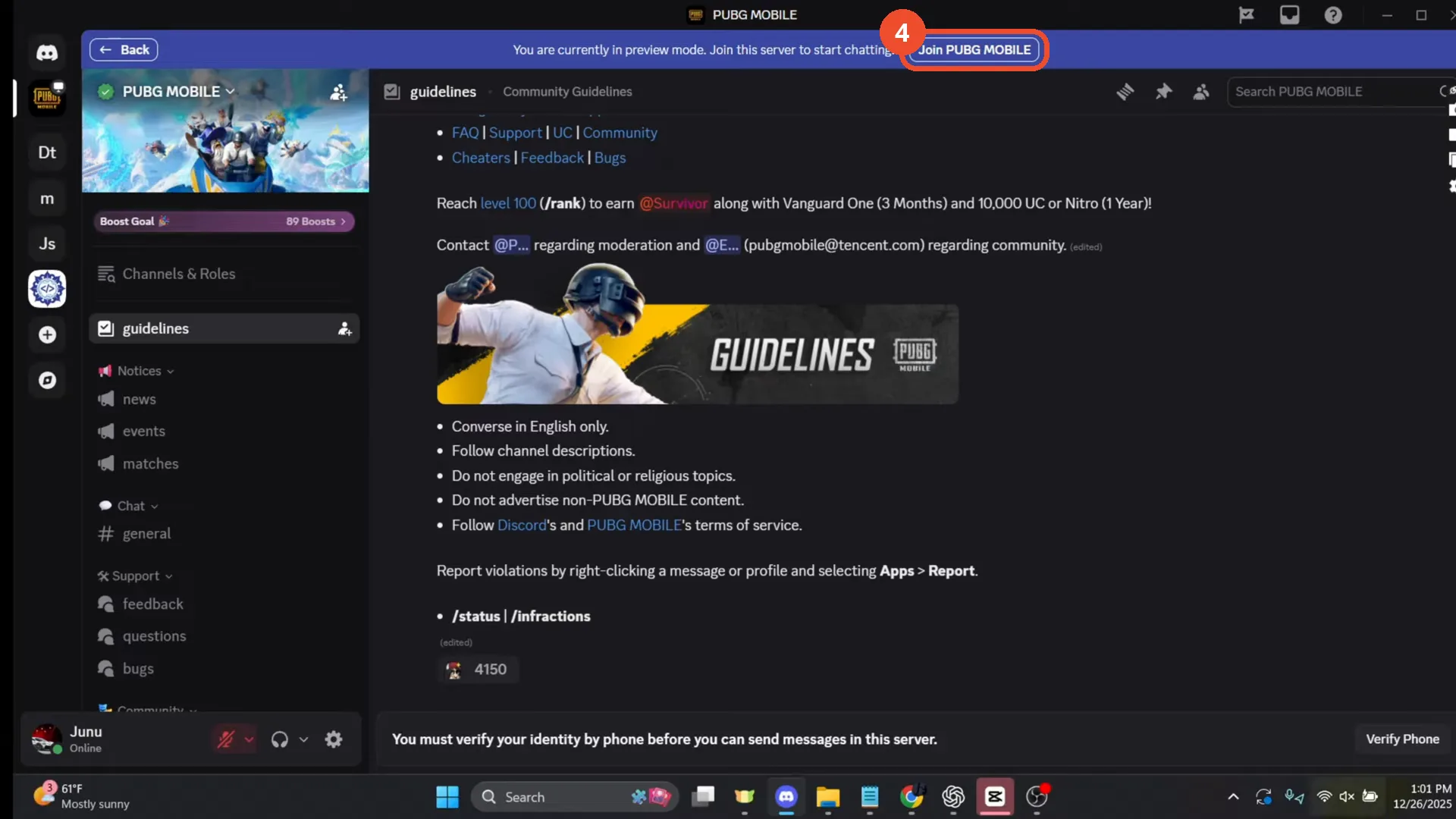
Click a server to preview it, then join
Click a result to preview the server and read its rules. Click Join PUBG MOBILE at the top to join. The recording only reaches the preview: joining needs a verified phone, and the operator’s phone was not verified, so no join is completed on camera.
Good to know
- The narration says to go to Settings first, but the film does not open Settings — it clicks the compass (Discover) icon in the left rail. Follow the film, not the narration, here.
- Some servers ask you to verify your identity by phone before you can send messages, even after joining — PUBG MOBILE shows that notice at the bottom of its preview.
- Read a server’s rules in its guidelines channel before joining, and only join communities you trust.
- Server search results show live member counts, so the numbers in the screenshots will have changed since the recording.
More on Discord
- How to Stop Spotify From Pausing on Discord
- How to See Who Owns a Discord Server
- How to Make Discord Open on a Second Monitor by Default
- How to Remove Someone from a Discord Group
- How to Self-Assign Roles in Discord Using ProBot
- How to Scan a QR Code with the Discord Mobile App
- How to Stream OBS to Discord with Sound
- How to Create a Discord Server Template Link
- How to Make Your Name Invisible on Discord
- How to Send a Discord Friend Request
- How to Turn Off DMs on Discord
- How to Enable Age-Restricted Commands on Discord Mobile
- How to Zoom In and Out on Discord
- How to Create a GIF and Share It in Discord
- How to Exit Full Screen on Discord
- How to Send Files Through Discord
- How to Skip a Line in Discord
- How to Find Gradient Role Settings in Discord (Nitro Required)
- How to Make an Animated Discord Banner GIF in CapCut
- How to Add Discord Audio to OBS
- How Discord Text-to-Speech Works (TTS Explained for Text Channels)
- How to Highlight Text in Discord on Desktop
- How to Add Someone to an Ongoing Discord Voice or Video Call
- How to Fix Discord Freezing When Closing Valorant
- How to Type in Bold on Discord
- How to Add a Welcome Channel to Your Discord Server
- How to Listen to Spotify with Friends on Discord
- How to Italicize Text in Discord
- How to Hide Game Activity on Discord
- How to Add a Music Bot to Discord
- How to Stop Discord From Opening Automatically on Windows Startup