How to Scan a QR Code with the Discord Mobile App
Discord’s computer login page can show a QR code instead of asking for your password. If you are already signed in on your phone — the recording uses the demo account johnthesavvy — scanning that code with the mobile app signs the computer in as you, with no typing. The scanner is buried at the bottom of Settings, which is the part most people miss.
- SystemAndroid
- AppDiscord
- Also works oniPhone (the same Settings layout)
- Last verifiedOctober 28, 2026
Every screenshot below is taken from the actual recording on this device — no stock images.
Before you start
- On the computer, open Discord’s login page so the QR code is on screen. The code refreshes every couple of minutes, so scan the one you can see now.
- Only ever scan a QR code shown on Discord’s own login page — a scanned code signs that computer into your account.
Steps
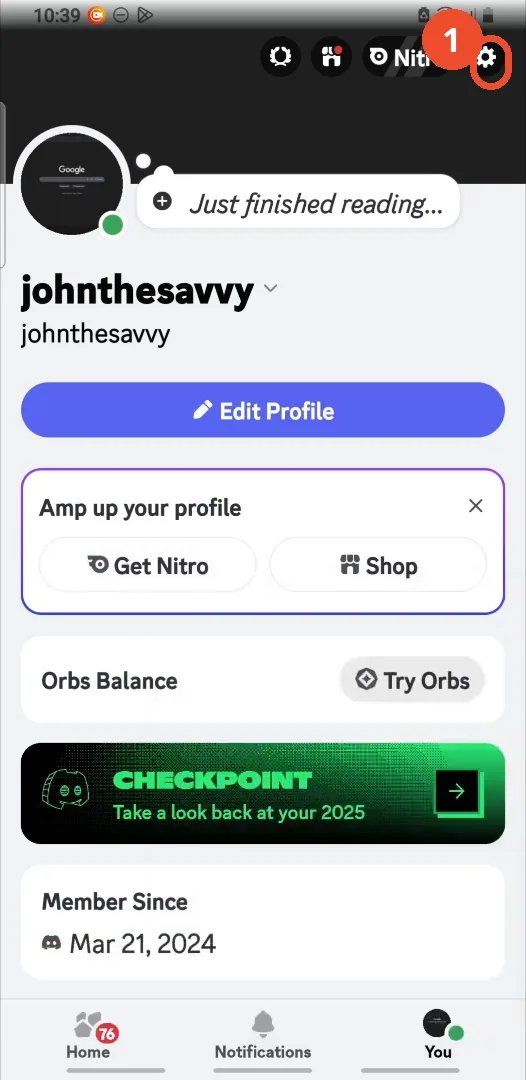
Open your profile and tap the gear icon
Open Discord, tap your avatar (You) at the bottom right, then tap the gear icon at the top right of your profile.
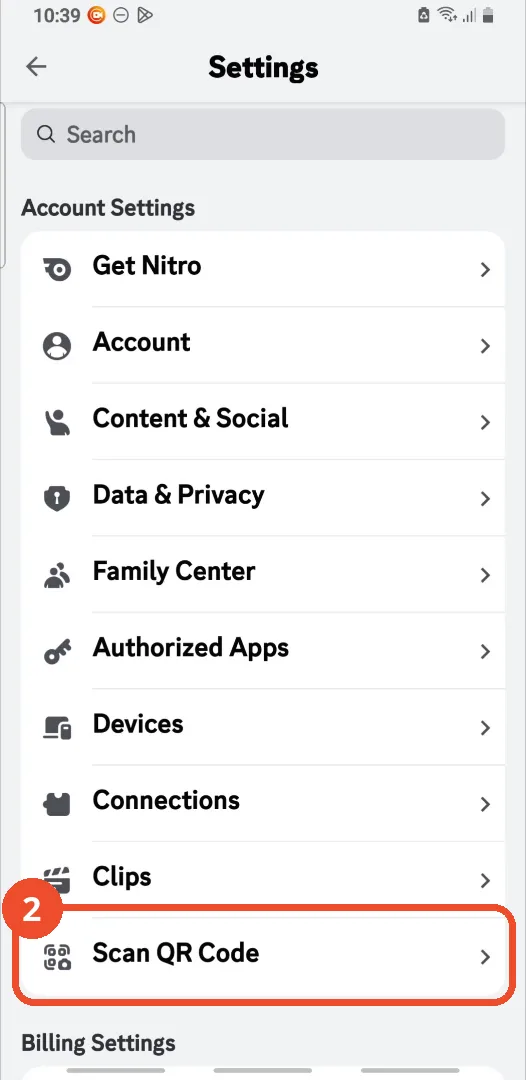
Tap Scan QR Code
In Settings, scroll to the bottom of the Account Settings list and tap Scan QR Code.
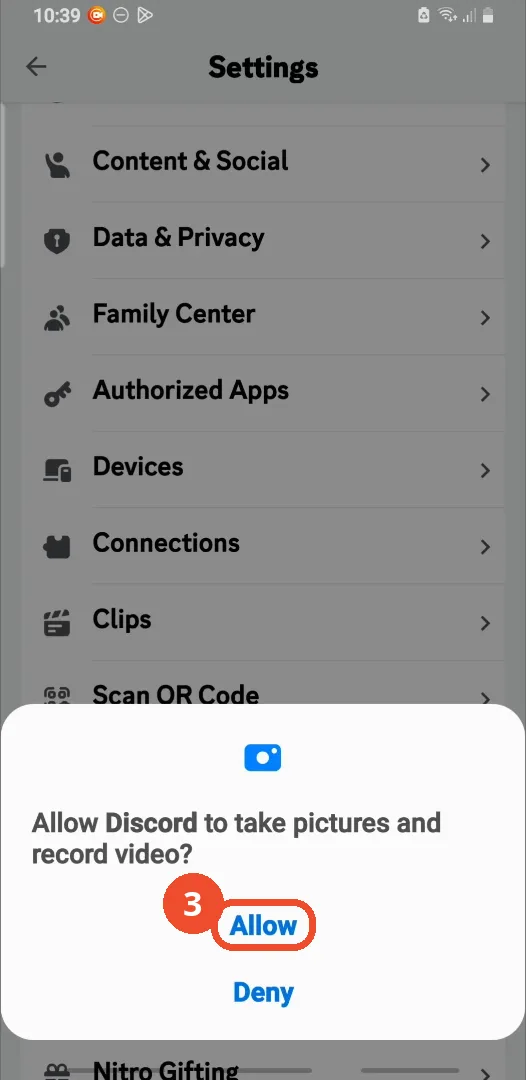
Tap Allow for the camera
The first time, Discord asks to take pictures and record video — tap Allow. The scanner cannot work without the camera.
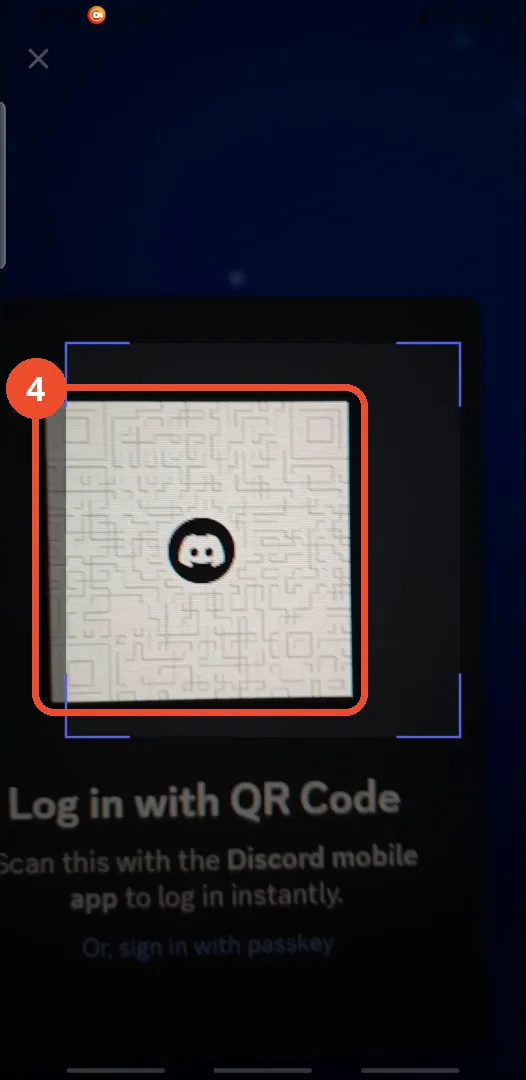
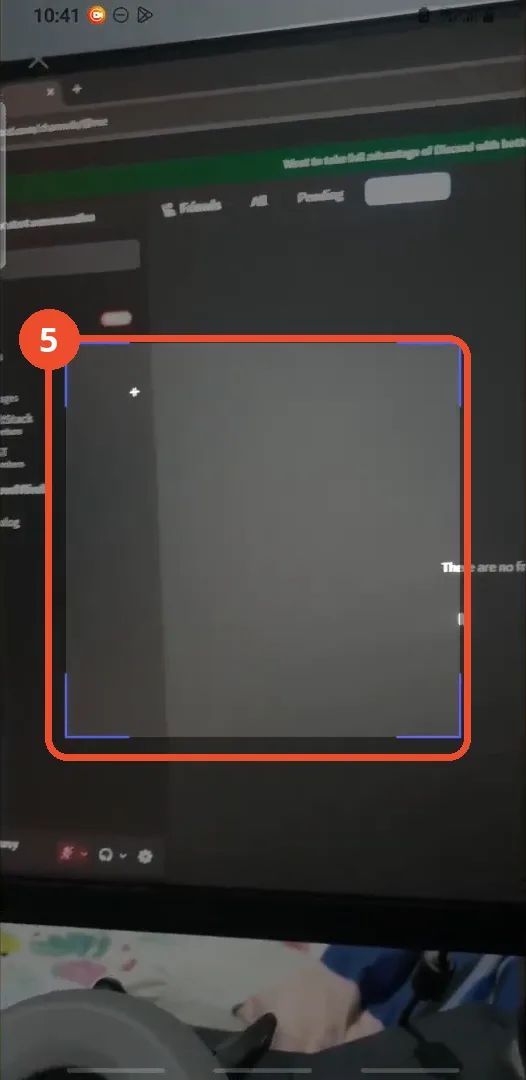
Point the camera at the QR code
Point the phone at the computer screen and hold the QR code inside the frame, under the Log in with QR Code heading.
The computer signs in
That is all it takes: the computer signs in straight away. Here the desktop home screen appears on the monitor the moment the code is read.
Good to know
- If the code expired while you were finding the setting, the computer page shows a fresh one — just scan the new code, no need to start over.
- Signed in somewhere you do not recognise? Settings → Devices in the same list shows every active session and lets you log them out.
More on Discord
- How to Stop Spotify From Pausing on Discord
- How to See Who Owns a Discord Server
- How to Make Discord Open on a Second Monitor by Default
- How to Remove Someone from a Discord Group
- How to Self-Assign Roles in Discord Using ProBot
- How to Stream OBS to Discord with Sound
- How to Add Someone to an Ongoing Discord Voice or Video Call