How to Make Discord Open on a Second Monitor by Default
Discord has no “start on this monitor” setting — but like most Windows apps it remembers the screen it was on when it was last closed properly. So the whole fix is: put the window where you want it, close it the right way, and from then on it opens there. The recording demonstrates with a split screen standing in for two monitors, so imagine the left half and the right half below as two separate displays.
- SystemWindows
- AppDiscord (desktop app)
- Also works onMost Windows desktop apps (they remember the same way)
- Last verifiedOctober 28, 2026
Every screenshot below is taken from the actual recording on this device — no stock images.
Before you start
- This is about the Discord desktop app on Windows. The browser version simply opens wherever your browser is.
- “Closed properly” is the key phrase: killing Discord from Task Manager, or shutting Windows down with Discord still open, does not reliably save the position.
- If Discord is set to minimise to the system tray, closing the window is not closing the app — quit it from the tray icon instead.
Steps
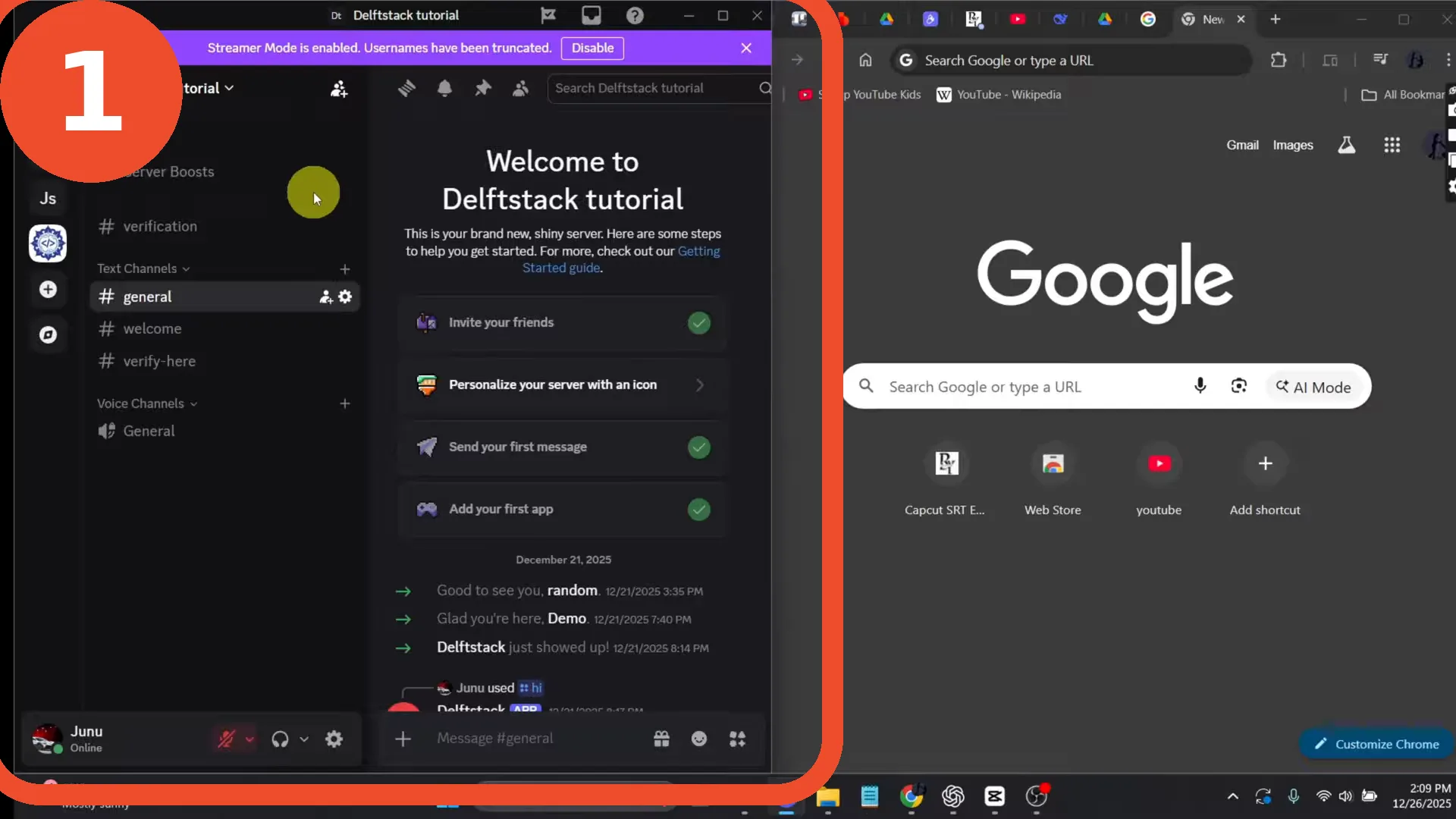
Drag Discord to the second monitor
Drag the Discord window by its title bar onto the monitor where you want it to live (in the recording, it starts on the left “monitor”).
Close Discord properly
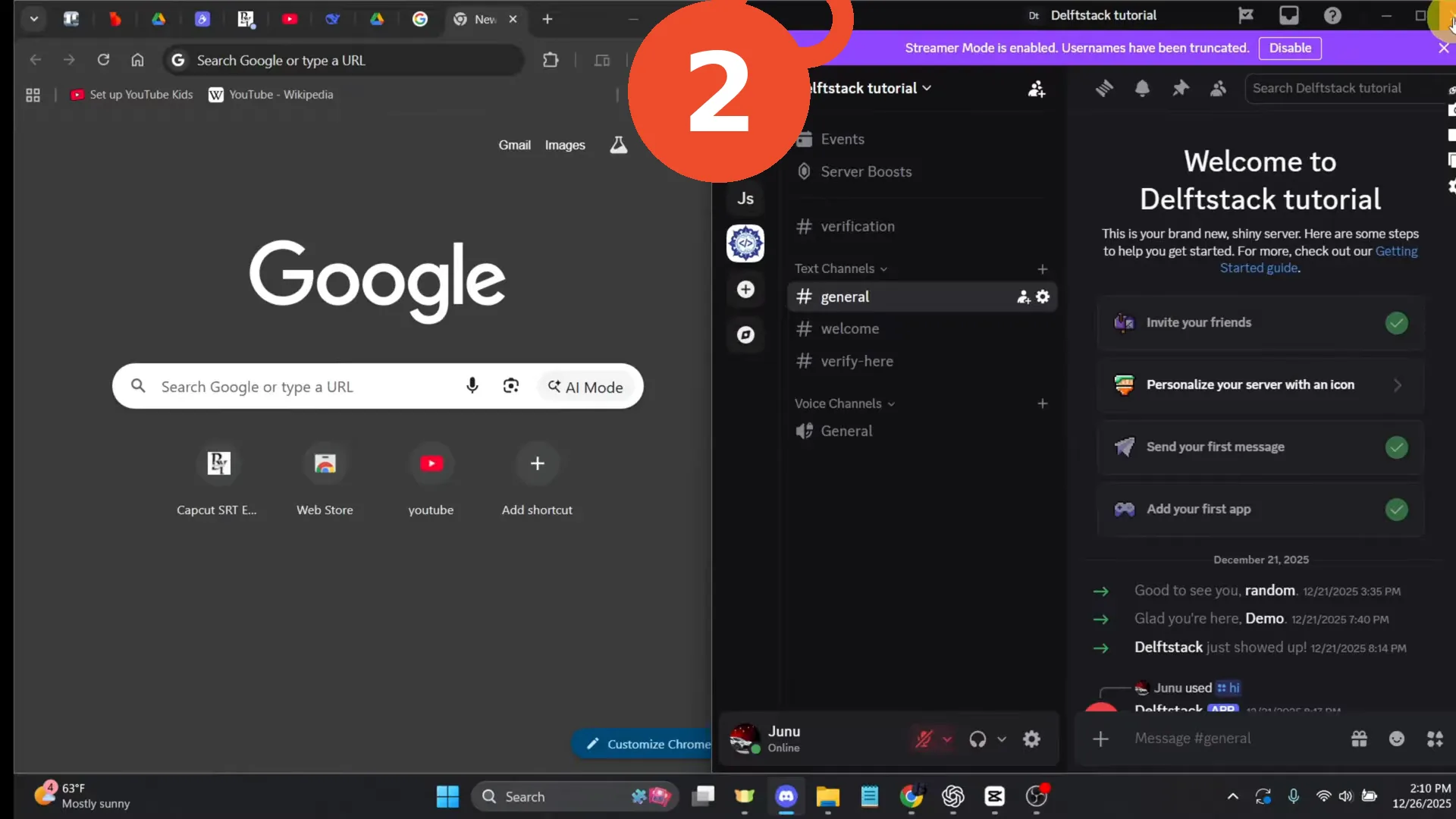
Close the window with its X button at the top right of the Discord window. The narrator is explicit about this part: close it normally — do not end it from Task Manager, or the position may not be remembered.
Reopen Discord
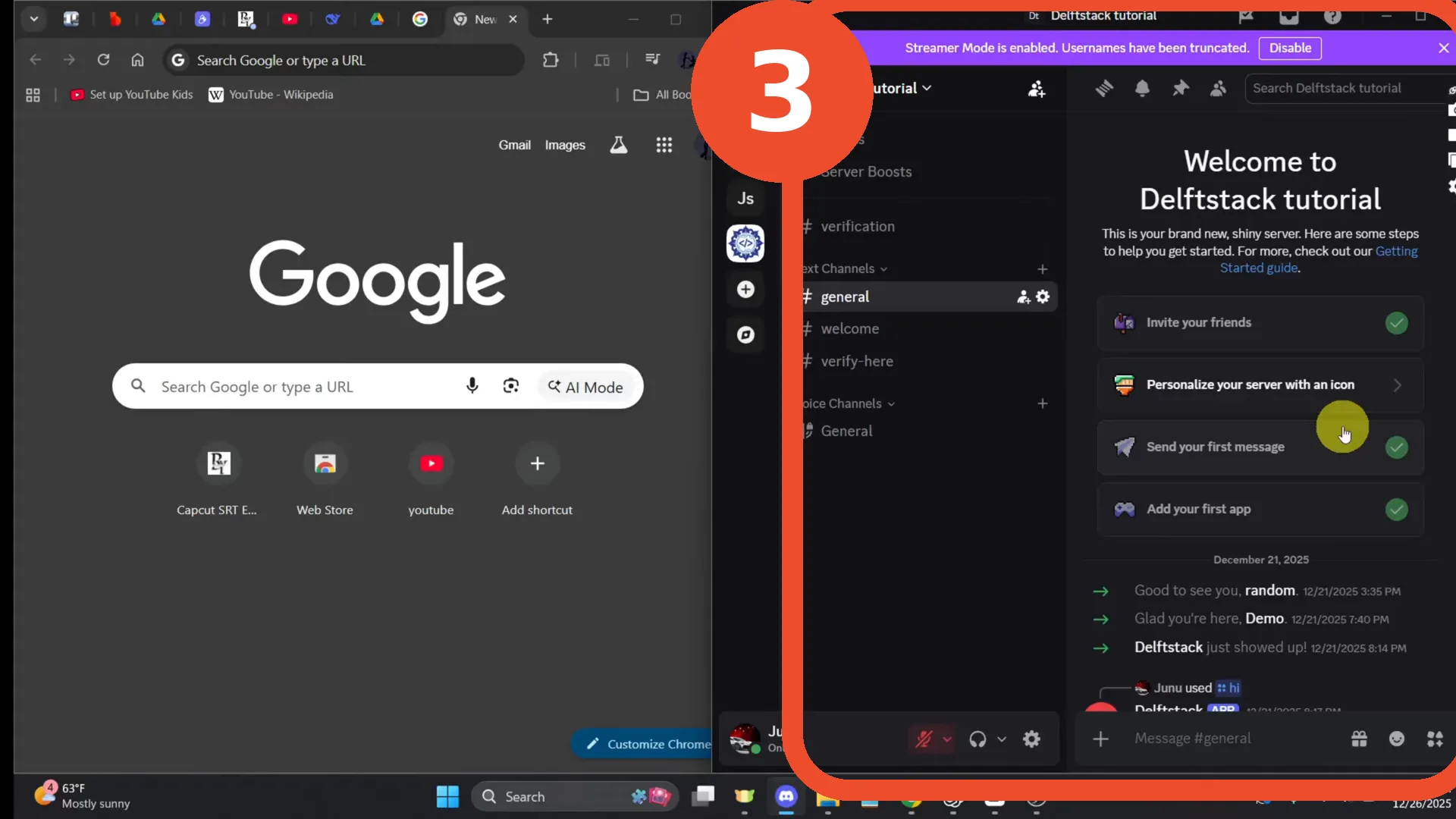
Launch Discord again. Because it was last closed on the second screen, it now opens there (right side in the recording) — and it will keep opening there until you close it from somewhere else.
If it still opens on the main monitor
- Repeat the close from the system tray: right-click the Discord tray icon → Quit, while the window sits on the second monitor.
- Make sure the window is fully on the second screen when you close it — a window straddling both displays can snap back to the primary one.
- Windows sometimes resets positions after a display driver update or when a monitor is unplugged; one more move-and-close cycle re-teaches it.