How to Make an Animated Discord Banner GIF in CapCut
Note two corrections to the video’s title: the editor on screen is CapCut, not After Effects, and the GIF ends up as a profile banner, not the avatar picture. Export the GIF from CapCut, then upload it through Edit Profile, Change Banner — and keep in mind animated banners need Nitro.
- SystemWindows
- AppDiscord
- Also works onCapCut on Windows (demonstrated); the Discord steps work in the desktop app and the web app.
- Last verifiedNovember 1, 2026
Every screenshot below is taken from the actual recording on this device — no stock images.
Steps
Add the video to the timeline
In CapCut, add the video you want to use and drag it into the timeline.
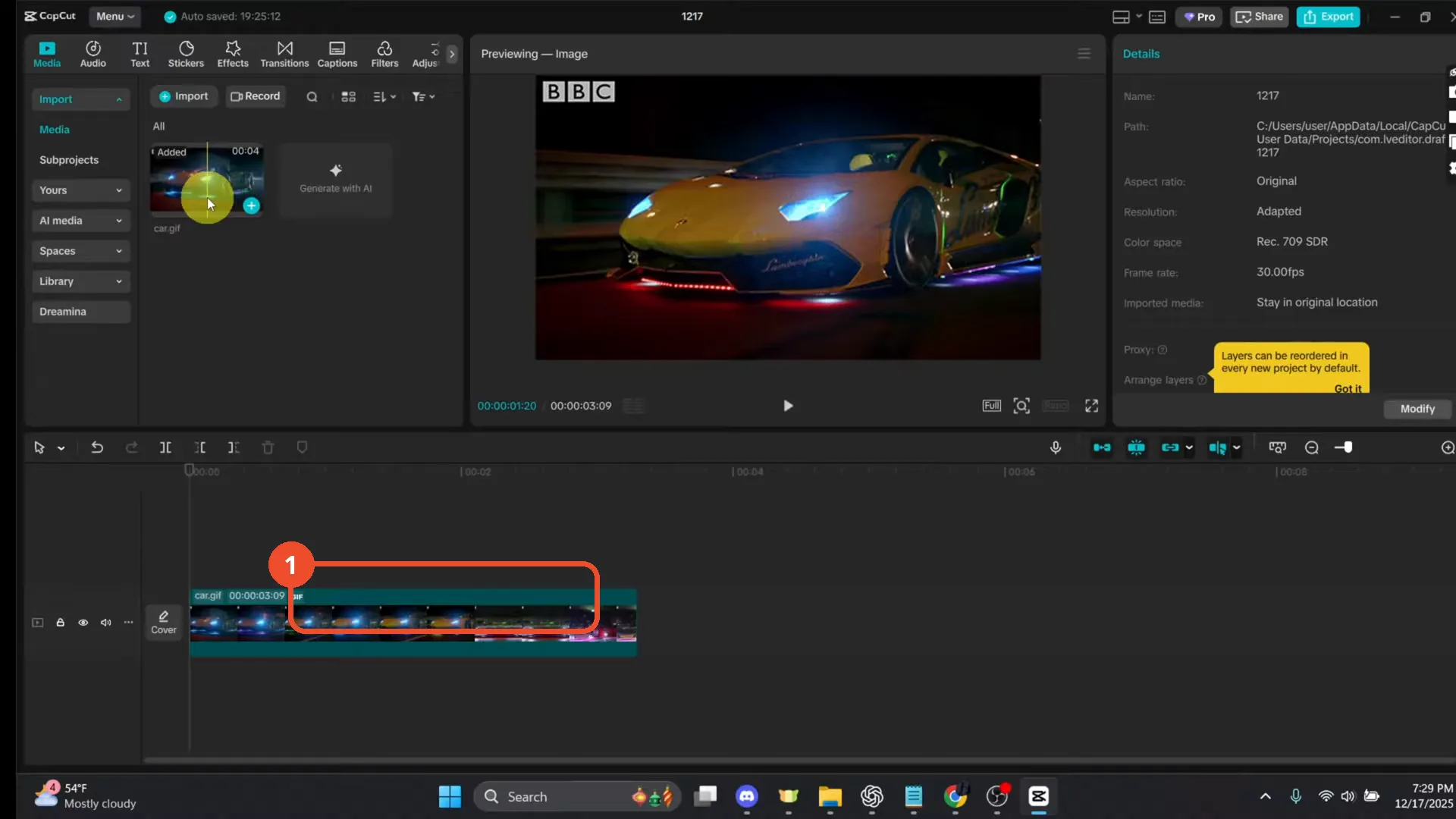
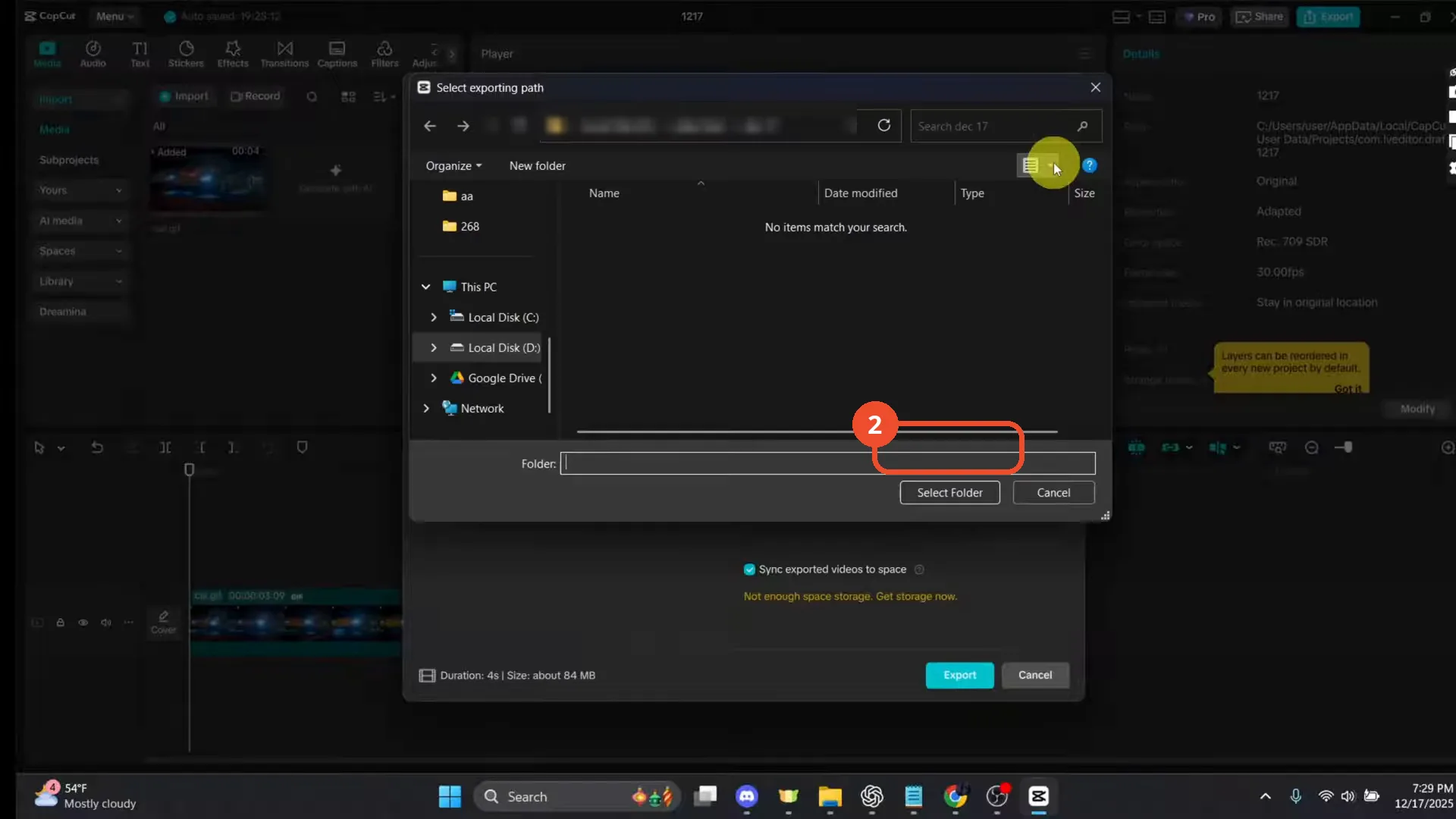
Export and choose a folder
Click Export, then choose the folder the GIF should go into and click Select Folder.
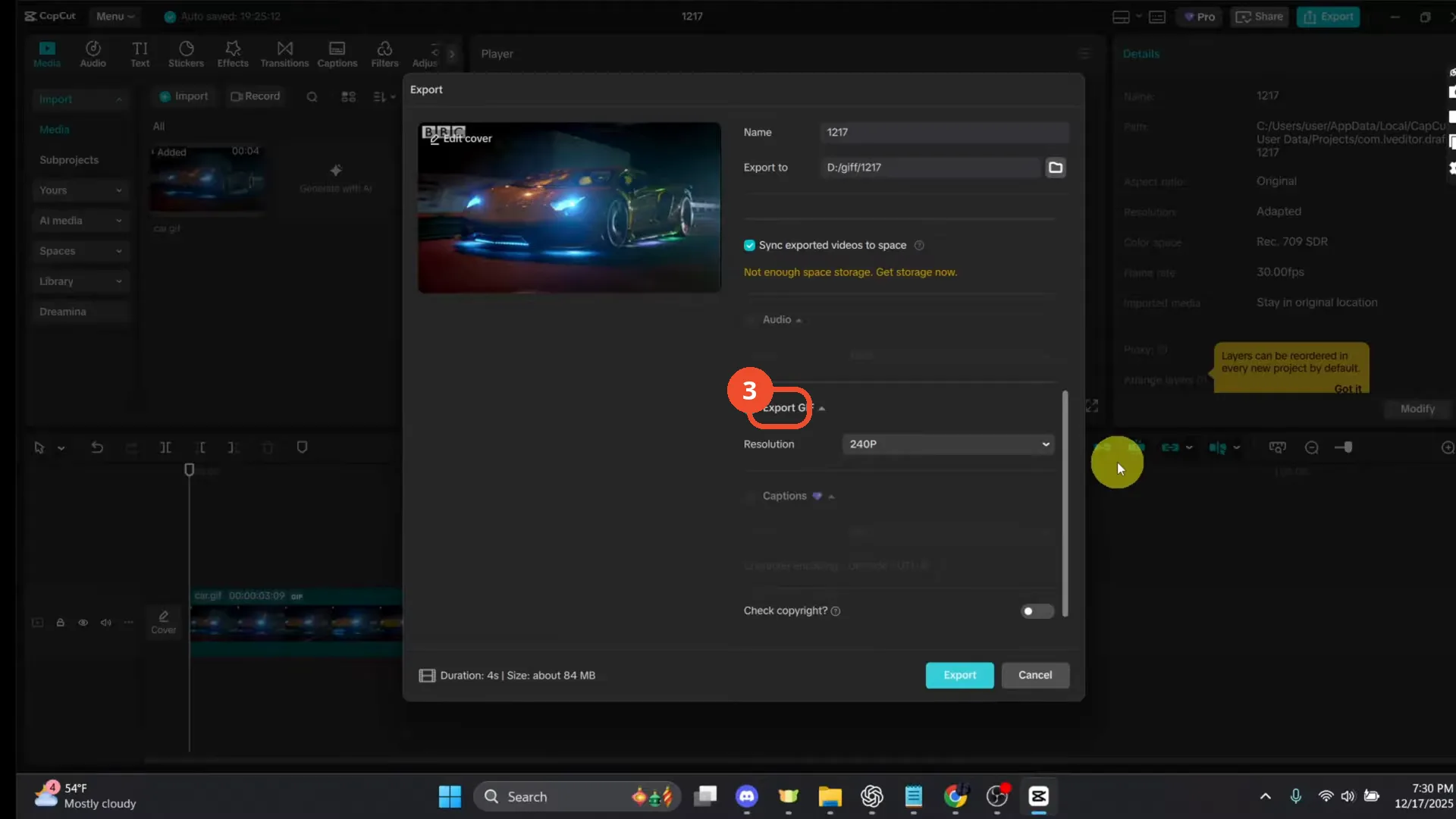
Turn on Export GIF and export
In the Export dialog, scroll down, switch on Export GIF, and click Export.
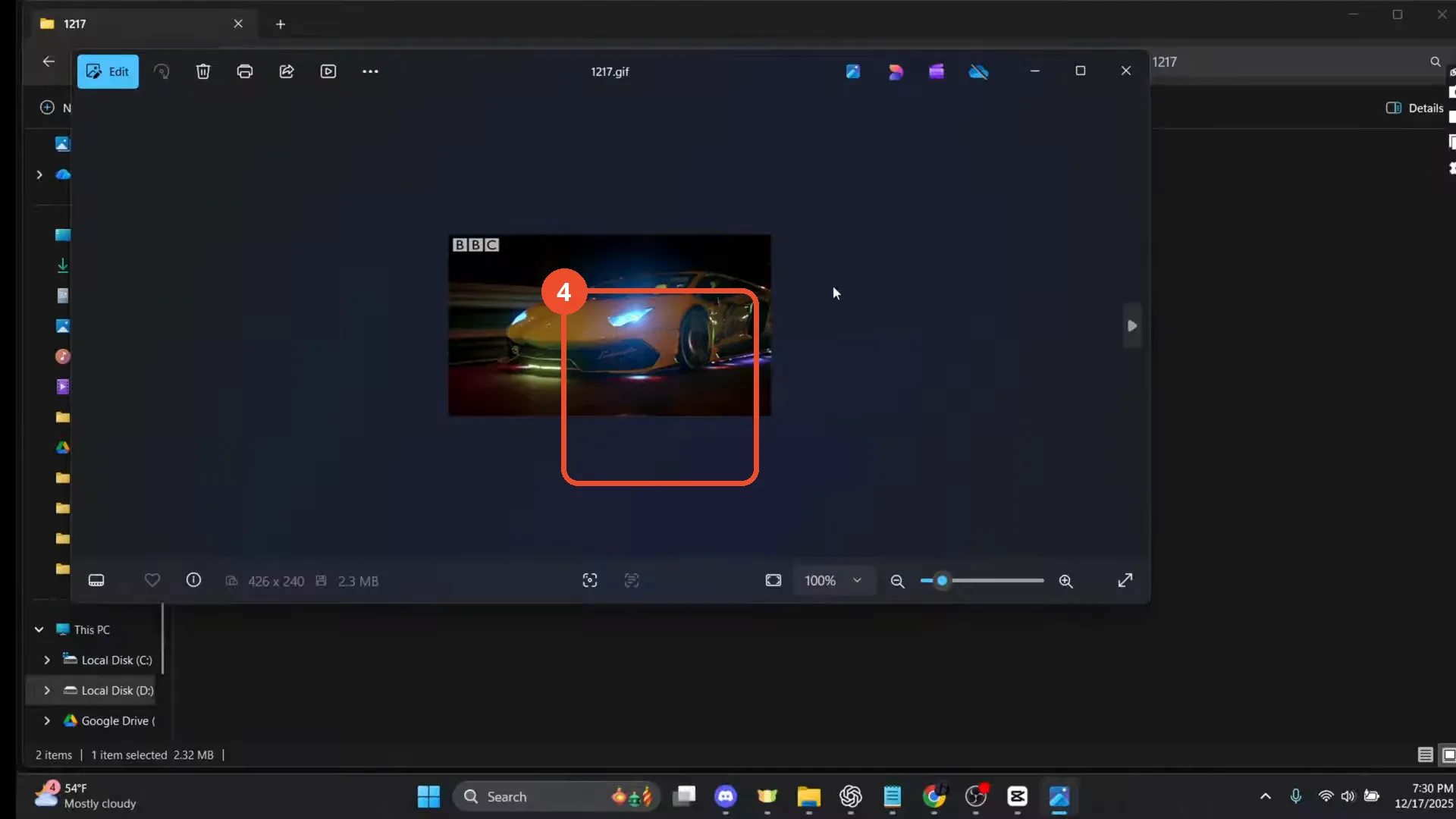
Confirm the GIF in File Explorer
Open the export folder in File Explorer and preview the GIF to confirm it exported correctly.
Open Edit Profile
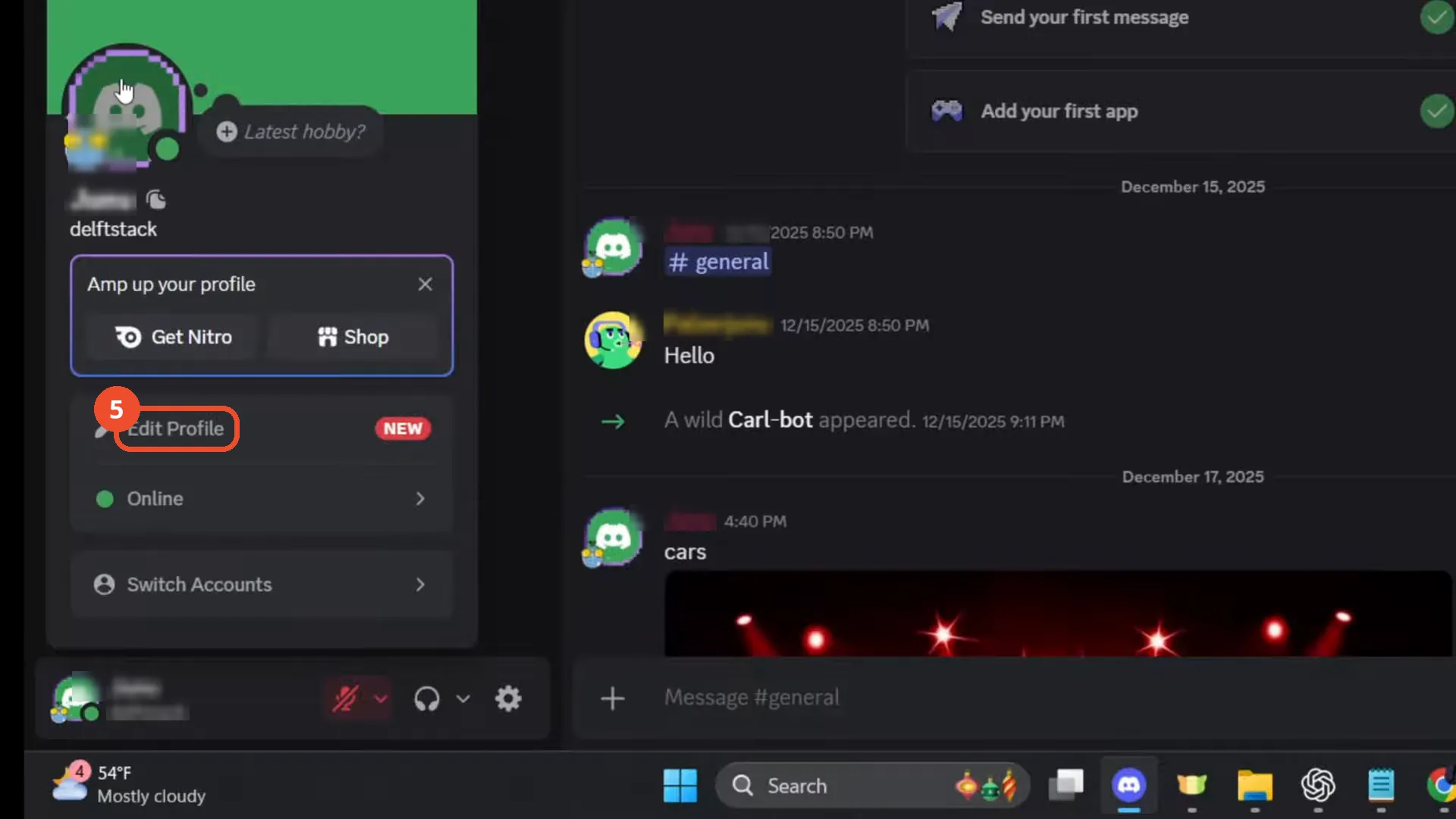
Back in Discord, click your profile at the bottom left, then click Edit Profile in the panel.
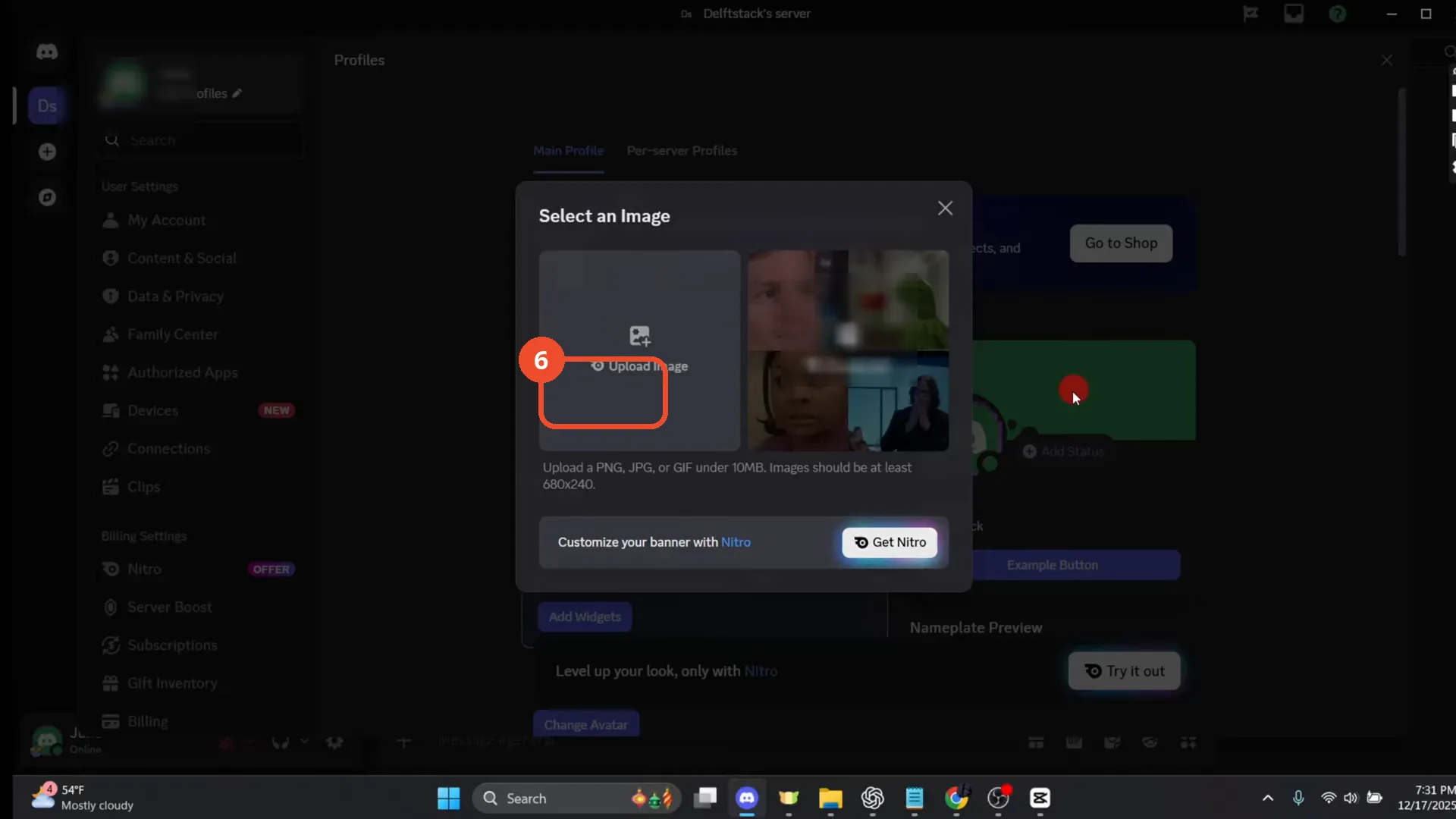
Change Banner, then Upload Image
Click Change Banner, then click Upload Image in the image picker.
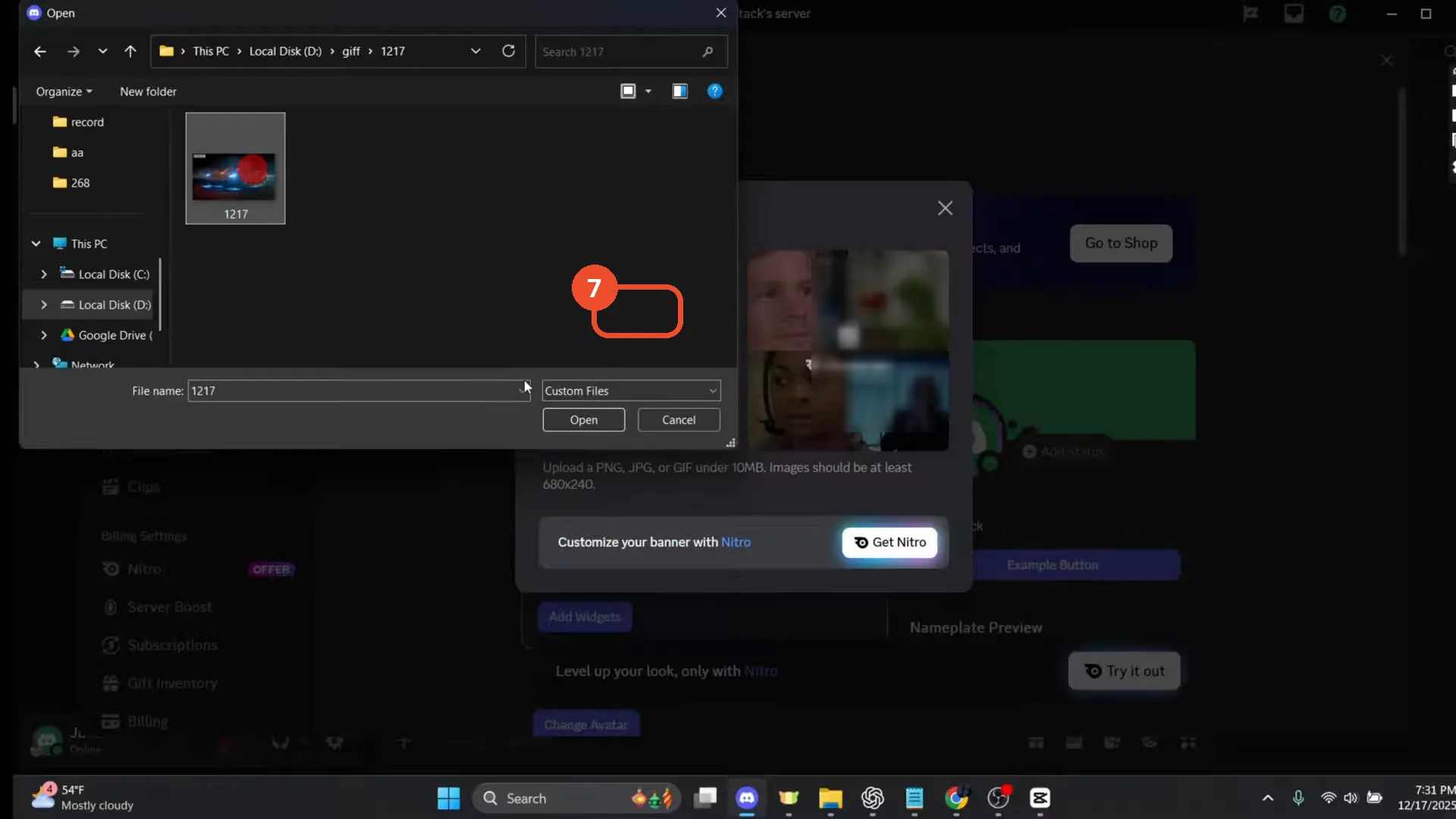
Pick the GIF and click Open
In the file picker, open the folder with your GIF, select the GIF file, and click Open.
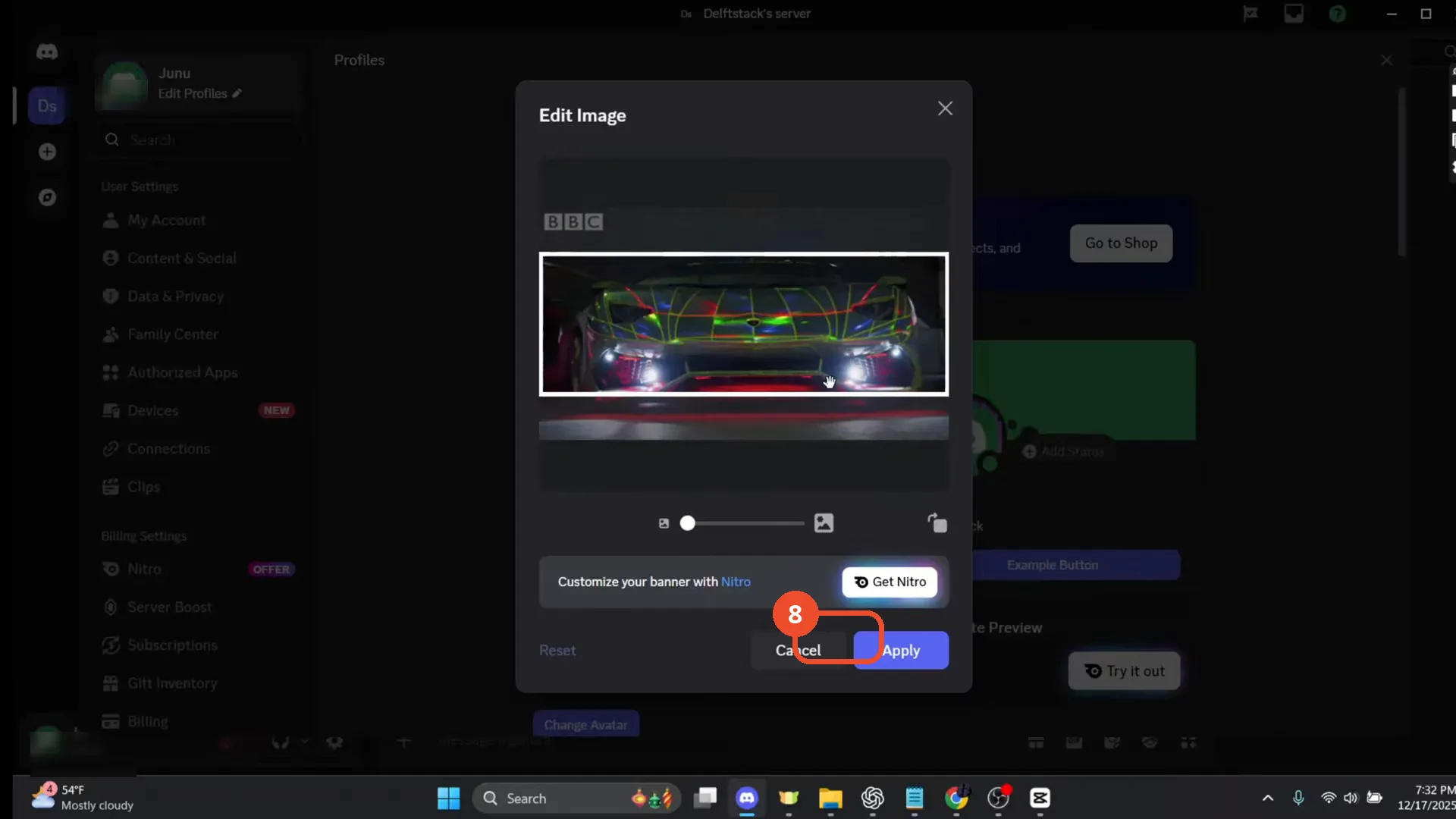
Adjust the crop and click Apply
In the Edit Image dialog, adjust the crop with the slider, then click Apply. Remember: the animation only plays for viewers if you have Nitro — otherwise the banner stays static.
Good to know
- The video’s title says After Effects, but the footage actually uses CapCut — the export steps below follow what is shown.
- Animated banners require Nitro: the upload dialog itself says Customize your banner with Nitro, so without Nitro the banner stays static.
- The upload dialog accepts PNG, JPG, or GIF images.
- The GIF is uploaded as a profile banner, not as the round avatar picture.
More on Discord
- How to Stop Spotify From Pausing on Discord
- How to See Who Owns a Discord Server
- How to Make Discord Open on a Second Monitor by Default
- How to Remove Someone from a Discord Group
- How to Self-Assign Roles in Discord Using ProBot
- How to Scan a QR Code with the Discord Mobile App
- How to Stream OBS to Discord with Sound
- How to Create a Discord Server Template Link
- How to Make Your Name Invisible on Discord
- How to Send a Discord Friend Request
- How to Turn Off DMs on Discord
- How to Enable Age-Restricted Commands on Discord Mobile
- How to Zoom In and Out on Discord
- How to Create a GIF and Share It in Discord
- How to Exit Full Screen on Discord
- How to Send Files Through Discord
- How to Add Someone to an Ongoing Discord Voice or Video Call
- How to Skip a Line in Discord
- How to Find Gradient Role Settings in Discord (Nitro Required)