How Discord Text-to-Speech Works (TTS Explained for Text Channels)
Discord does not read messages aloud from voice chat. Text-to-speech lives in text channels: you send a /tts message, and Discord reads it out loud to everyone currently viewing that channel.
- SystemWindows
- AppDiscord
- Also works onDiscord web app (the same /tts command in a text channel).
- Last verifiedNovember 2, 2026
Every screenshot below is taken from the actual recording on this device — no stock images.
Steps
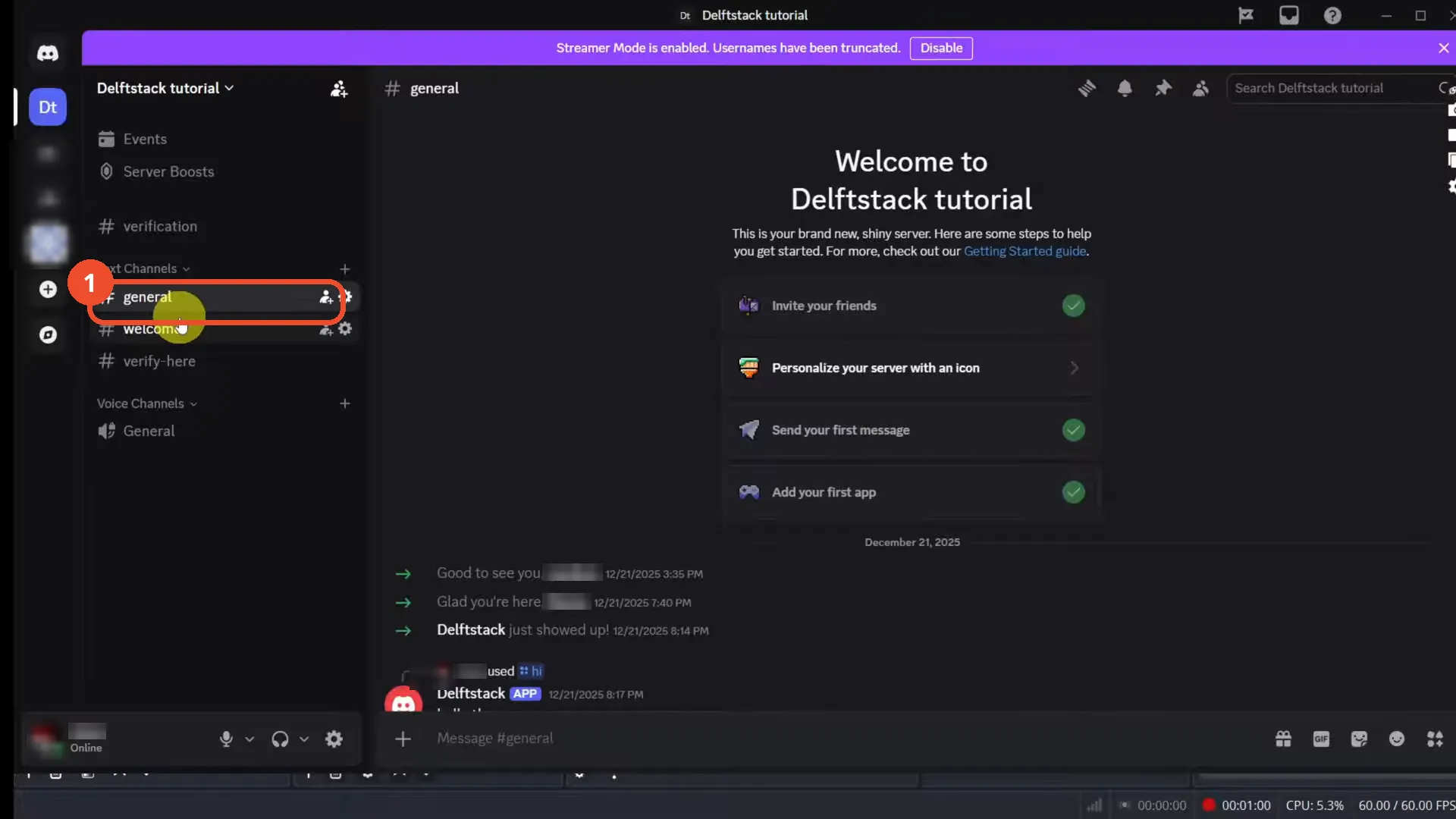
Open a text channel
Open your server and click a text channel — here, #general. Voice channels will not work for TTS.
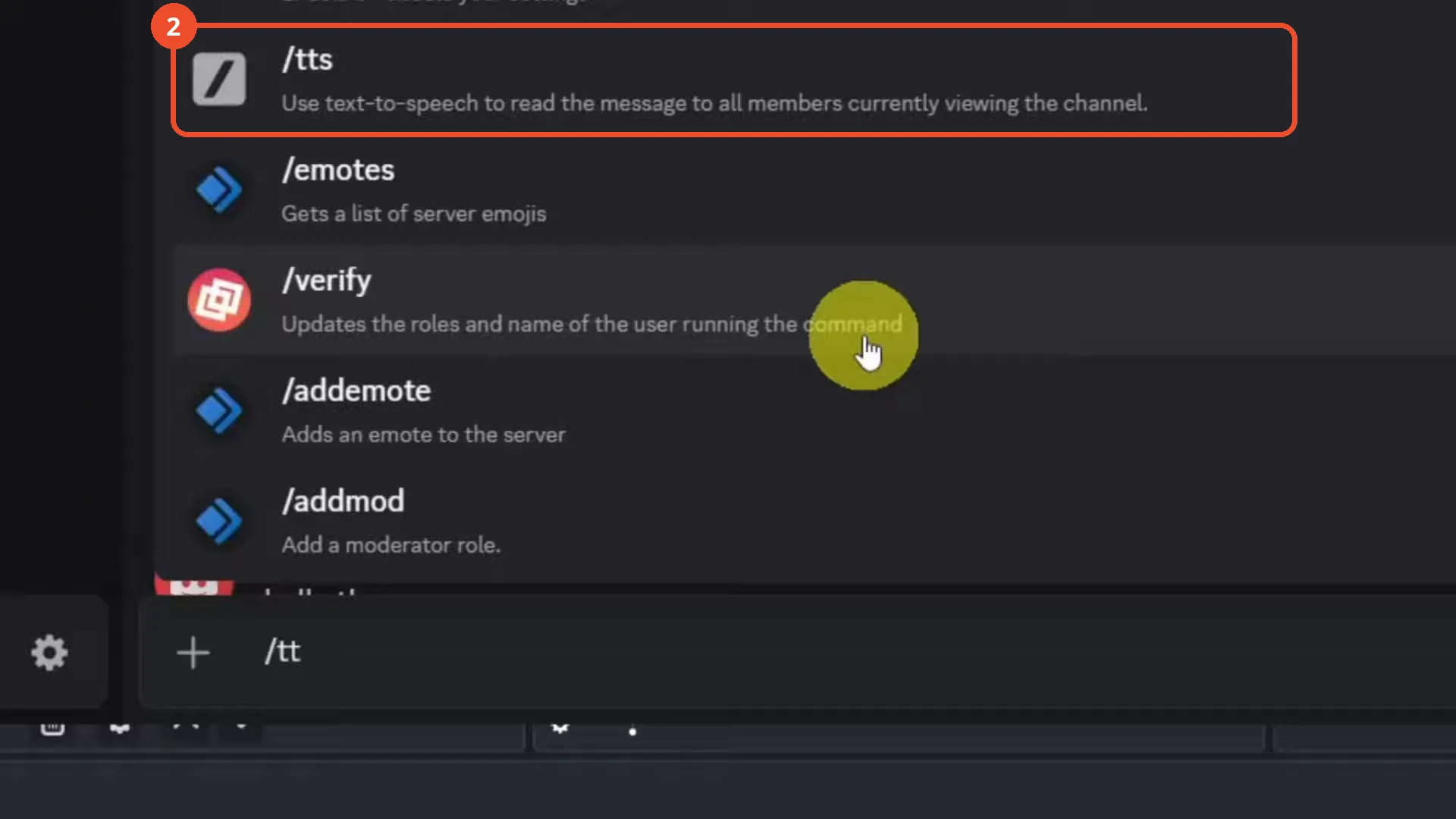
Type /tts
Click the message box and type /tts. The command menu shows the /tts entry and its description: it reads the message to all members currently viewing the channel.
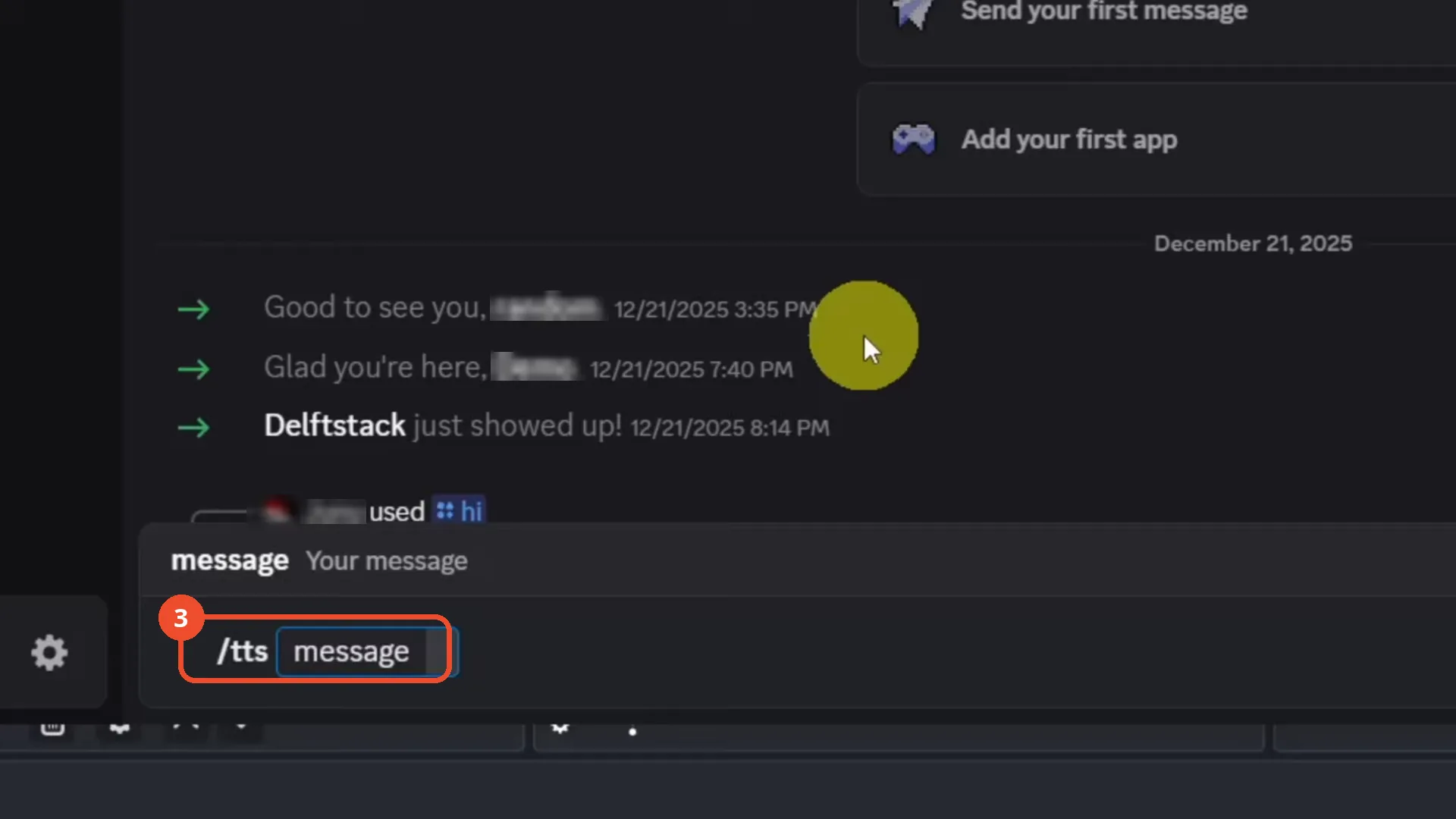
Type your message after /tts
Select the /tts command, then type your message in the message argument — anything you want read aloud.
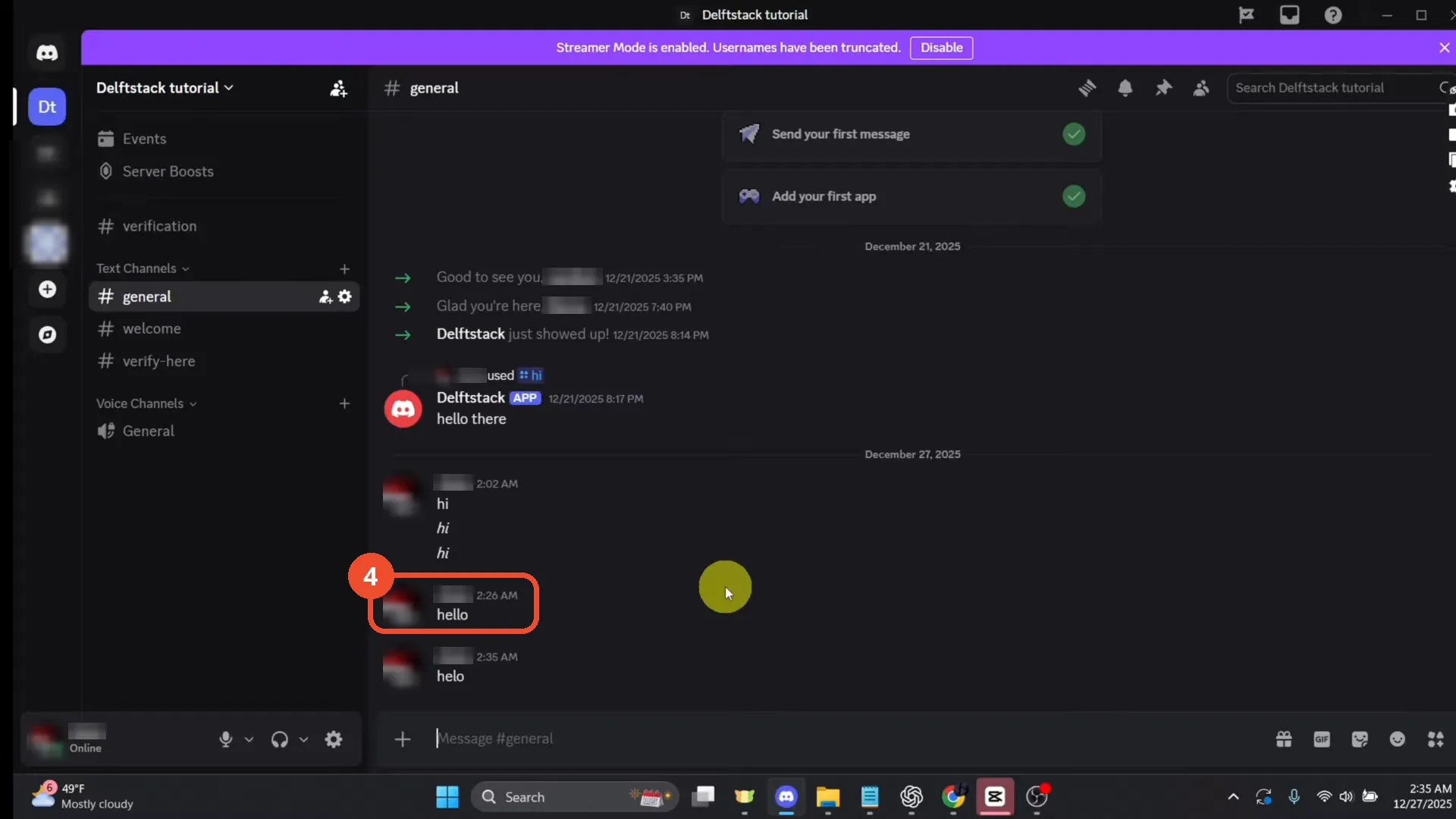
Send it and hear it read aloud
Send the message. It posts in the channel and Discord reads it aloud — here, the hello message the demo sends with /tts.
Good to know
- TTS is a text-channel feature, not a voice-chat feature: the audio plays through speakers but is always triggered from a text message.
- Only members currently viewing the channel hear the message read aloud.
- Server admins can disable TTS permissions for channels or roles, and your own accessibility settings can also turn it off — neither setting is shown in this video, so check them if /tts does nothing.
- The read-aloud audio itself cannot be shown in a screenshot; the visible proof is the posted message.
More on Discord
- How to Stop Spotify From Pausing on Discord
- How to See Who Owns a Discord Server
- How to Make Discord Open on a Second Monitor by Default
- How to Remove Someone from a Discord Group
- How to Self-Assign Roles in Discord Using ProBot
- How to Scan a QR Code with the Discord Mobile App
- How to Stream OBS to Discord with Sound
- How to Create a Discord Server Template Link
- How to Make Your Name Invisible on Discord
- How to Send a Discord Friend Request
- How to Turn Off DMs on Discord
- How to Enable Age-Restricted Commands on Discord Mobile
- How to Zoom In and Out on Discord
- How to Create a GIF and Share It in Discord
- How to Exit Full Screen on Discord
- How to Send Files Through Discord
- How to Skip a Line in Discord
- How to Find Gradient Role Settings in Discord (Nitro Required)
- How to Make an Animated Discord Banner GIF in CapCut
- How to Add Someone to an Ongoing Discord Voice or Video Call
- How to Add Discord Audio to OBS