How to Highlight Text in Discord on Desktop
Discord has no traditional highlight button, but there are two honest substitutes, both shown on desktop: drag to select a message for yourself, or format it with asterisks so it stands out for everyone.
✅ Tested on
- SystemWindows
- AppDiscord
- Last verifiedNovember 2, 2026
Every screenshot below is taken from the actual recording on this device — no stock images.
Steps
Drag to select a message
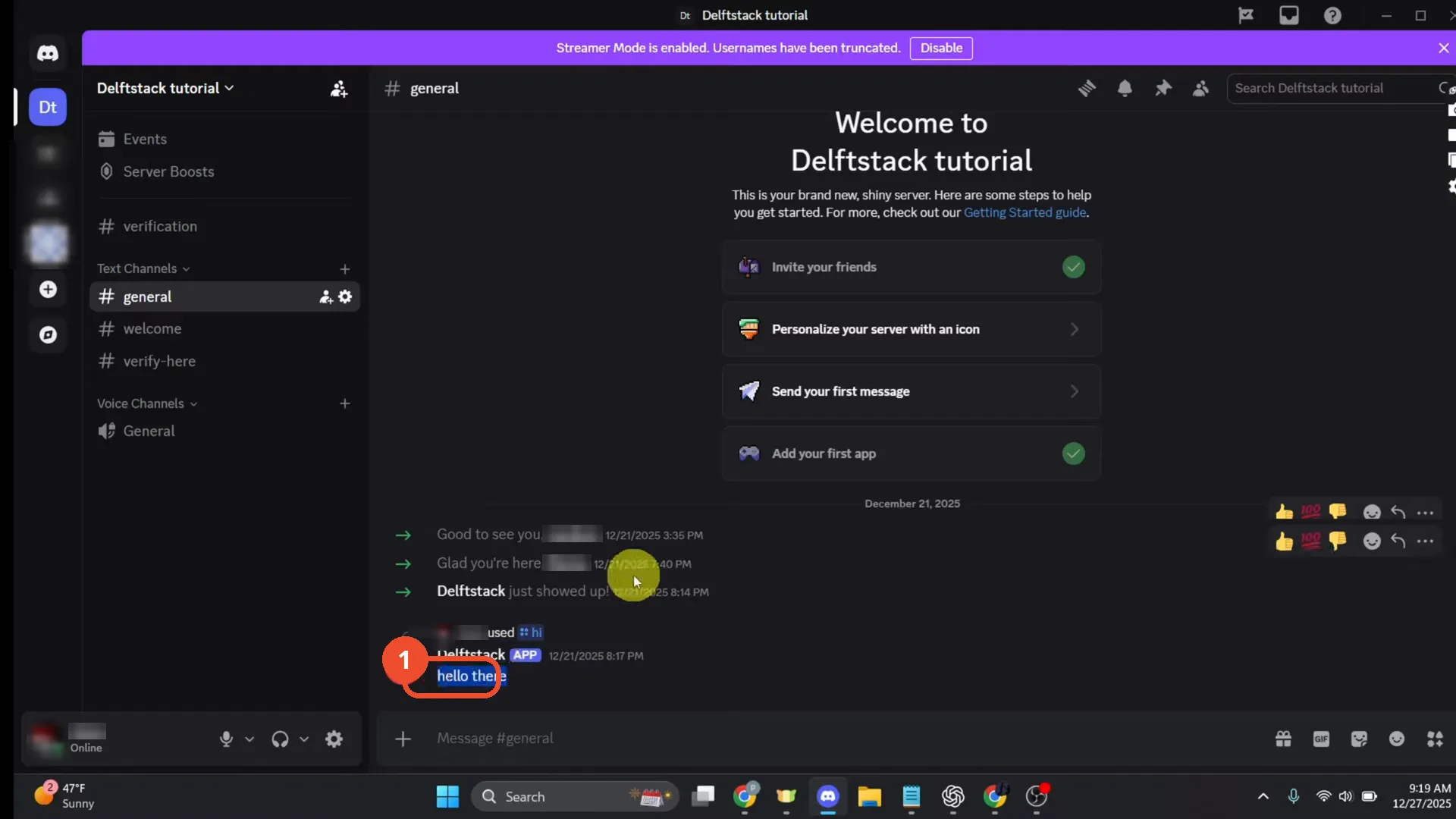
On desktop, click at the start of a message and drag over it. The text shows selected, as here with hello there — handy for copying, but only you see this highlight.
Type text for italics
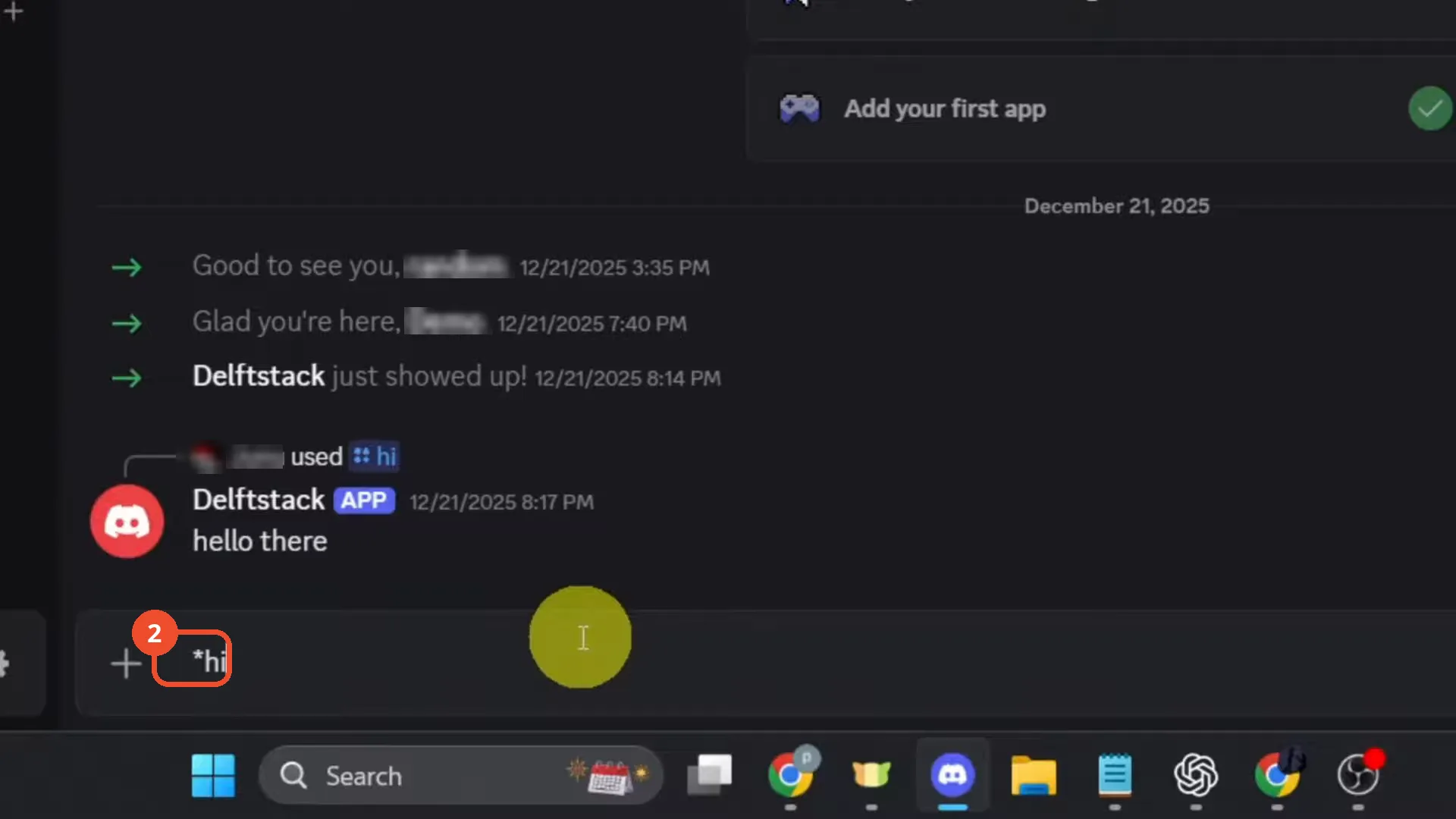
For italics, type a single asterisk before your text and another at the end, like hi.
Type text for bold
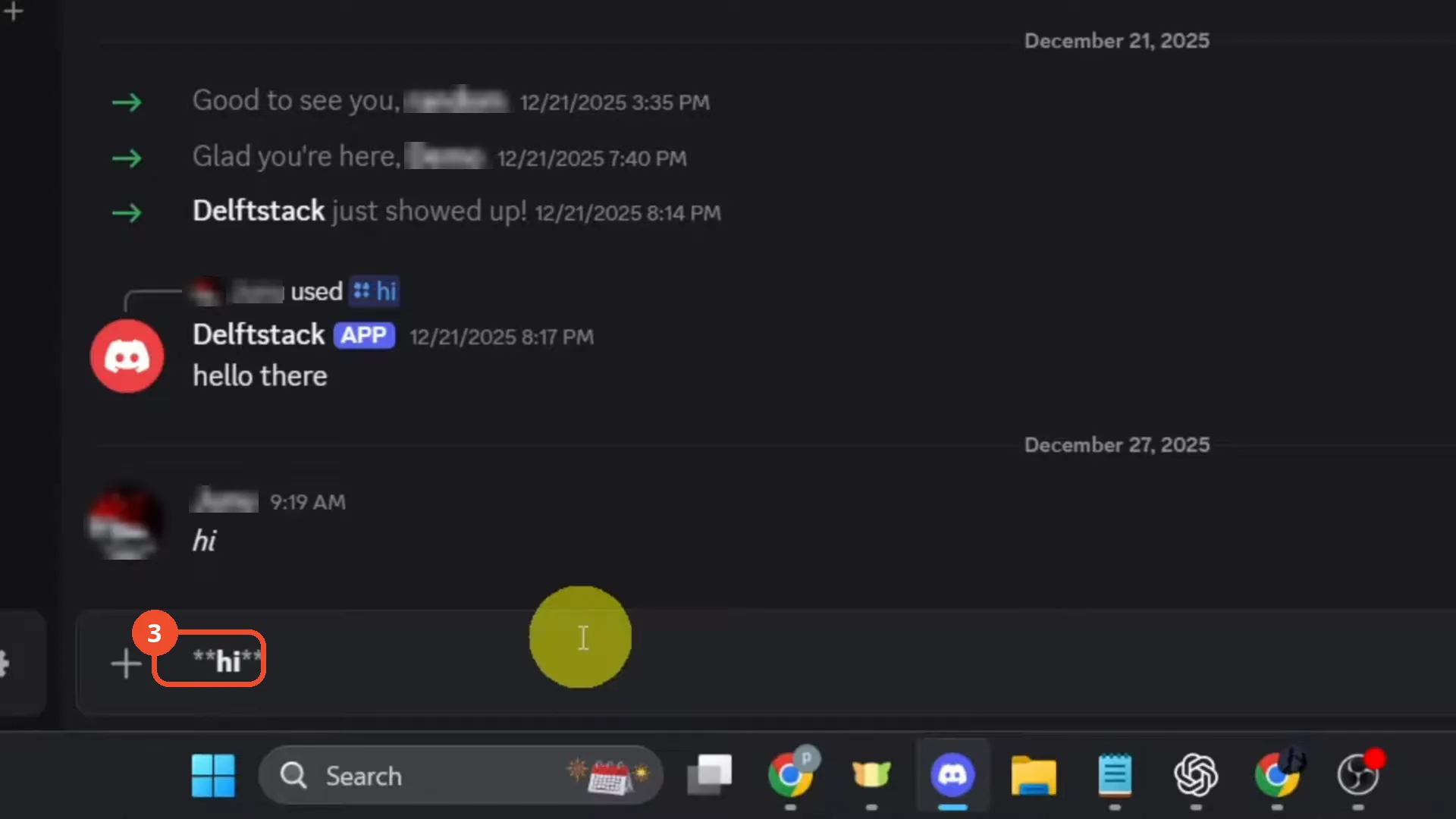
For bold, type double asterisks before and after your text, like hi.
Send the formatted message
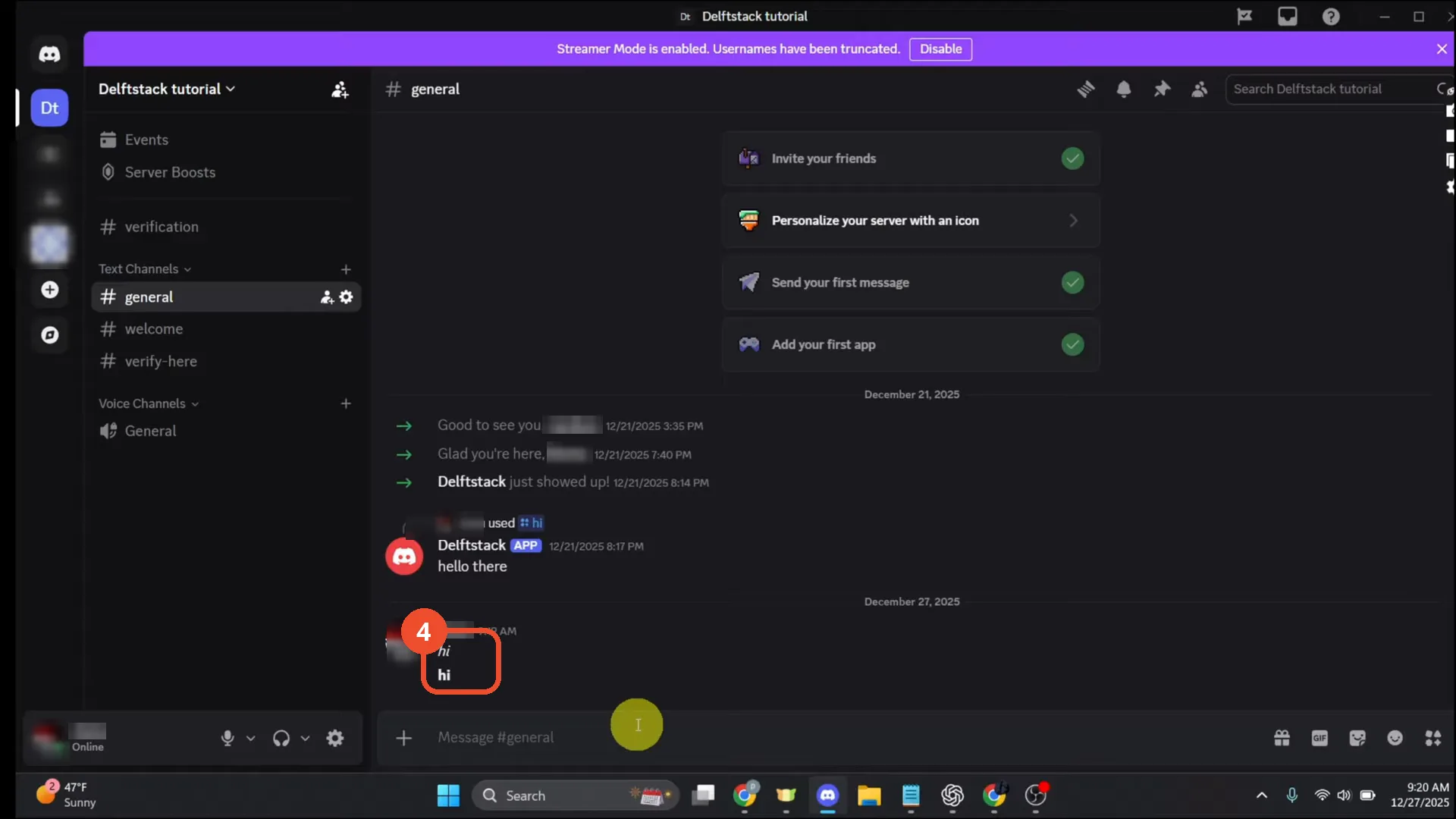
Send the message. The asterisks disappear and the text posts formatted — the demo hi posts slanted for italics and heavy for bold.
Good to know
- Discord has no word-processor-style permanent highlight; the methods here are selection (temporary, only you see it) and formatting (visible to everyone).
- Selecting text with click-and-drag on desktop only highlights it for you, for copying — other members do not see the highlight.
- The video title promises mobile tips, but no mobile footage appears: the long-press-to-select mobile method is narration-only and is not shown, so no mobile step is included here.
- Single asterisks make italics and double asterisks make bold; the asterisks themselves disappear once the message is sent.
More on Discord
- How to Stop Spotify From Pausing on Discord
- How to See Who Owns a Discord Server
- How to Make Discord Open on a Second Monitor by Default
- How to Remove Someone from a Discord Group
- How to Self-Assign Roles in Discord Using ProBot
- How to Scan a QR Code with the Discord Mobile App
- How to Stream OBS to Discord with Sound
- How to Create a Discord Server Template Link
- How to Make Your Name Invisible on Discord
- How to Send a Discord Friend Request
- How to Turn Off DMs on Discord
- How to Enable Age-Restricted Commands on Discord Mobile
- How to Zoom In and Out on Discord
- How to Create a GIF and Share It in Discord
- How to Exit Full Screen on Discord
- How to Send Files Through Discord
- How to Skip a Line in Discord
- How to Find Gradient Role Settings in Discord (Nitro Required)
- How to Make an Animated Discord Banner GIF in CapCut
- How to Add Someone to an Ongoing Discord Voice or Video Call
- How to Add Discord Audio to OBS
- How Discord Text-to-Speech Works (TTS Explained for Text Channels)