How to Fix Discord Freezing When Closing Valorant
If Discord freezes when you close Valorant, the video’s fix is to switch off Debug Logging in Voice & Video settings. Confirming the change quits and relaunches Discord by itself.
- SystemWindows
- AppDiscord
- Last verifiedNovember 3, 2026
Every screenshot below is taken from the actual recording on this device — no stock images.
Steps
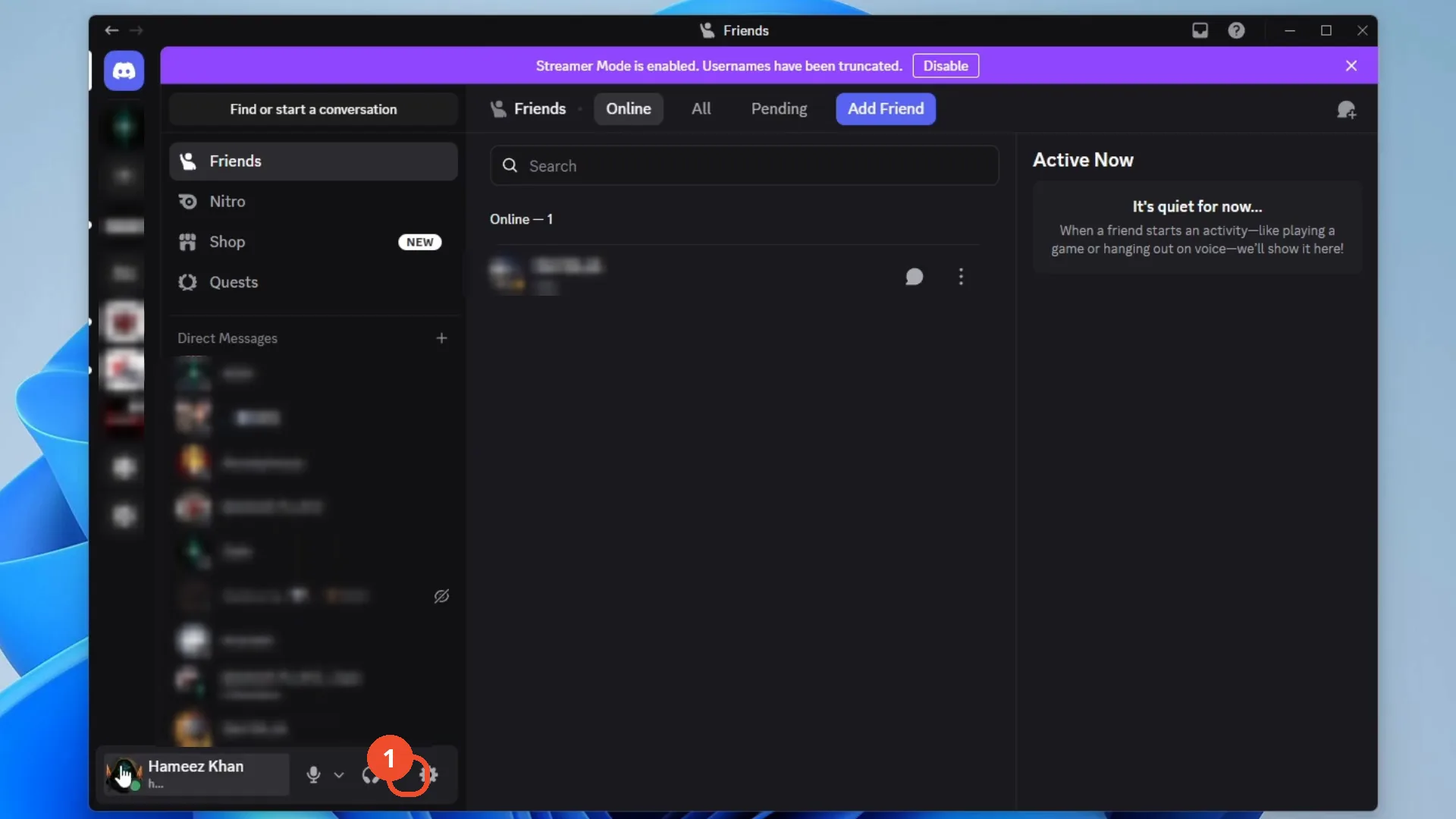
Open Discord and open User Settings
Open Discord on your computer, then click the gear icon at the bottom left, next to your username, to open User Settings.
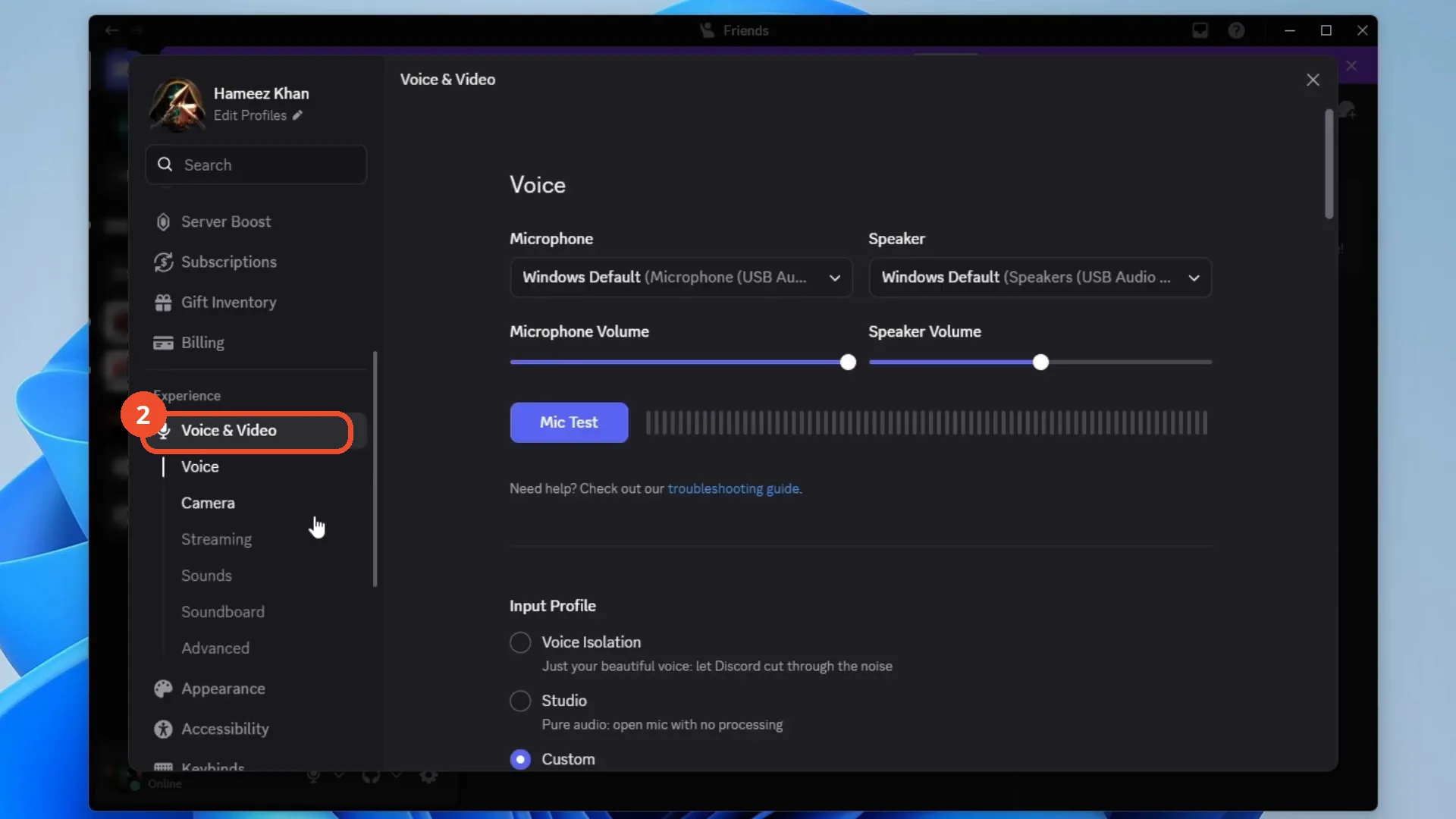
Open Voice & Video
In Settings, scroll down the left menu and click Voice & Video.
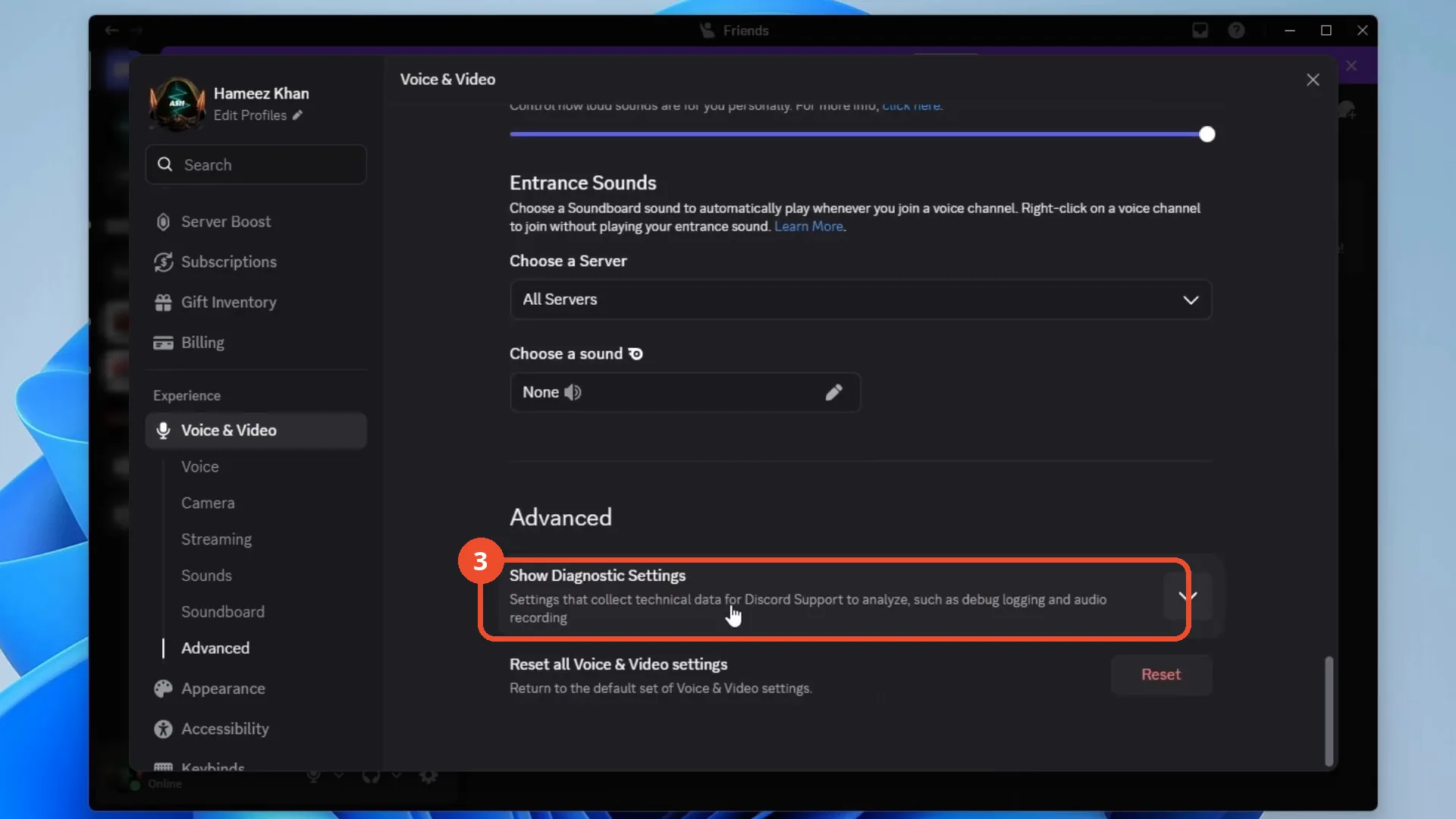
Expand Diagnostic Settings
Scroll down to Advanced and expand Show Diagnostic Settings to reveal the debug options.
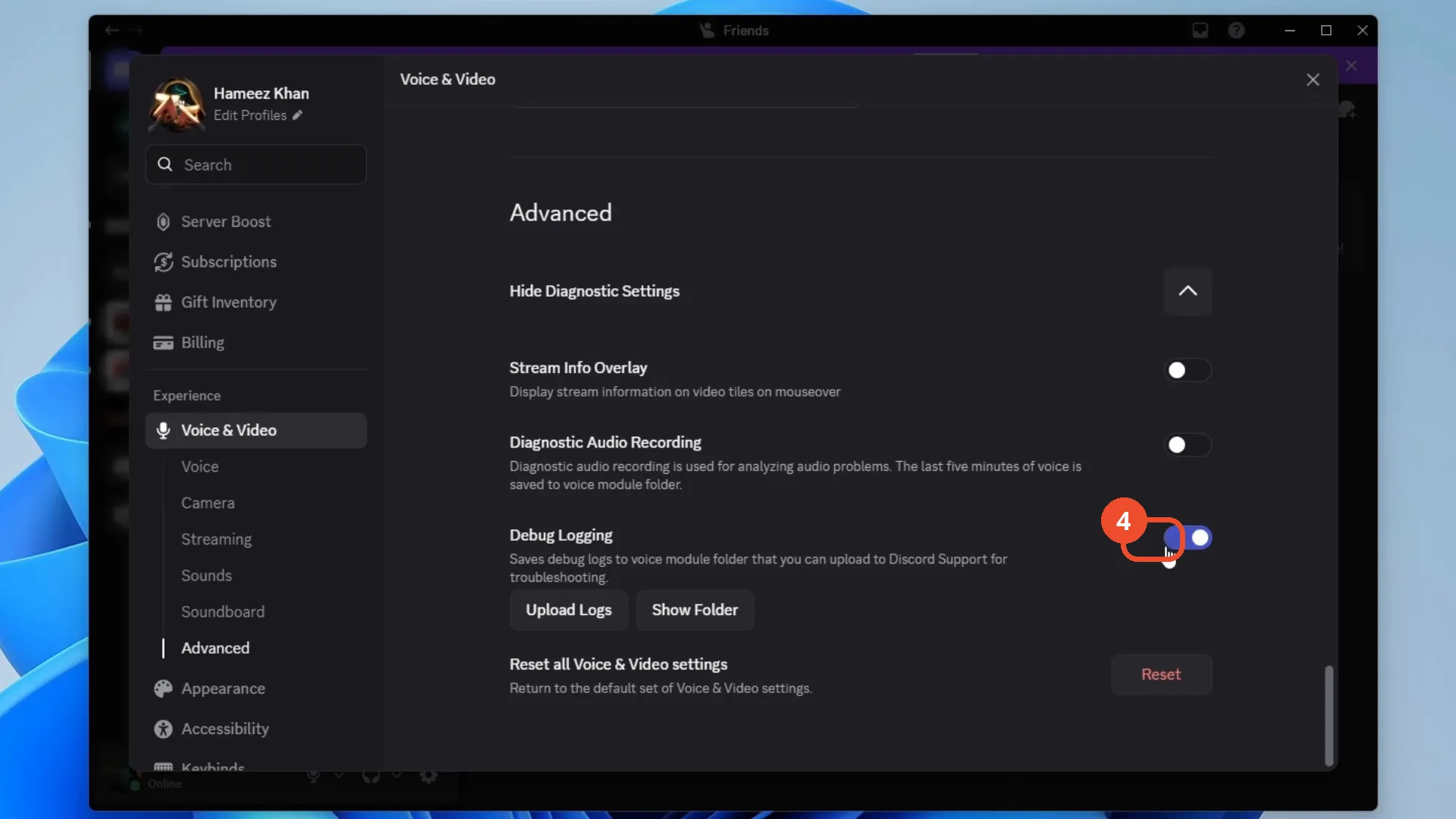
Switch off Debug Logging
In the expanded Diagnostic Settings, click the Debug Logging toggle to switch it off.
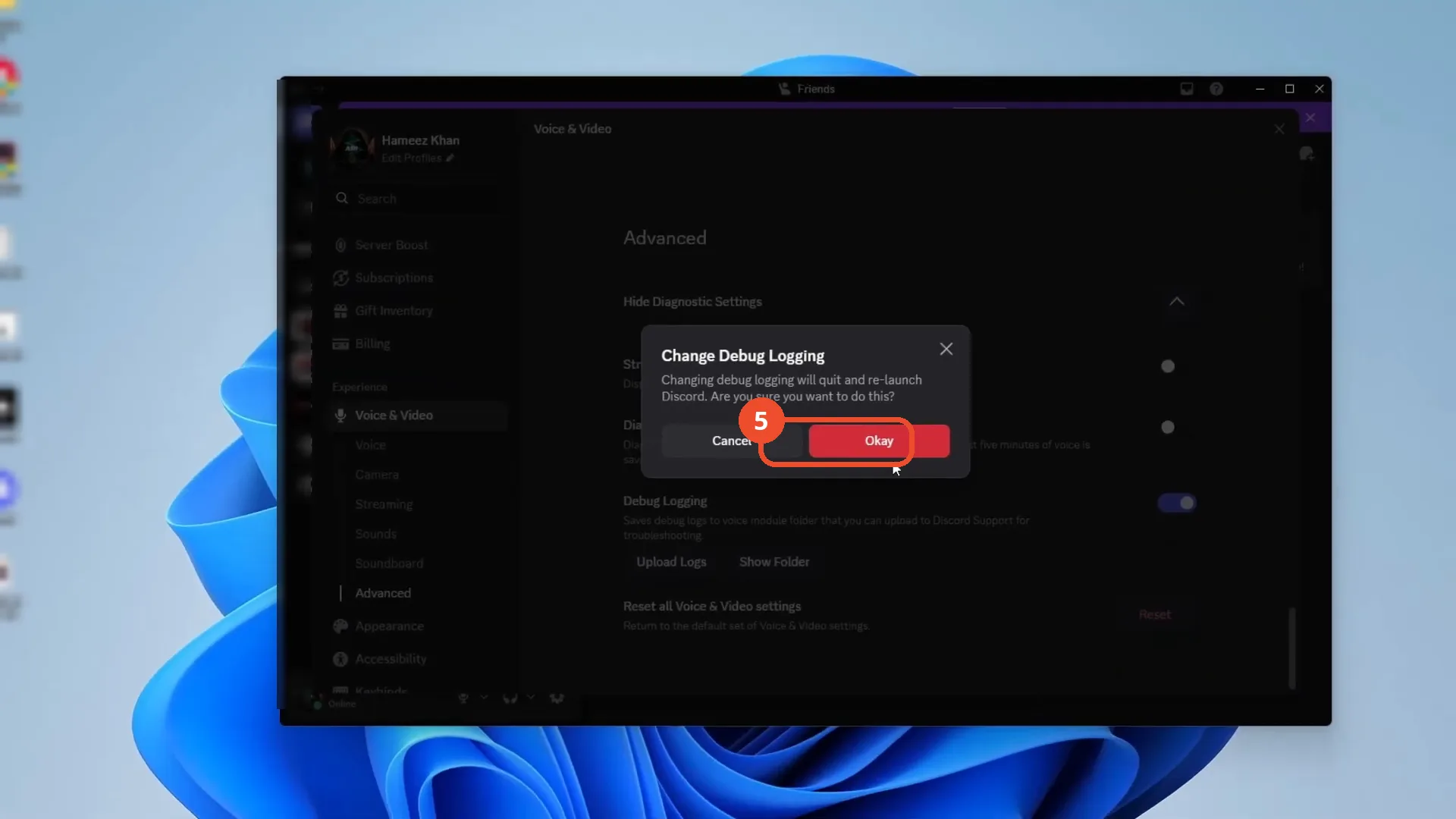
Confirm the change
Click Okay in the Change Debug Logging dialog. Changing this setting quits and re-launches Discord on its own — that relaunch is the restart.
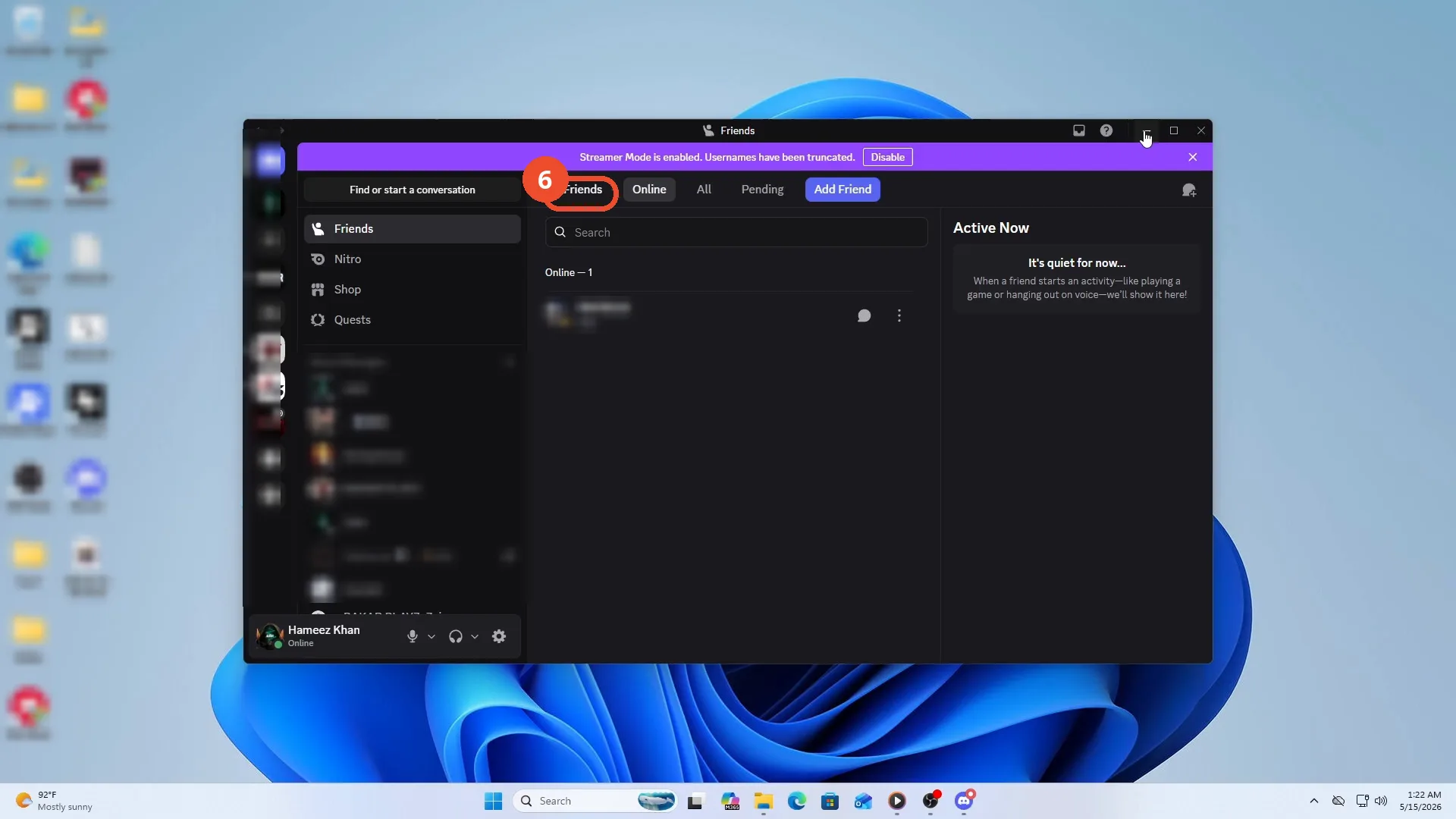
Check Discord is back and test Valorant
After the relaunch, Discord is back on the Friends page. Launch Valorant and use Discord normally to check the freezing is gone.
Good to know
- The video never shows Valorant launching or a before/after freeze test on camera: the ‘freezing is fixed’ result is the video’s claim, not a demonstrated result.
- Confirming the Debug Logging change quits and relaunches Discord automatically; no separate manual restart is needed.
- If the issue continues, the video advises updating or reinstalling Discord.
- This was recorded in the Discord desktop app on Windows, not on a phone.
More on Discord
- How to Stop Spotify From Pausing on Discord
- How to See Who Owns a Discord Server
- How to Make Discord Open on a Second Monitor by Default
- How to Remove Someone from a Discord Group
- How to Self-Assign Roles in Discord Using ProBot
- How to Scan a QR Code with the Discord Mobile App
- How to Stream OBS to Discord with Sound
- How to Create a Discord Server Template Link
- How to Make Your Name Invisible on Discord
- How to Send a Discord Friend Request
- How to Turn Off DMs on Discord
- How to Enable Age-Restricted Commands on Discord Mobile
- How to Zoom In and Out on Discord
- How to Create a GIF and Share It in Discord
- How to Exit Full Screen on Discord
- How to Send Files Through Discord
- How to Skip a Line in Discord
- How to Find Gradient Role Settings in Discord (Nitro Required)
- How to Make an Animated Discord Banner GIF in CapCut
- How to Add Discord Audio to OBS
- How Discord Text-to-Speech Works (TTS Explained for Text Channels)
- How to Highlight Text in Discord on Desktop
- How to Add Someone to an Ongoing Discord Voice or Video Call