How to Find Gradient Role Settings in Discord (Nitro Required)
This video’s title promises gradient roles, but what it actually shows is different: on the demo account the Gradient option is locked behind boosting, so no gradient role is ever created. Here is where the setting lives, what the lock looks like, and the solid-color fallback the demo completes.
- SystemWindows
- AppDiscord
- Also works onDiscord web app (the same Server Settings and Roles pages).
- Last verifiedNovember 1, 2026
Every screenshot below is taken from the actual recording on this device — no stock images.
Steps
Open Server Settings
Open your server, click the server name at the top left, then click Server Settings in the menu.
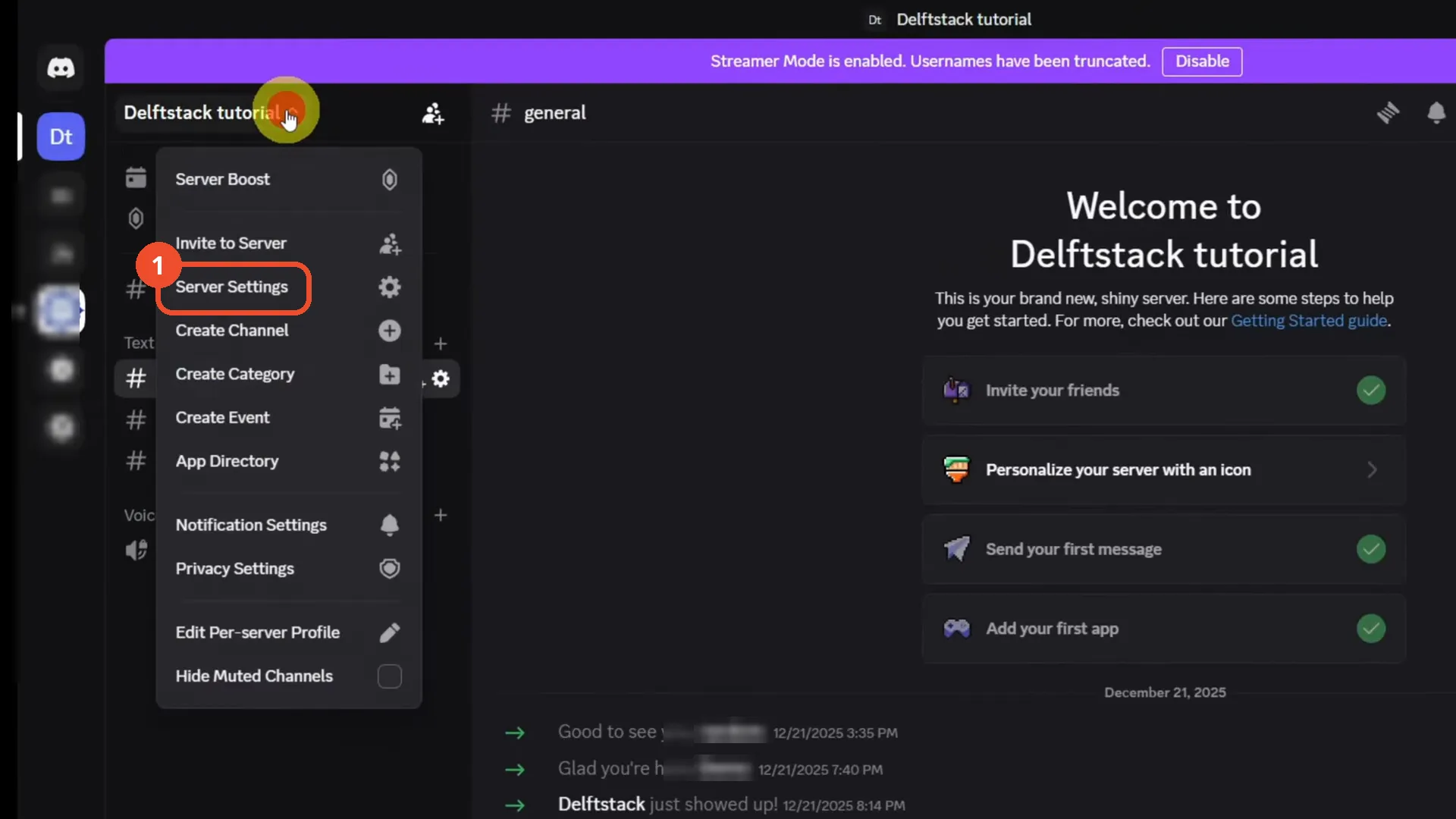
Open Roles
In the settings sidebar, under People, click Roles.
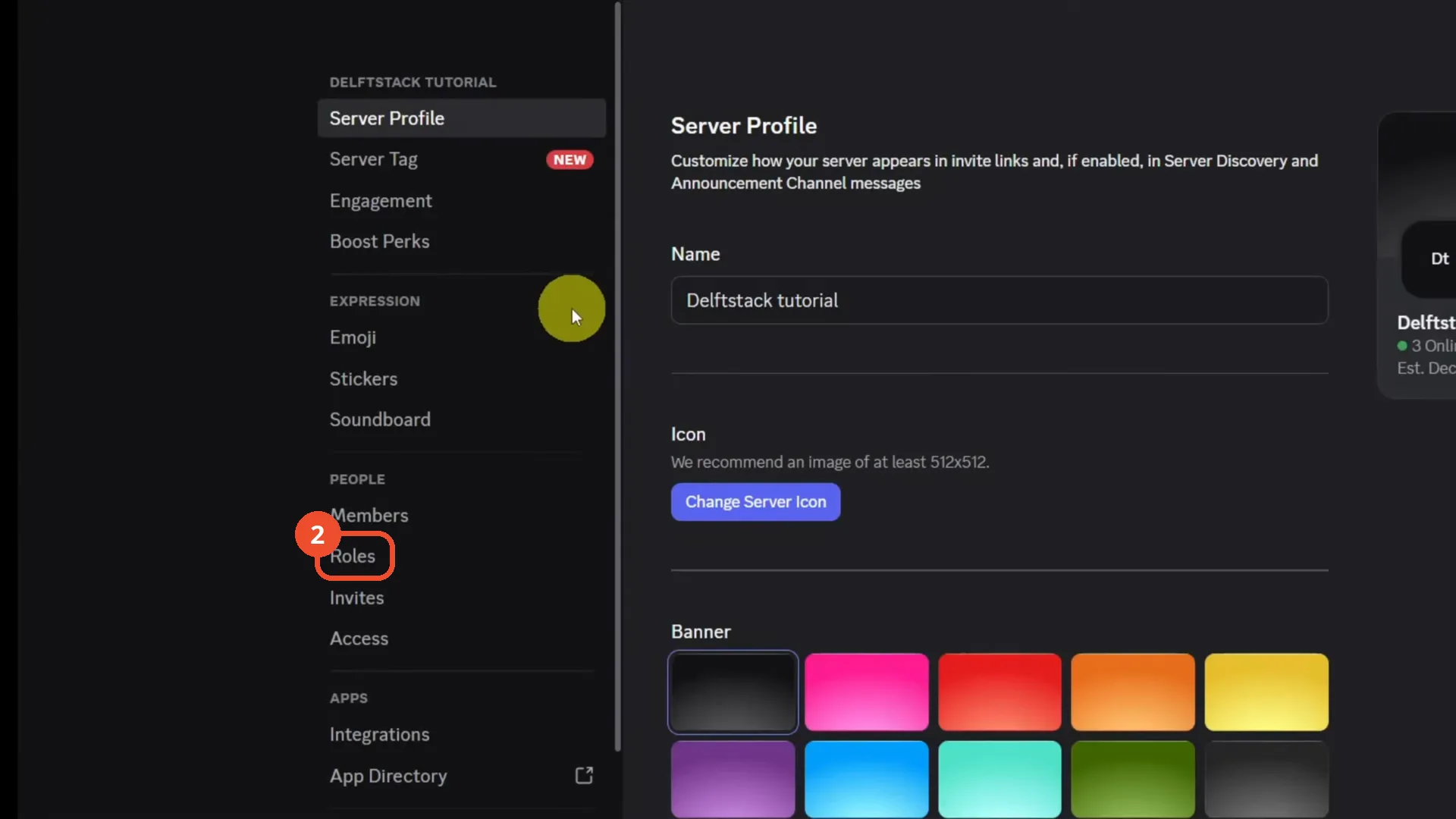
Pick an existing role
Scroll the role list and click an existing role — the demo picks lvl 5 — or create a new one.
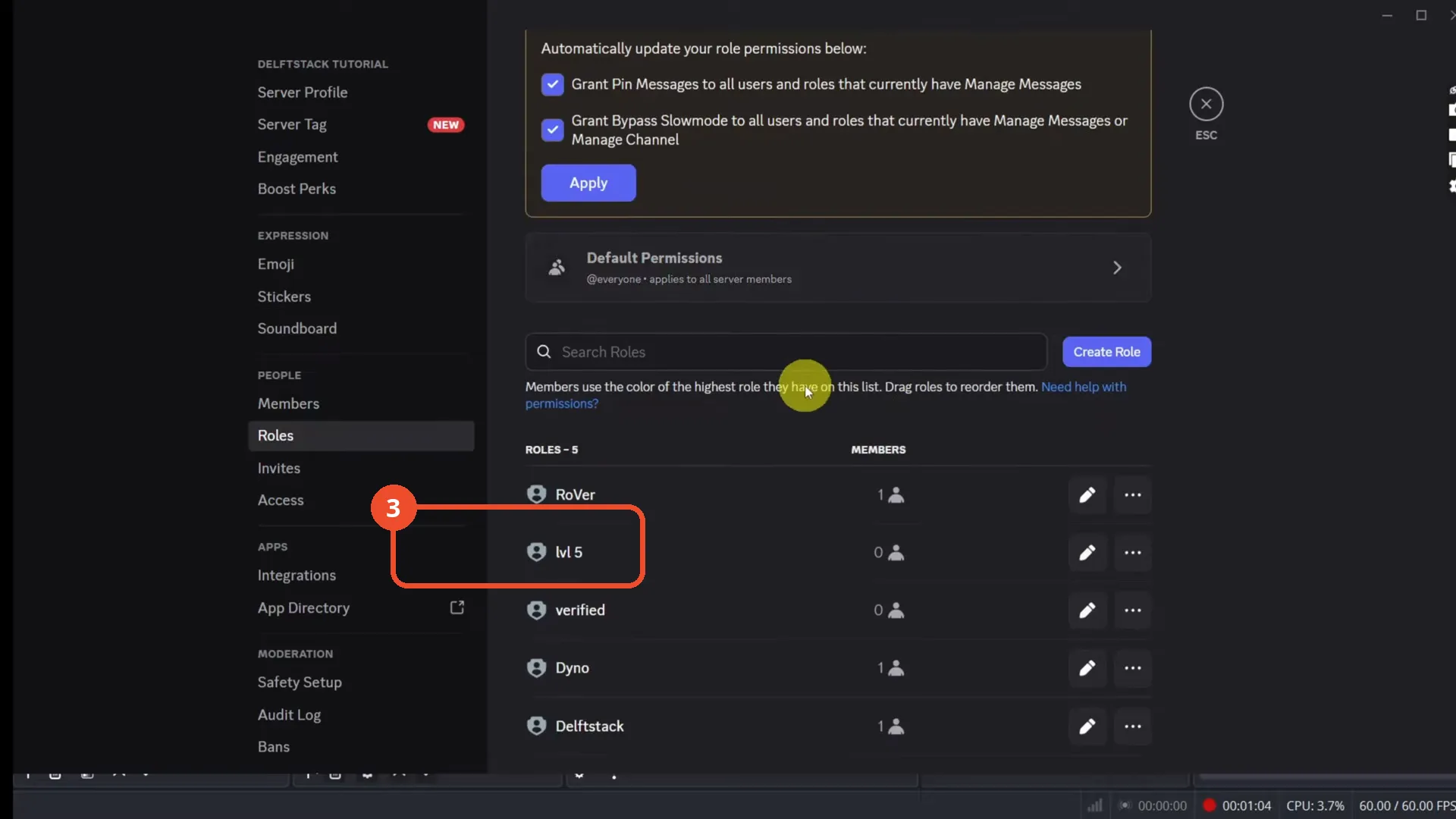
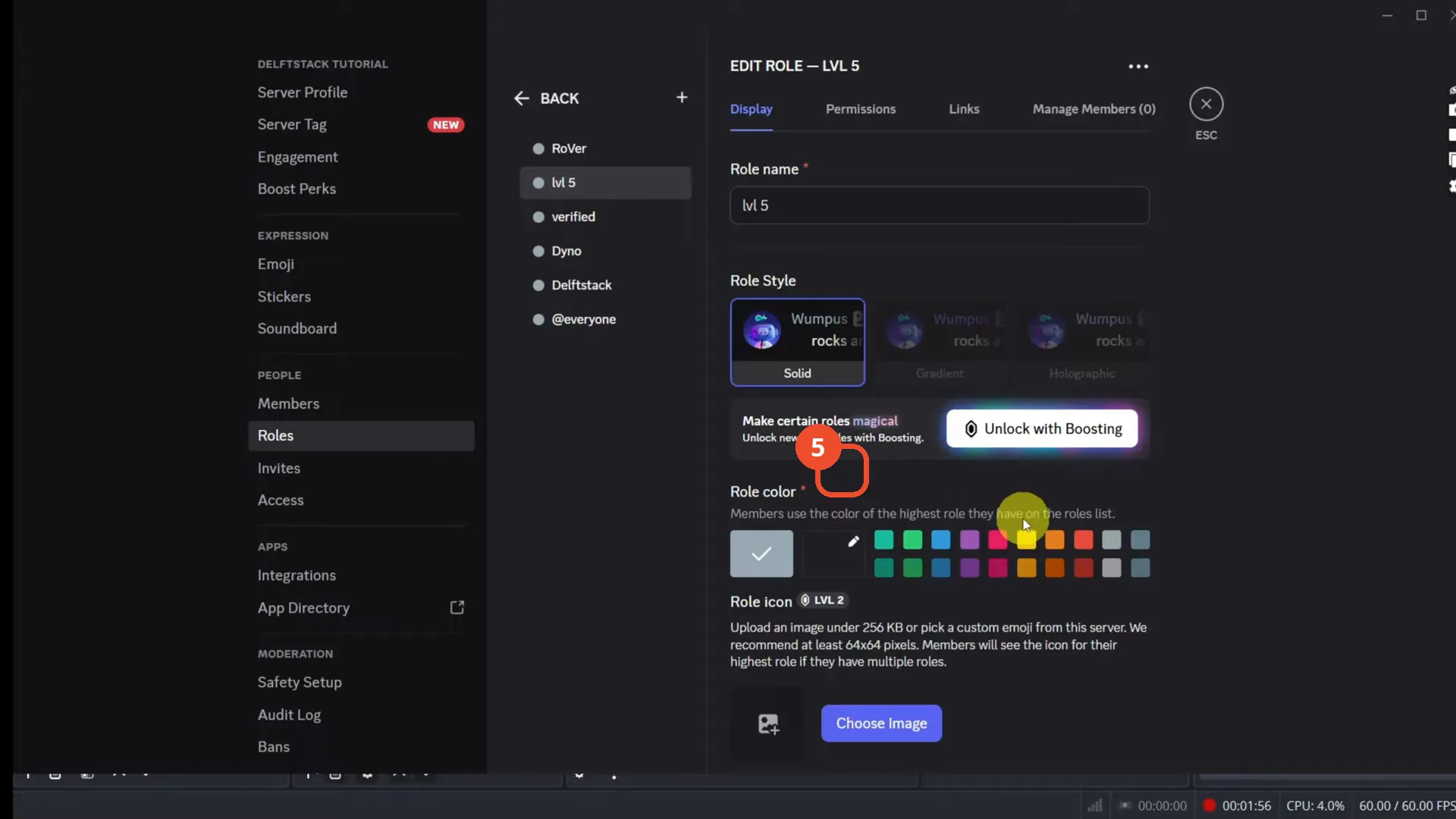
Check the locked Gradient option
Under Role Style, the Gradient option shows Unlock with Boosting: without Nitro or a boosted server you cannot switch to it.
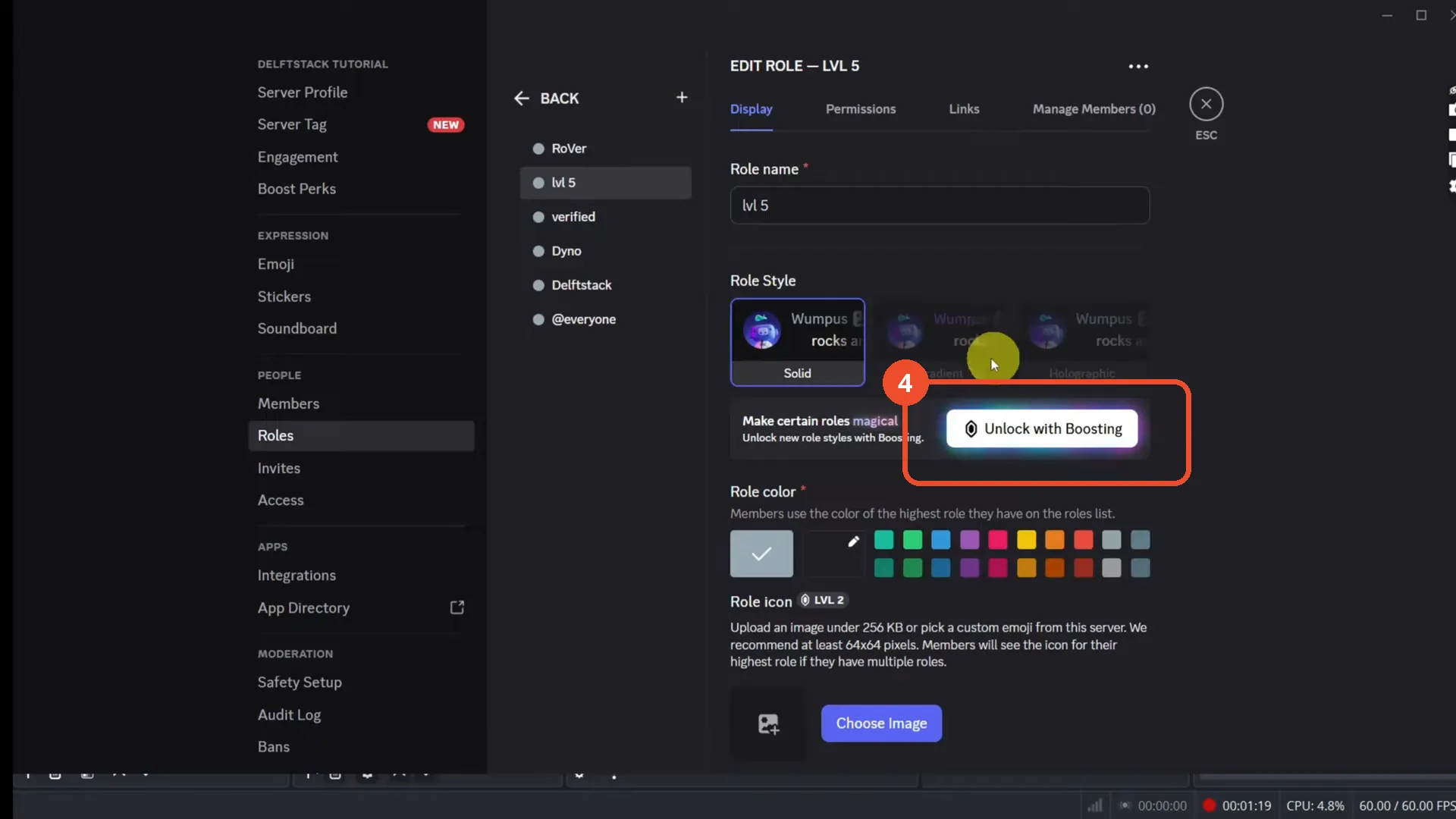
Pick a solid color instead
As a fallback, stay on the Solid style and pick any color swatch you like for the role.
Click Save Changes
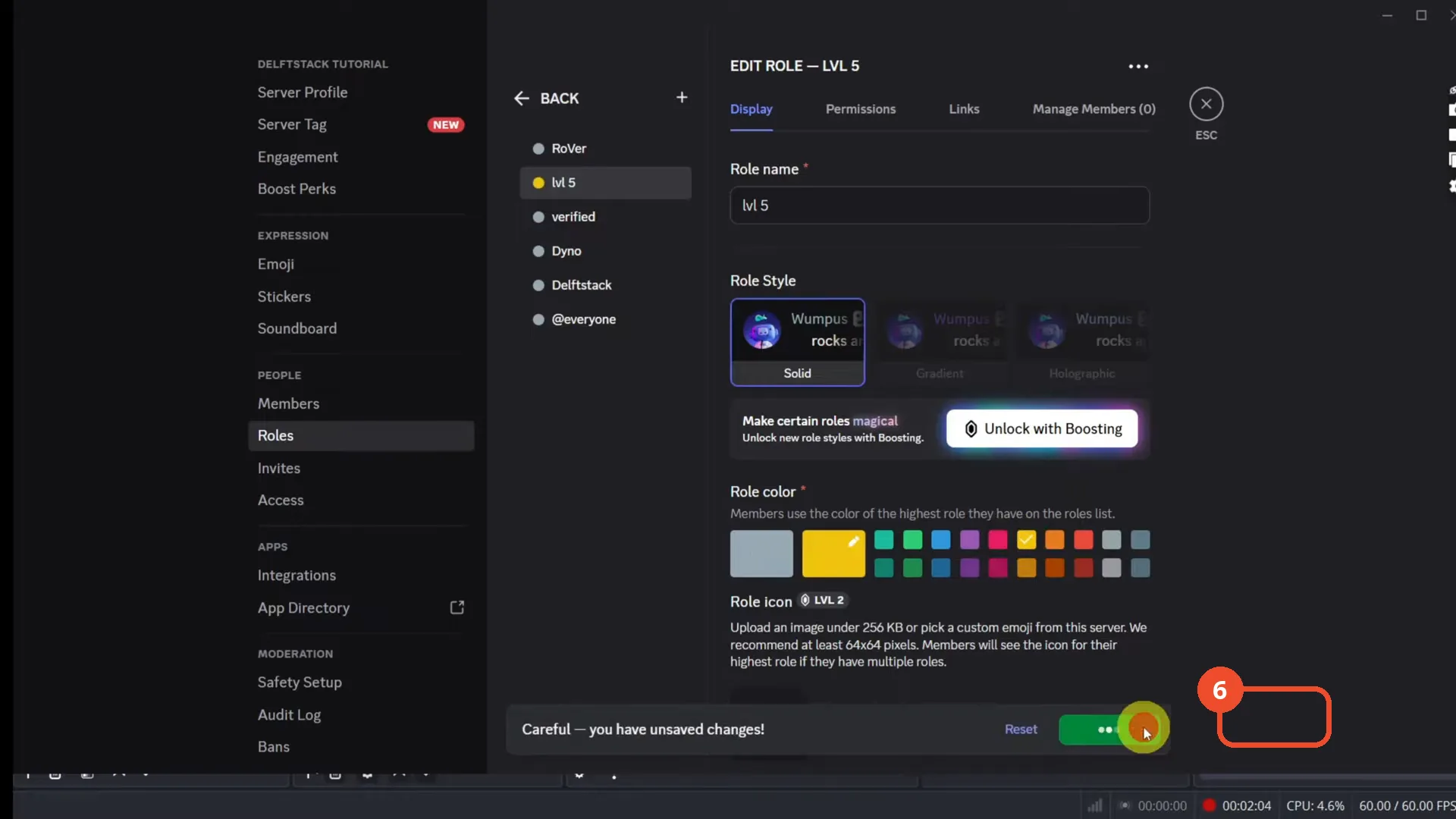
Click Save Changes in the unsaved-changes bar at the bottom. The bar disappears once the color is saved.
Good to know
- The video’s narration states Discord Nitro is required for gradient roles; the button in the demo reads Unlock with Boosting.
- Gradient colors apply to the role name as it appears in the member list.
- Without Nitro or boosting, solid role colors still work — pick any swatch and save.
- You need the Manage Roles permission for these settings; the demo uses a server the demonstrator owns.
More on Discord
- How to Stop Spotify From Pausing on Discord
- How to See Who Owns a Discord Server
- How to Make Discord Open on a Second Monitor by Default
- How to Remove Someone from a Discord Group
- How to Self-Assign Roles in Discord Using ProBot
- How to Scan a QR Code with the Discord Mobile App
- How to Stream OBS to Discord with Sound
- How to Create a Discord Server Template Link
- How to Make Your Name Invisible on Discord
- How to Send a Discord Friend Request
- How to Turn Off DMs on Discord
- How to Enable Age-Restricted Commands on Discord Mobile
- How to Zoom In and Out on Discord
- How to Create a GIF and Share It in Discord
- How to Exit Full Screen on Discord
- How to Send Files Through Discord
- How to Add Someone to an Ongoing Discord Voice or Video Call
- How to Skip a Line in Discord