How to Exit Full Screen on Discord
Discord has its own full-screen toggle (Ctrl+Shift+F) on top of the browser’s F11, so the usual key may not be the one that frees it. Work through the shortcuts before force-closing anything. Demonstrated on the Discord web app in Chrome on Windows, with the Mac shortcut also shown.
- SystemWindows
- AppDiscord web app
- Also works onmacOS (use Cmd + Shift + F instead of Ctrl + Shift + F) and the Discord desktop app.
- Last verifiedOctober 31, 2026
Every screenshot below is taken from the actual recording on this device — no stock images.
Steps
Discord stuck in full screen
This is the stuck state: Discord fills the whole screen with no browser tabs, address bar, or taskbar visible. Keep this window focused for the shortcuts below.
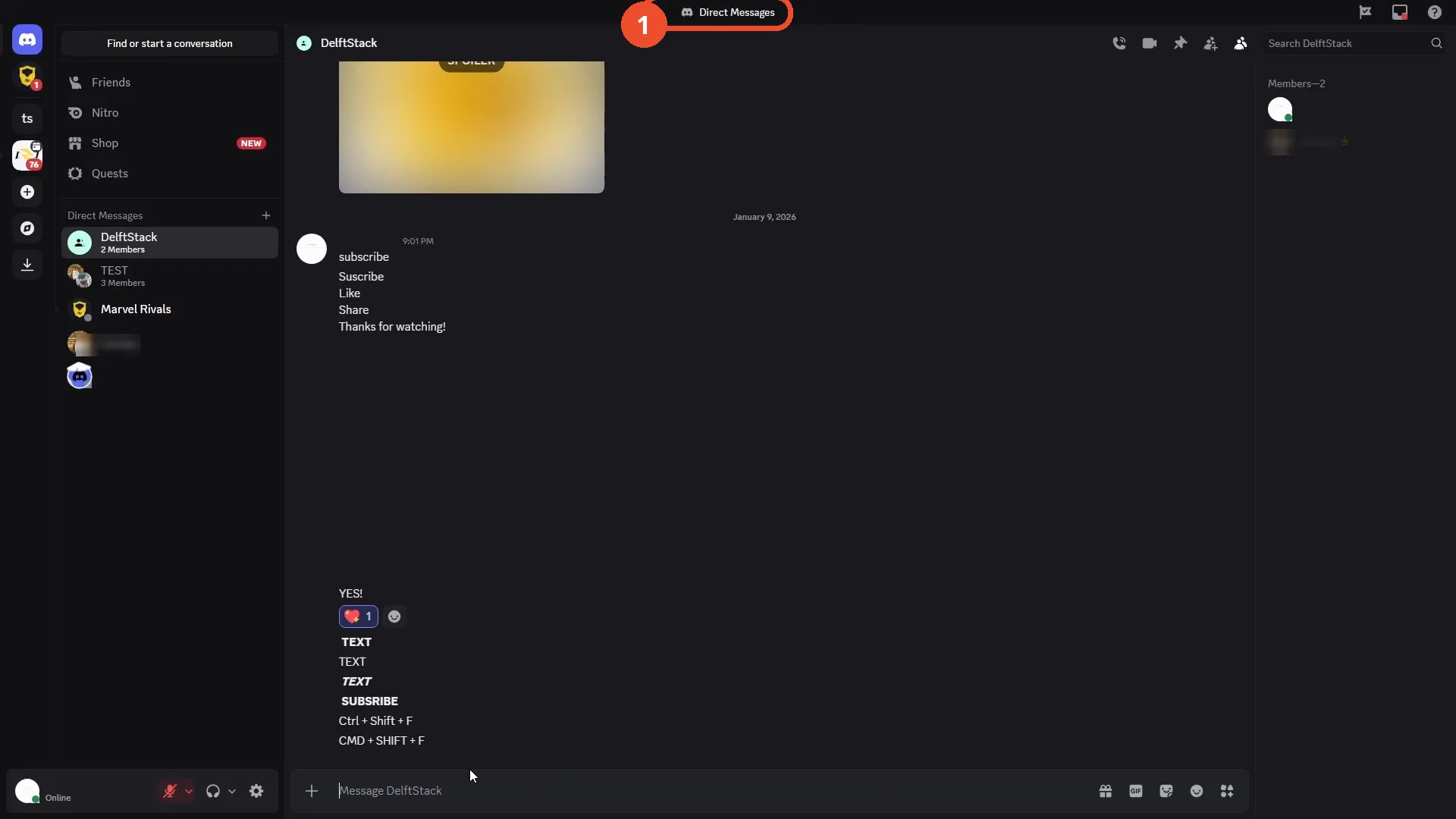
Press Ctrl+Shift+F (or Cmd+Shift+F on Mac)
Press Ctrl + Shift + F on Windows (Cmd + Shift + F on a Mac). This is Discord’s own full-screen toggle and exits full-screen mode directly.
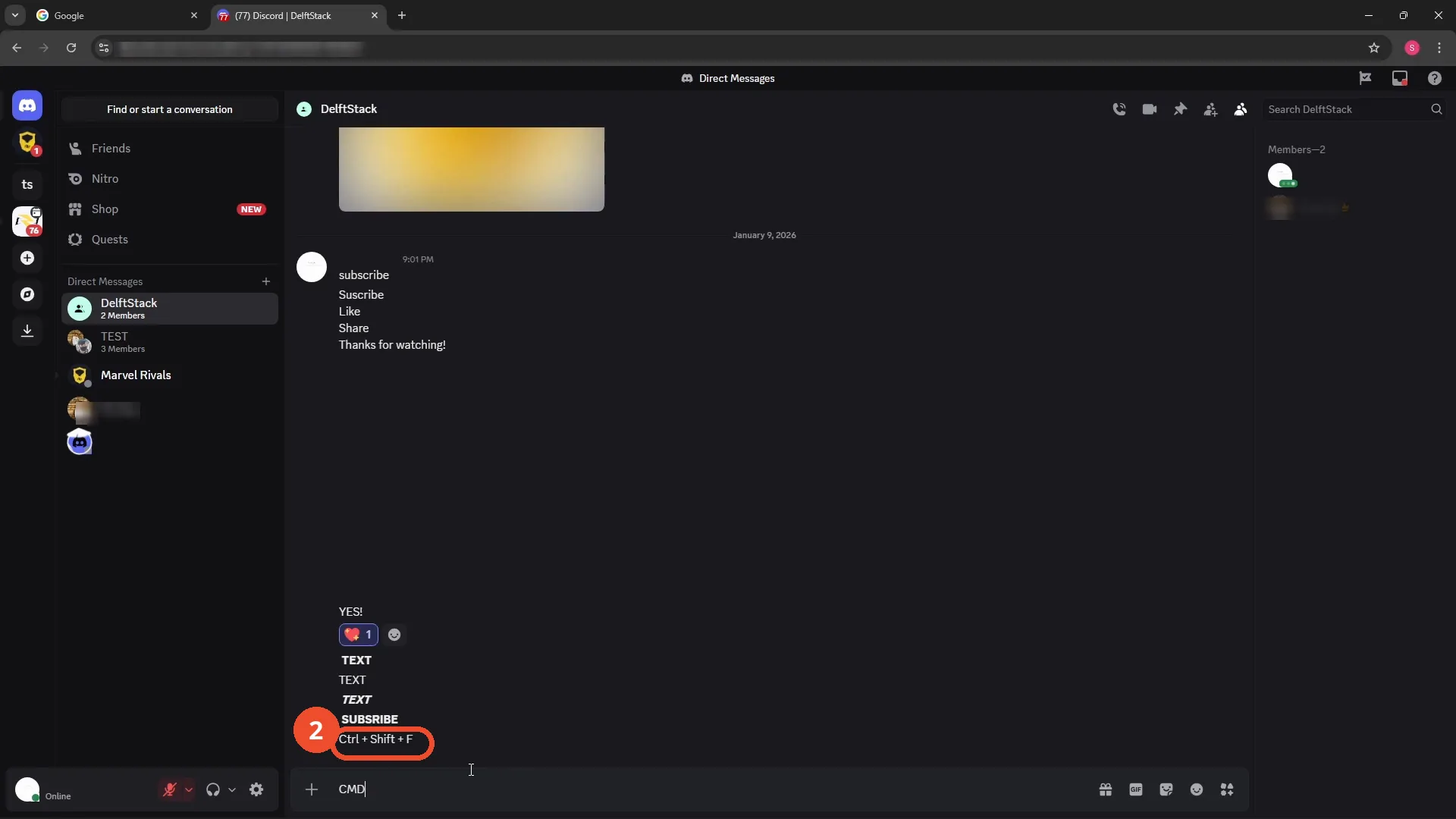
Try F11, or hold Esc
If that did not work, press F11 to toggle the browser’s full screen off, or press and hold Esc. The browser tabs and address bar coming back is how you know it worked.
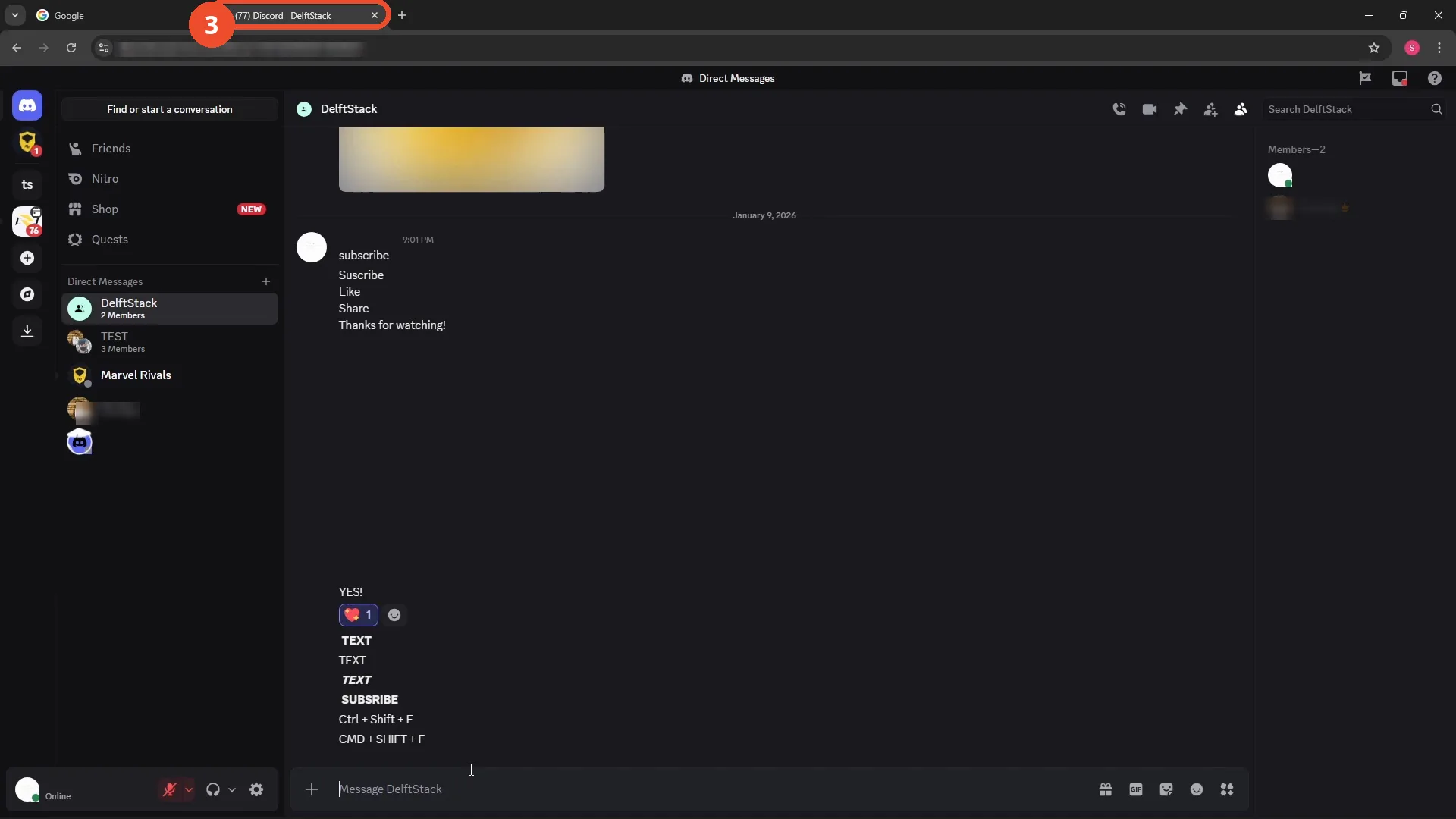
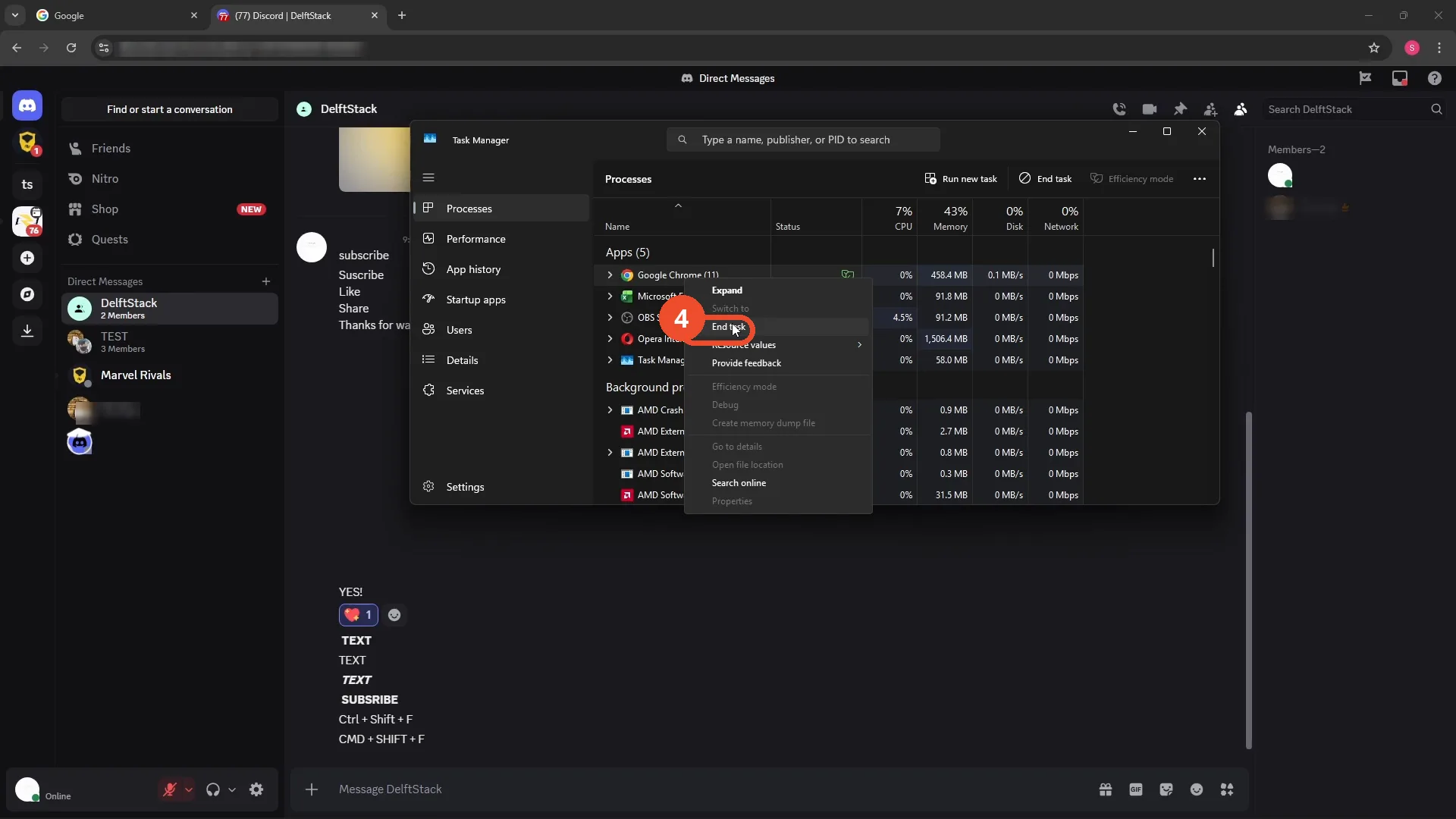
End the task in Task Manager as a last resort
As a last resort, press Ctrl + Alt + Delete, open Task Manager, right-click Google Chrome (the browser running the Discord web app), and choose End task. Then relaunch the browser to get Discord back out of full screen.
Good to know
- On a Mac, the Discord full-screen shortcut is Cmd + Shift + F.
- F11 toggles the browser’s own full screen; holding Esc also exits full screen.
- Ending the task closes the browser window holding the Discord web app — just reopen it to get Discord back.
- If you use the Discord desktop app instead, end the Discord task in Task Manager, not Chrome.
More on Discord
- How to Stop Spotify From Pausing on Discord
- How to See Who Owns a Discord Server
- How to Make Discord Open on a Second Monitor by Default
- How to Remove Someone from a Discord Group
- How to Self-Assign Roles in Discord Using ProBot
- How to Scan a QR Code with the Discord Mobile App
- How to Stream OBS to Discord with Sound
- How to Create a Discord Server Template Link
- How to Make Your Name Invisible on Discord
- How to Send a Discord Friend Request
- How to Turn Off DMs on Discord
- How to Enable Age-Restricted Commands on Discord Mobile
- How to Zoom In and Out on Discord
- How to Add Someone to an Ongoing Discord Voice or Video Call
- How to Create a GIF and Share It in Discord