How to Create a GIF and Share It in Discord
Discord does not make GIFs — build yours on GIPHY, then drop its link into a channel. The link unfurls as the GIF itself once you send it. Note: this video’s title says ‘upload GIFs’, but what it actually shows is creating a GIF on GIPHY and sharing its link in Discord.
- SystemWindows
- AppDiscord
- Also works onDiscord web app (the same channel and message box work in a browser).
- Last verifiedOctober 31, 2026
Every screenshot below is taken from the actual recording on this device — no stock images.
Steps
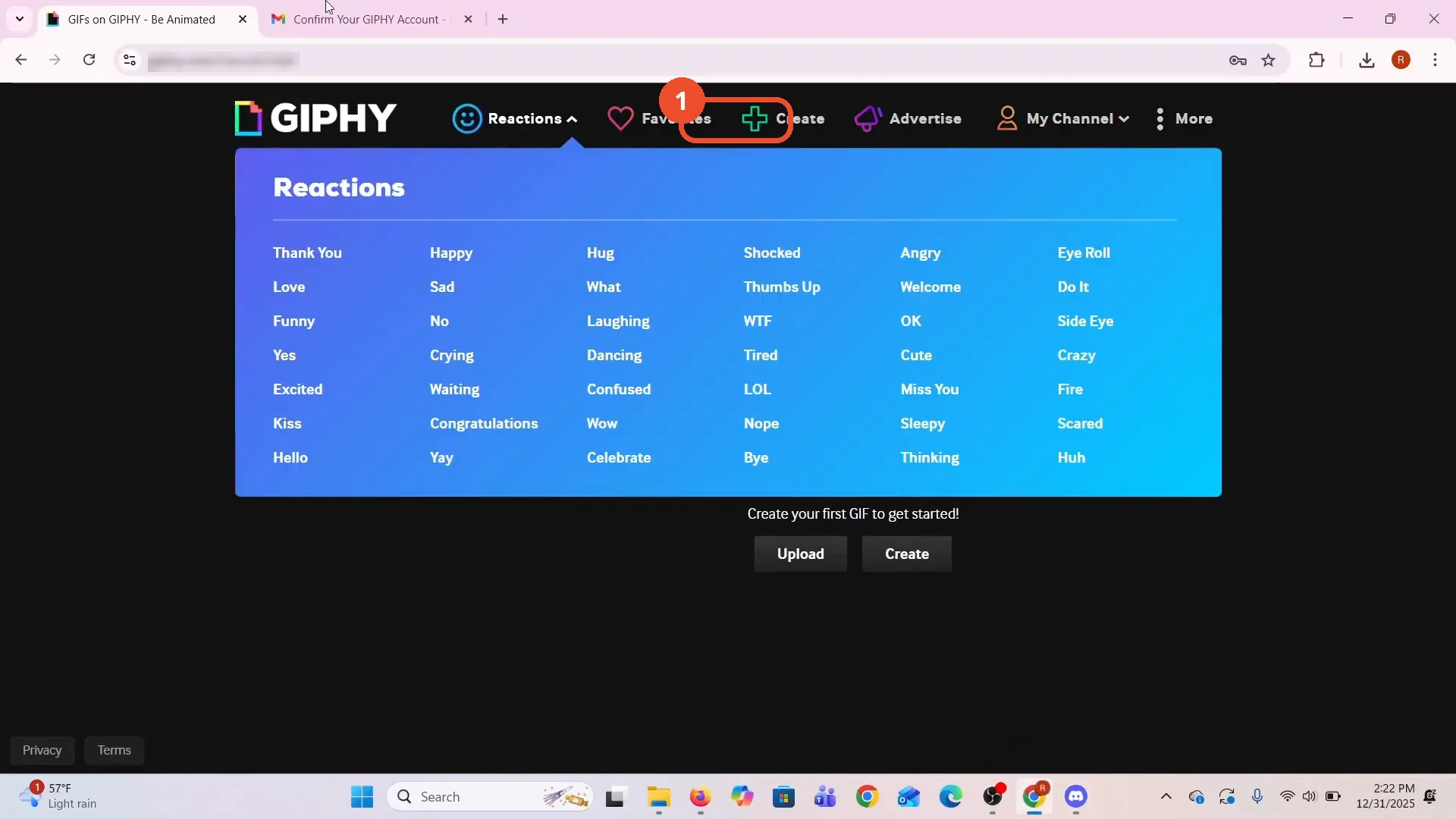
Open GIPHY and click Create
In your browser, open GIPHY and log in with your own account, then click Create in the top navigation.
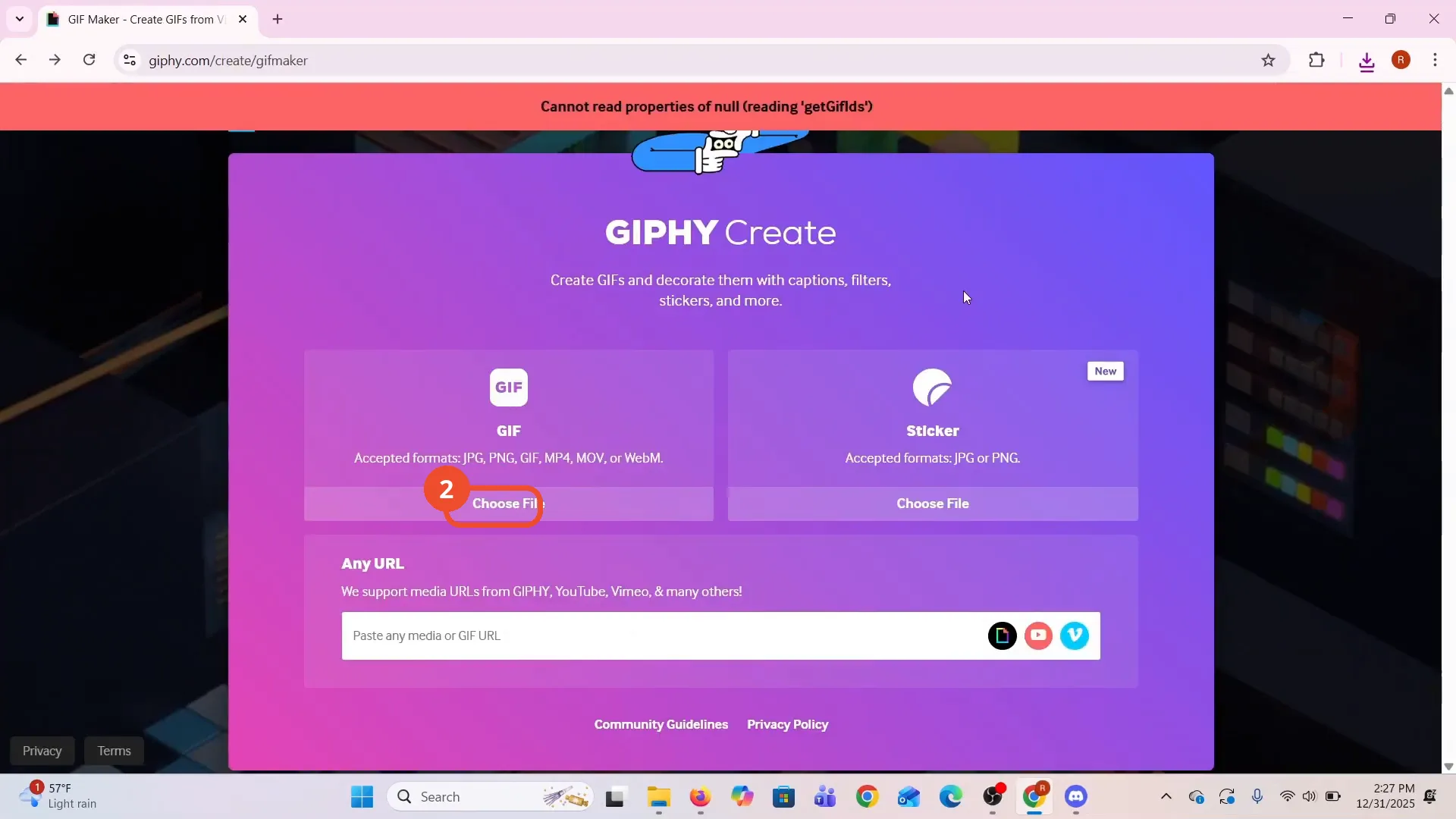
Choose the video file
On the GIPHY Create page, under GIF, click Choose File and select the video you want to turn into a GIF.
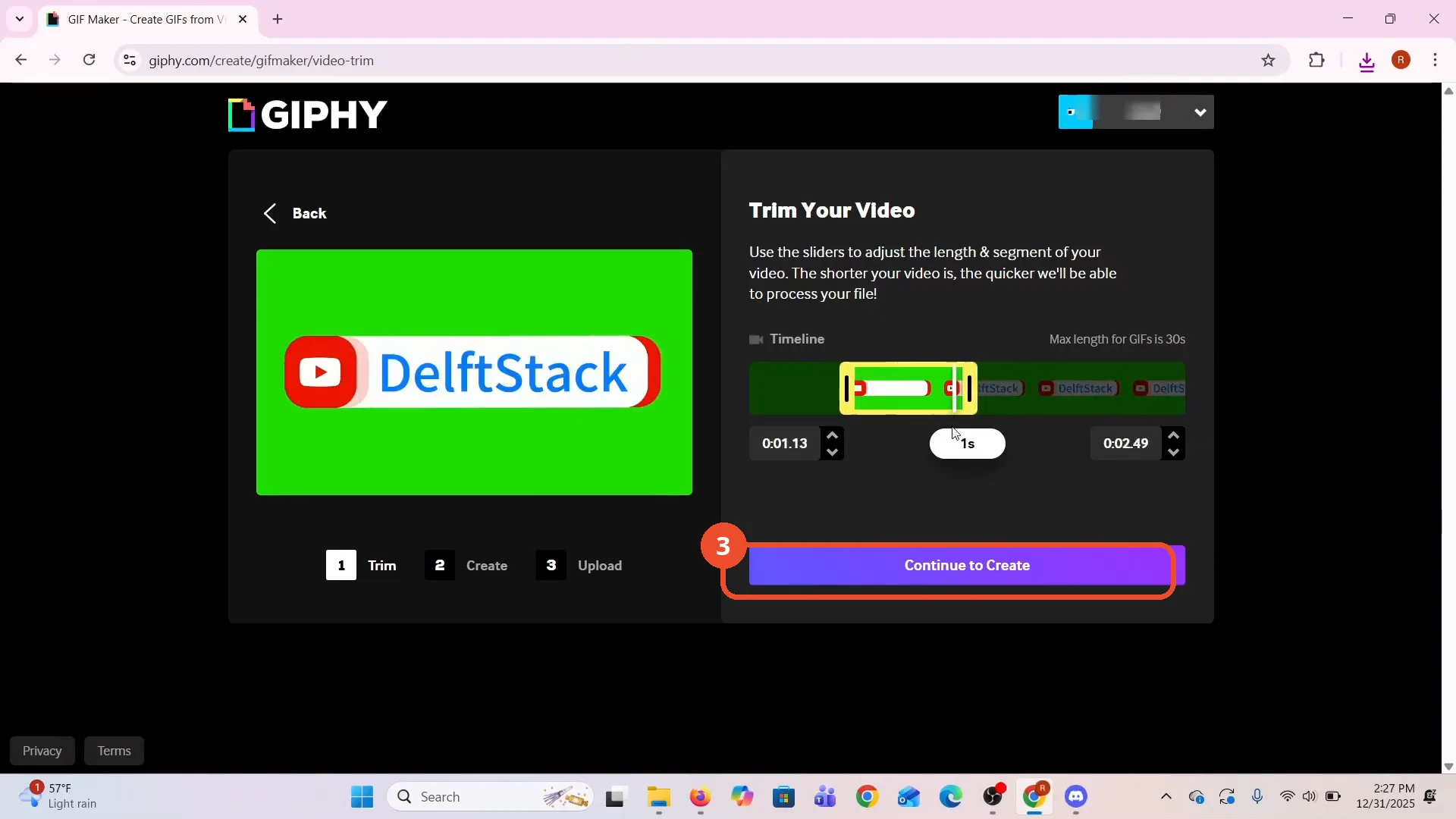
Trim the video
On the Trim step, drag the timeline sliders to shorten the clip — the demo trims it to about 1 second — then click Continue to Create. GIFs are at most 30 seconds long.
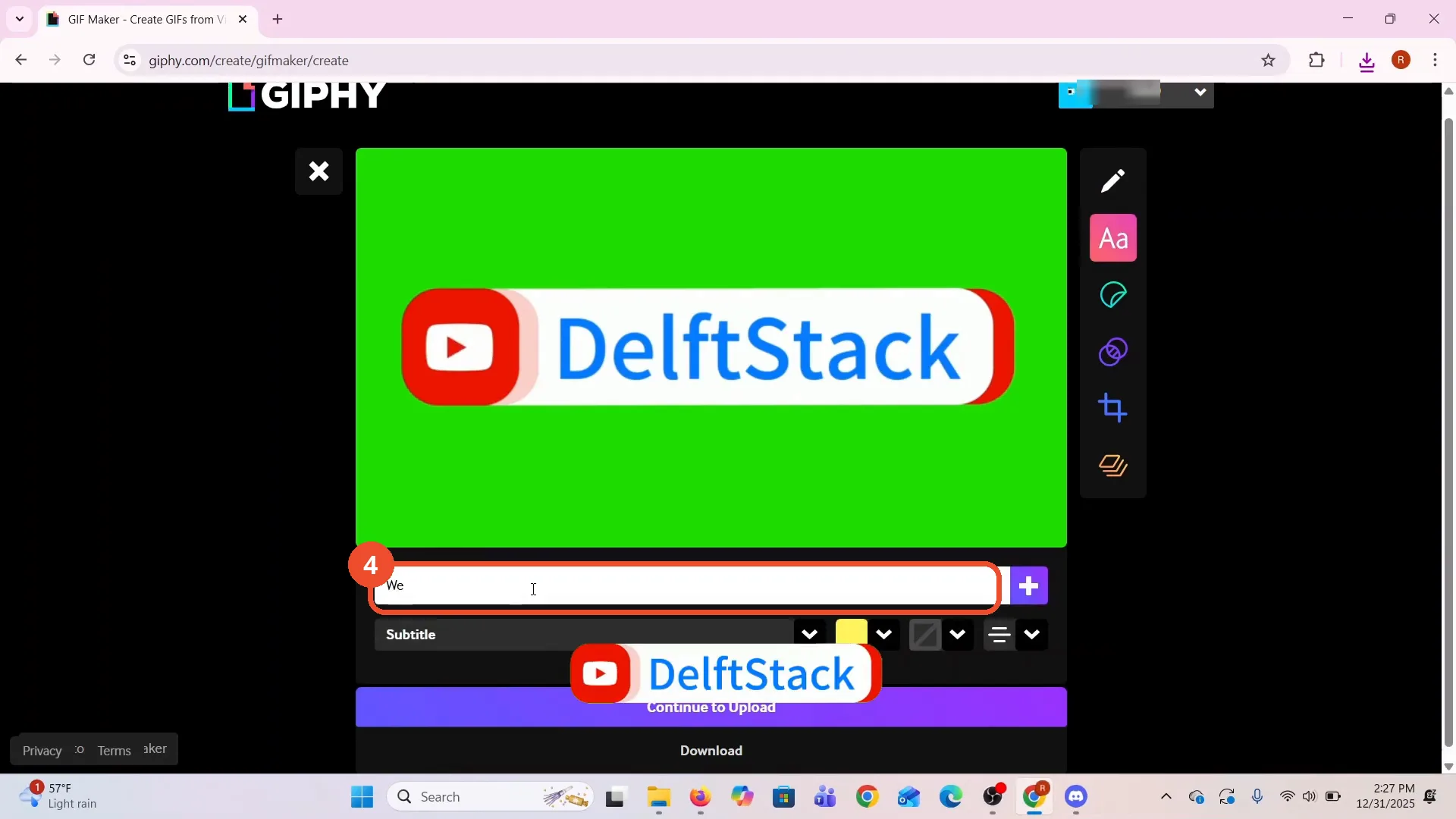
Add a caption and continue
Type a caption in the text box, drag it where you want it, and change its color and font if you like. Then click Continue to Upload.
Copy the GIF link
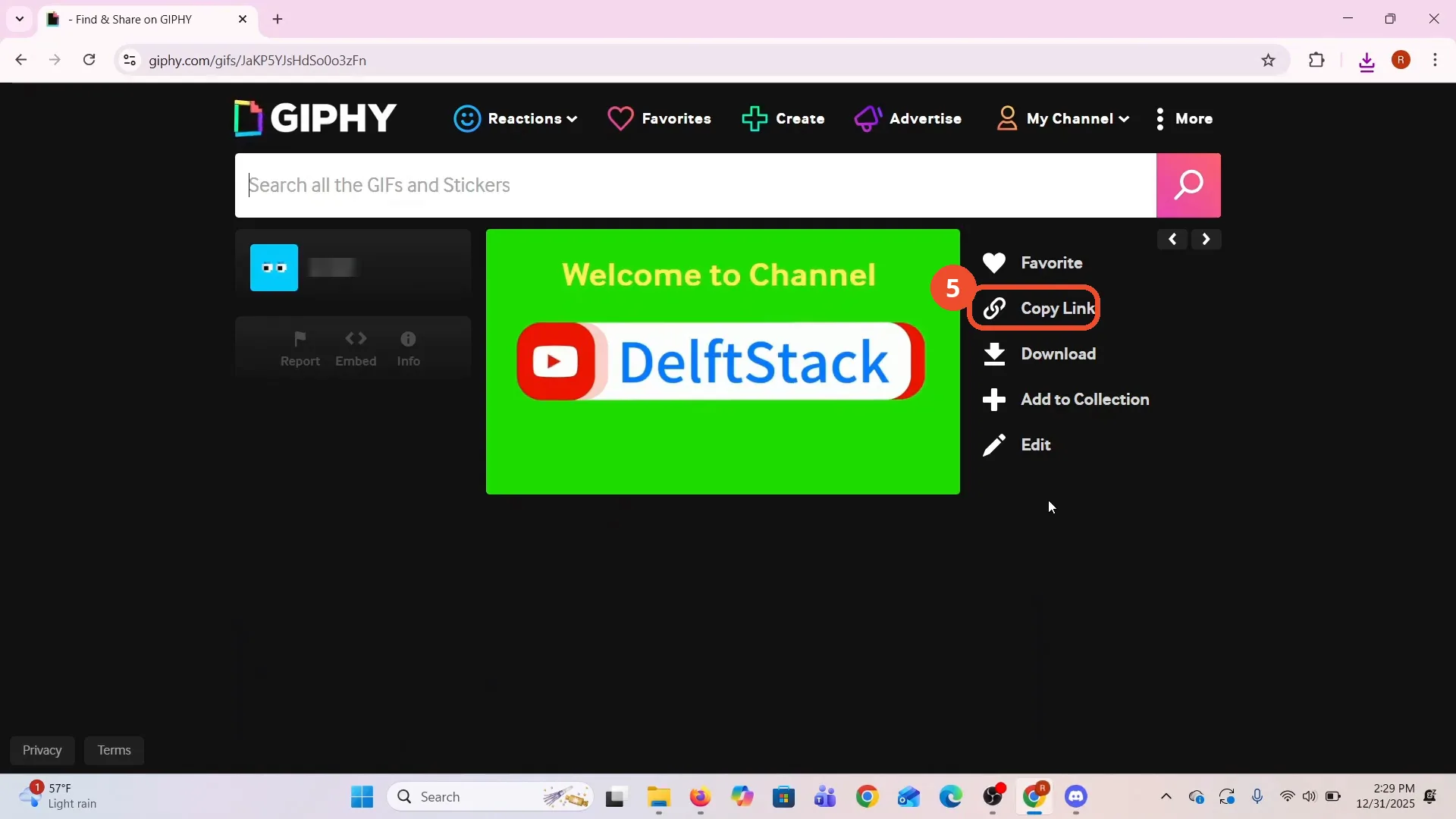
Wait for the upload to finish. On the finished GIF’s page, click Copy Link in the right-hand menu.
Paste the link in your Discord channel
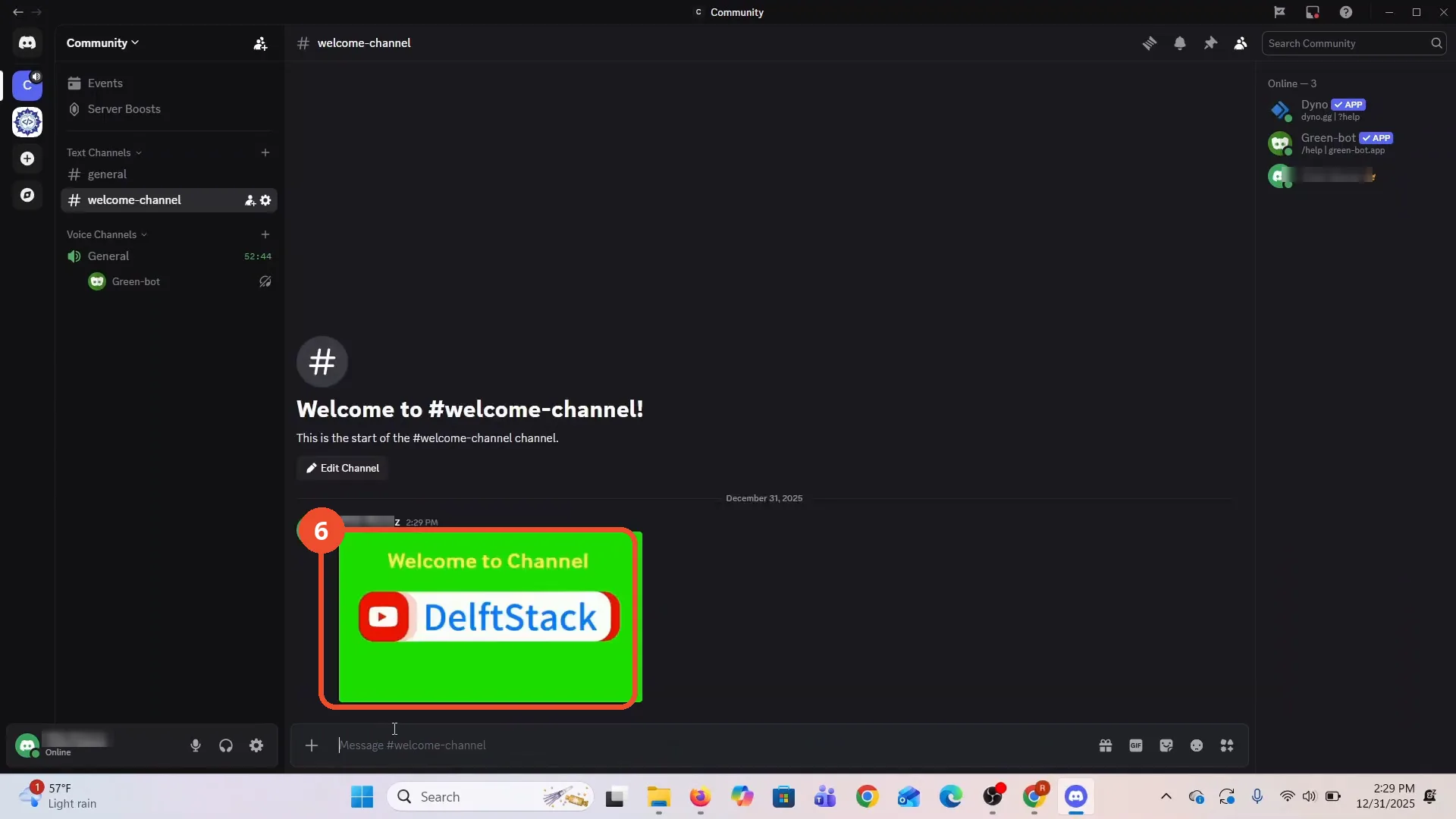
Back in Discord, open your channel, paste the link into the message box, and send it. The link unfurls as the GIF in the channel for everyone to see.
Good to know
- GIPHY Create accepts JPG, PNG, GIF, MP4, MOV, or WebM files.
- GIFs are at most 30 seconds long; shorter trims process faster.
- Pasting the GIPHY link into a channel — not uploading a file — is how the GIF lands in Discord; it unfurls as the GIF once sent.
- On the finalize screen the demo leaves Visibility on Public so other members can see the GIF.
More on Discord
- How to Stop Spotify From Pausing on Discord
- How to See Who Owns a Discord Server
- How to Make Discord Open on a Second Monitor by Default
- How to Remove Someone from a Discord Group
- How to Self-Assign Roles in Discord Using ProBot
- How to Scan a QR Code with the Discord Mobile App
- How to Stream OBS to Discord with Sound
- How to Create a Discord Server Template Link
- How to Make Your Name Invisible on Discord
- How to Send a Discord Friend Request
- How to Turn Off DMs on Discord
- How to Enable Age-Restricted Commands on Discord Mobile
- How to Zoom In and Out on Discord
- How to Add Someone to an Ongoing Discord Voice or Video Call