How to Create a Discord Server Template Link
A Discord server template clones your channels, roles and settings into a link. Anyone who opens it gets a fresh server built from your layout.
✅ Tested on
- SystemWindows
- AppDiscord desktop app
- Also works onDiscord web app (the settings look the same)
- Last verifiedOctober 29, 2026
Every screenshot below is taken from the actual recording on this device — no stock images.
Steps
Open Server Settings
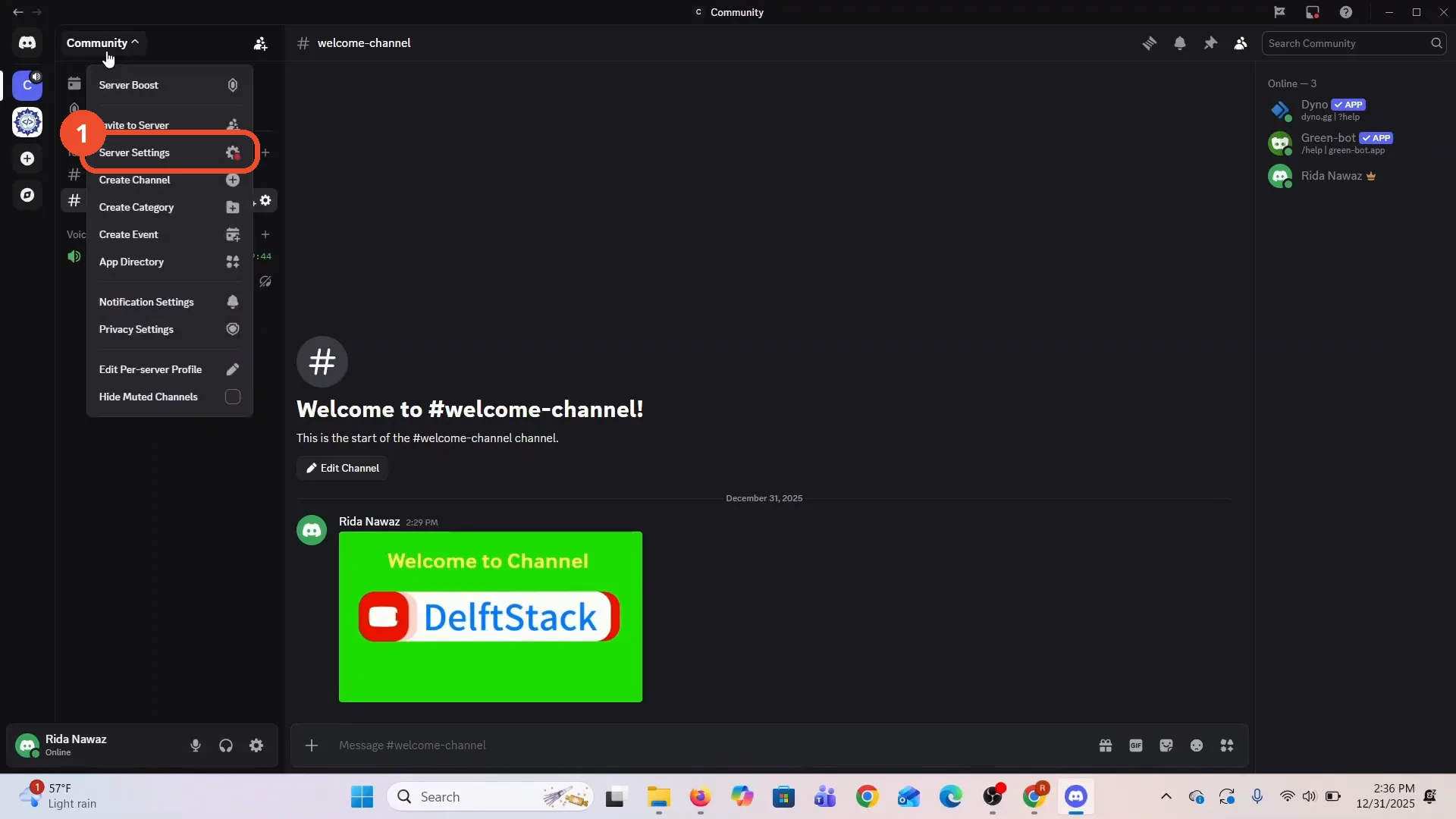
In Discord, click your server’s name at the top left, then click Server Settings in the menu.
Open Server Template
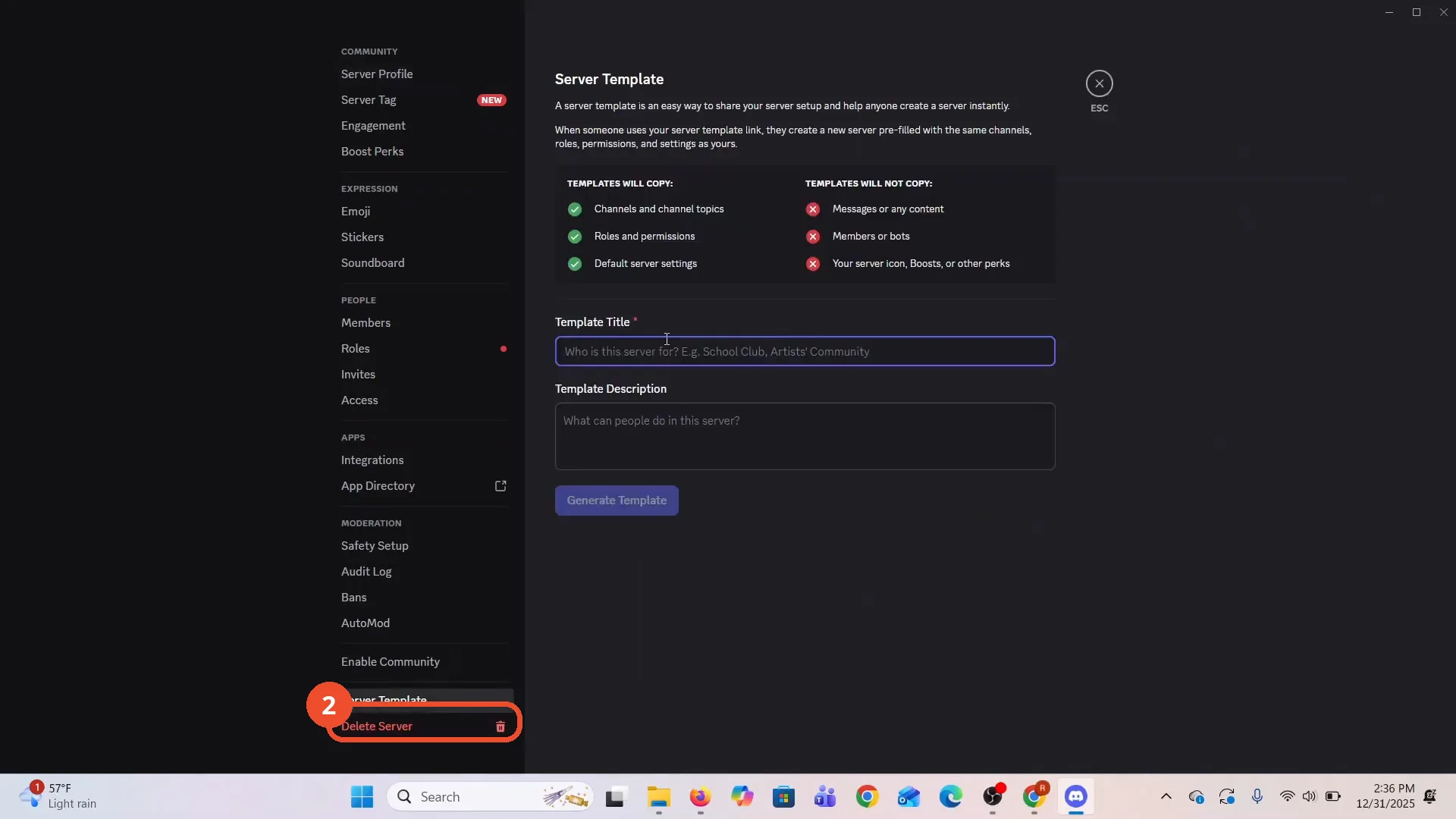
In the settings sidebar, scroll down and click Server Template.
Enter a title and description
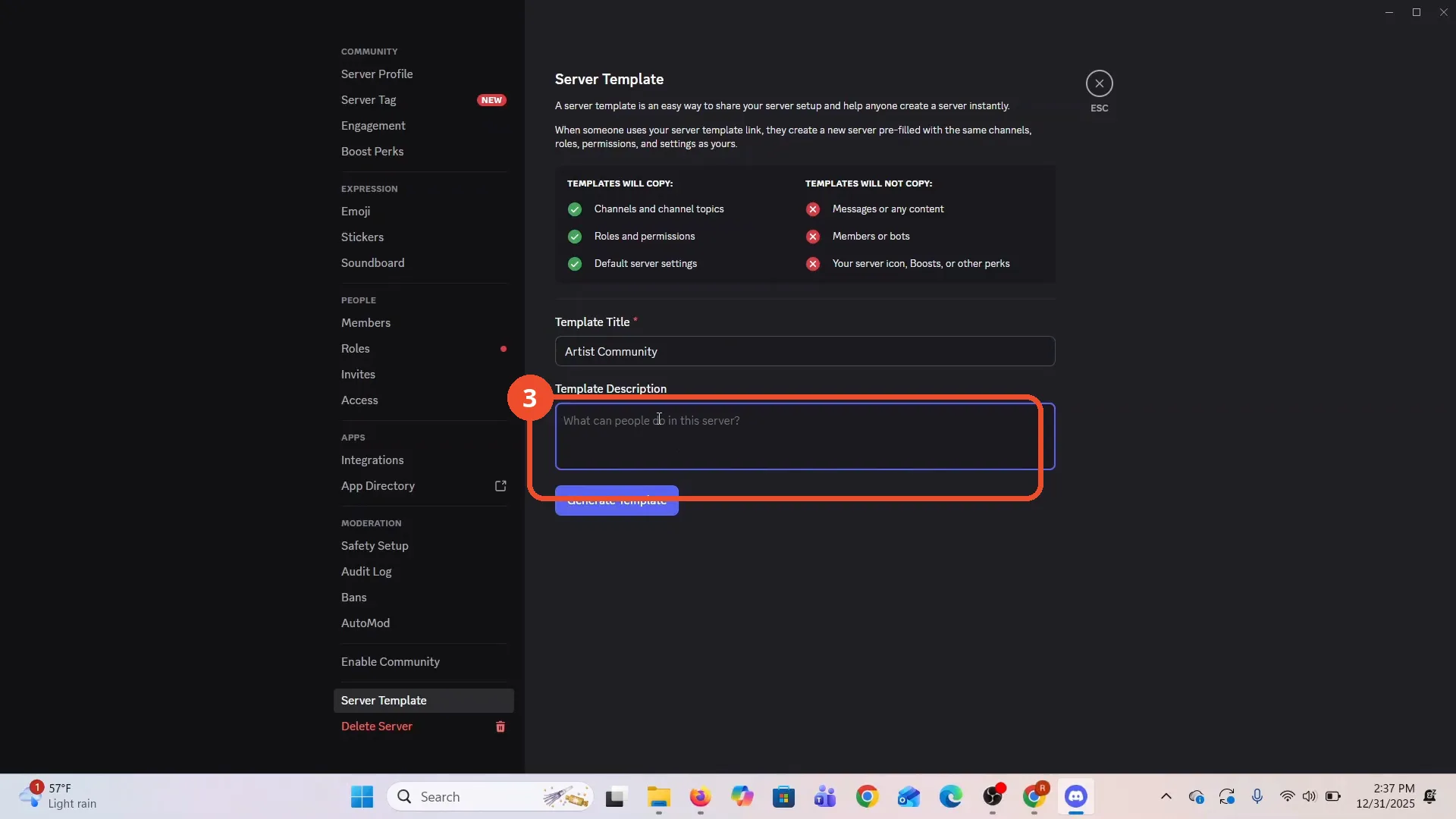
Type a Template Title (here, Artist Community) and a short Template Description. Discord notes templates copy channels, roles and settings — not messages, members or bots.
Generate the template and copy the link
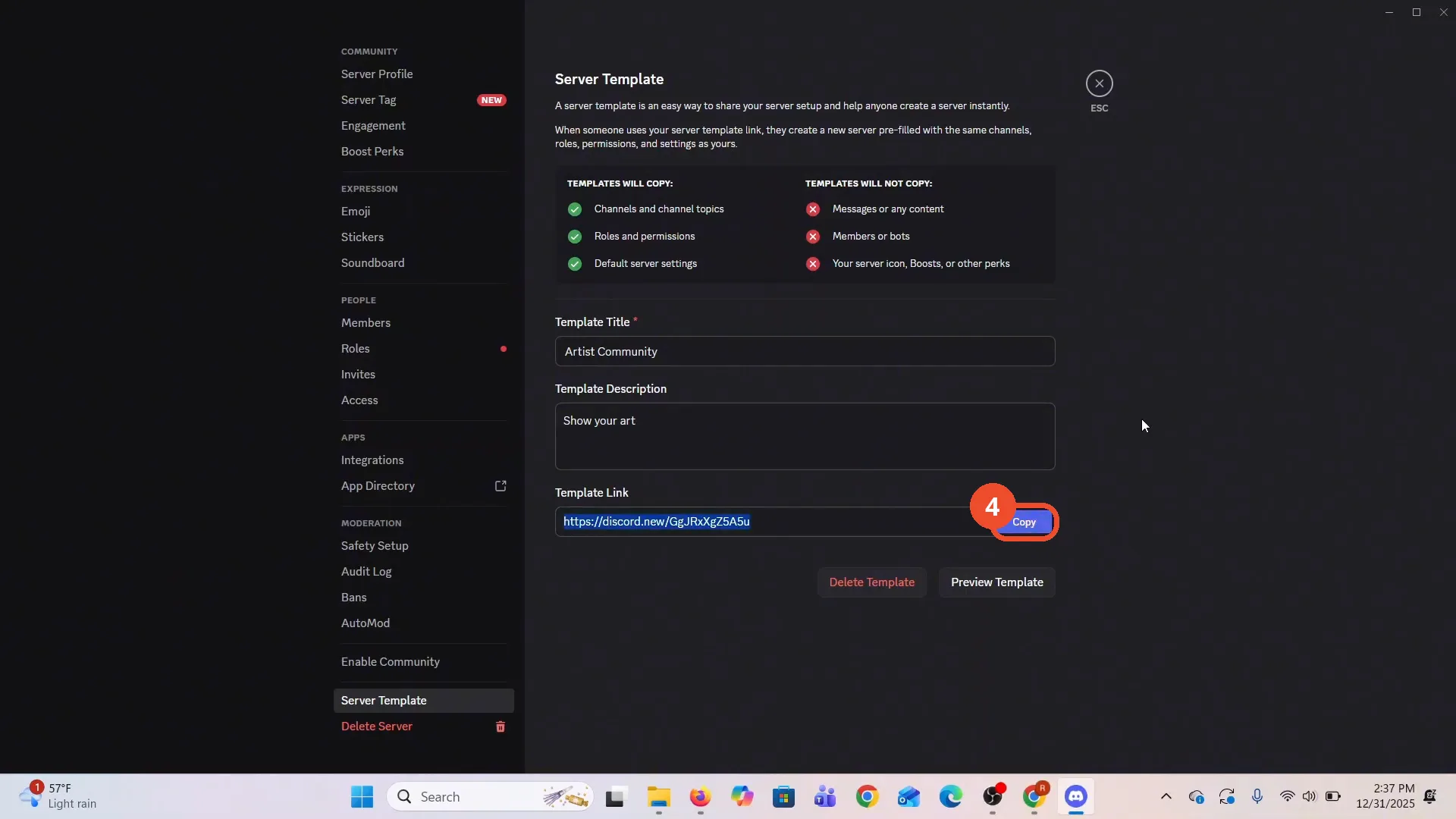
Click Generate Template. Discord creates a Template Link — click Copy and send it anywhere; anyone opening it creates a server pre-filled with your setup.
Good to know
- Templates copy channels and topics, roles and permissions, and default server settings — they do not copy messages, members, bots, or your server icon and boosts.
- The invite link shown expires in 7 days unless you edit it; use Edit invite link under the field to change that.
- Recipients land in the channel the template was made from (here, #general).
More on Discord
- How to Stop Spotify From Pausing on Discord
- How to See Who Owns a Discord Server
- How to Make Discord Open on a Second Monitor by Default
- How to Remove Someone from a Discord Group
- How to Self-Assign Roles in Discord Using ProBot
- How to Scan a QR Code with the Discord Mobile App
- How to Stream OBS to Discord with Sound
- How to Add Someone to an Ongoing Discord Voice or Video Call