How to Add a Welcome Channel to Your Discord Server
A welcome channel pairs a new text channel with Dyno’s Welcome module: create the channel, add Dyno from the App Directory, enable its Welcome module, and point it at your new channel with a welcome message.
- SystemWindows
- AppDiscord
- Last verifiedNovember 3, 2026
Every screenshot below is taken from the actual recording on this device — no stock images.
Steps
Create a channel
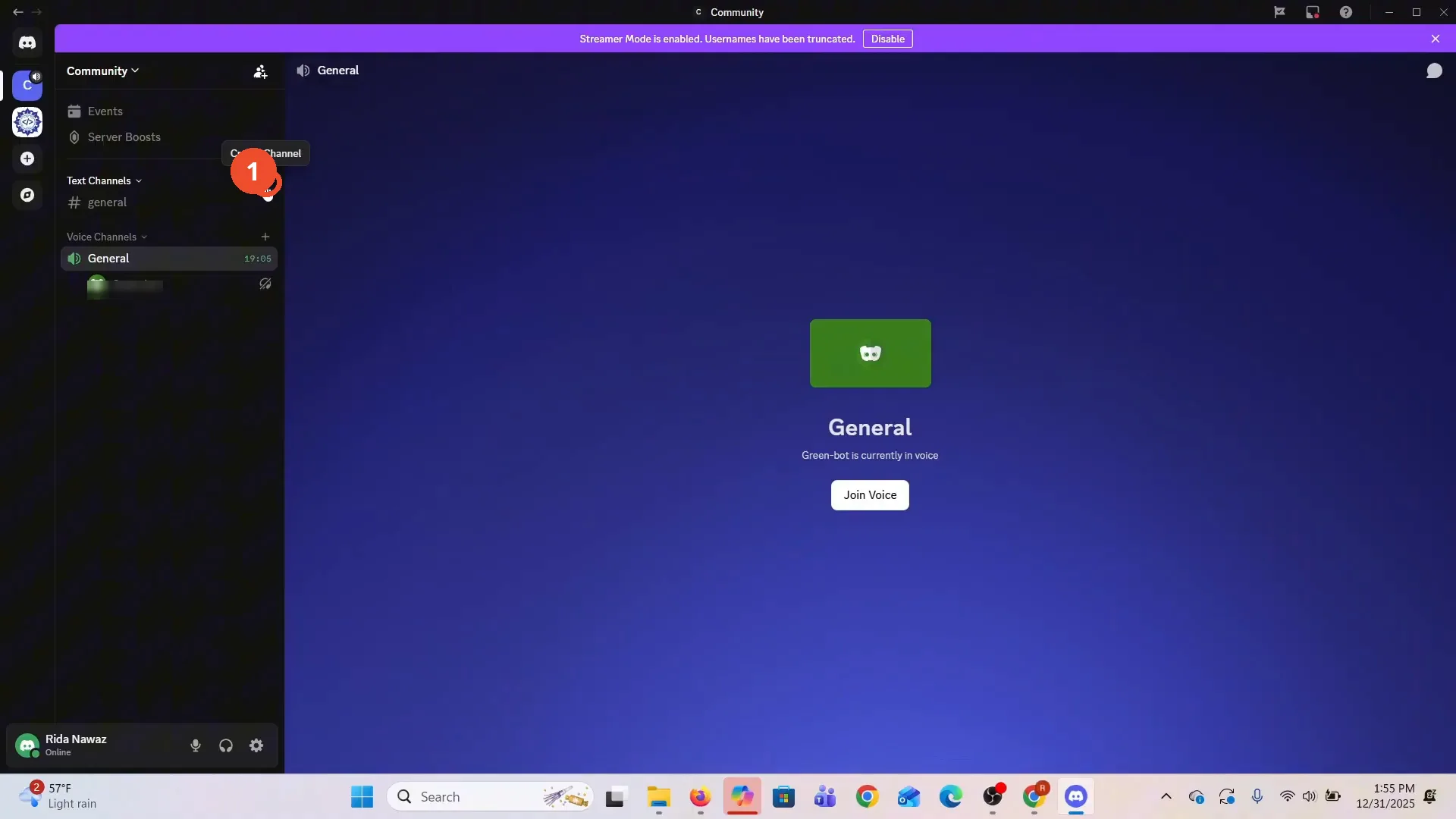
In your server, hover Text Channels and click the + button to create a channel.
Name it welcome channel
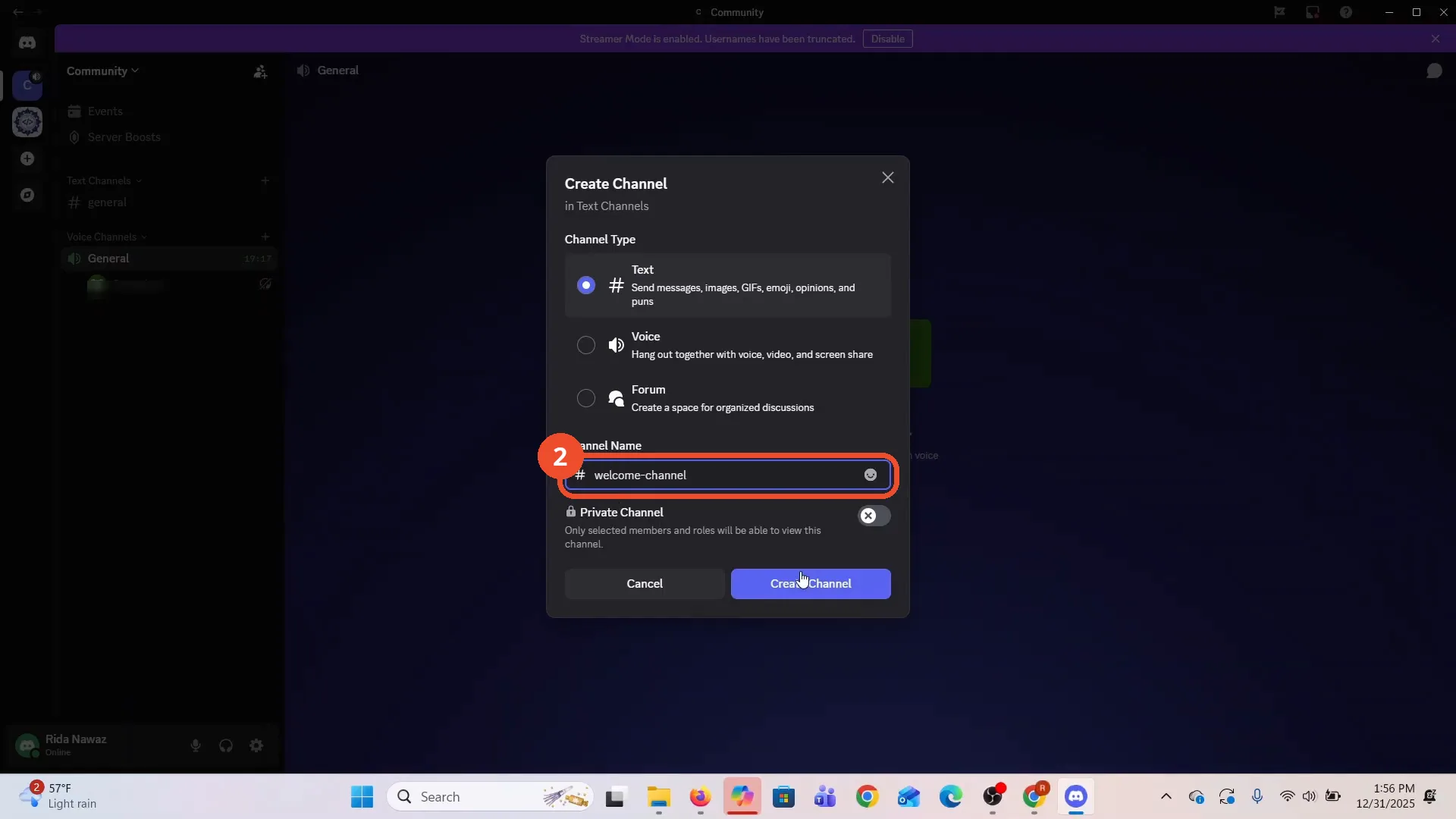
In the Create Channel dialog, keep Text selected, leave Private Channel off, type welcome channel as the name (Discord shows it as welcome-channel), then click Create Channel.
Check the channel was created
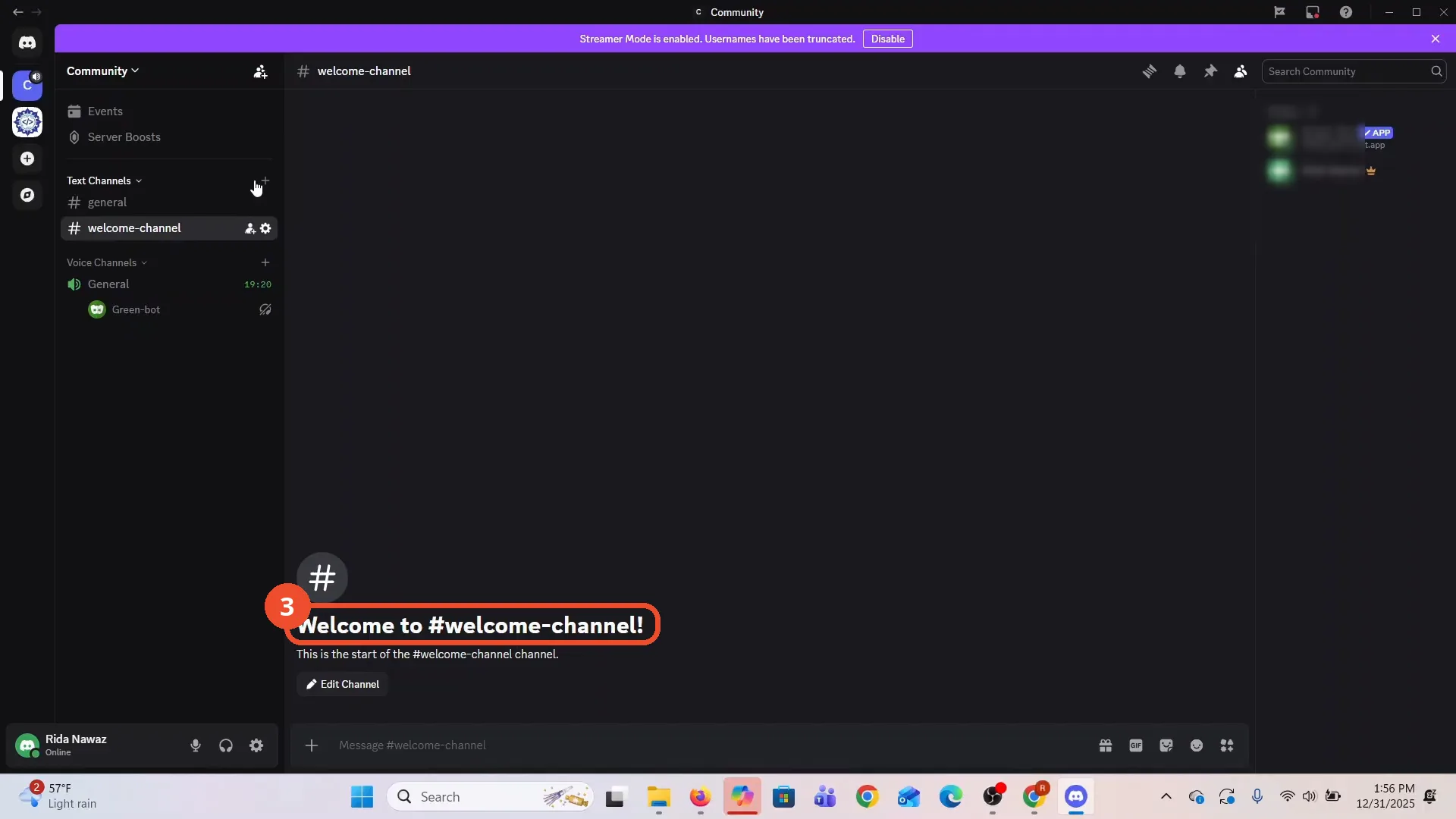
The new #welcome-channel opens, showing its empty-state header.
Open Server Settings, then App Directory
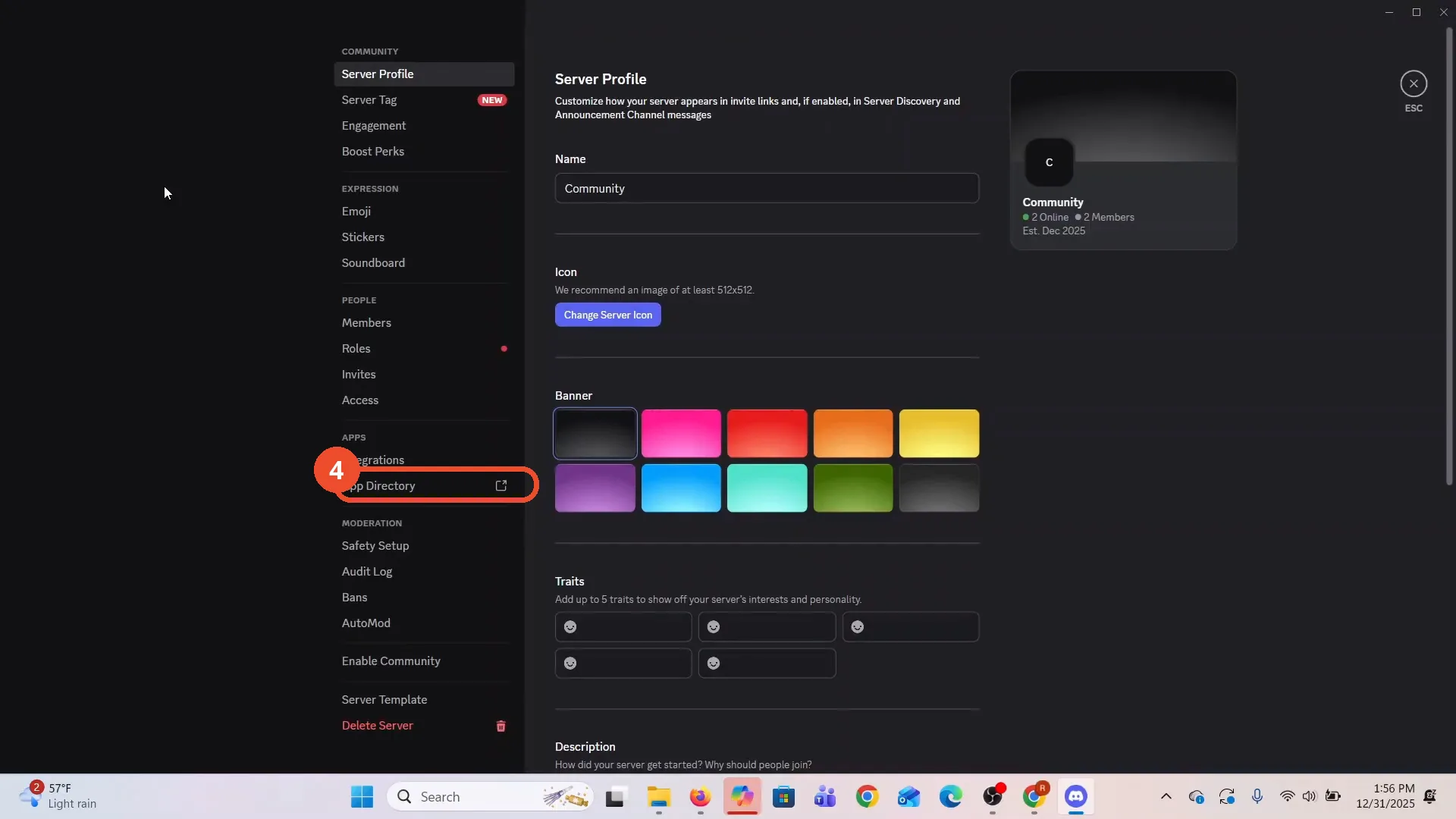
Open your server menu, go to Server Settings, then click App Directory in the left menu.
Search for Dyno
In the App Directory, search for Dyno.
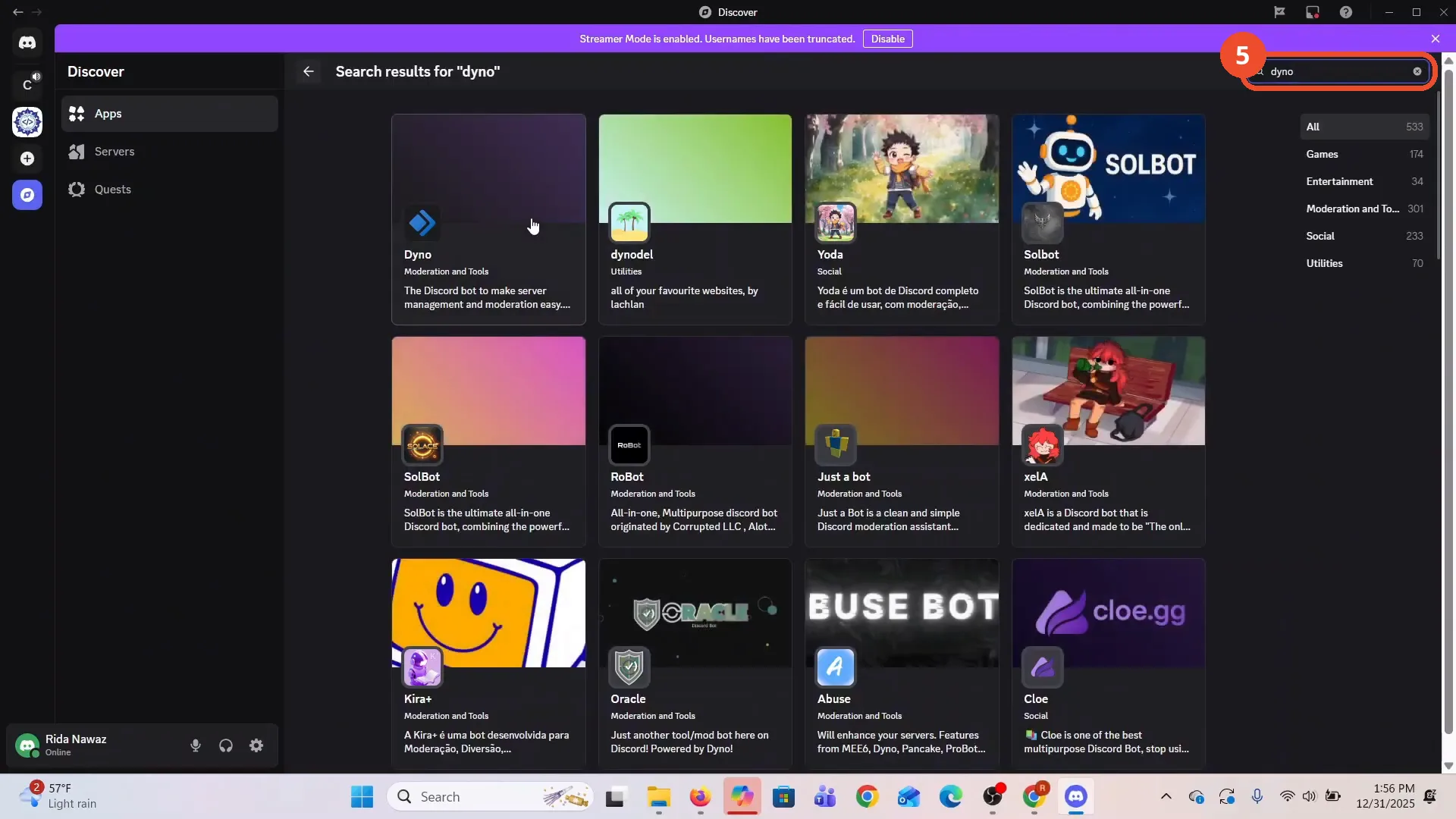
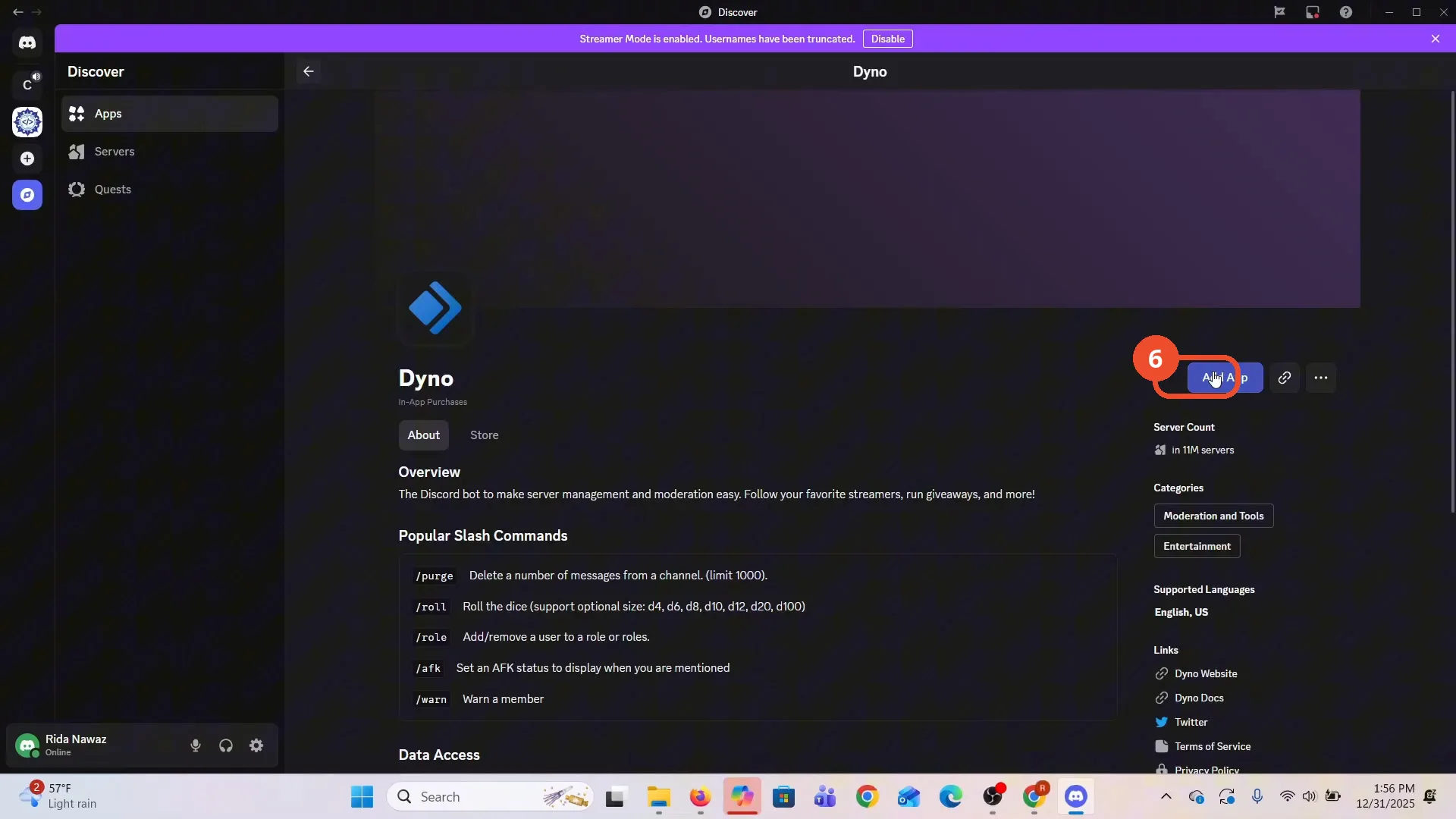
Add Dyno to your server
Open the Dyno result and click Add App.
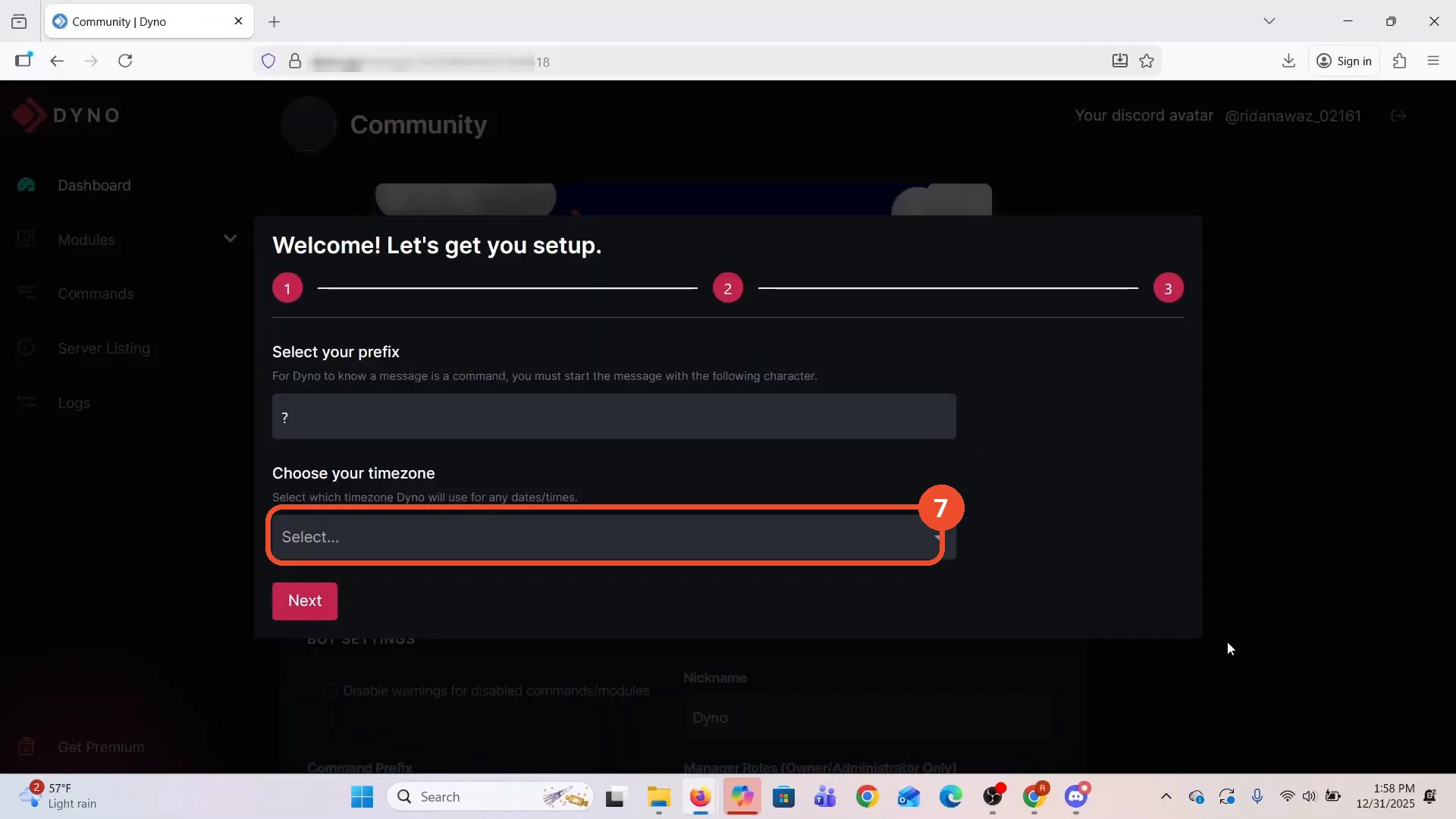
Complete the Dyno setup wizard
Dyno’s setup wizard opens in the browser. Choose your timezone (the command prefix ? is already set), then click Next to continue through the setup.
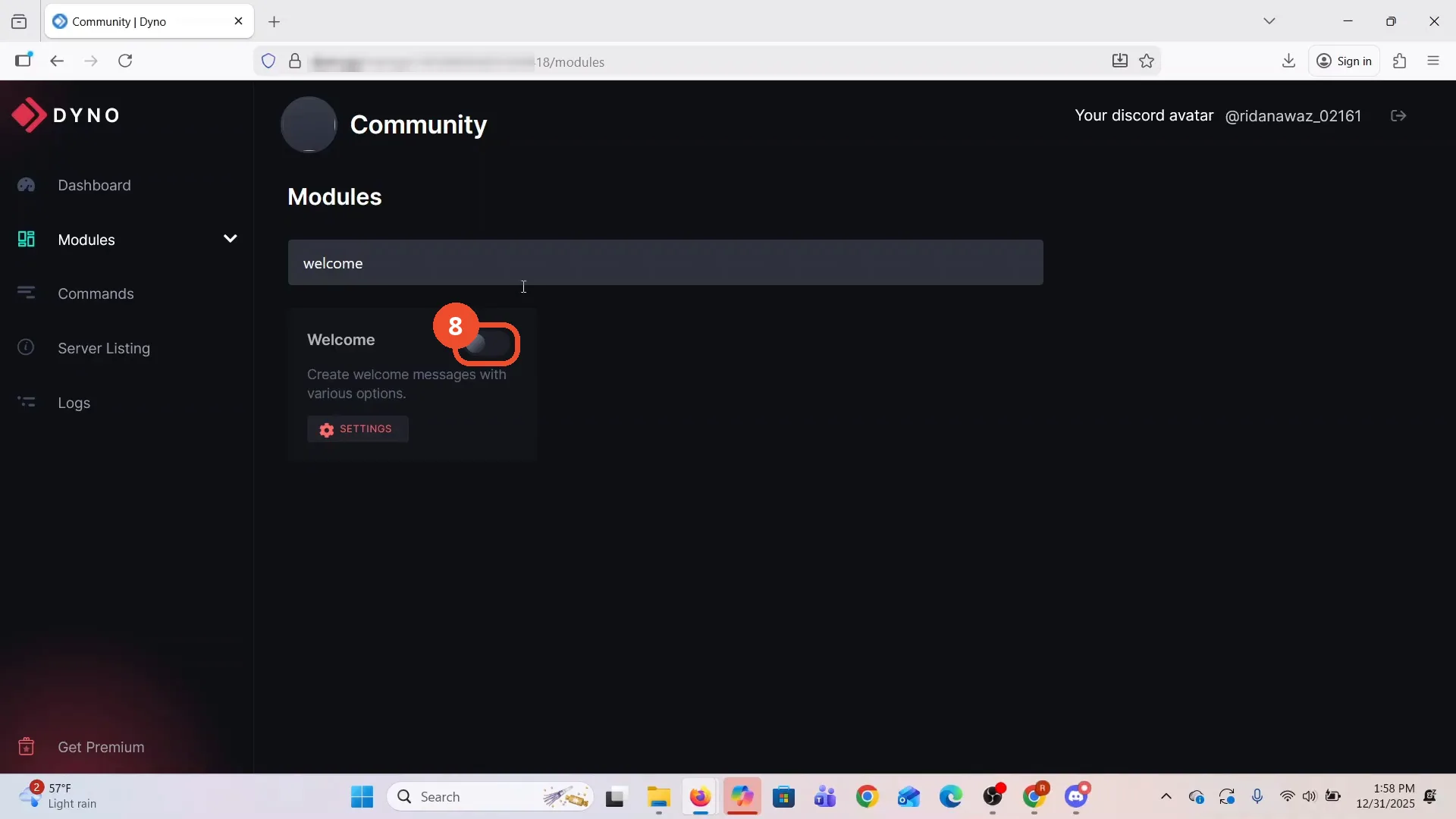
Enable the Welcome module
Back in Dyno’s Modules list, find the Welcome card and switch its toggle on.
Point the module at welcome-channel
Open the Welcome module’s settings and set the channel dropdown to welcome-channel.
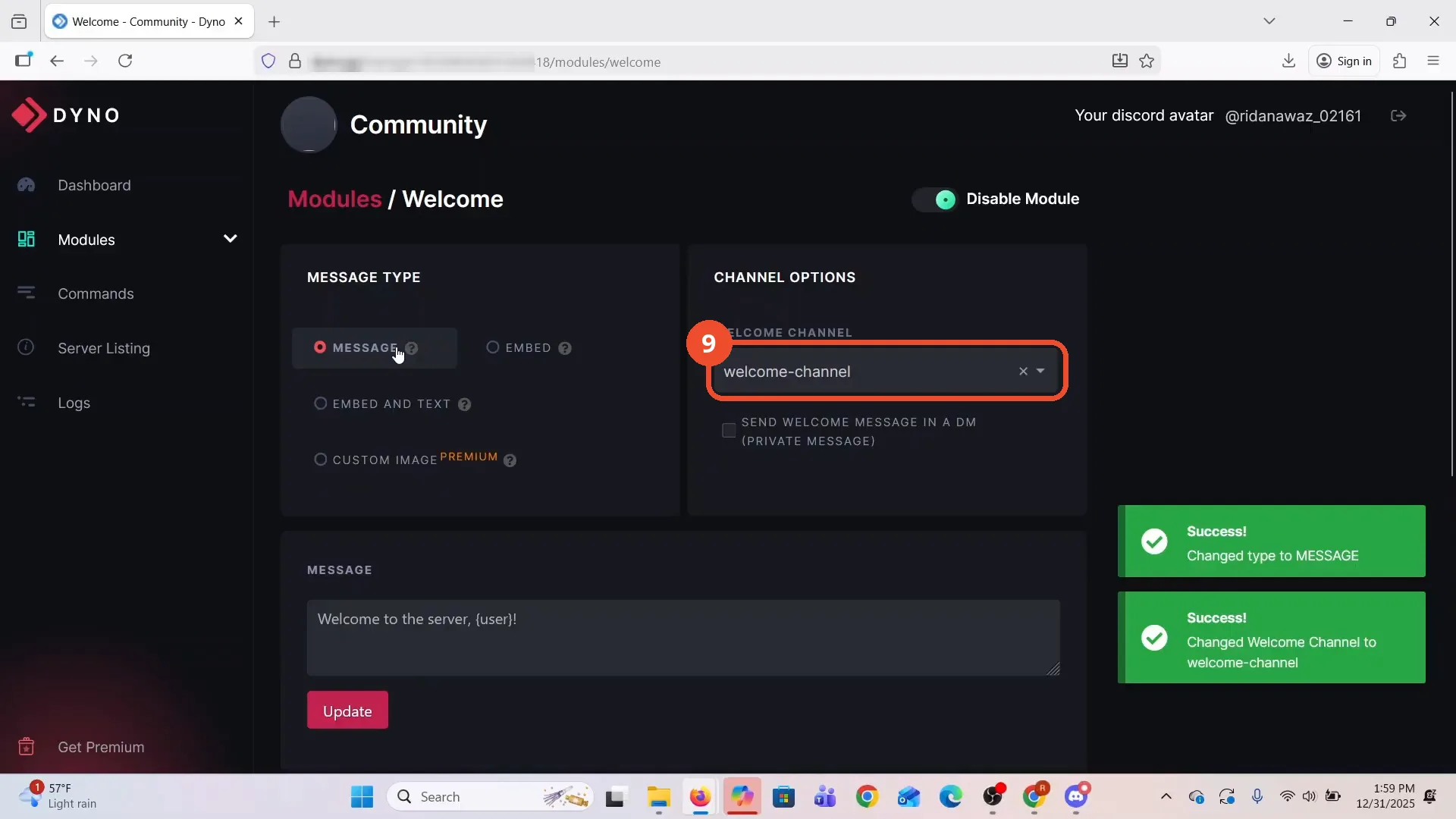
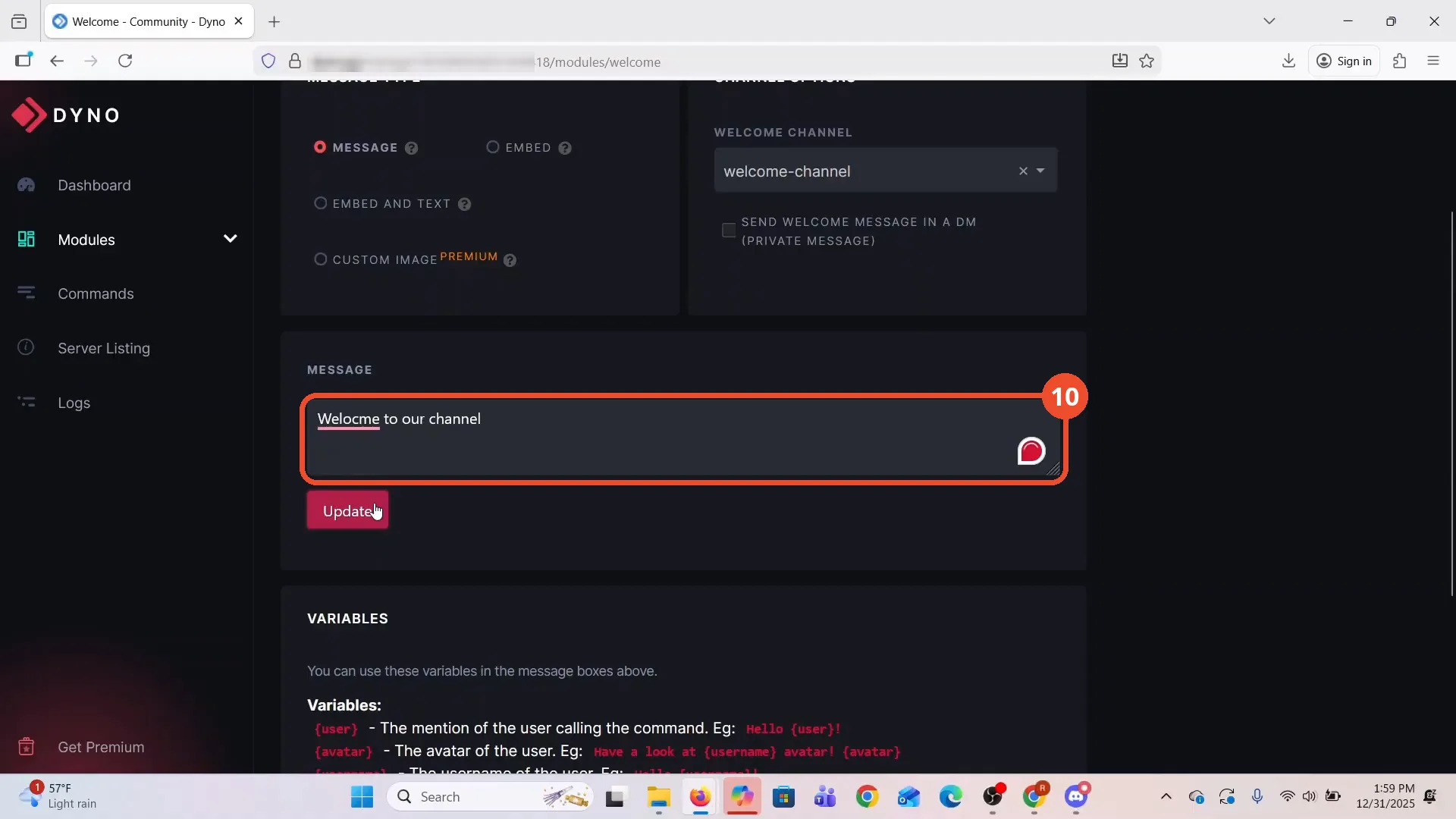
Write the welcome message
In the same settings, write the message new members should receive. You can use Dyno’s variables to personalize it.
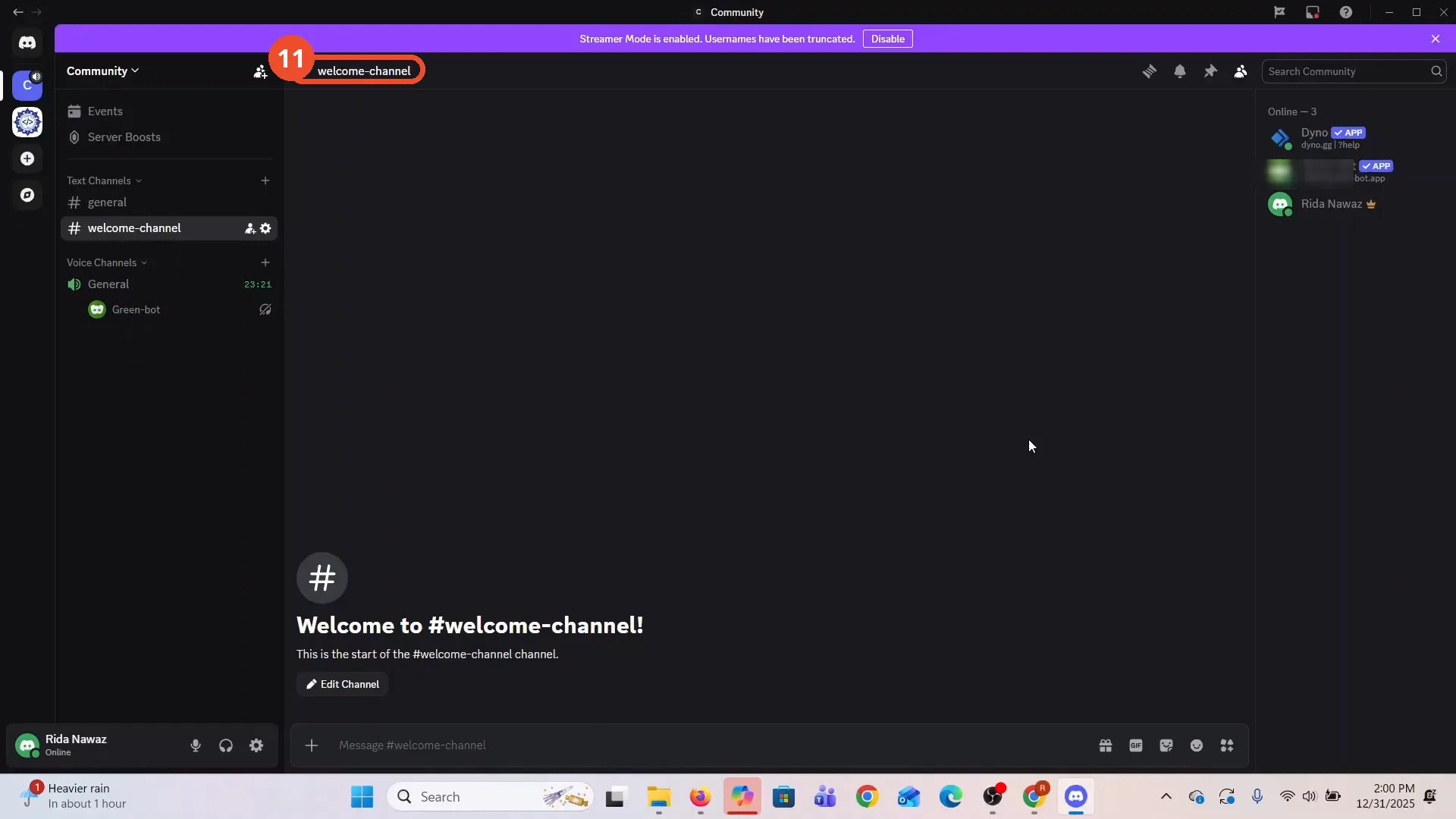
Check the channel in Discord
Back in Discord, open #welcome-channel: the channel is in the server’s channel list with Dyno present in the server.
Good to know
- The video never shows a member joining or a Dyno welcome message actually posted: the final shot is only the channel’s empty-state page. The welcome message working on a real join is configured, not demonstrated.
- Dyno’s setup wizard and module settings open in the browser (dyno.gg), not inside the Discord app.
- The server ID in the dyno.gg address bar is blurred in these screenshots.
- This was recorded in the Discord desktop app on Windows with Dyno as the welcome bot.
More on Discord
- How to Stop Spotify From Pausing on Discord
- How to See Who Owns a Discord Server
- How to Make Discord Open on a Second Monitor by Default
- How to Remove Someone from a Discord Group
- How to Self-Assign Roles in Discord Using ProBot
- How to Scan a QR Code with the Discord Mobile App
- How to Stream OBS to Discord with Sound
- How to Create a Discord Server Template Link
- How to Make Your Name Invisible on Discord
- How to Send a Discord Friend Request
- How to Turn Off DMs on Discord
- How to Enable Age-Restricted Commands on Discord Mobile
- How to Zoom In and Out on Discord
- How to Create a GIF and Share It in Discord
- How to Exit Full Screen on Discord
- How to Send Files Through Discord
- How to Skip a Line in Discord
- How to Find Gradient Role Settings in Discord (Nitro Required)
- How to Make an Animated Discord Banner GIF in CapCut
- How to Add Discord Audio to OBS
- How Discord Text-to-Speech Works (TTS Explained for Text Channels)
- How to Highlight Text in Discord on Desktop
- How to Add Someone to an Ongoing Discord Voice or Video Call
- How to Fix Discord Freezing When Closing Valorant
- How to Type in Bold on Discord