How to Add Someone to an Ongoing Discord Voice or Video Call
A call that is already running does not have to be restarted to let someone else in — the voice channel itself has an invite button. The recording adds a member to a call on a demo server (Junu’s server). Streamer Mode was on during the recording, so usernames are truncated and the invite link stays hidden in the screenshots.
- SystemWindows
- AppDiscord (desktop app)
- Also works onDiscord in a browser (the same Invite to Voice button)
- Last verifiedOctober 28, 2026
Every screenshot below is taken from the actual recording on this device — no stock images.
Steps
Join the voice channel
Join the voice channel the call is running in — here General, where Junu is already connected.
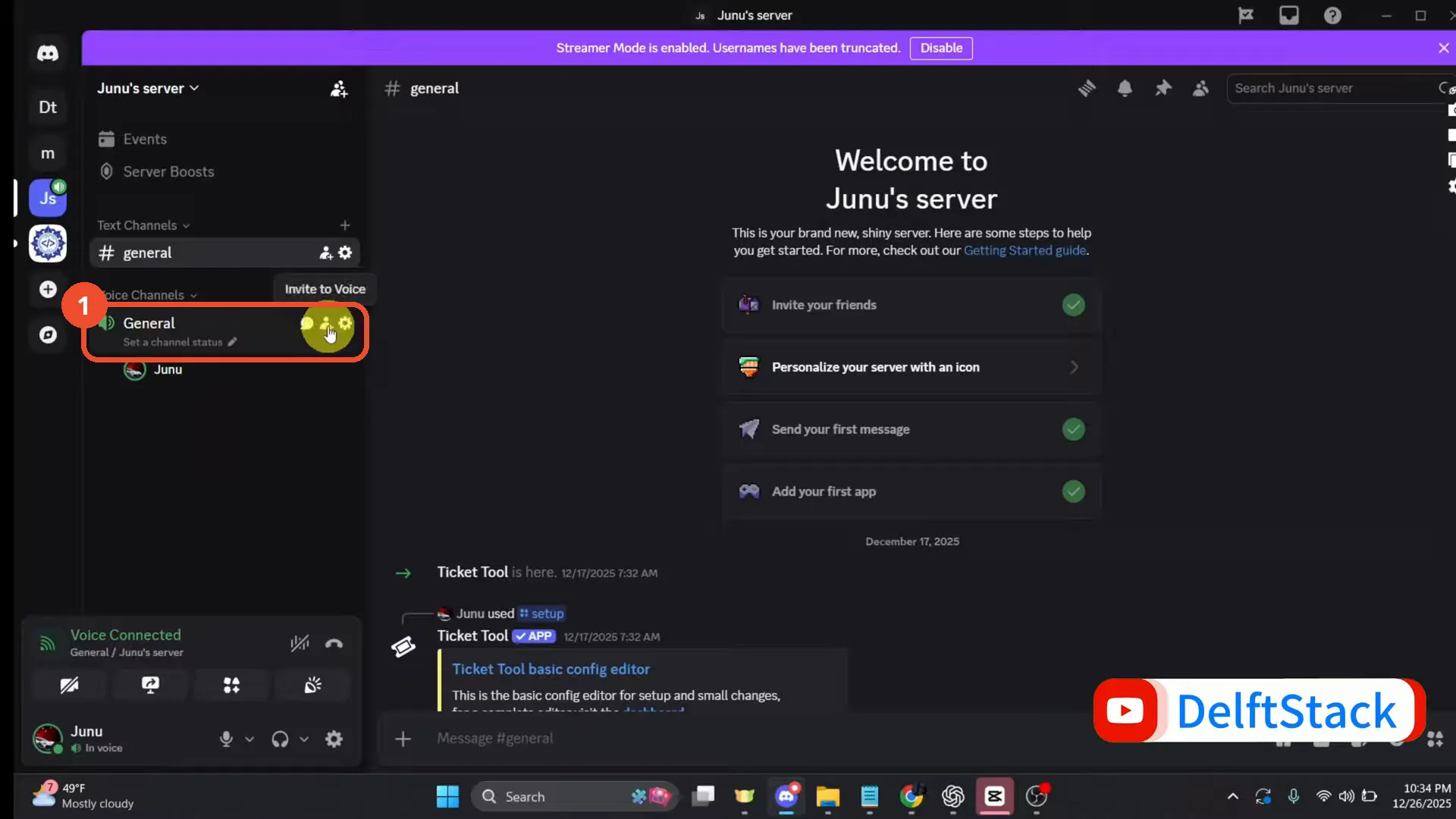
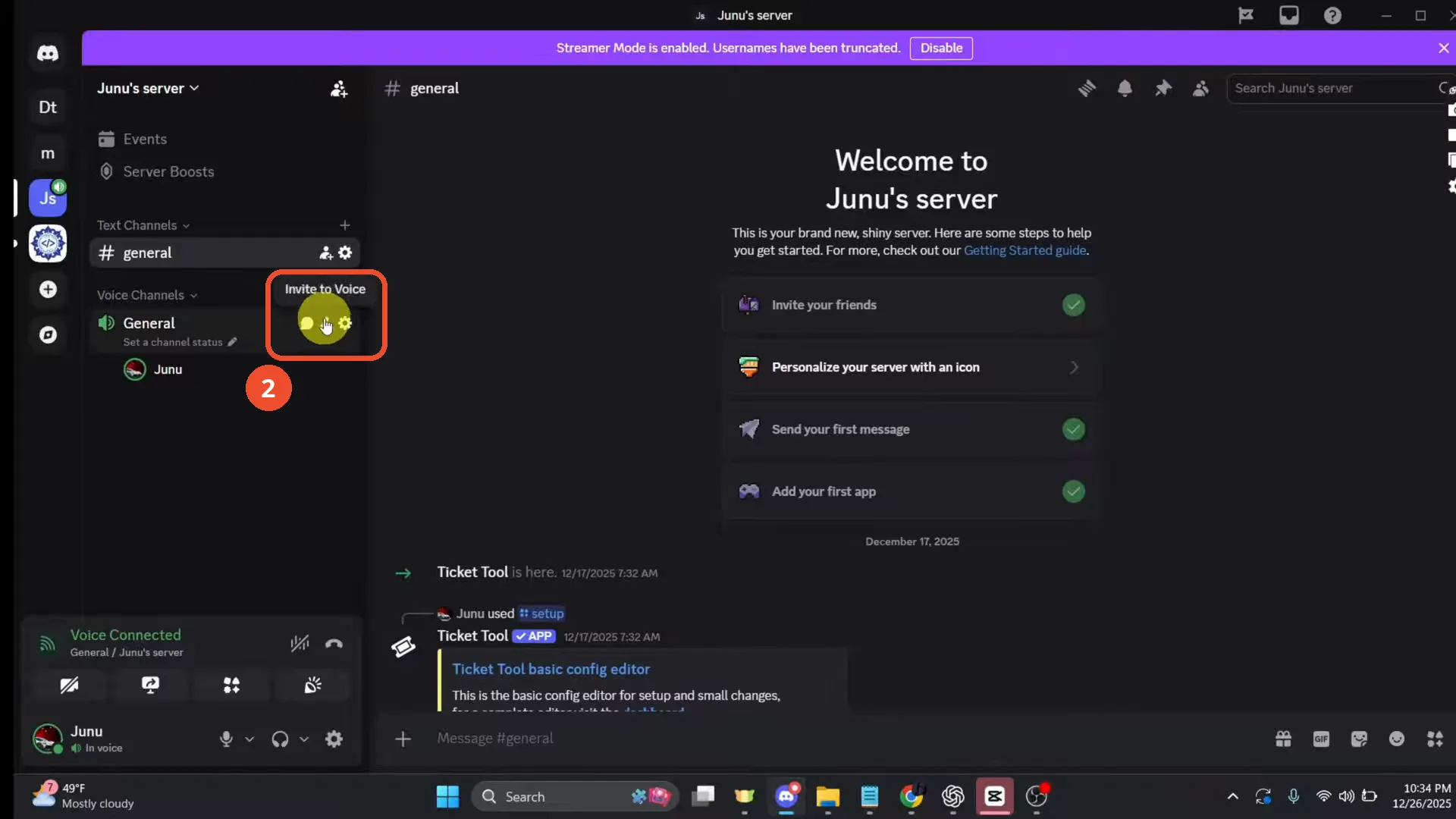
Hover the channel and click Invite to Voice
Hover over the voice channel’s name. Three small icons appear at the right of the channel row; click the middle one, Invite to Voice.
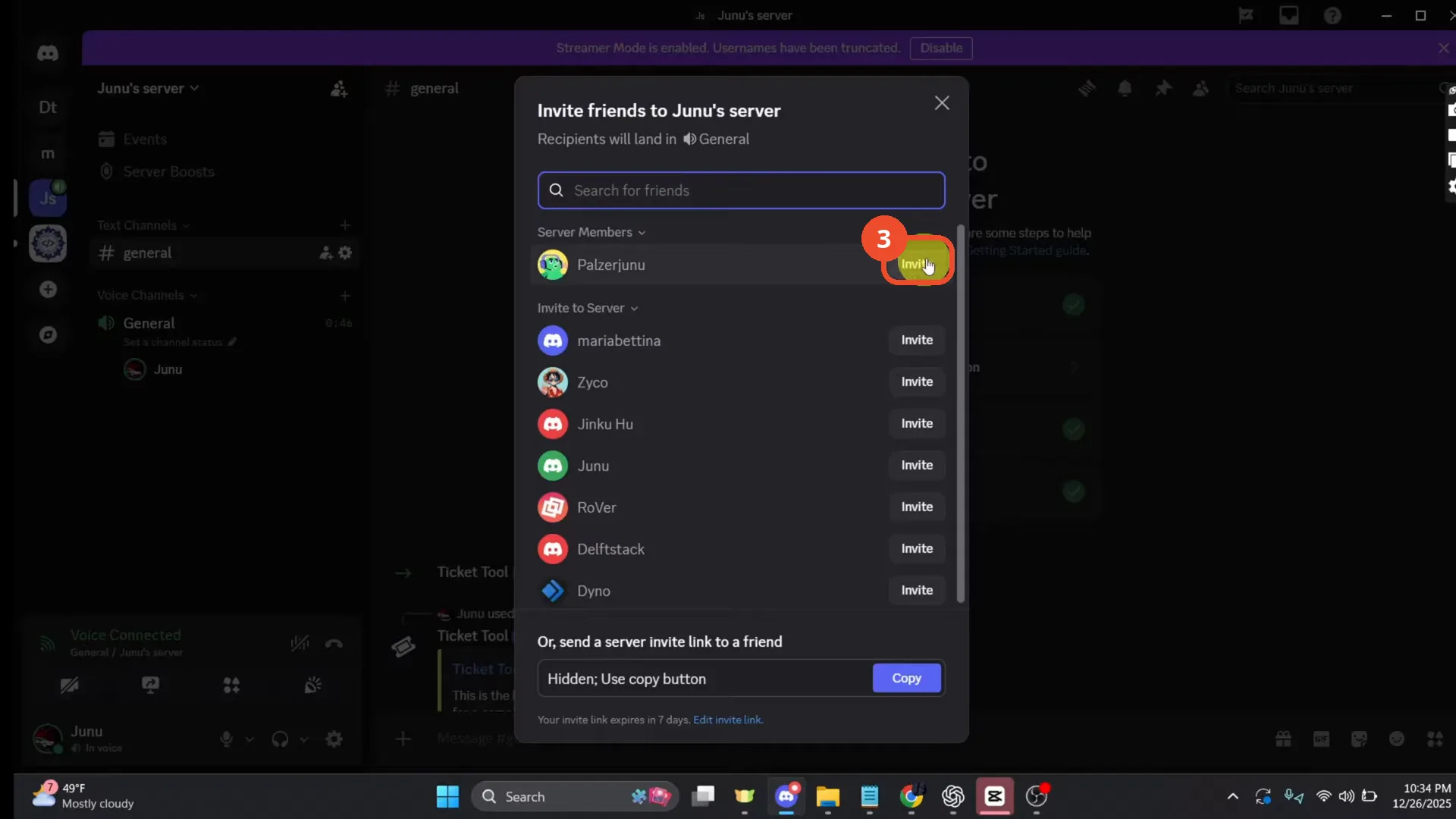
Click Invite next to their name
In the Invite friends dialog, find the person and click Invite next to their name — Palzerjunu here. The dialog states that recipients will land in General, the channel your call is in.
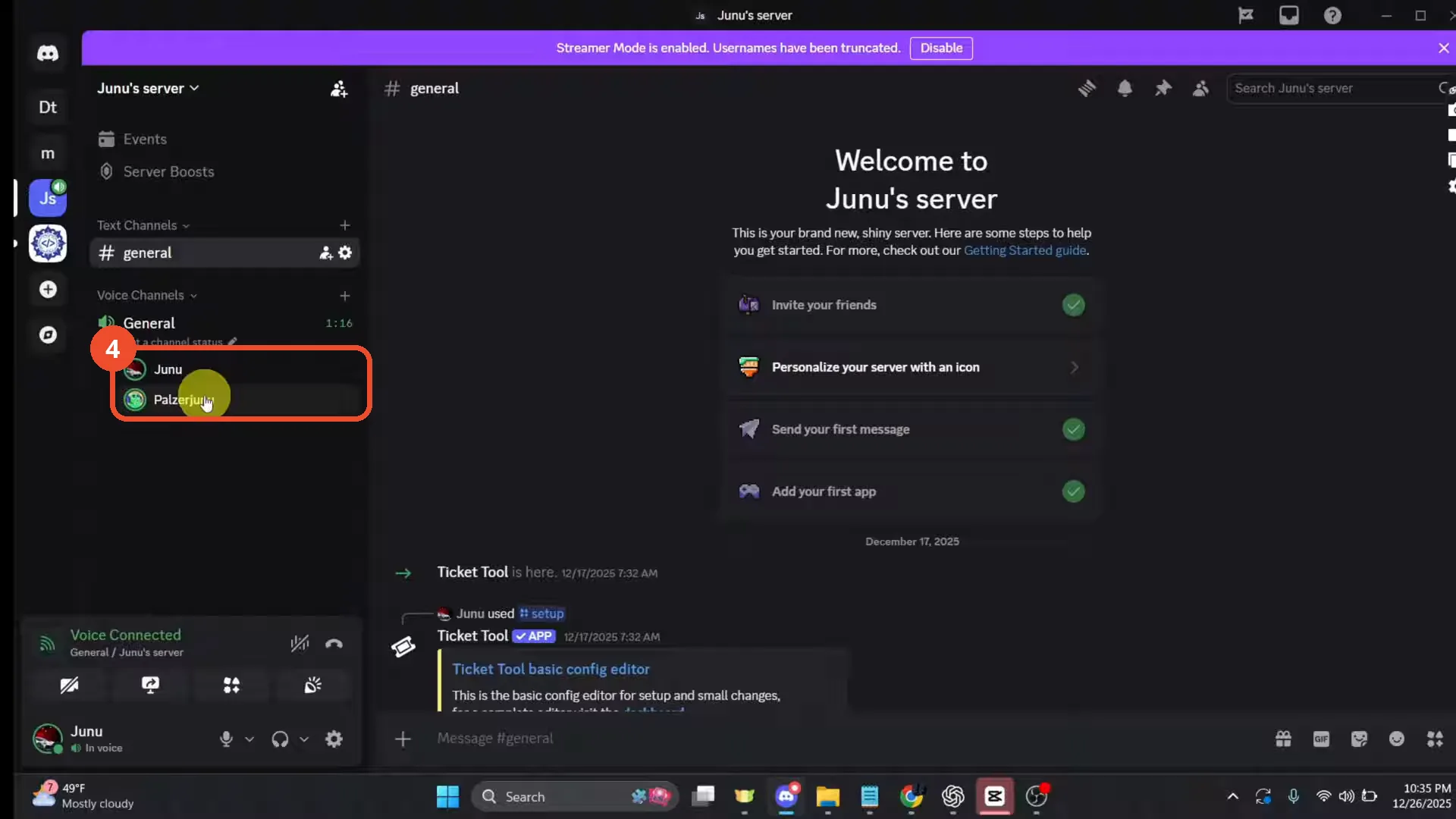
They appear in the channel
As soon as they accept, they appear in the channel — General now shows Junu and Palzerjunu in the call, and the call simply continues.
Good to know
- The dialog’s second section, Invite to Server, is for people who are not members of the server yet — inviting them this way also brings them to this channel.
- The invite link at the bottom of the dialog works too. With Streamer Mode on it stays hidden until you click Copy, exactly as in the step 3 screenshot.
More on Discord
- How to Stop Spotify From Pausing on Discord
- How to See Who Owns a Discord Server
- How to Make Discord Open on a Second Monitor by Default
- How to Remove Someone from a Discord Group
- How to Self-Assign Roles in Discord Using ProBot
- How to Scan a QR Code with the Discord Mobile App
- How to Stream OBS to Discord with Sound