How to Add Discord Audio to OBS
OBS can capture Discord on its own channel instead of your whole desktop mix: add an Application Audio Capture source, name it, point it at the Discord window, and it appears as a separate slider in the Audio Mixer that you can level, filter, and route independently.
- SystemWindows
- AppOBS Studio 31.0.3
- Also works onDiscord in Chrome: in the Window dropdown, pick the chrome.exe Discord tab instead of discord.exe.
- Last verifiedNovember 2, 2026
Every screenshot below is taken from the actual recording on this device — no stock images.
Steps
Open OBS Studio
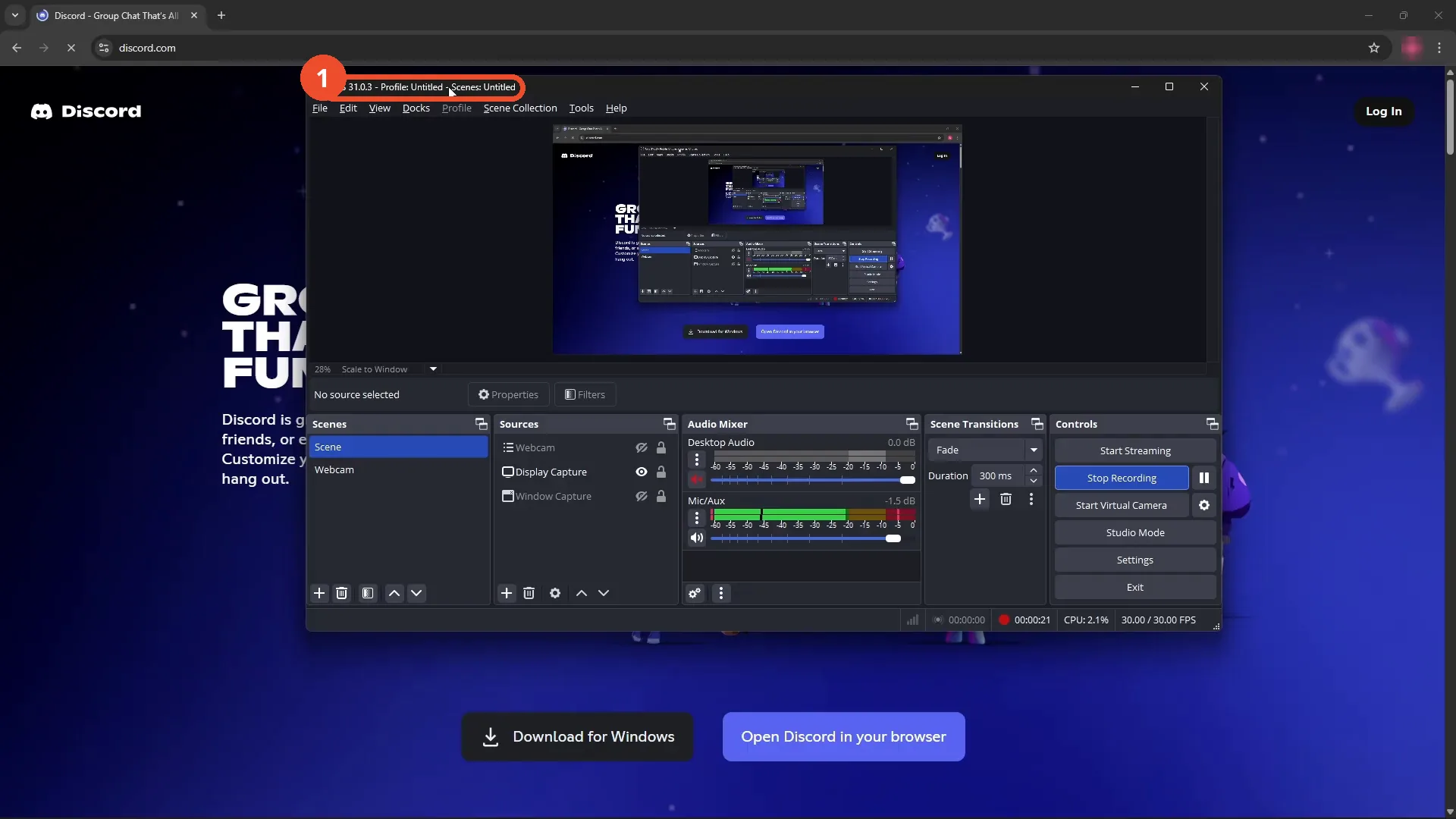
Open OBS Studio. The demo runs OBS 31.0.3 on Windows, with Discord already open behind it.
Add an Application Audio Capture source
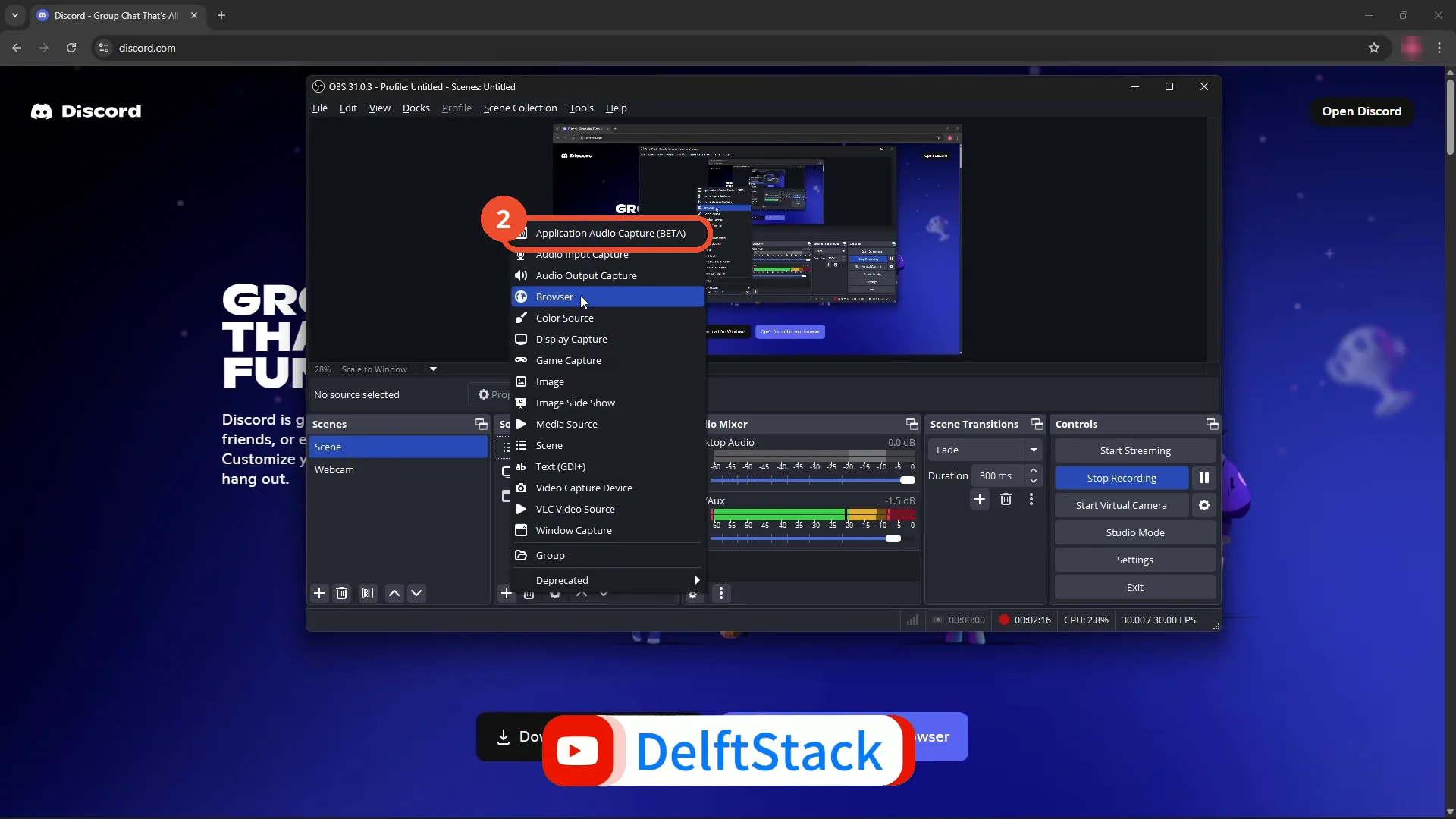
In the Sources panel, click the + button, then choose Application Audio Capture (BETA) from the menu.
Name it discord and click OK
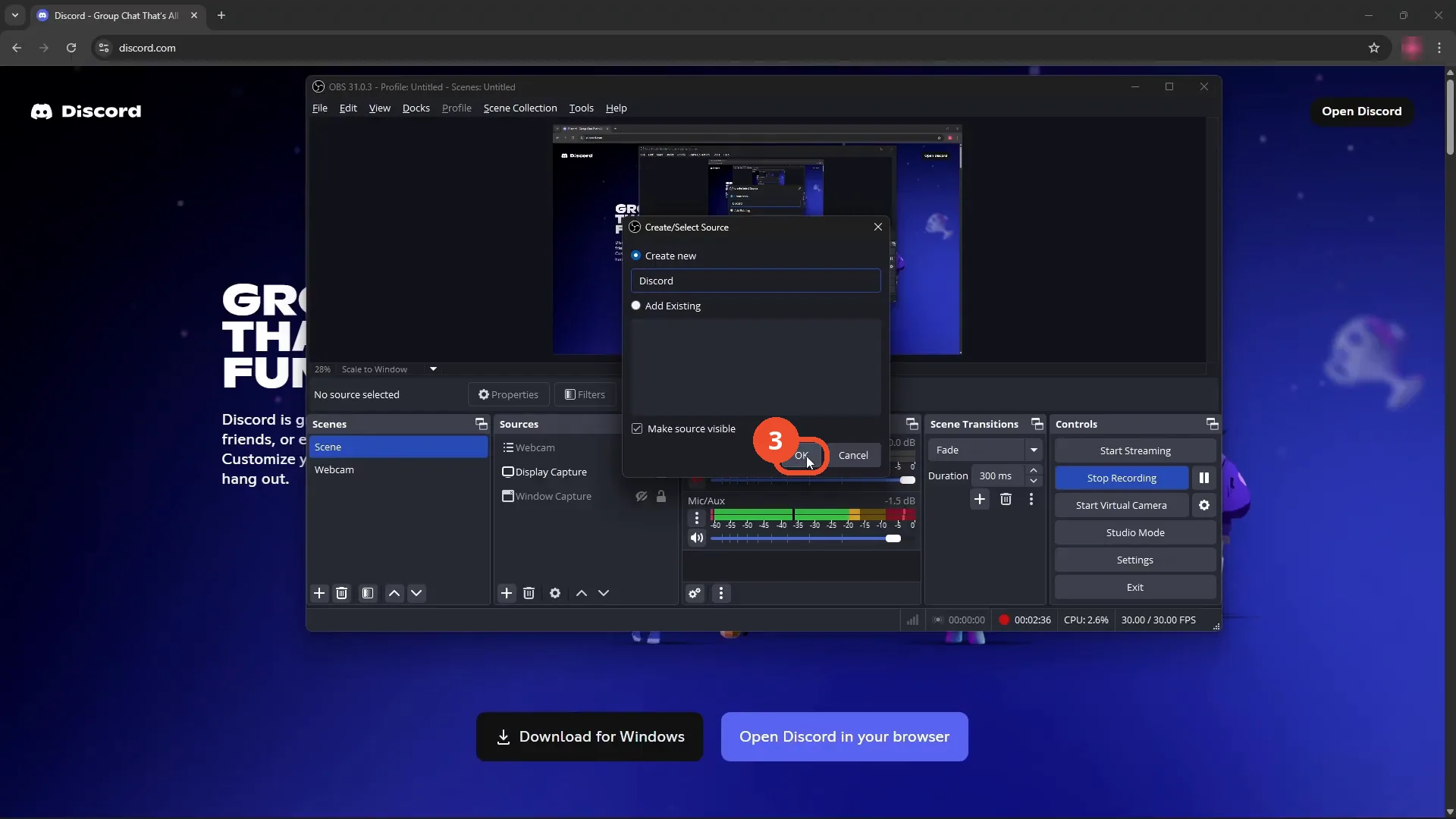
In the Create/Select Source dialog, type discord as the source name, then click OK.
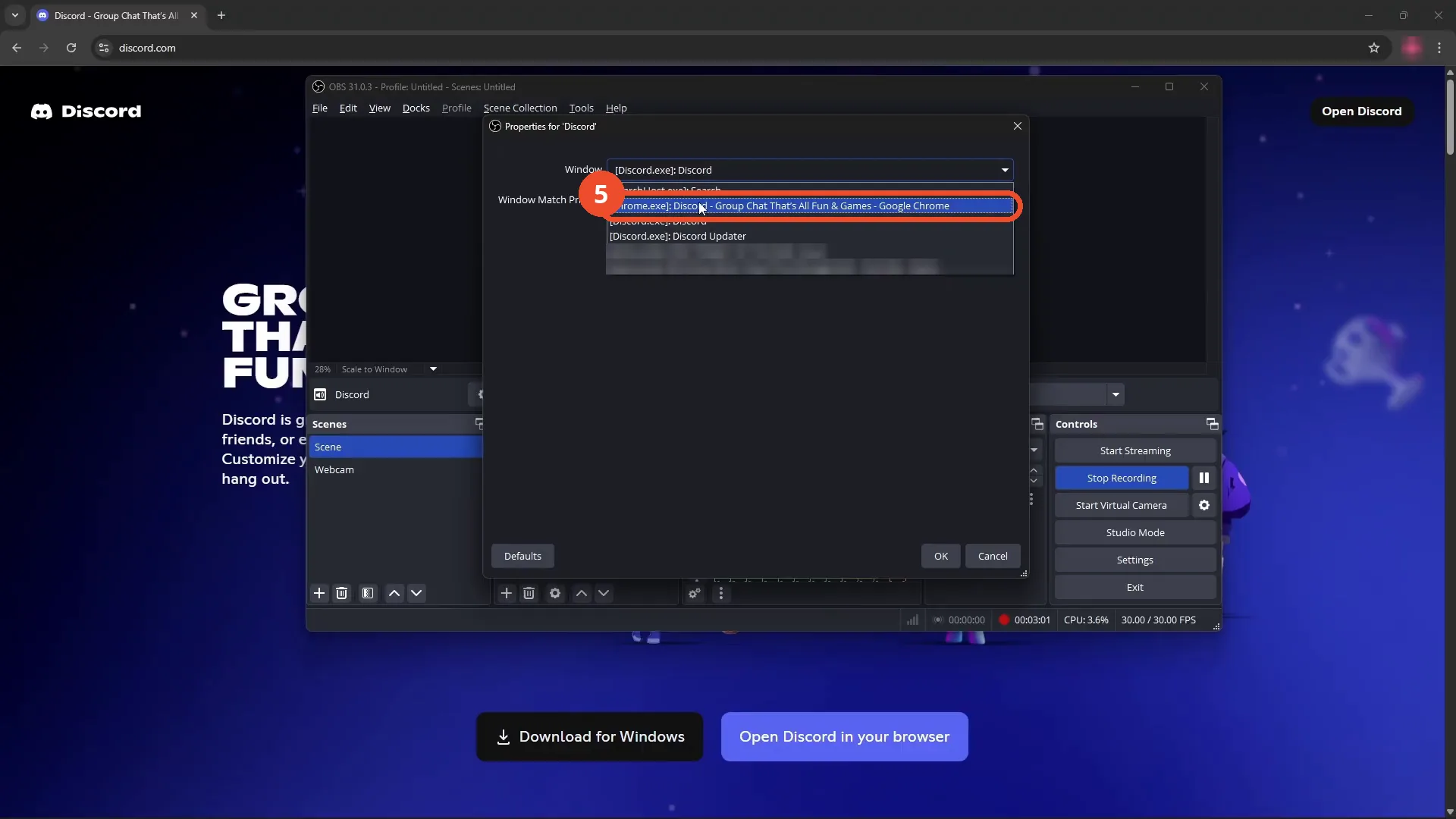
Pick discord.exe in the Window dropdown
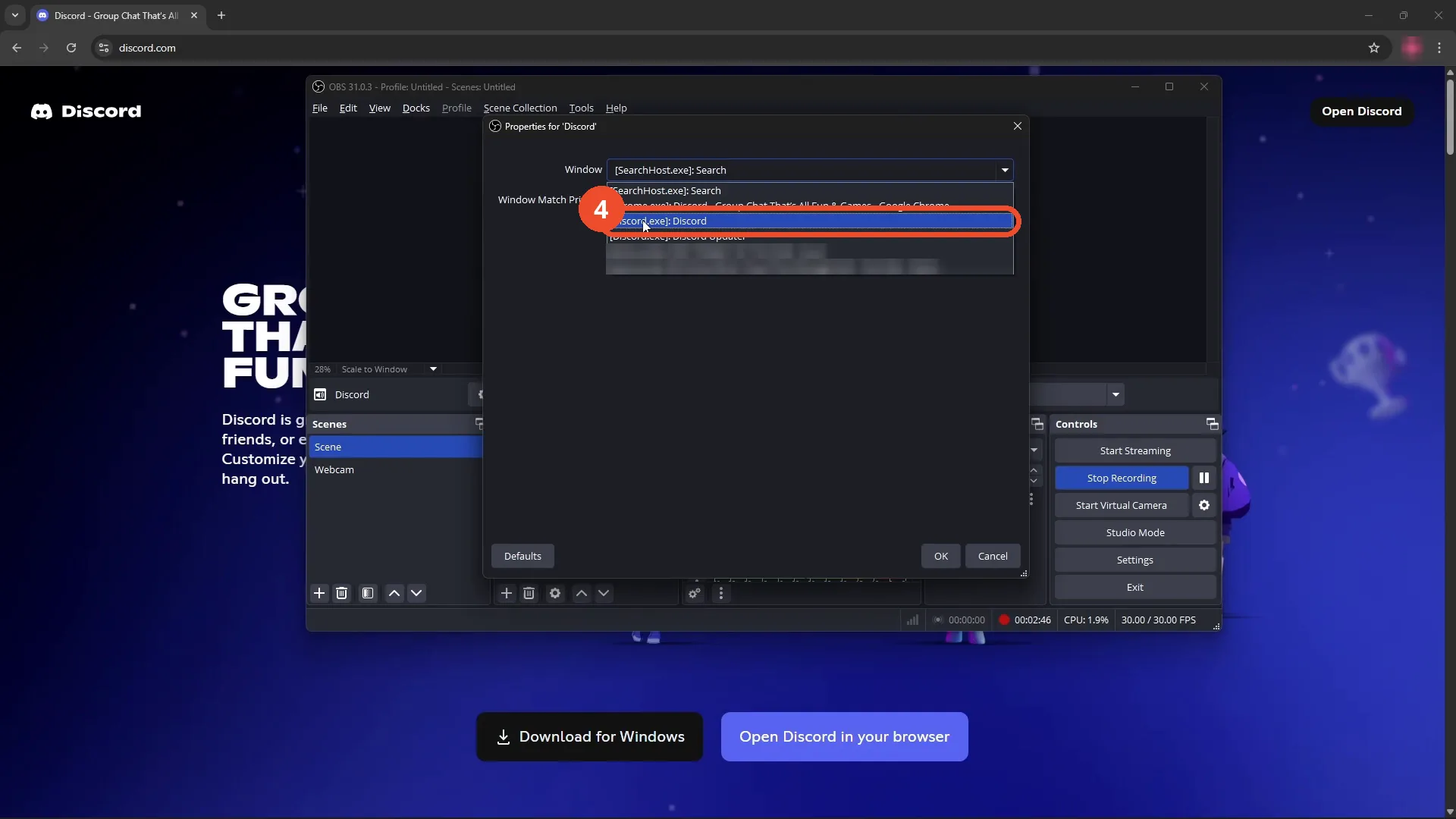
In the Properties dialog, open the Window dropdown and pick [Discord.exe]: Discord. (Other open windows in the list are blurred out.)
Or pick the Chrome Discord tab
No Discord app? Pick the [chrome.exe] Discord tab instead — the same capture works for Discord in the browser.
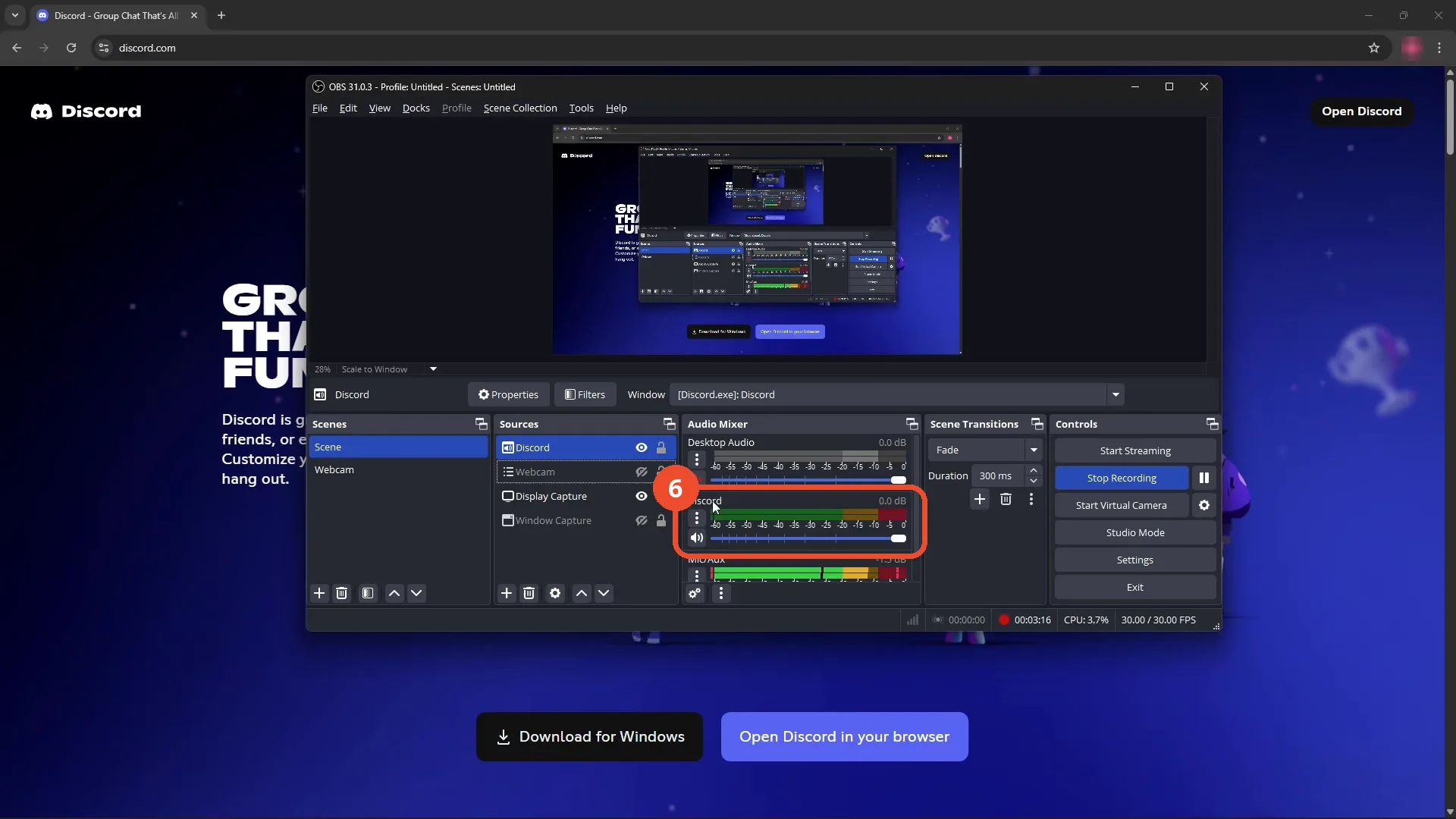
Check Discord in the Audio Mixer
Click OK in the Properties dialog. Discord now appears as its own channel in the Audio Mixer, next to Desktop Audio and Mic/Aux.
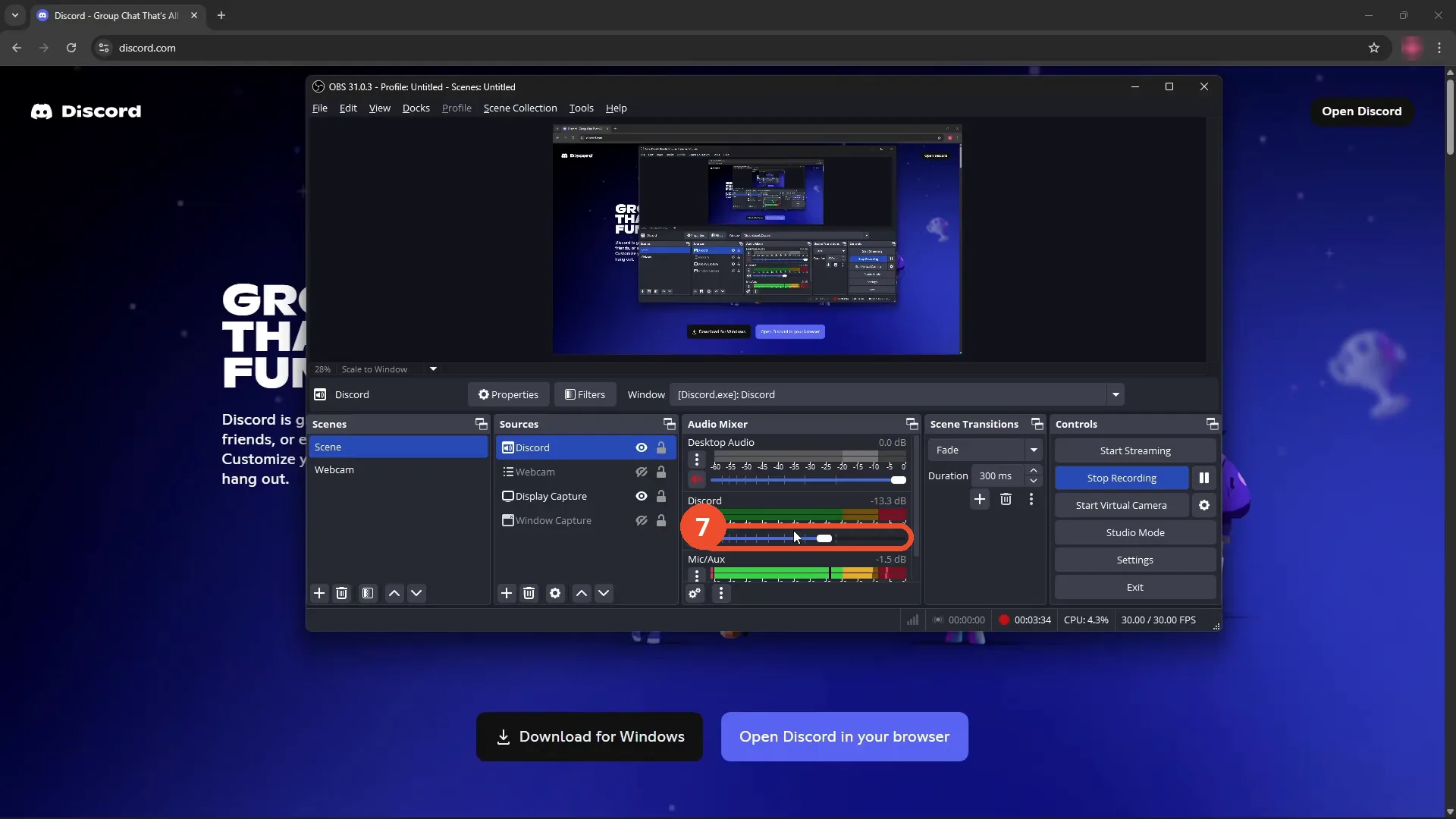
Adjust the Discord volume
Drag the Discord channel’s volume slider to level it against your mic and desktop audio. The demo pulls it down to about -13 dB.
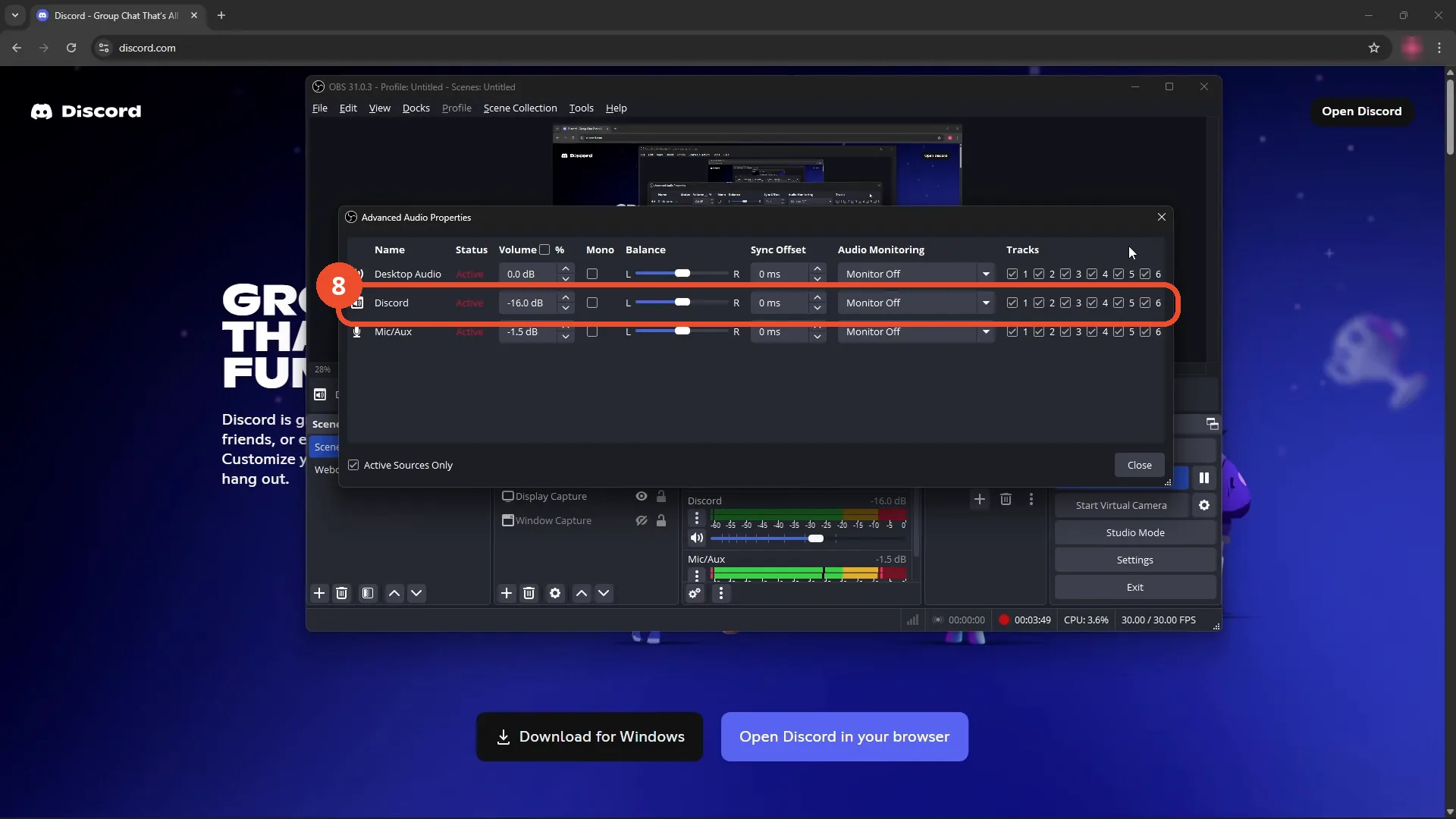
Fine-tune in Advanced Audio Properties
For finer control, open Advanced Audio Properties: the Discord row there sets volume, balance, sync offset, monitoring, and recording tracks per source.
Good to know
- Application Audio Capture is labelled BETA in OBS 31.0.3, but it works as shown here.
- This captures only Discord’s audio, not your whole desktop — other apps stay out of the recording.
- Discord (or the Chrome Discord tab) must already be open before you pick it in the Window dropdown, or it will not appear in the list.
- When Discord plays audio, the Discord meter in the Audio Mixer moves — that is how you know the capture is live.
- The narration also mentions adding a filter from the mixer’s controls; the Filters dialog itself is not opened on screen, so it is not a step here.
- In Advanced Audio Properties you can set the Discord source’s volume, balance, sync offset, monitoring, and which tracks it records to.
More on Discord
- How to Stop Spotify From Pausing on Discord
- How to See Who Owns a Discord Server
- How to Make Discord Open on a Second Monitor by Default
- How to Remove Someone from a Discord Group
- How to Self-Assign Roles in Discord Using ProBot
- How to Scan a QR Code with the Discord Mobile App
- How to Stream OBS to Discord with Sound
- How to Create a Discord Server Template Link
- How to Make Your Name Invisible on Discord
- How to Send a Discord Friend Request
- How to Turn Off DMs on Discord
- How to Enable Age-Restricted Commands on Discord Mobile
- How to Zoom In and Out on Discord
- How to Create a GIF and Share It in Discord
- How to Exit Full Screen on Discord
- How to Send Files Through Discord
- How to Skip a Line in Discord
- How to Find Gradient Role Settings in Discord (Nitro Required)
- How to Make an Animated Discord Banner GIF in CapCut
- How to Add Someone to an Ongoing Discord Voice or Video Call