How to Add a Soundboard to Discord
Add a custom soundboard sound to your Discord server: upload a sound in Server Settings, trim it, give it a name and emoji, then play it in a voice channel.
- SystemWindows
- AppDiscord desktop app
- Last verifiedNovember 7, 2026
Every screenshot below is taken from the actual recording on this device — no stock images.
Steps
Open Server Settings
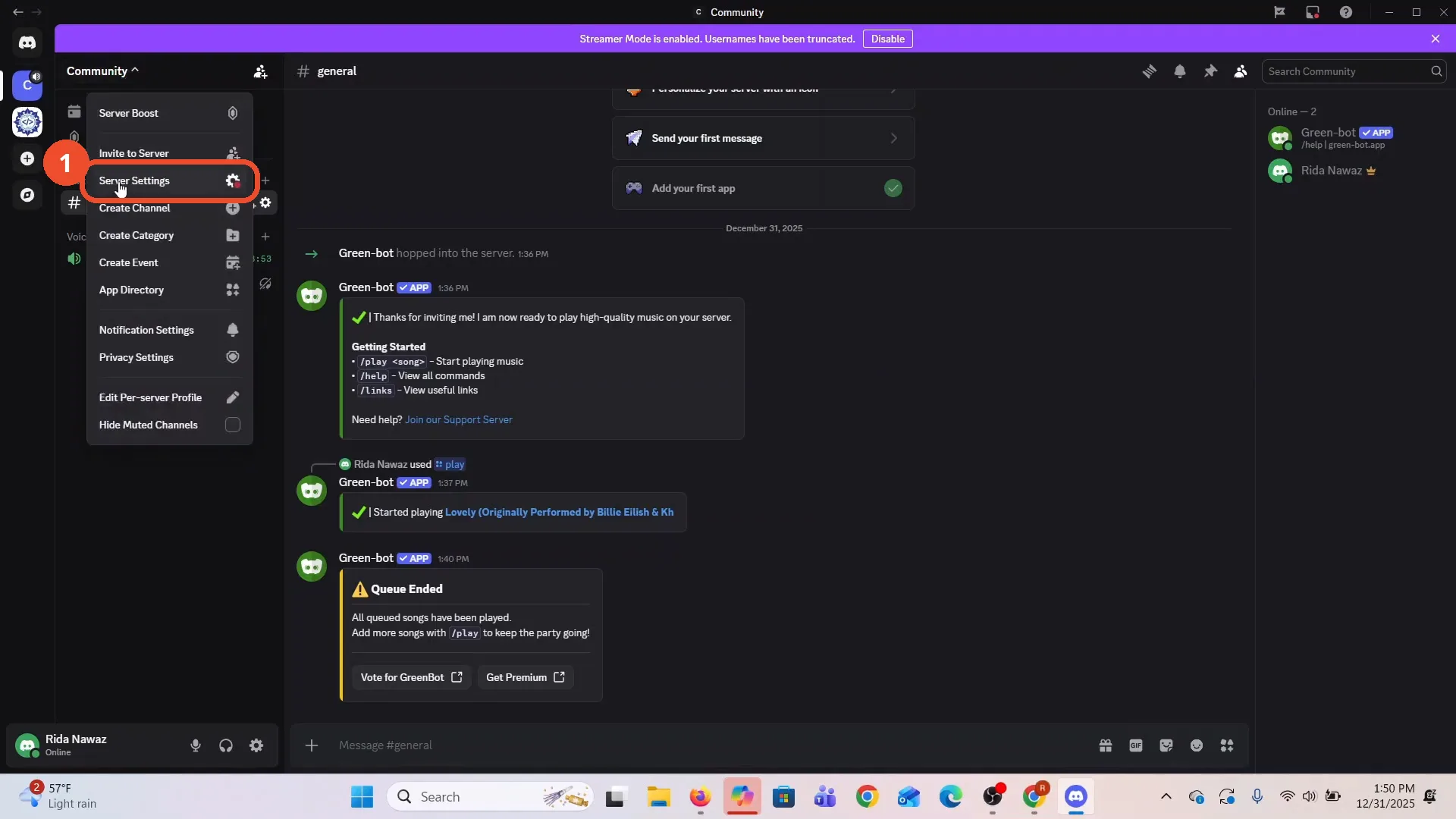
In Discord, click your server name at the top left, then click Server Settings in the menu that opens.
Open Soundboard and click Upload Sound
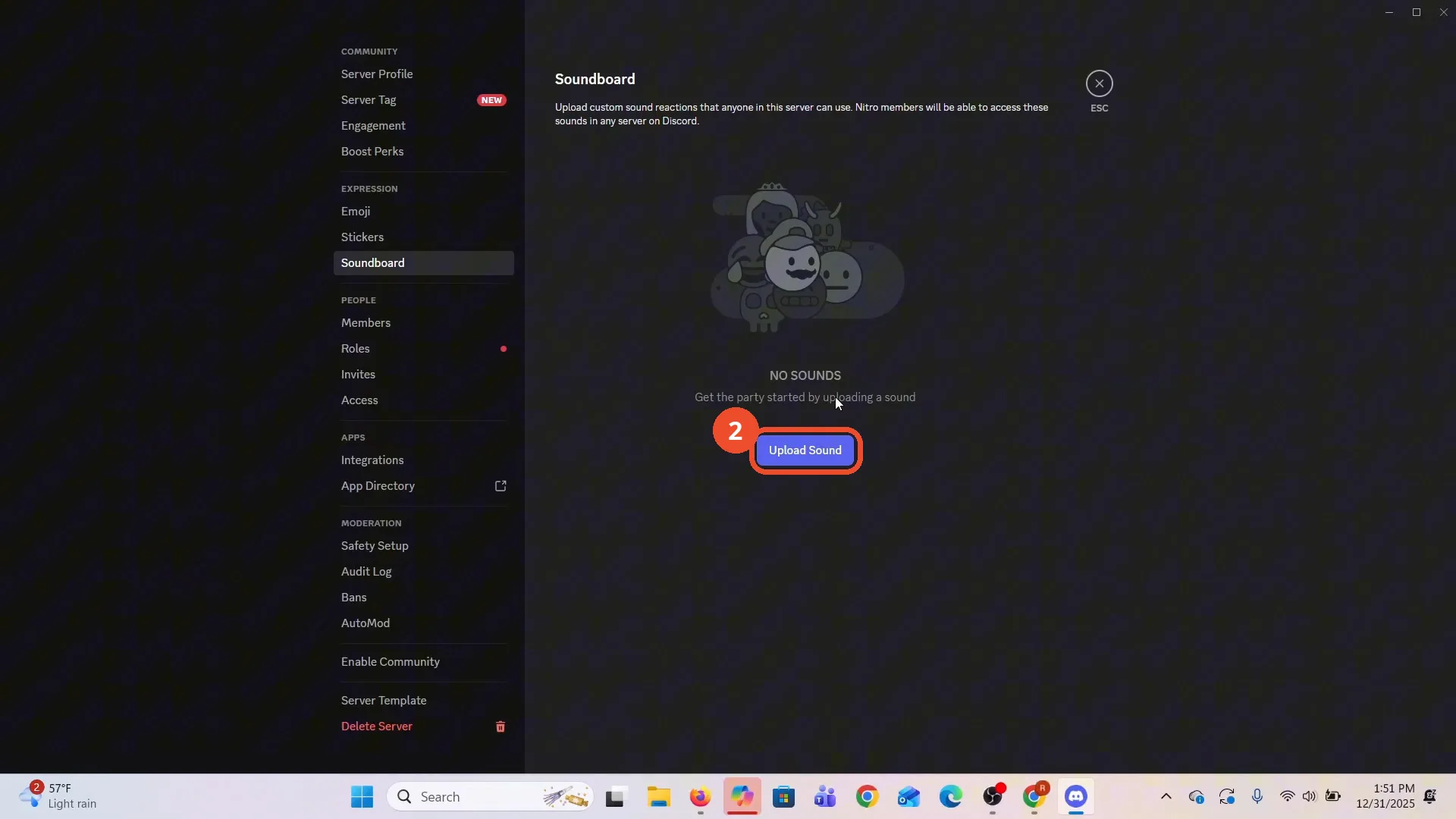
In Server Settings, click Soundboard under Expression on the left, then click Upload Sound. This server has no sounds yet.
Choose a sound file and trim it
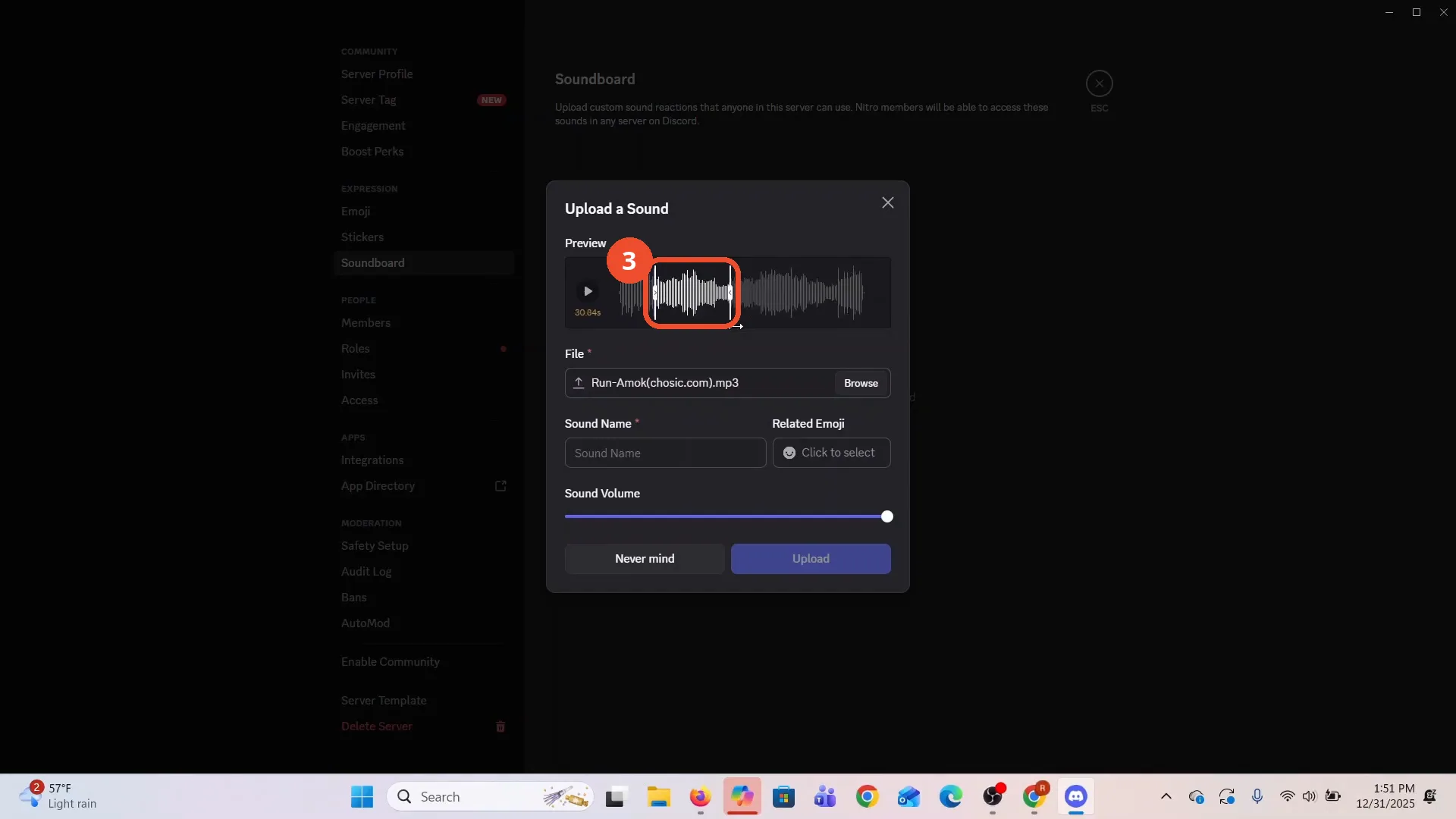
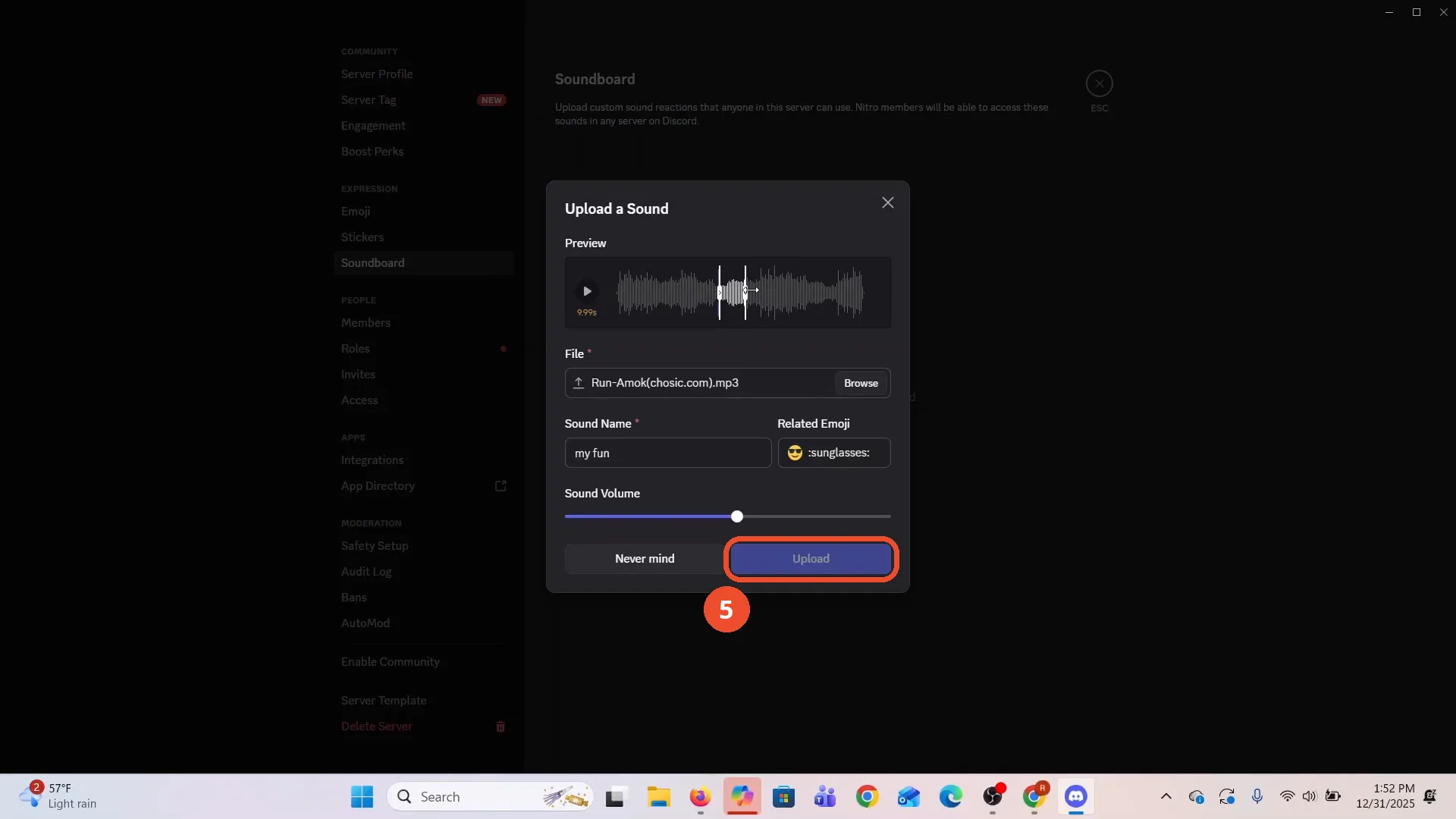
In the Upload a Sound dialog, pick a sound file — Run-Amok(chosic.com).mp3 here, 107.10 seconds long — and drag the trim handles in the preview to cut it down. The file picker itself is not shown on camera: the dialog opens with the file already chosen.
Name the sound, pick an emoji, and set the volume
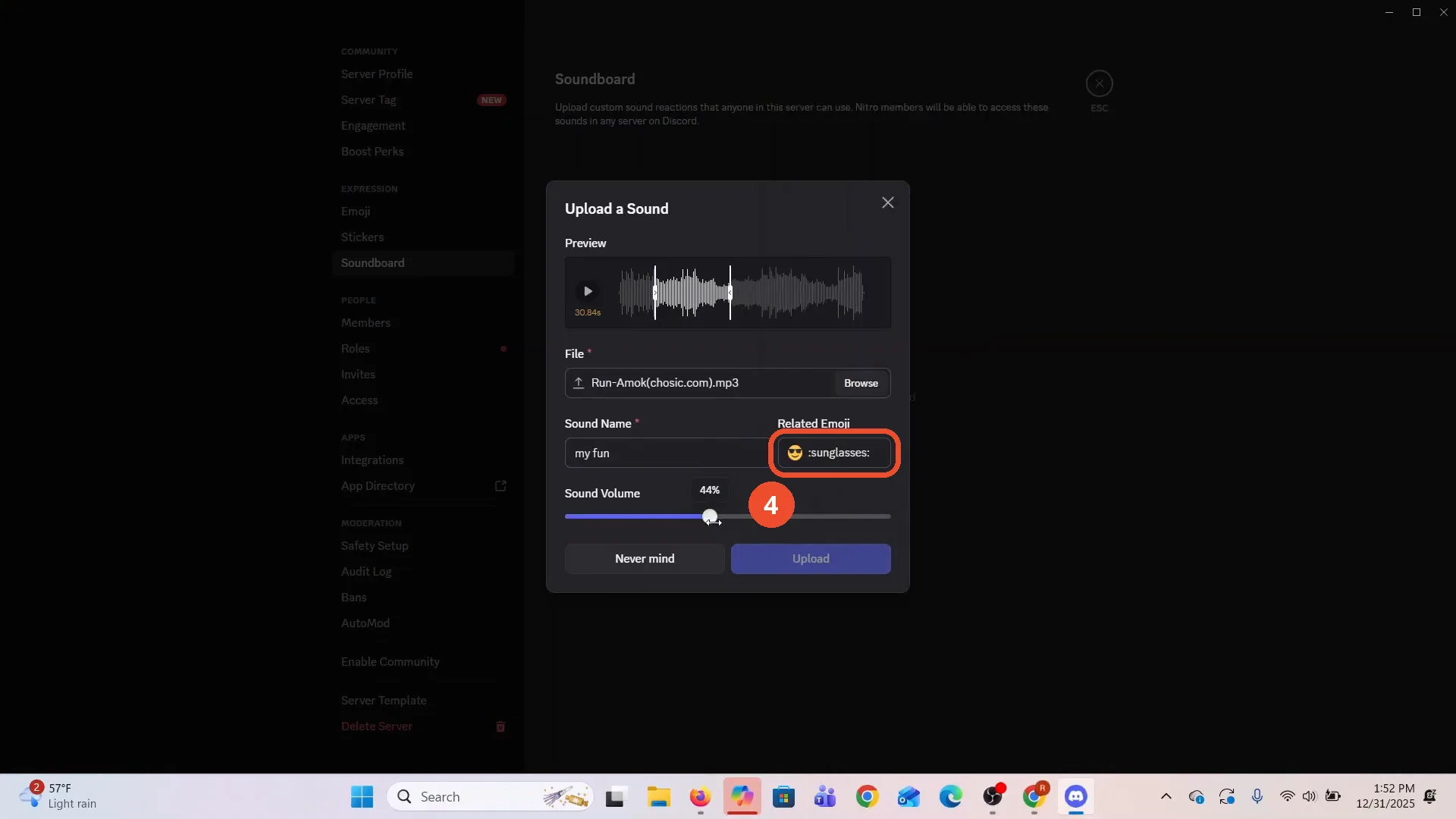
Type a Sound Name — my fun here — click Related Emoji to pick one (the sunglasses emoji, :sunglasses:, here), and drag the Sound Volume slider to about halfway (44% here).
Trim the clip to length and click Upload
If the sound is still too long, drag the trim handles again — the clip here is down to 9.99 seconds — then click Upload.
Check the sound is listed
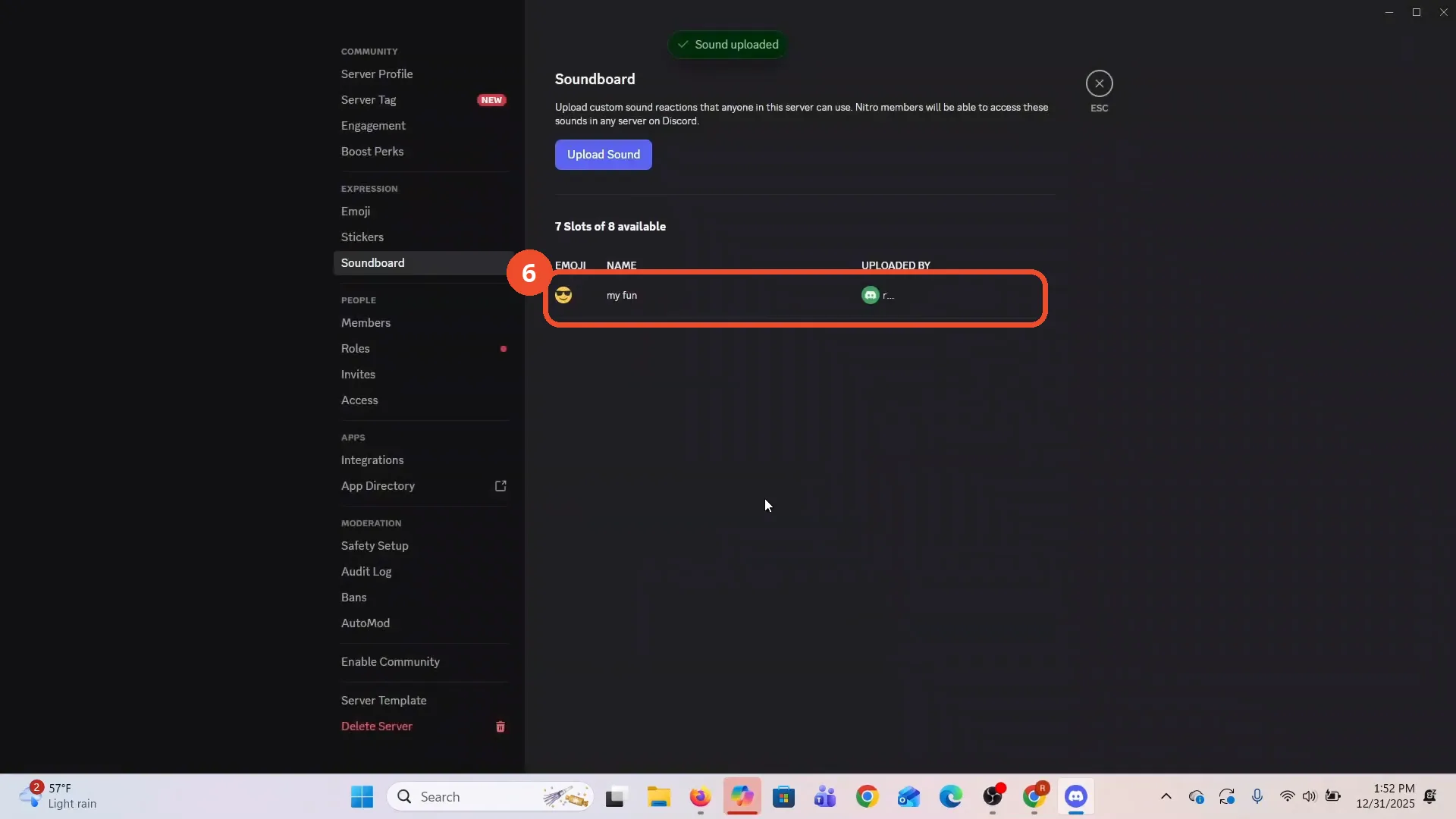
Discord shows a green “Sound uploaded” notice, and your sound appears in the list — the sunglasses emoji and my fun here, with 7 slots of 8 still available.
Join a voice channel and open the soundboard
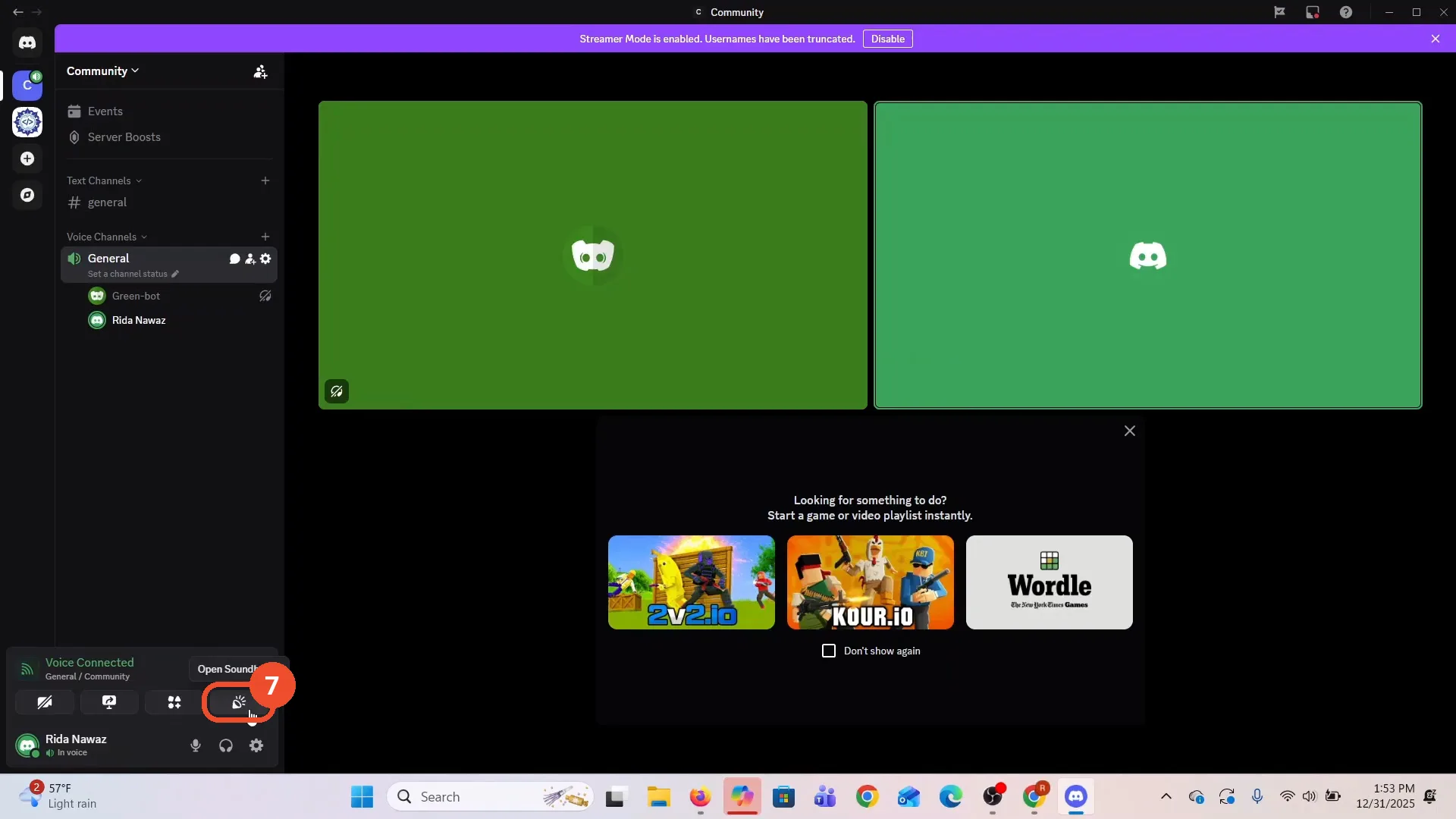
Go back to your server, join a voice channel such as General, then click the soundboard button in the bottom control bar — hovering it shows the “Open Soundboard” tooltip.
Click your sound to play it
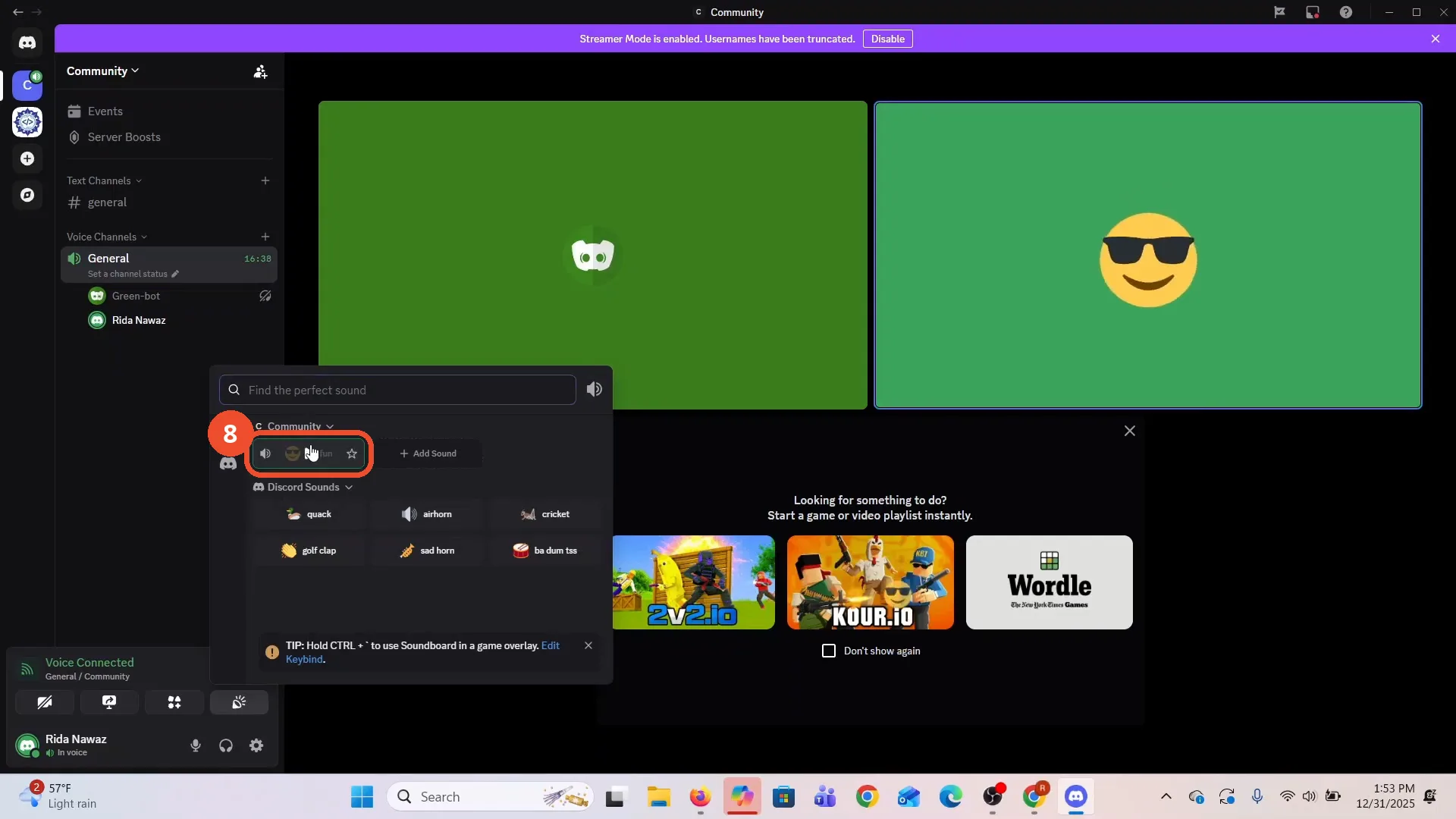
In the soundboard panel, click your sound — my fun here. It plays in the voice channel for everyone there; while it plays, its emoji fills your video tile.
Good to know
- You need permission to manage the server to see Server Settings — the operator here owns the Community server (crown next to Rida Nawaz in the member list).
- The narration says to trim the sound to “a few seconds”, but the clip on screen reads 9.99 seconds when Upload is clicked — and Discord accepts it. Trim until the upload goes through; very long files need cutting first (this one started at 107.10 seconds).
- Sounds belong to one server: after this upload the page reads “7 Slots of 8 available”. The settings page notes Nitro members can use their sounds in any server on Discord.
- The Browse/file-picker step is not shown on camera — the Upload a Sound dialog opens with Run-Amok(chosic.com).mp3 already selected.
- Playback is audio-only, so the recording cannot prove the sound was heard — the on-screen proof is the sunglasses emoji filling the operator’s video tile while the sound plays (step 8).
- Streamer Mode was on during the recording, so other usernames in the frames are truncated.
More on Discord
- How to Stop Spotify From Pausing on Discord
- How to See Who Owns a Discord Server
- How to Make Discord Open on a Second Monitor by Default
- How to Remove Someone from a Discord Group
- How to Self-Assign Roles in Discord Using ProBot
- How to Scan a QR Code with the Discord Mobile App
- How to Stream OBS to Discord with Sound
- How to Create a Discord Server Template Link
- How to Make Your Name Invisible on Discord
- How to Send a Discord Friend Request
- How to Turn Off DMs on Discord
- How to Enable Age-Restricted Commands on Discord Mobile
- How to Zoom In and Out on Discord
- How to Create a GIF and Share It in Discord
- How to Exit Full Screen on Discord
- How to Send Files Through Discord
- How to Skip a Line in Discord
- How to Find Gradient Role Settings in Discord (Nitro Required)
- How to Make an Animated Discord Banner GIF in CapCut
- How to Add Discord Audio to OBS
- How Discord Text-to-Speech Works (TTS Explained for Text Channels)
- How to Highlight Text in Discord on Desktop
- How to Add Someone to an Ongoing Discord Voice or Video Call
- How to Fix Discord Freezing When Closing Valorant
- How to Type in Bold on Discord
- How to Add a Welcome Channel to Your Discord Server
- How to Listen to Spotify with Friends on Discord
- How to Italicize Text in Discord
- How to Add a Music Bot to Discord
- How to Stop Discord From Opening Automatically on Windows Startup
- How to Search and Find Discord Servers Using Discovery
- How to Hide Game Activity on Discord