How to Unlock a Canva Page
A locked page in Canva cannot be edited until you unlock it: open the design, click the padlock icon above the page, and the page becomes editable again. The film unlocks a ‘Master the 50/30/20 Rule’ infographic page.
- SystemWeb app
- AppCanva web app
- Last verifiedNovember 24, 2026
Every screenshot below is taken from the actual recording on this device — no stock images.
Steps
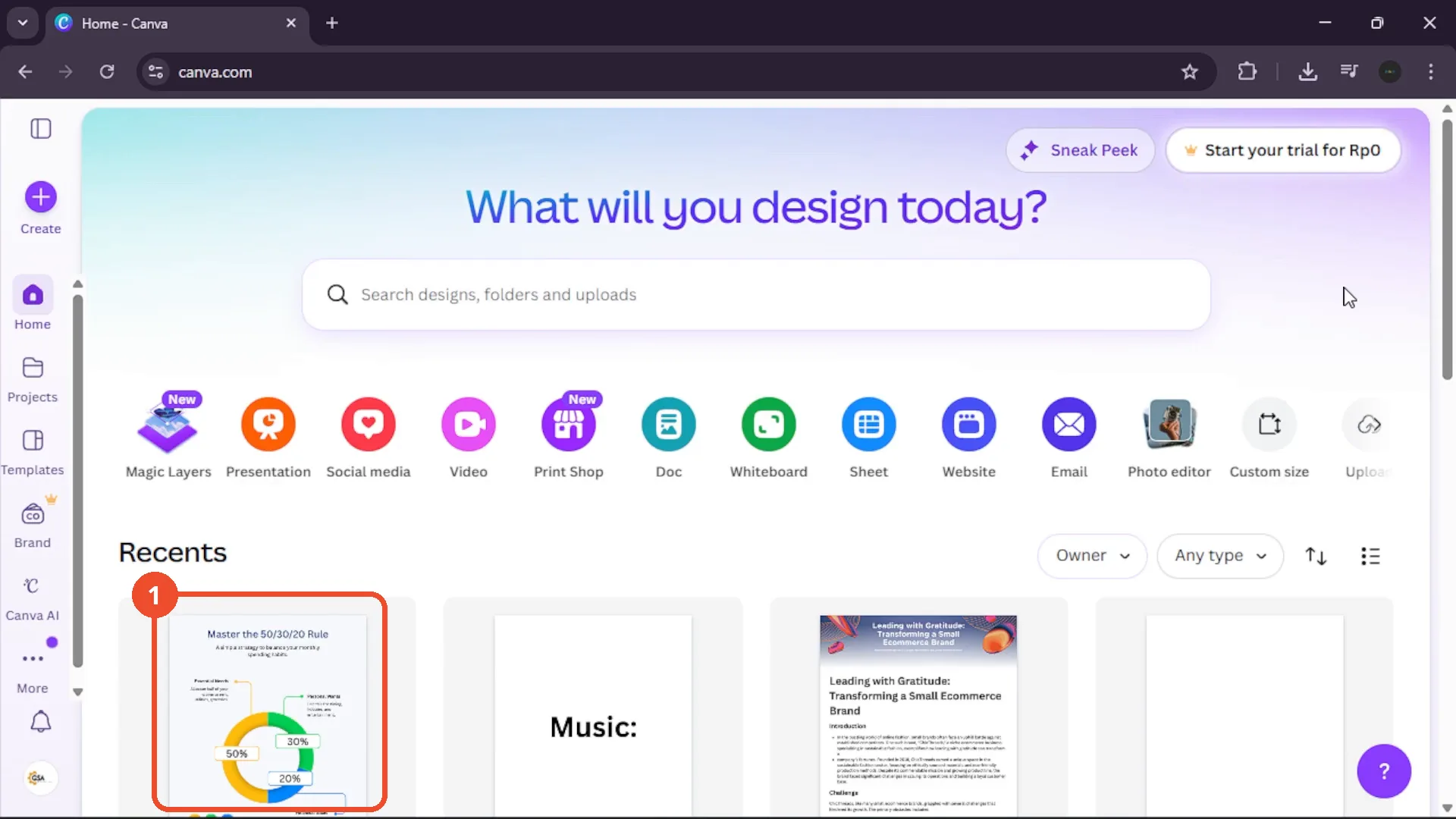
Open your design from Recents
Open Canva and find your design under Recents on the home page. The film opens the ‘Master the 50/30/20 Rule’ infographic.
Open the locked page
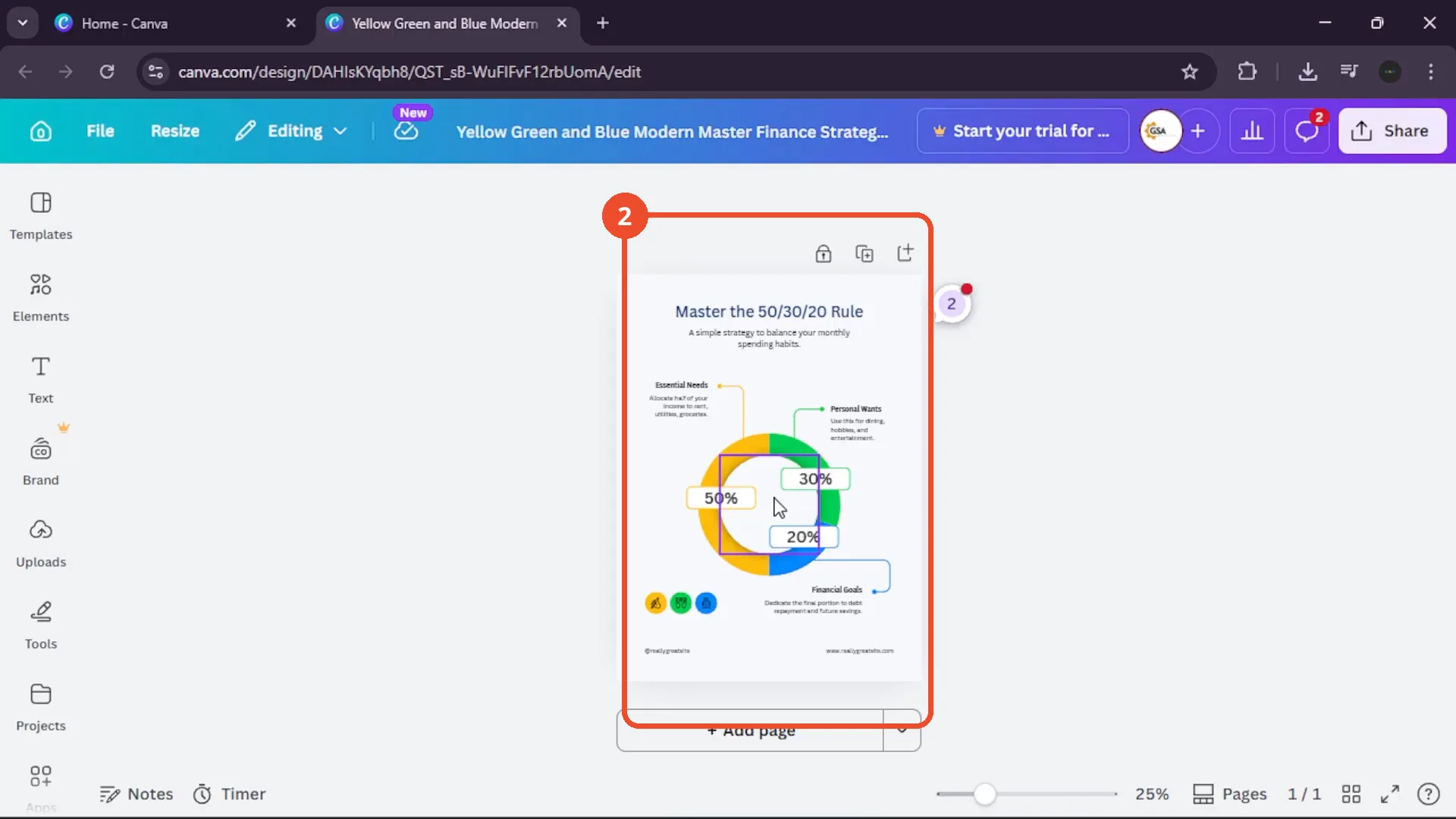
Open the locked page in the editor. The page is on the canvas, and the small padlock icon sits above it at the top of the page.
Click the lock icon
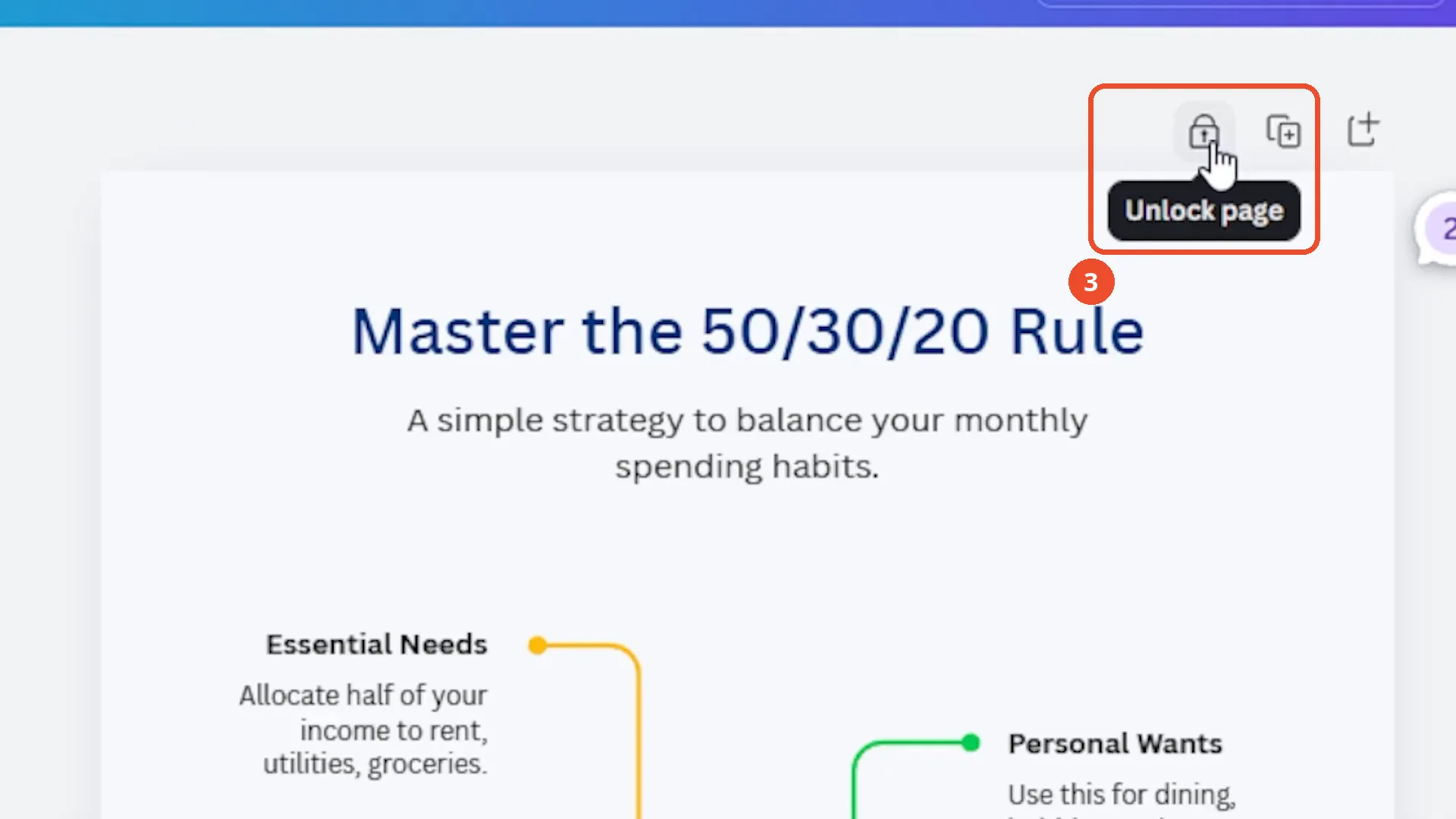
Click the padlock icon above the page. Hovering it shows an ‘Unlock page’ tooltip, confirming this is the page lock and not the element lock.
Check the lock is open
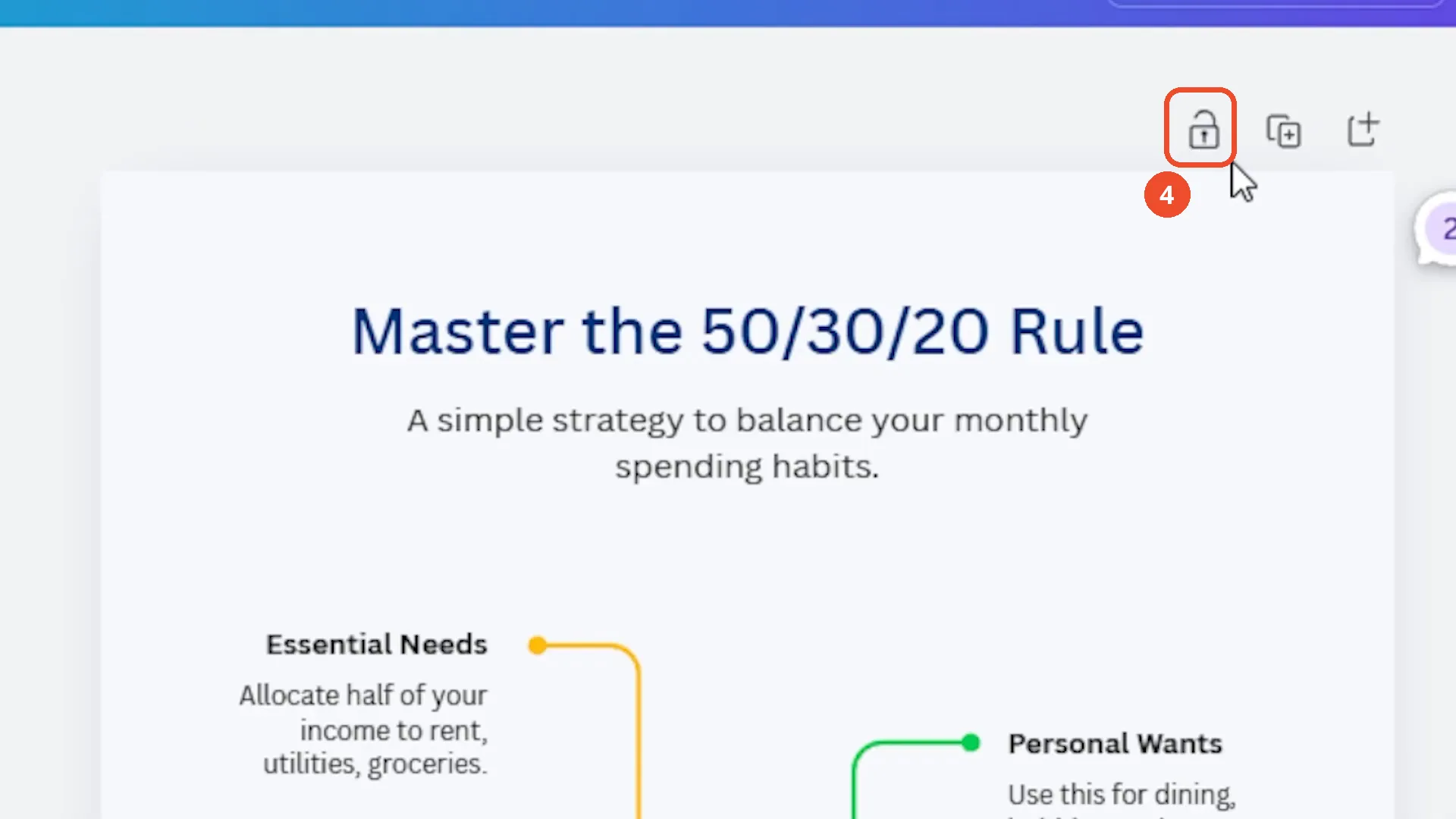
Check the icon: the closed padlock is now an open padlock, with its shackle raised. The page is unlocked.
Click an element to confirm the page is editable
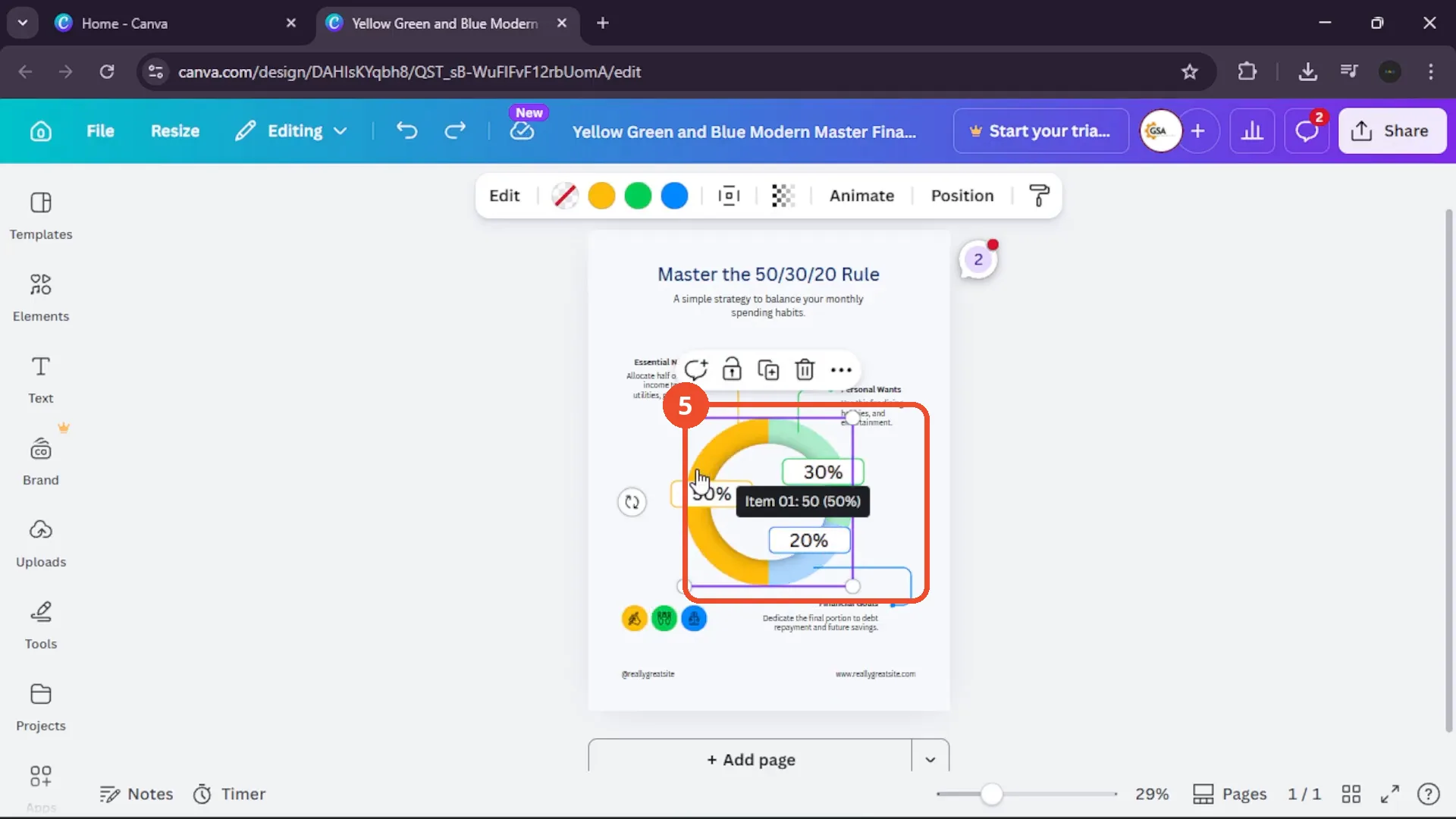
Click an element on the page to confirm it is editable again. The donut chart selects with a bounding box, corner handles, and a grab cursor, and an ‘Item 01: 50 (50%)’ tooltip appears.
Good to know
- The lock icon sits above the page, at the top of the design canvas, next to the duplicate-page and add-page icons. Hovering it shows an ‘Unlock page’ tooltip.
- The film zooms into the top of the page for the unlock click, so the lock icon and tooltip are readable in those steps.
- The film shows the donut chart selecting with handles and a grab cursor after unlocking; it does not visibly drag the chart to a new spot. Drag an element a little yourself if you want to be extra sure the page is editable.
- After unlocking, the cursor also hovers the duplicate-page icon (a ‘Duplicate page’ tooltip appears around 0:54); that is incidental and not part of unlocking.
More on Canva
Guide complete
Every step above comes from the original recording, with a screenshot for each step. Want more like this? Browse all Canva guides.