How to Mirror Text in Canva
A reflection effect in Canva is two copies of the same words: one normal, one flipped and faded underneath. This guide follows the film’s “Sample” text (Canva Sans) and records the exact transparency value the reflection settles on.
- SystemWeb app
- AppCanva web app
- Last verifiedNovember 27, 2026
Every screenshot below is taken from the actual recording on this device — no stock images.
Steps
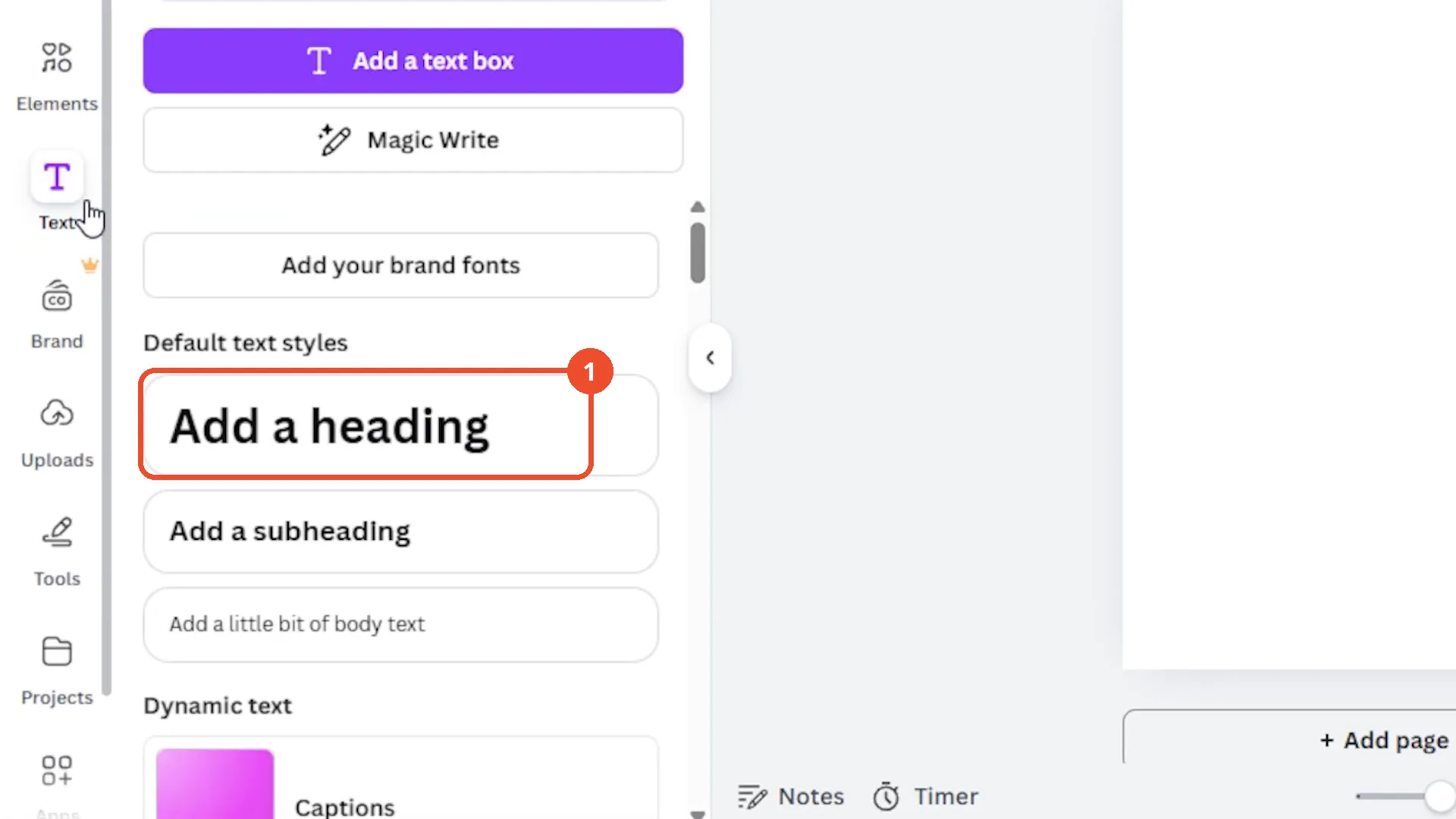
Add your text with a heading
Click Text in the left rail, then Add a heading, and type the words you want to mirror. The film types “Sample” in Canva Sans at size 78, then recolours it blue.
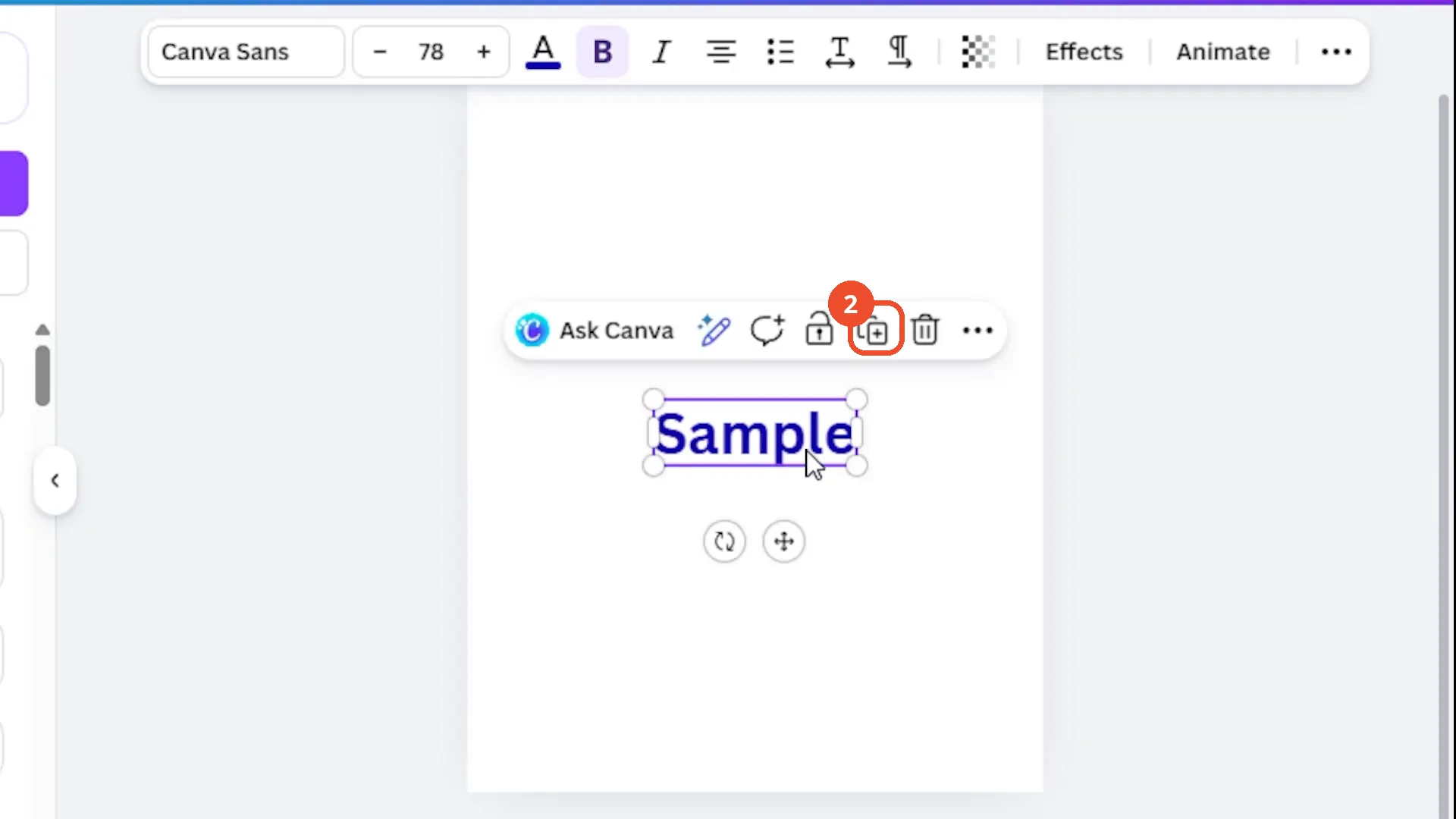
Duplicate the text box
Click the text box, then click the duplicate icon (two overlapping squares) in the floating toolbar. A second, identical copy appears — keep one copy normal and turn the other into the reflection. The film then drags the pair larger, from size 78 to 97.4.
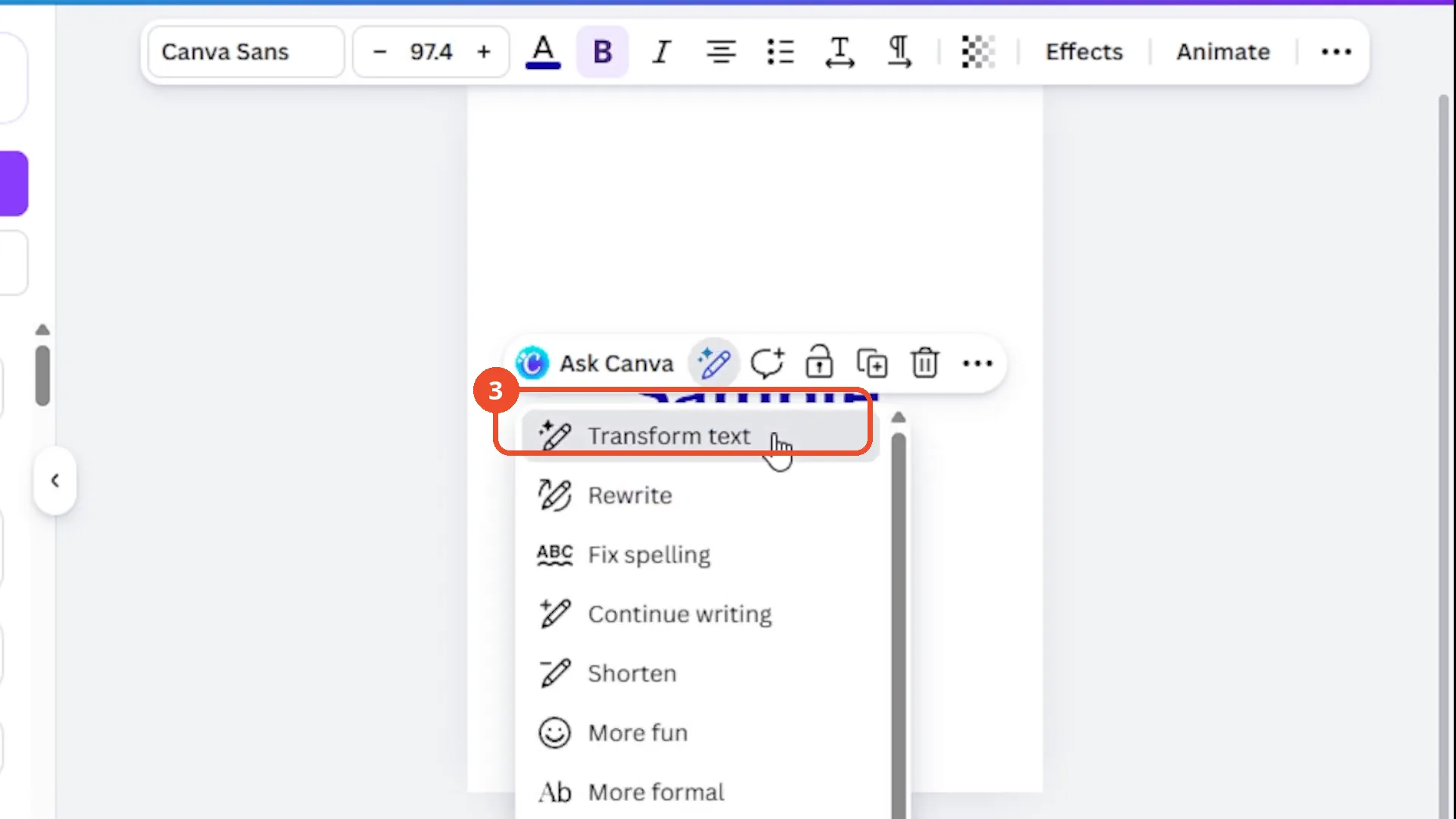
Ask Canva to mirror the text
Select the copy and open Ask Canva (the magic-wand icon in the floating toolbar), then choose Transform text and type “mirror”. Ask Canva answers with the word spelled backwards — “elpmaS” — which is reversed letters, not a mirrored shape (see Good to know).
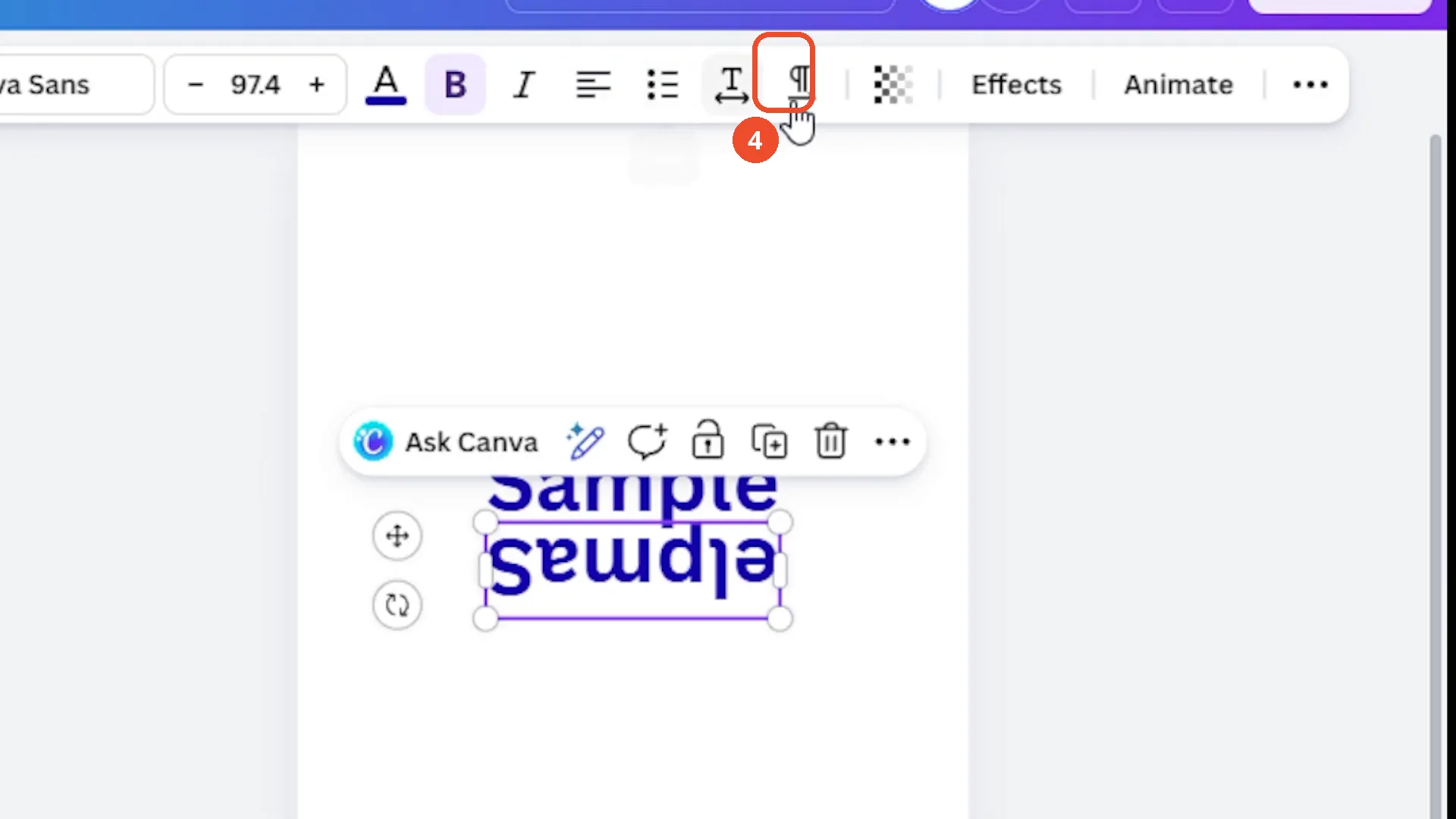
Flip the copy vertically
With the copy selected, click the Flip vertical button in the text toolbar (the icon with up-and-down arrows). The copy turns upside down under the original — that is the actual mirror. The film’s hand hovers this button at this point; the flip click itself is not shown on screen.
Lower the transparency to 23
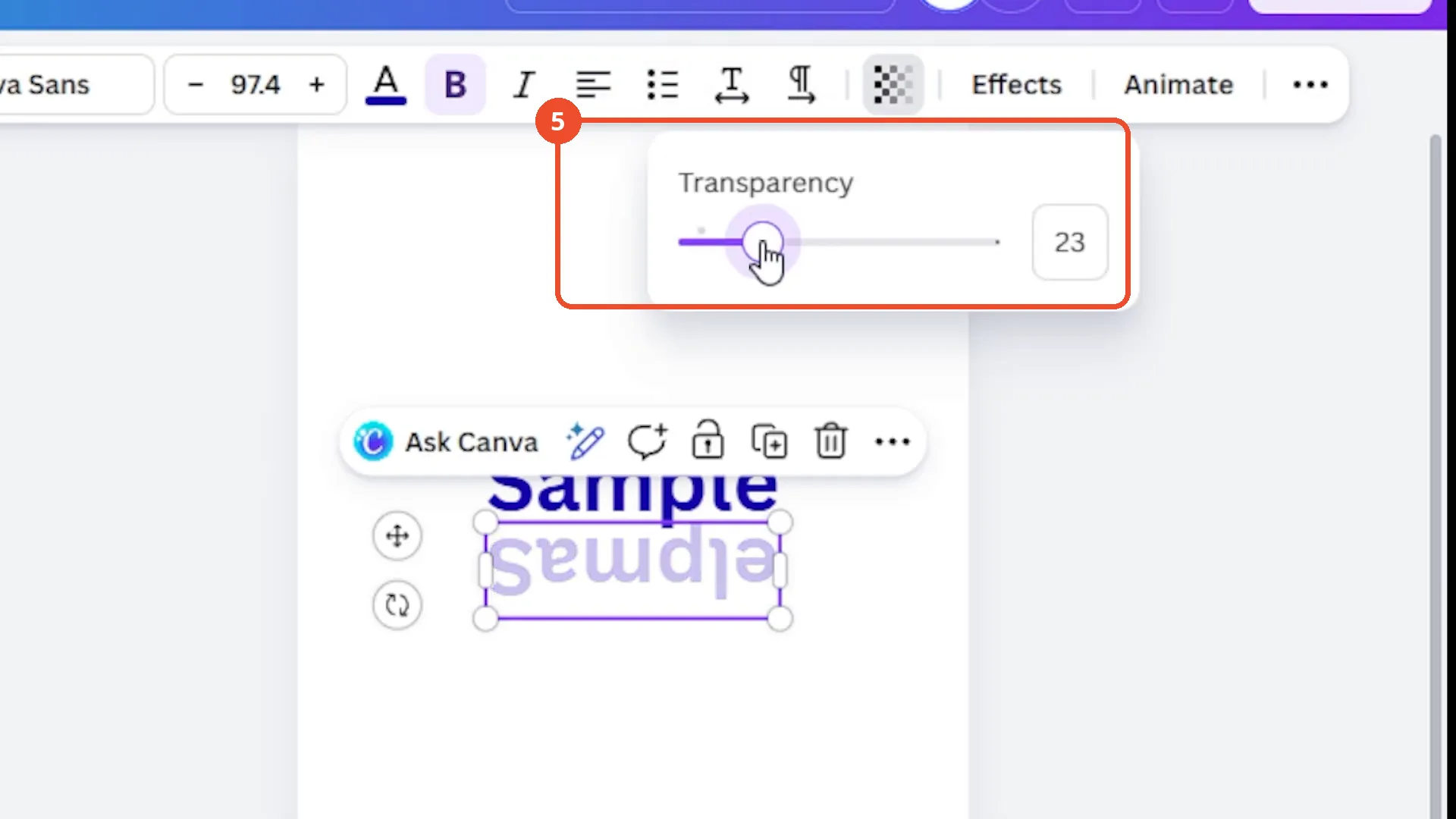
Click the Transparency (checkerboard) icon in the text toolbar and drag the slider down to 23. The flipped copy fades to a soft, pale reflection under the solid original.
Check the reflection
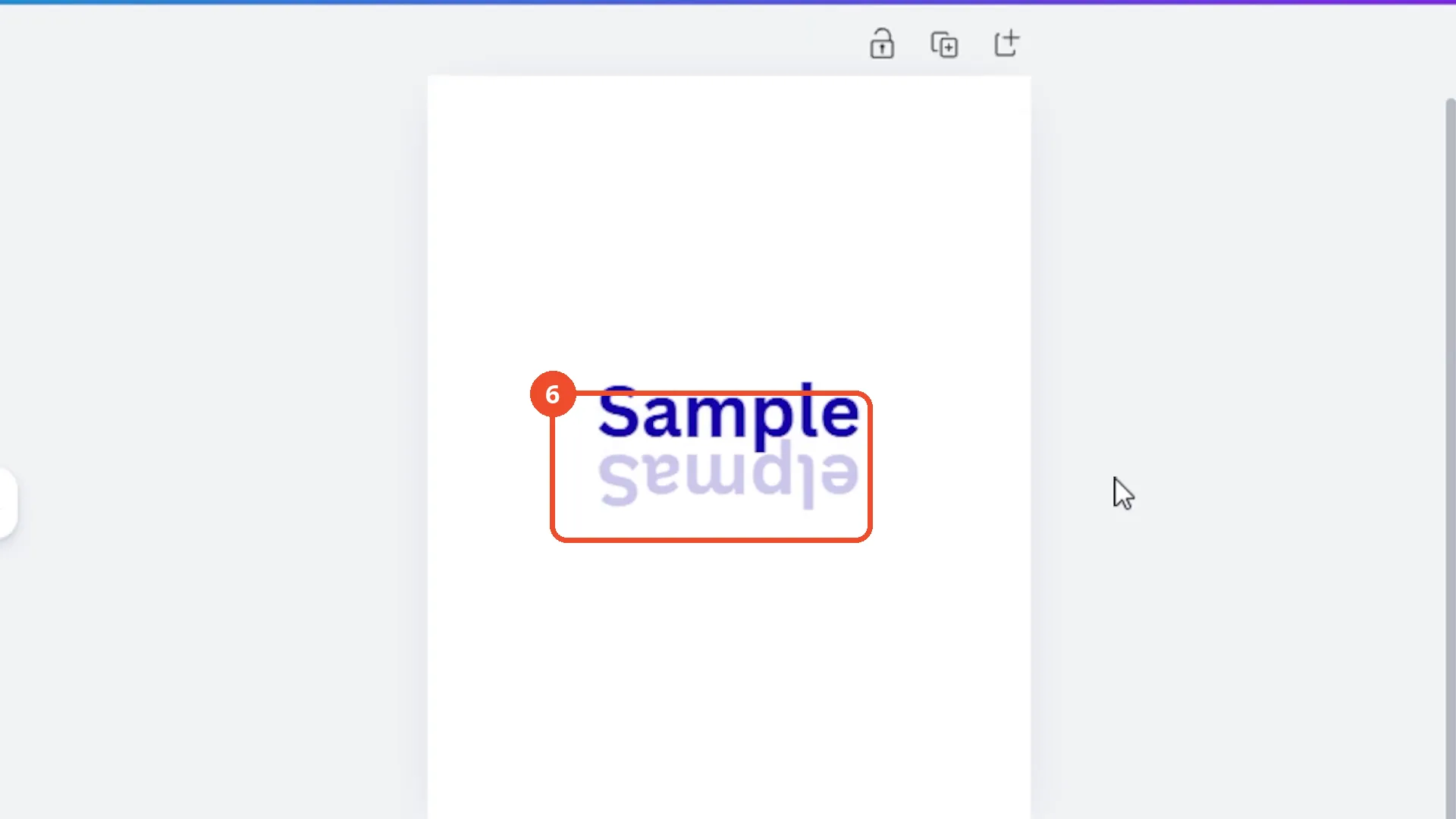
Click off the text and check the result: “Sample” in solid blue, with its upside-down reflection fading beneath it at transparency 23.
Good to know
- The narration credits Ask Canva with mirroring the text, but what the frames show is different: Ask Canva returns the word spelled backwards (“elpmaS”). The reflection on screen is “Sample” flipped vertically — letter order unchanged, each letter upside down — which is what Flip vertical does, not what the AI wrote.
- The Flip vertical click itself is never visible on screen: the film cuts from the Ask Canva suggestion (with “Replace” highlighted) to the already-flipped copy. If you follow this guide, use the Flip vertical button in the text toolbar — that is the step that actually mirrors the text.
- The film’s reflection is made from a duplicate: the original stays normal at the top and only the copy is flipped and faded. Do not flip your only copy — you would lose the upright original.
- The text is recoloured blue and enlarged from 78 to 97.4 before the mirror is made; neither change is part of the reflection itself, so your own words can be any colour or size.
- Flipping a shape uses the same Flip menu but is a different job — it turns a graphic upside down without making a faded reflection copy. See How to Flip a Shape in Canva for that.
- Canva saves automatically — there is no save or export step, and the film never downloads the finished design.
More on Canva
- How to Add Transitions in Canva
- How to Flip a Shape in Canva
- How to Add Smooth Transitions in Canva
- How to Outline an Image in Canva
- How to Blur Edges in Canva
- How to Change DPI in Canva for High-Quality Prints
- How to Change Line Spacing in Canva
- How to Unlock a Canva Page
- How to Change Image Color in Canva
- How to Fade an Image in Canva
Guide complete
Every step above comes from the original recording, with a screenshot for each step. Want more like this? Browse all Canva guides.