How to Make Stickers on Canva
A sticker in Canva starts with the right canvas — a circle sticker template, 100 × 100 mm — and ends as a downloaded file you can print and cut out. This guide follows the film from the template search to the PNG download, including the point where the film swaps the template’s horse for a graphic of its own.
- SystemWeb app
- AppCanva web app
- Last verifiedNovember 28, 2026
Every screenshot below is taken from the actual recording on this device — no stock images.
Steps
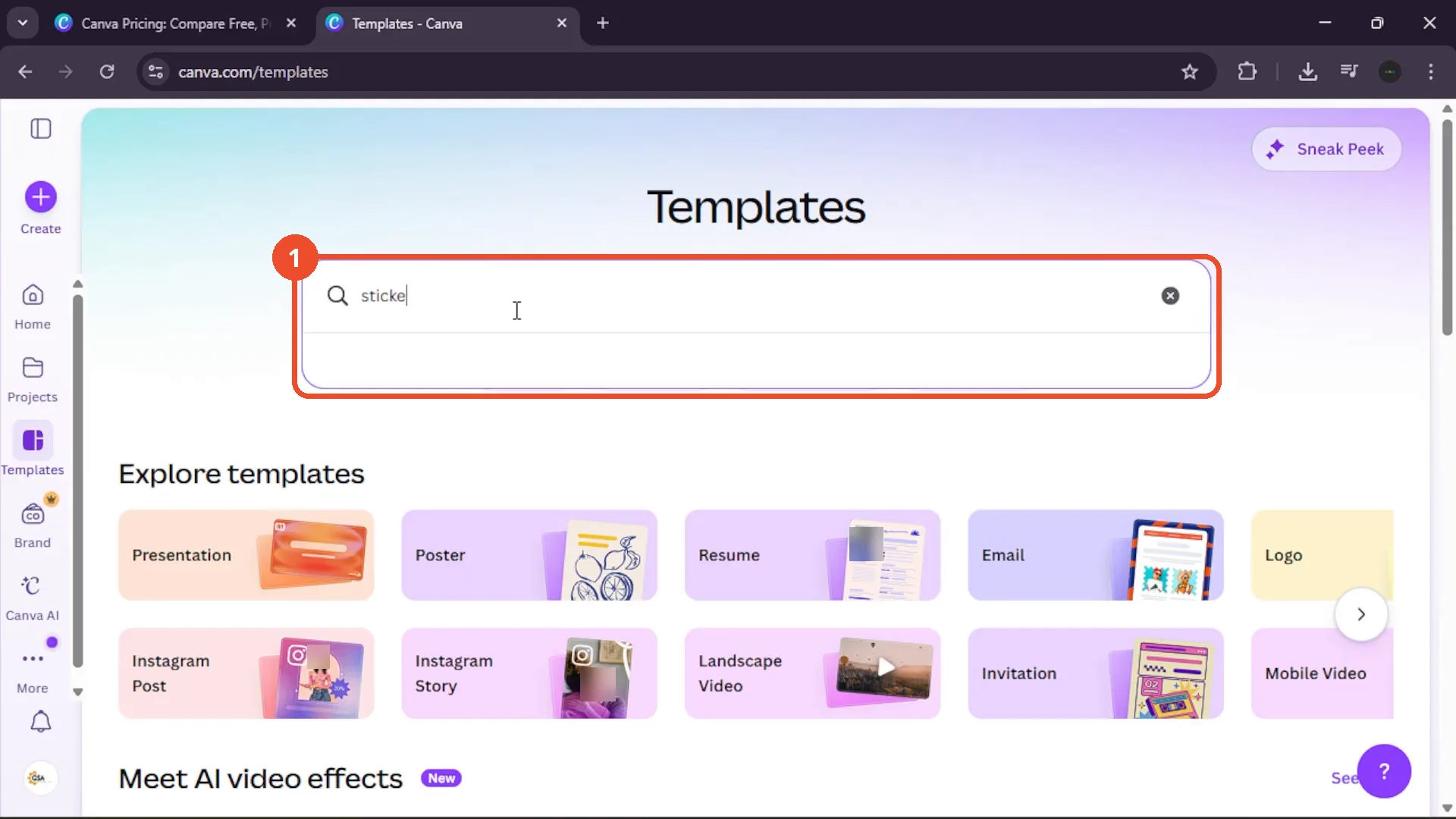
Search for sticker templates
Open Canva’s Templates page and type “sticker” in the search box. The results include blank sticker sizes and ready-made sticker templates.
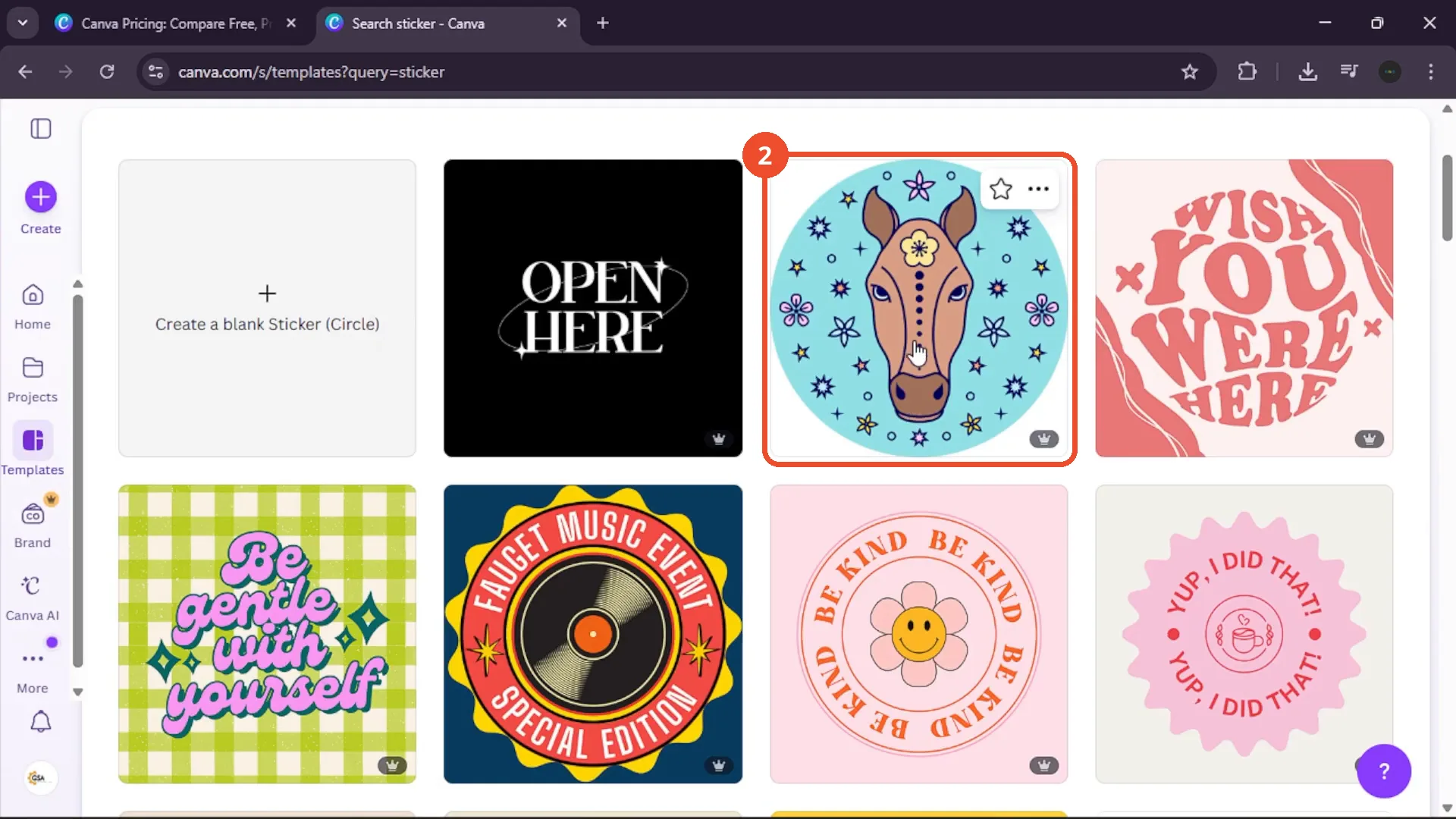
Pick a circle sticker template
Click the “Colorful Illustrated Horse Chinese Zodiac Sign Circle Sticker” template — a Sticker (Circle), 100 × 100 mm — then click “Customize this template” to open it in the editor.
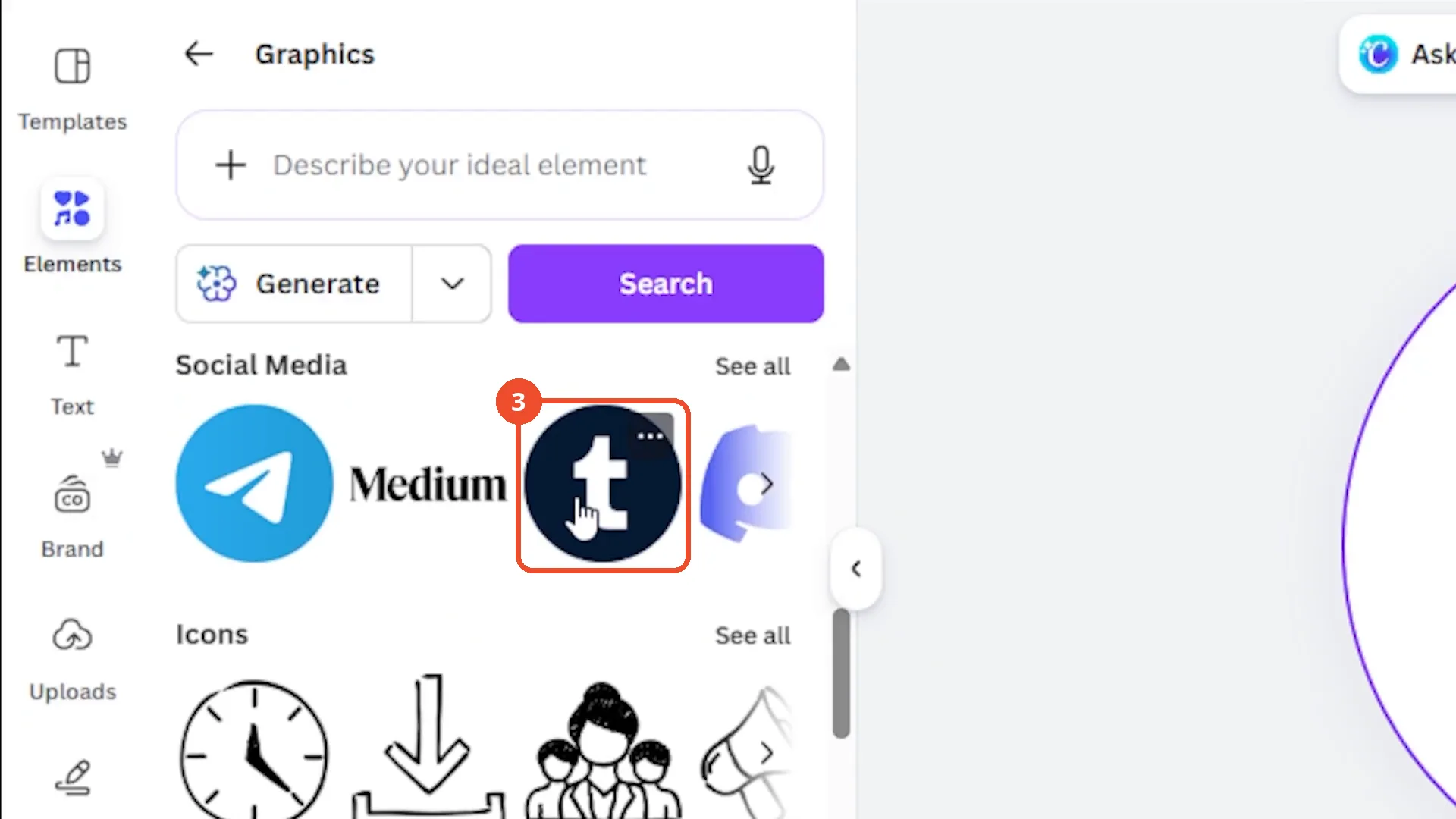
Add a graphic from Elements
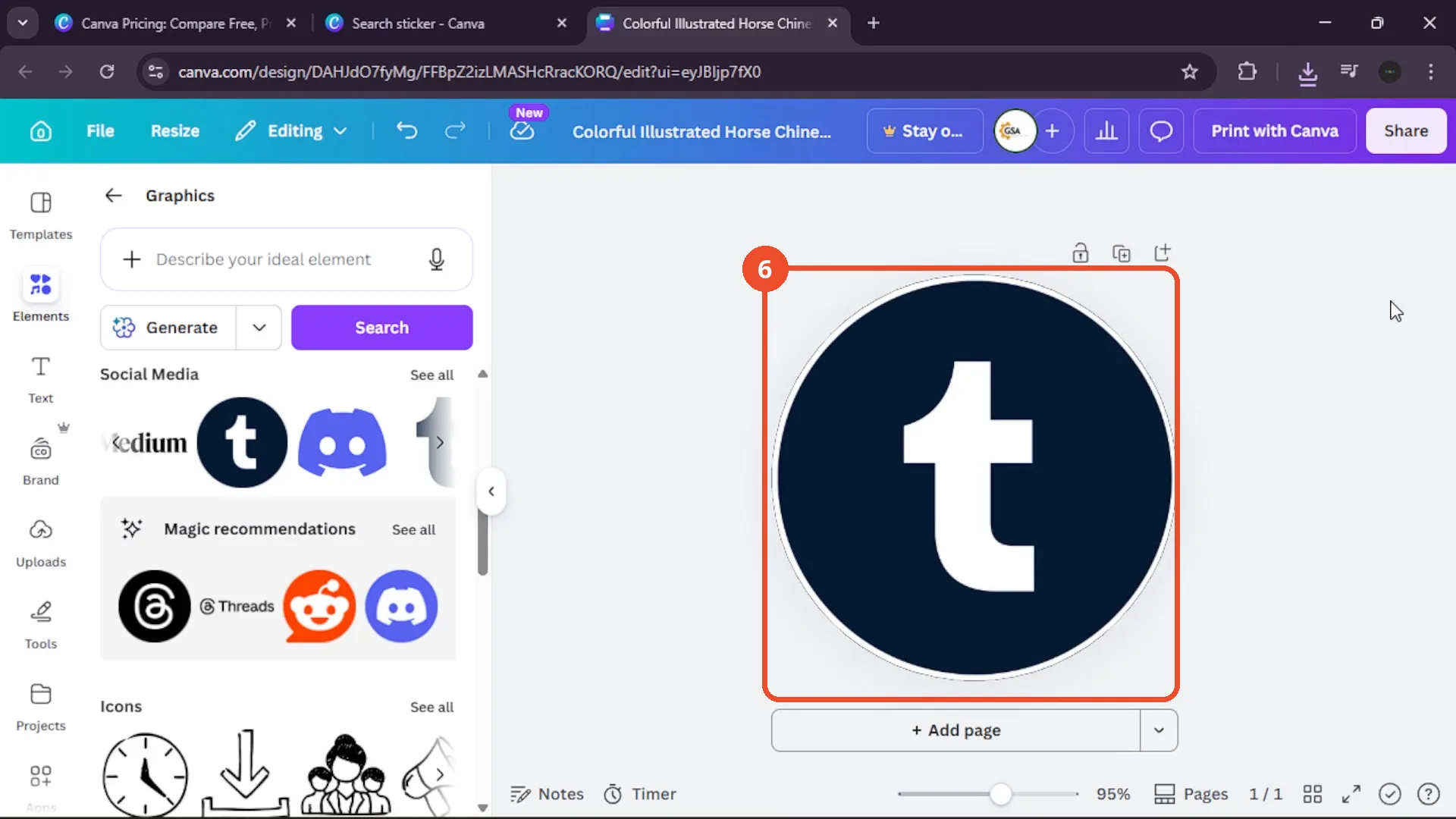
Open Elements, then Graphics, and pick a graphic for your sticker. The film picks the dark circle with a white “t” (Tumblr) from the Social Media row, and it lands inside the circle on the page.
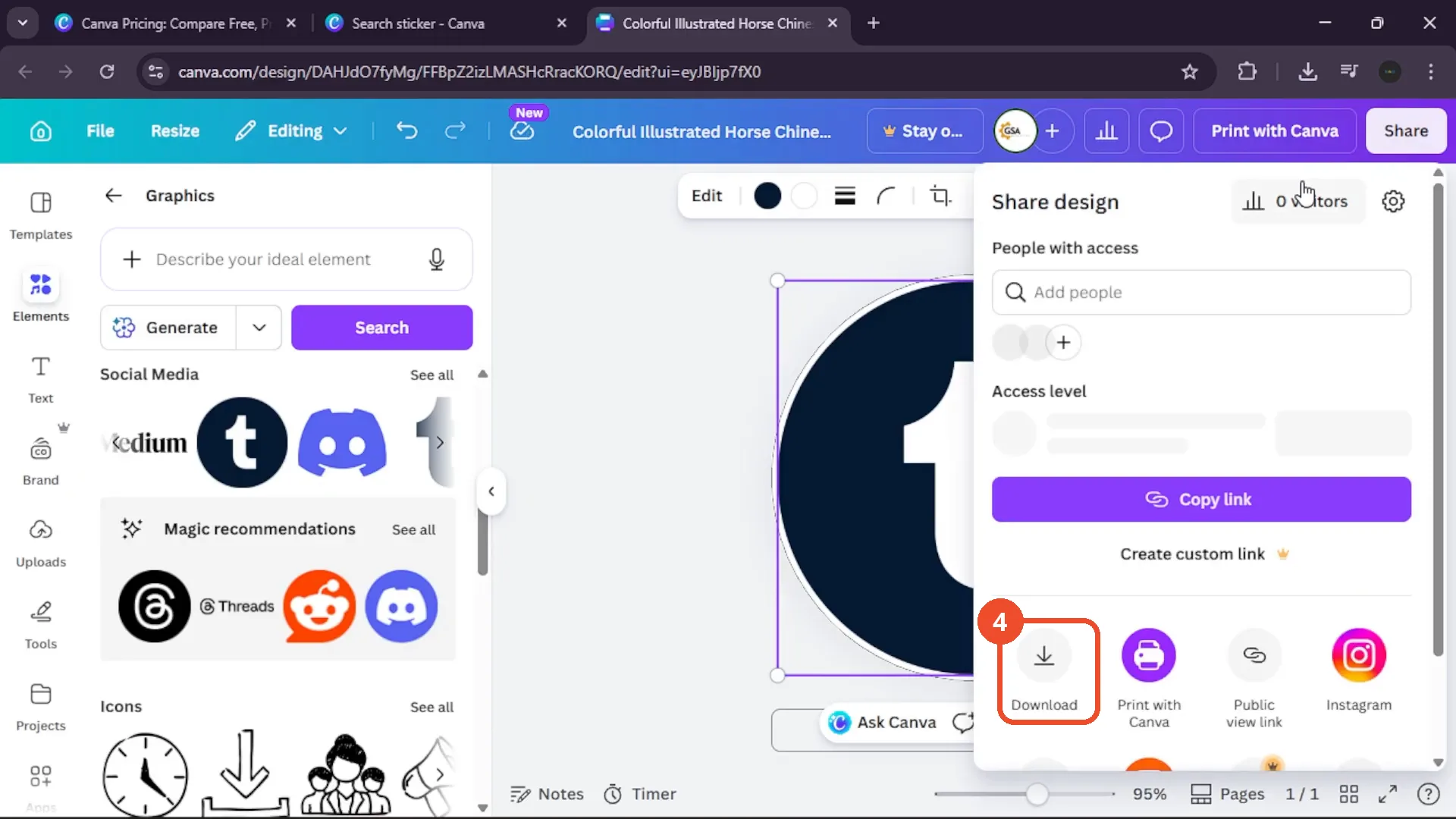
Open Share and choose Download
Click Share in the top-right corner, then click Download in the Share menu. The Download panel opens.
Download the sticker as a PNG
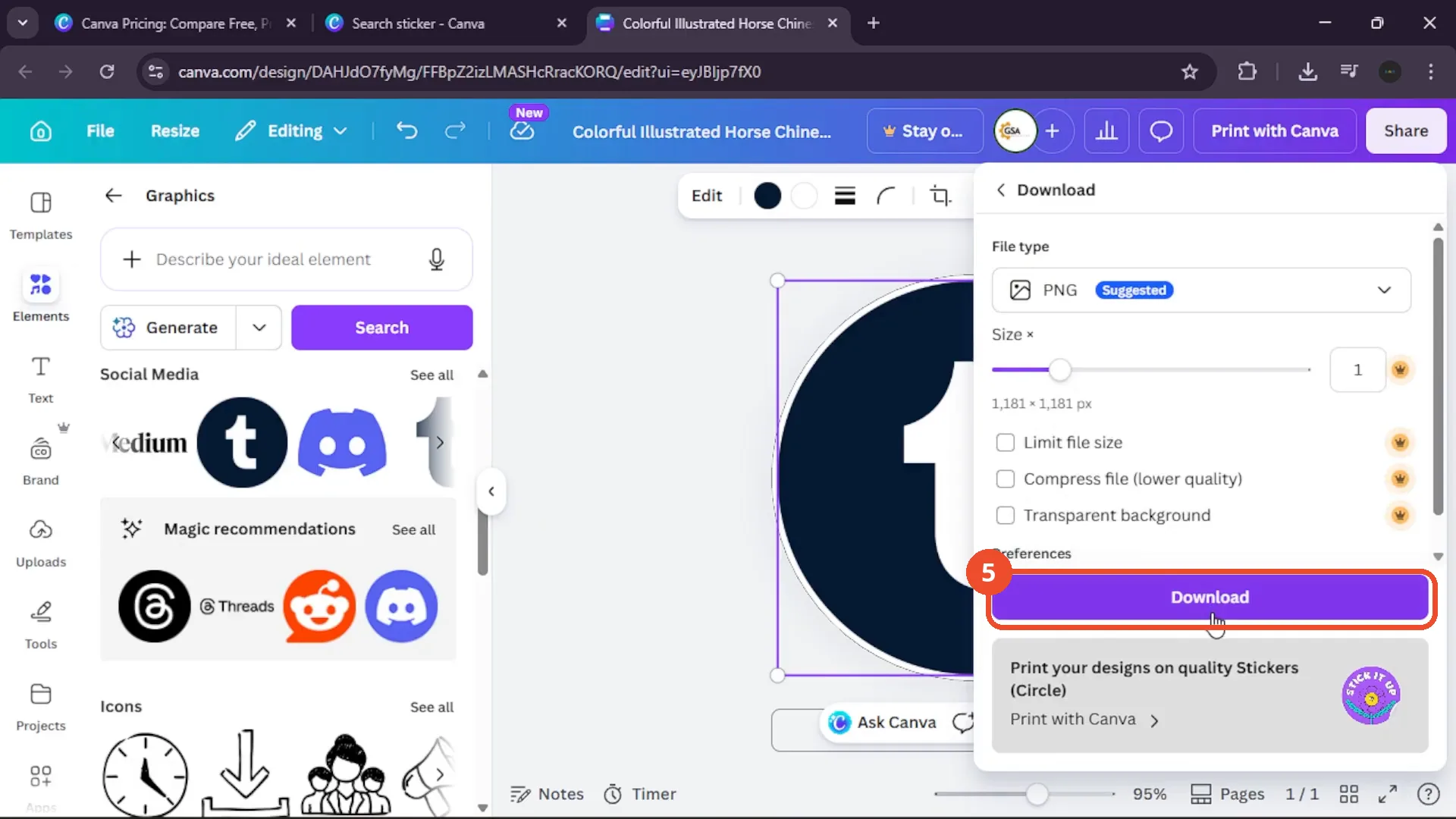
Leave the file type on PNG (Suggested) and the size on 1 (1,181 × 1,181 px), then click Download. “Transparent background” stays unchecked — it is a Pro option (crown icon) — so this PNG keeps its white background.
Check the finished sticker
Check the finished sticker: a dark circle with a white “t” filling the page.
Good to know
- The sticker the film ends with is not the horse template it opens: the film opens the horse circle sticker, then cuts to a blank circle — the horse is removed off-screen — and the finished sticker is the Tumblr “t” graphic. To skip the template, start from the “Create a blank Sticker (Circle)” tile in the search results instead.
- The narration says to add pictures or words, but the film only adds one graphic: no text is typed and no photo is added.
- “Transparent background” is a Pro feature and the film leaves it unchecked, so the downloaded PNG has a white background, not a clear one. With Pro, tick it before downloading; without it, the sticker prints with a white square behind the circle.
- The film never prints the sticker or cuts it out — printing on sticky paper and cutting are only in the narration, not on screen. The Download panel also offers “Print with Canva” for quality stickers if you would rather order prints.
- The same horse sticker design appears in the published How to Change DPI in Canva for High-Quality Prints guide, which exports it as PDF Print with a CMYK colour profile for print quality.
- Canva saves automatically — there is no save step. Downloading is the only step that takes the sticker out of Canva.
More on Canva
- How to Add Transitions in Canva
- How to Flip a Shape in Canva
- How to Add Smooth Transitions in Canva
- How to Outline an Image in Canva
- How to Blur Edges in Canva
- How to Change DPI in Canva for High-Quality Prints
- How to Change Line Spacing in Canva
- How to Unlock a Canva Page
- How to Change Image Color in Canva
- How to Fade an Image in Canva
- How to Mirror Text in Canva
- How to Embed Videos in Canva
- How to Convert Canva Designs to PowerPoint
Guide complete
Every step above comes from the original recording, with a screenshot for each step. Want more like this? Browse all Canva guides.