How to Embed Videos in Canva
Embedding a video in Canva takes one link and one app: the Embed app turns a YouTube, Vimeo or Spotify link into a playable box on your page. This guide follows the film as it embeds an NCS music video into a “Master the 50/30/20 Rule” infographic.
- SystemWeb app
- AppCanva web app
- Last verifiedNovember 28, 2026
Every screenshot below is taken from the actual recording on this device — no stock images.
Steps
Copy the video link
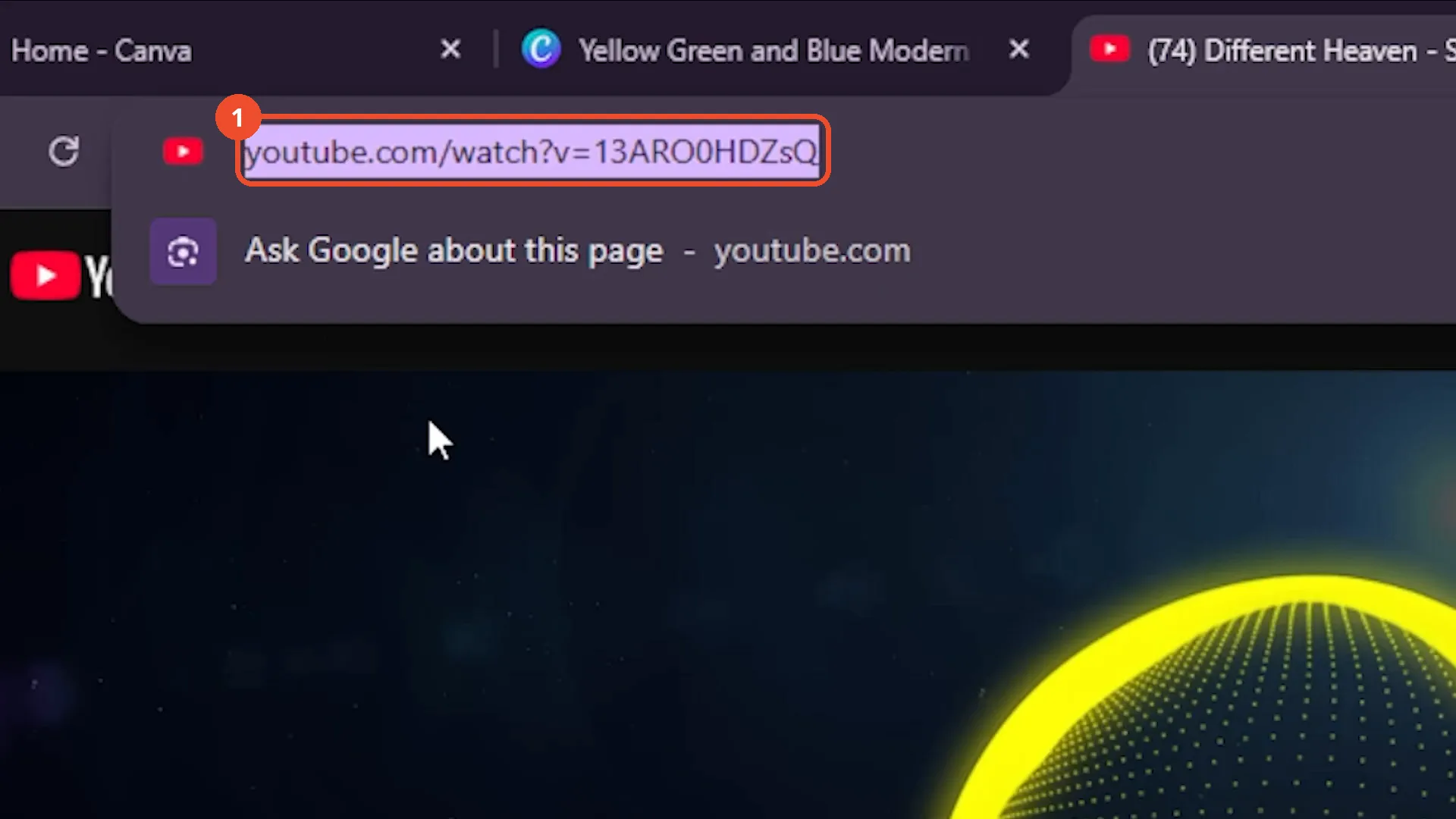
Open the video you want to embed — the film uses the NCS video “Different Heaven – Safe And Sound” on YouTube — click the browser’s address bar, highlight the link and copy it.
Open Apps in Canva
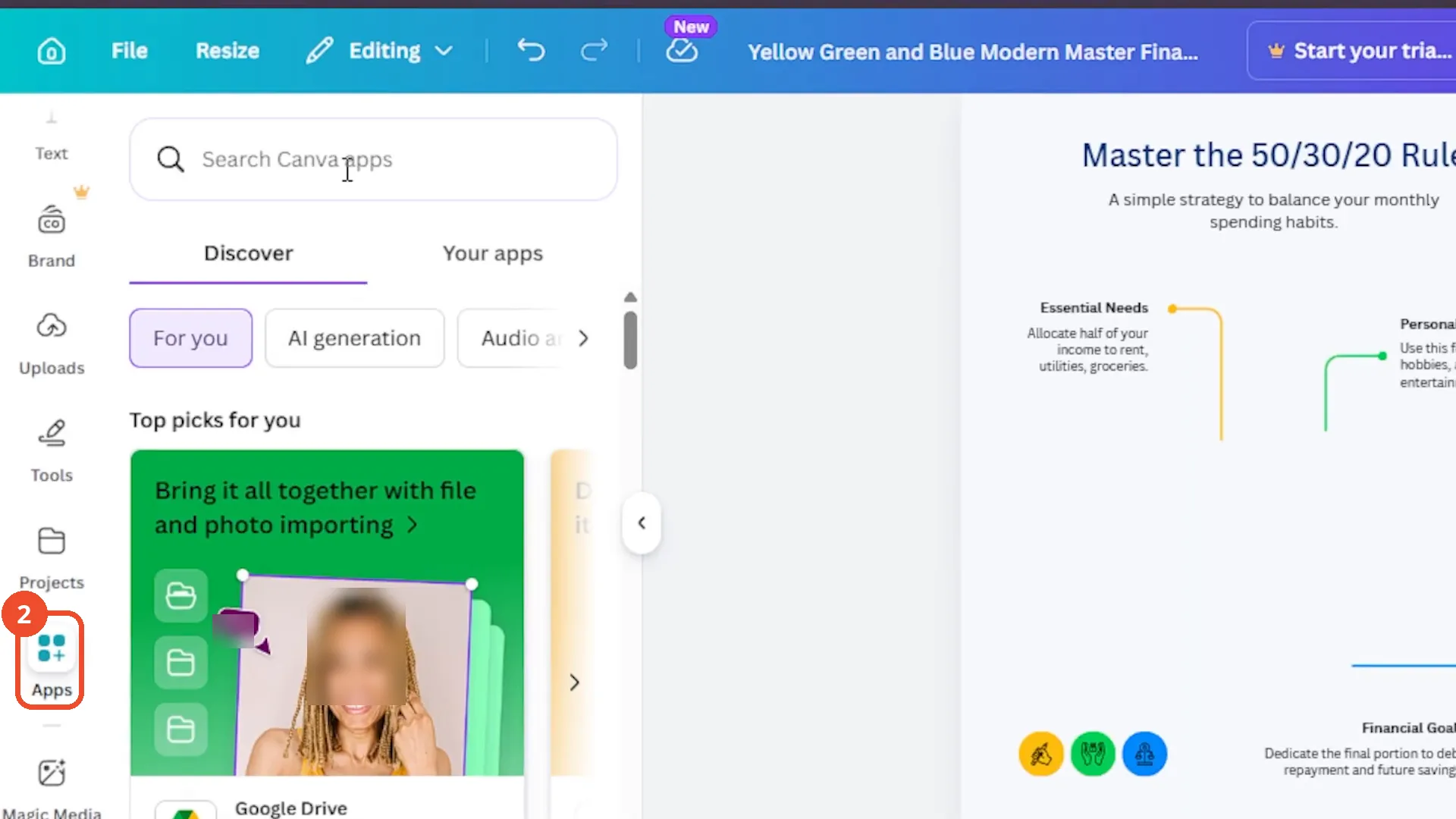
Back in Canva, click Apps in the left rail. The Apps panel opens with a “Search Canva apps” box at the top.
Search for Embed and open it
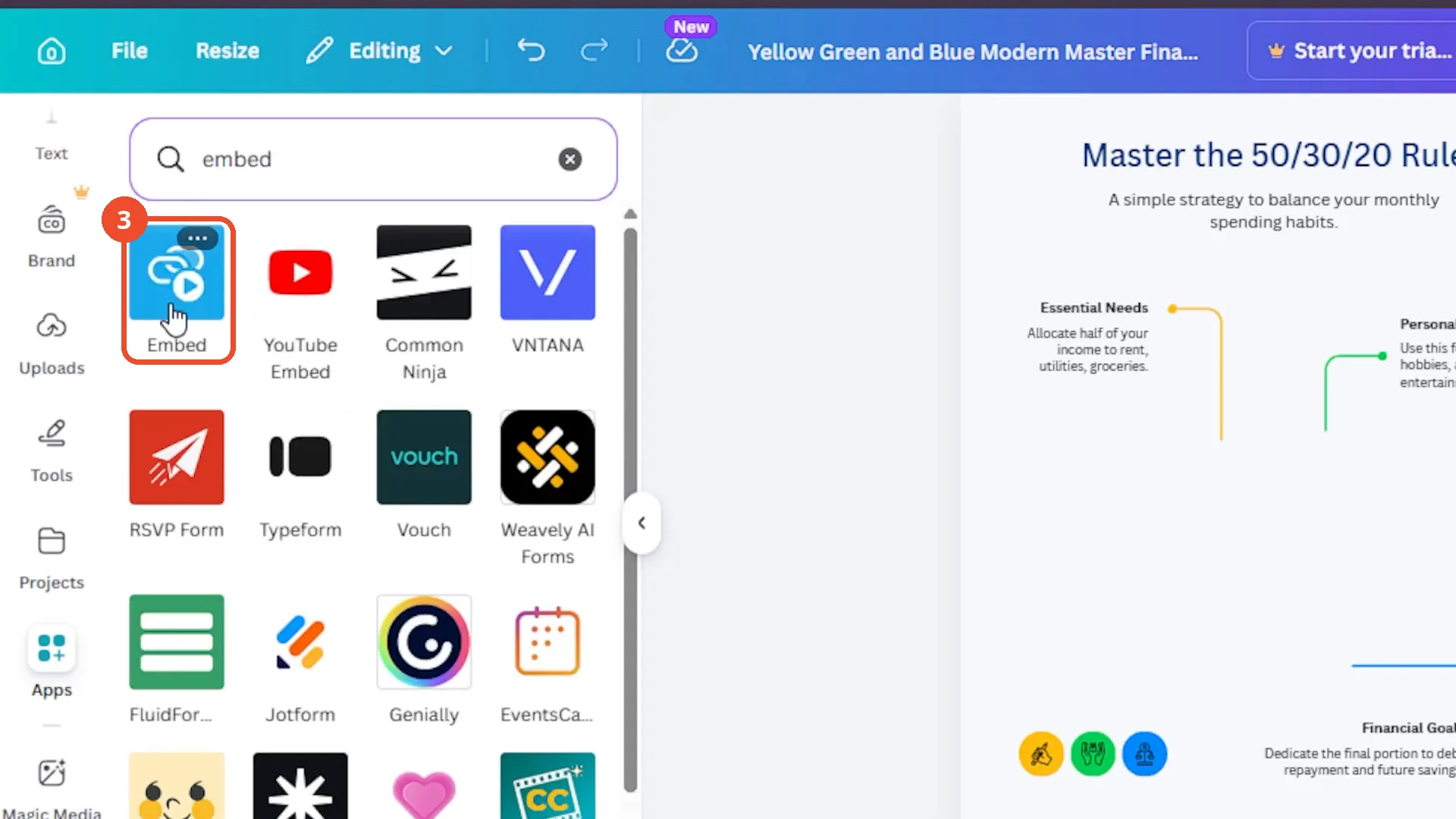
Type “embed” in the search box and click the Embed app — the blue icon with a link and a play button, first in the results. Do not pick “YouTube Embed”: the film uses the general Embed app, which takes any supported link.
Paste the link and click Add to design
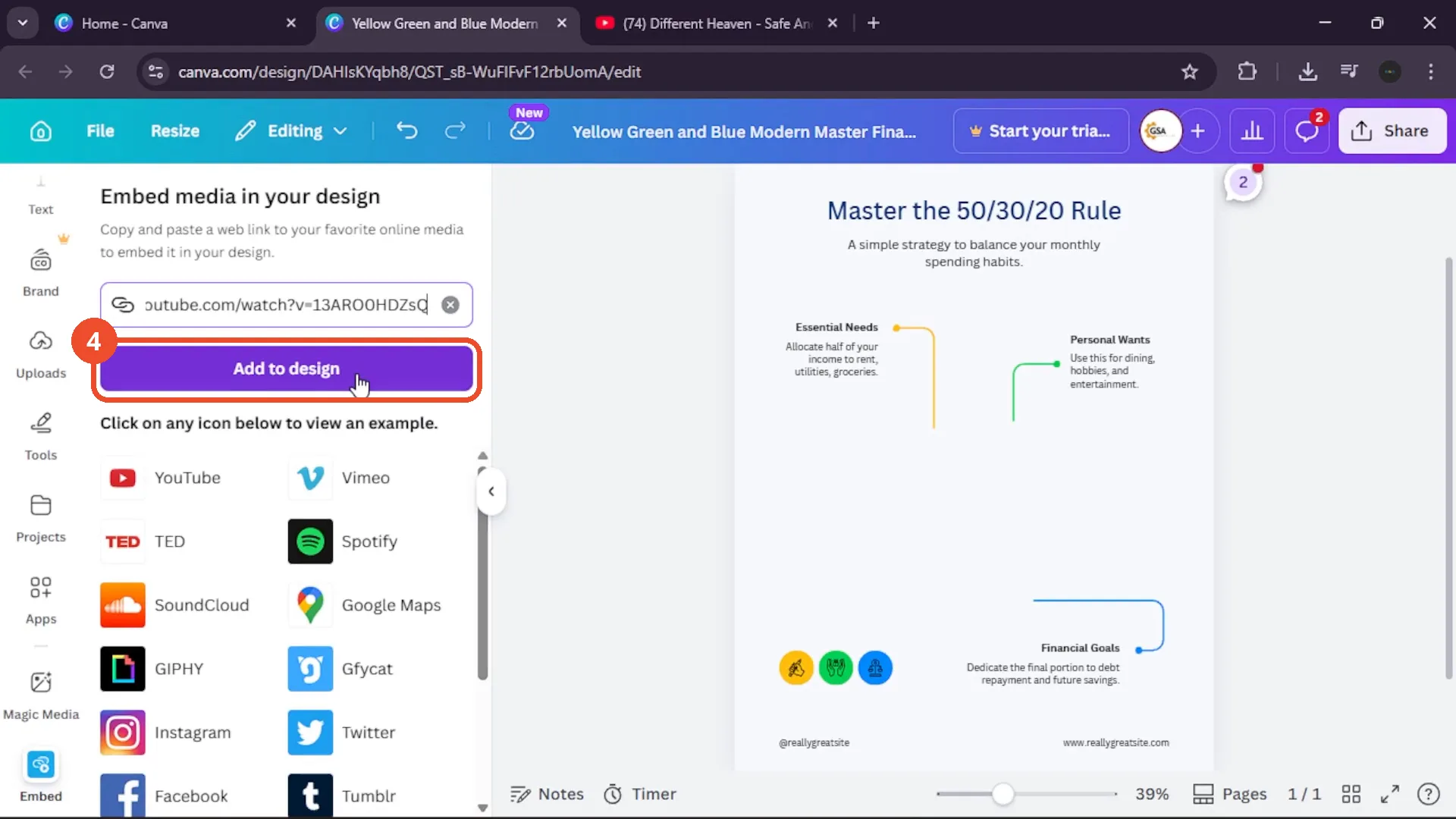
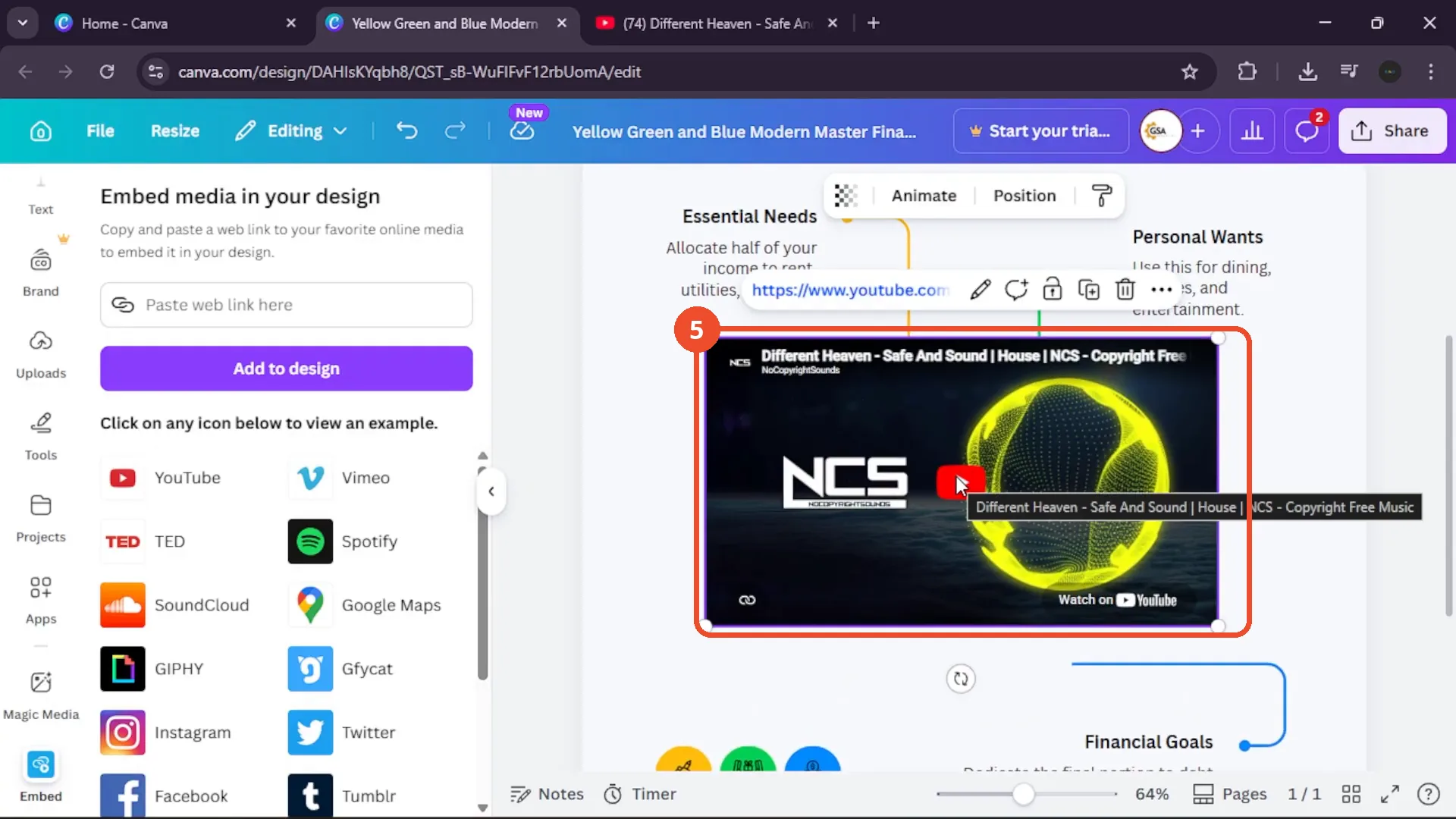
Click the “Paste web link here” box and paste the address you copied, then click “Add to design”. The pasted YouTube link is visible in the box above the button.
Check the embedded video
The video appears on the page with its title and a play button. Click the video to play it, drag its corners to resize it, or drag it to move it into place.
Good to know
- The embedded video stays a live link: it plays from YouTube inside your design. It is not a file uploaded to Canva, so it needs an internet connection to play.
- The Embed panel lists more than YouTube — Vimeo, TED, Spotify, SoundCloud, Google Maps, GIPHY, Instagram, Twitter, Facebook and Tumblr are all in the list below the link box. The same paste-and-add flow works for any of them.
- The film never presses play: the embedded player is shown selected, with its title and play button, but playback starting is not on screen. Click the play button yourself to check the video runs.
- The film’s design is the operator’s own “Master the 50/30/20 Rule” infographic. Canva saves automatically, so there is no save or export step after embedding.
- Any public video link works the same way — the NCS video here is just the film’s example.
More on Canva
- How to Add Transitions in Canva
- How to Flip a Shape in Canva
- How to Add Smooth Transitions in Canva
- How to Outline an Image in Canva
- How to Blur Edges in Canva
- How to Change DPI in Canva for High-Quality Prints
- How to Change Line Spacing in Canva
- How to Unlock a Canva Page
- How to Change Image Color in Canva
- How to Fade an Image in Canva
- How to Mirror Text in Canva
- How to Make Stickers on Canva
- How to Convert Canva Designs to PowerPoint
Guide complete
Every step above comes from the original recording, with a screenshot for each step. Want more like this? Browse all Canva guides.