How to Convert Canva Designs to PowerPoint
The video is titled for Google Slides, but the footage never opens Google Slides: it exports the design as a PowerPoint file instead. This guide follows what was actually filmed — a 10-page “GROUP PROJECT” presentation, downloaded as a PPTX from Share → More ways to publish.
- SystemWeb app
- AppCanva web app
- Last verifiedNovember 28, 2026
Every screenshot below is taken from the actual recording on this device — no stock images.
Steps
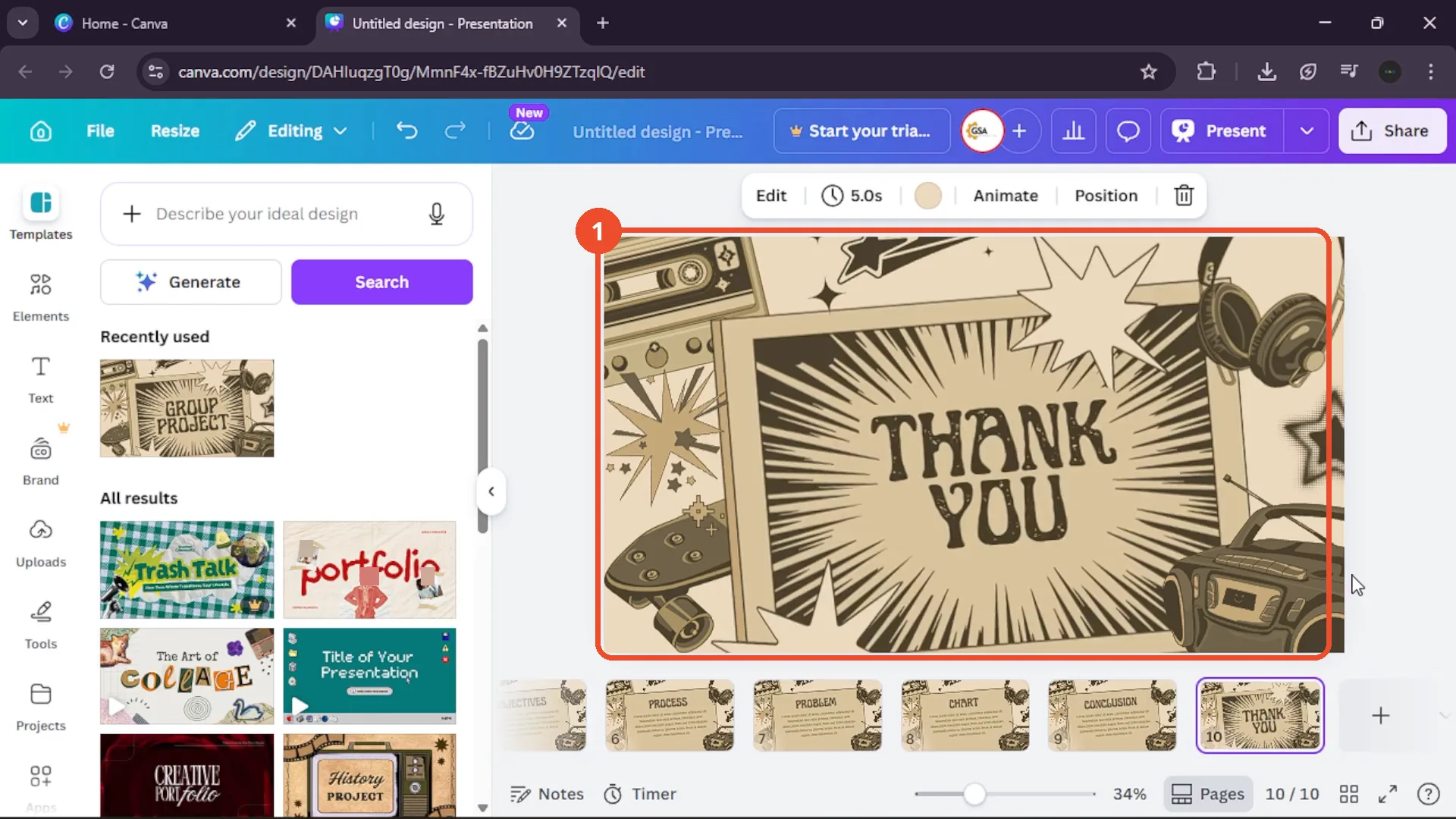
Finish and check your design
The film flips through the design page by page before exporting — cover, PROJECT OVERVIEW, PROCESS, PROBLEM, THANK YOU and more — 10 pages in all. Check every page of your own design the same way before you export it.
Click Share
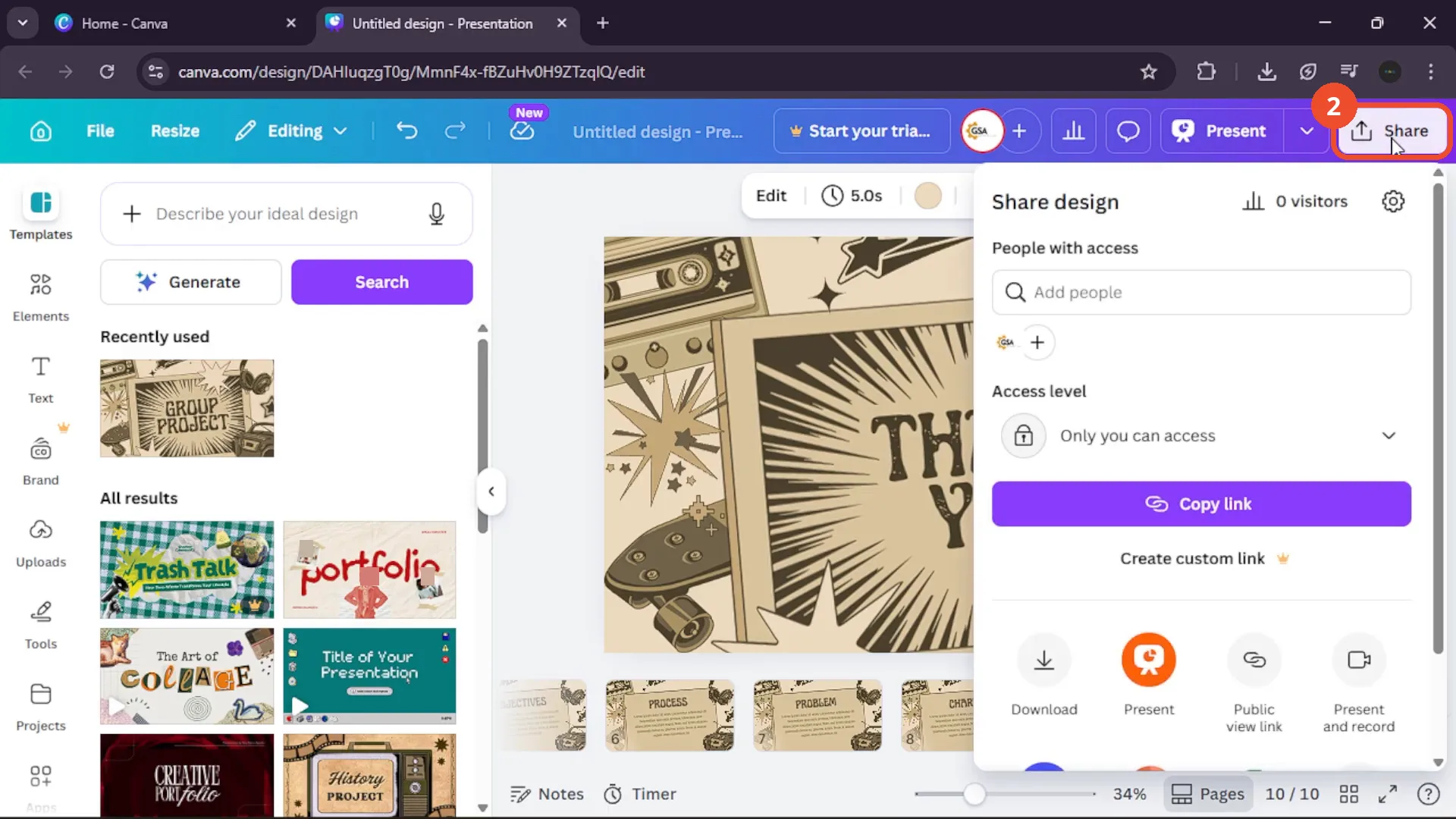
Click Share in the top-right corner. The Share design panel opens.
Choose Microsoft PowerPoint
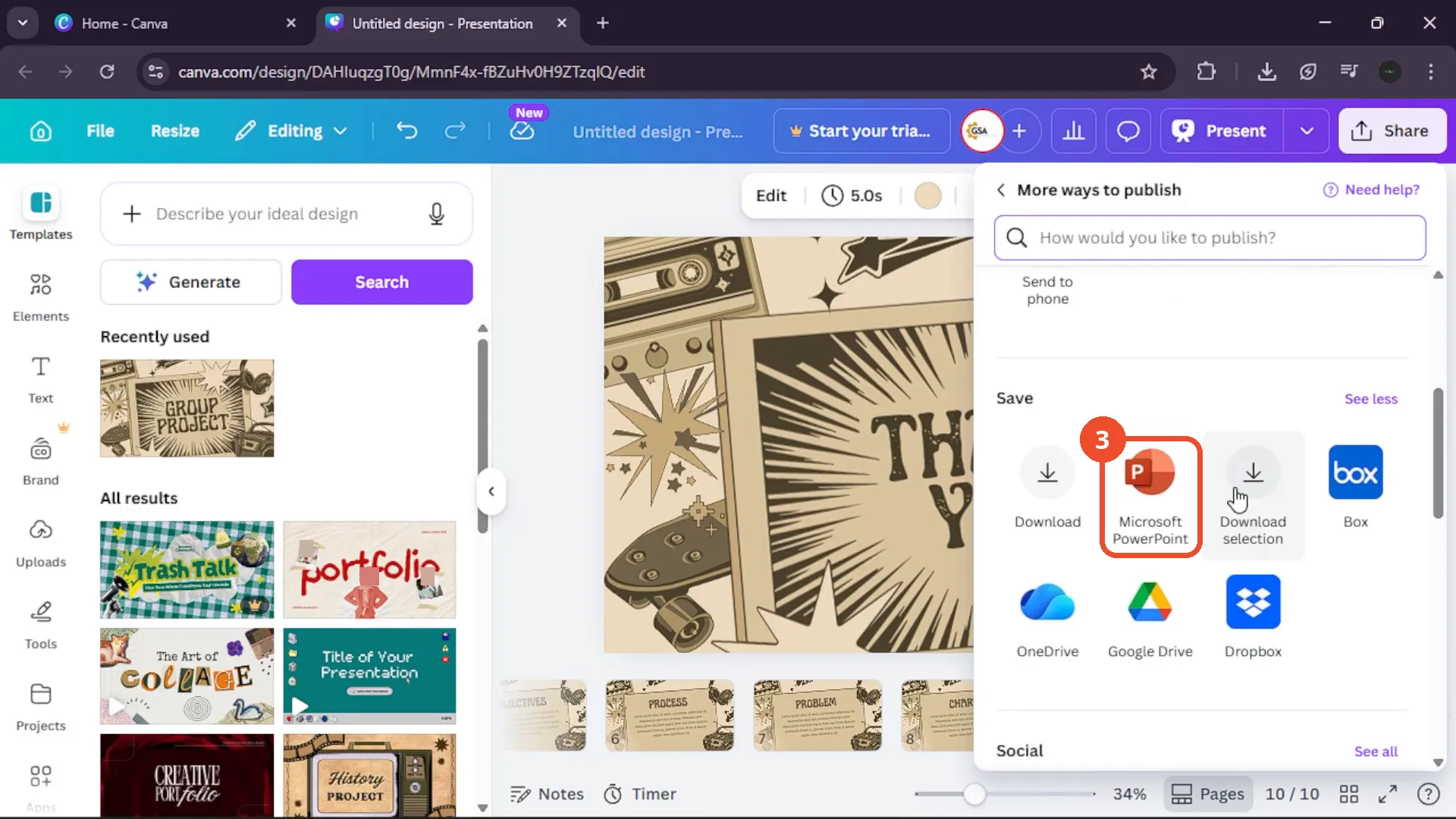
In the Share menu, open “More ways to publish” — the film cuts straight to this panel — then scroll to Save and click Microsoft PowerPoint. Google Drive is listed in the same Save row, but the film never opens it.
Select pages and click Download
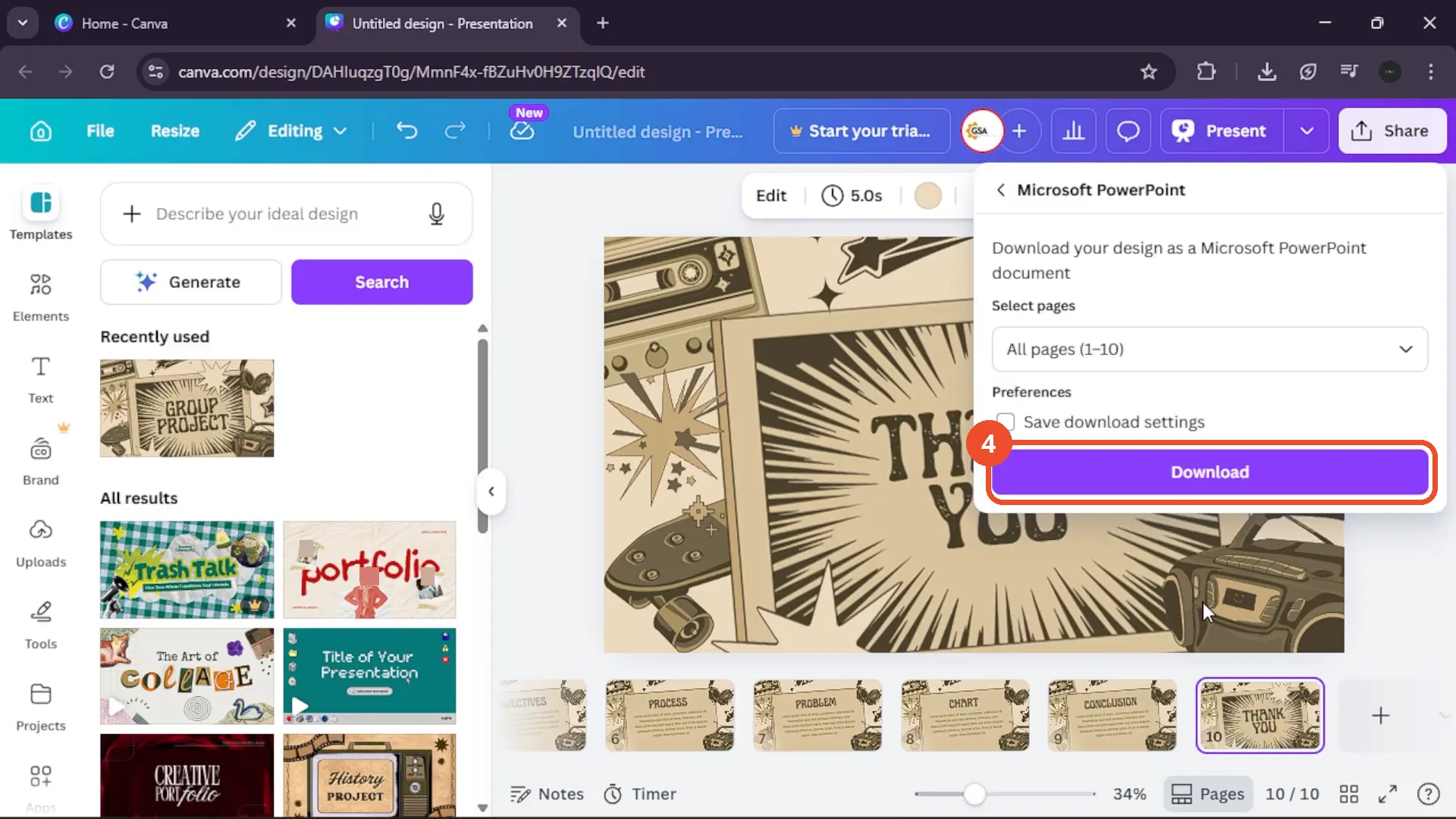
The Microsoft PowerPoint panel offers to “Download your design as a Microsoft PowerPoint document”. Leave “All pages (1–10)” selected — the film opens the page list and “Select all” is ticked, with each page at 1920 × 1080 px — then click Download.
Check the PPTX download
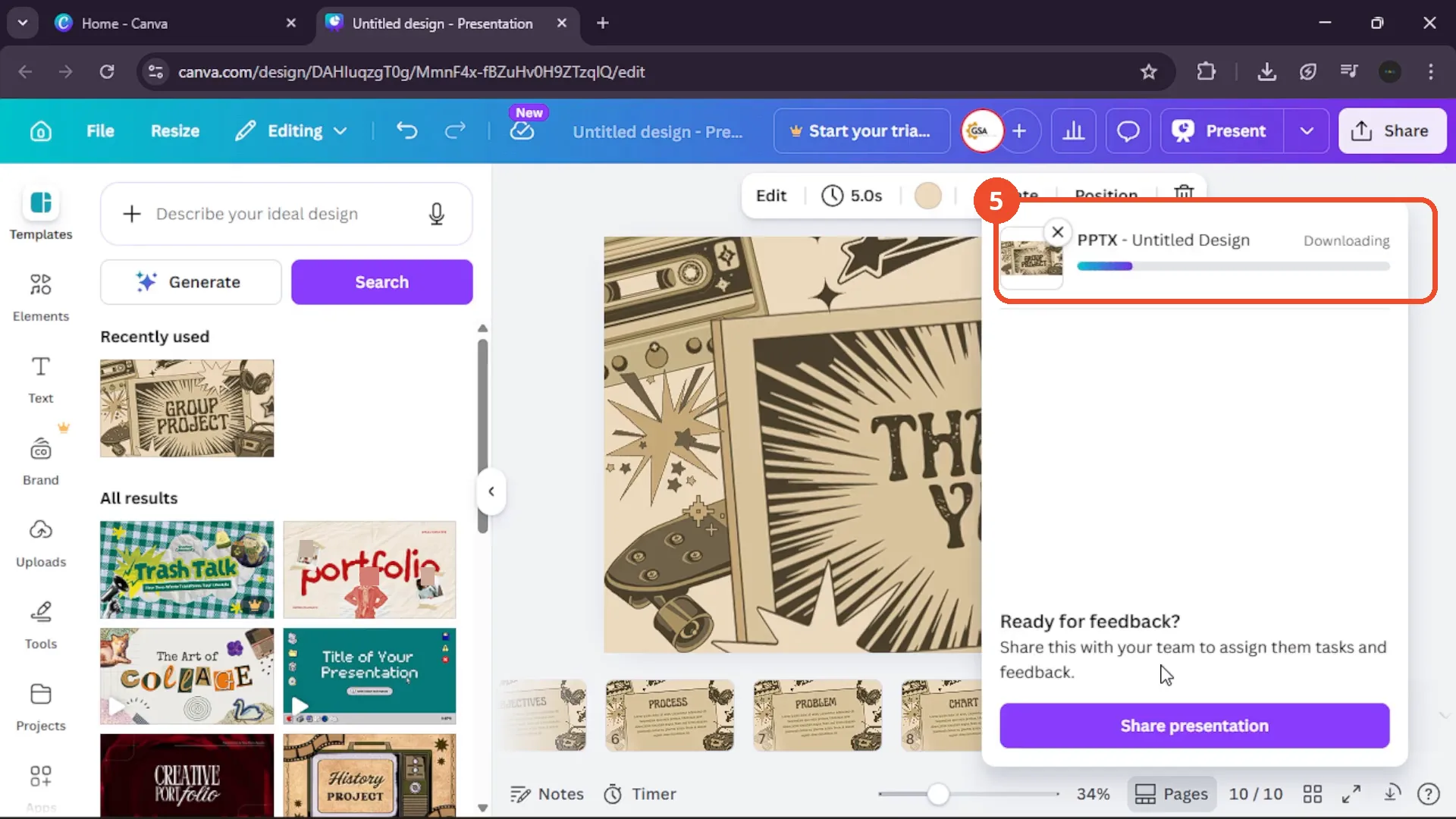
The download toast shows “PPTX - Untitled Design — Downloading”. Open the file to check all 10 slides arrived.
Good to know
- Retitle note: the video’s title promises Google Slides, but no Google Slides option is ever clicked and no Google account is connected on screen. What the film actually does is download a PowerPoint (.pptx) file, so this guide is titled for what was filmed.
- Google Drive does appear in the Save list (next to OneDrive and Dropbox), but only as an icon — the film never opens it, so nothing here shows saving to Google Drive.
- The narration’s last step — connect your Google account, save, and find the design in Google Drive — never happens on screen. The film ends with the PPTX downloading.
- The “More ways to publish” click itself is not visible: the film cuts from the Share panel to the More ways panel. In Canva it is the More option at the bottom of the Share menu.
- The downloaded file is called “PPTX - Untitled Design” because the film’s design was never named — name your design first if you want a recognisable file name.
- A system “Your battery is running low” notification pops up at 1:28 in the film. It is the laptop’s own warning, not part of Canva, and it is not shown in any step image here.
More on Canva
- How to Add Transitions in Canva
- How to Flip a Shape in Canva
- How to Add Smooth Transitions in Canva
- How to Outline an Image in Canva
- How to Blur Edges in Canva
- How to Change DPI in Canva for High-Quality Prints
- How to Change Line Spacing in Canva
- How to Unlock a Canva Page
- How to Change Image Color in Canva
- How to Fade an Image in Canva
- How to Mirror Text in Canva
- How to Embed Videos in Canva
- How to Make Stickers on Canva
Guide complete
Every step above comes from the original recording, with a screenshot for each step. Want more like this? Browse all Canva guides.