How to Change Line Spacing in Canva
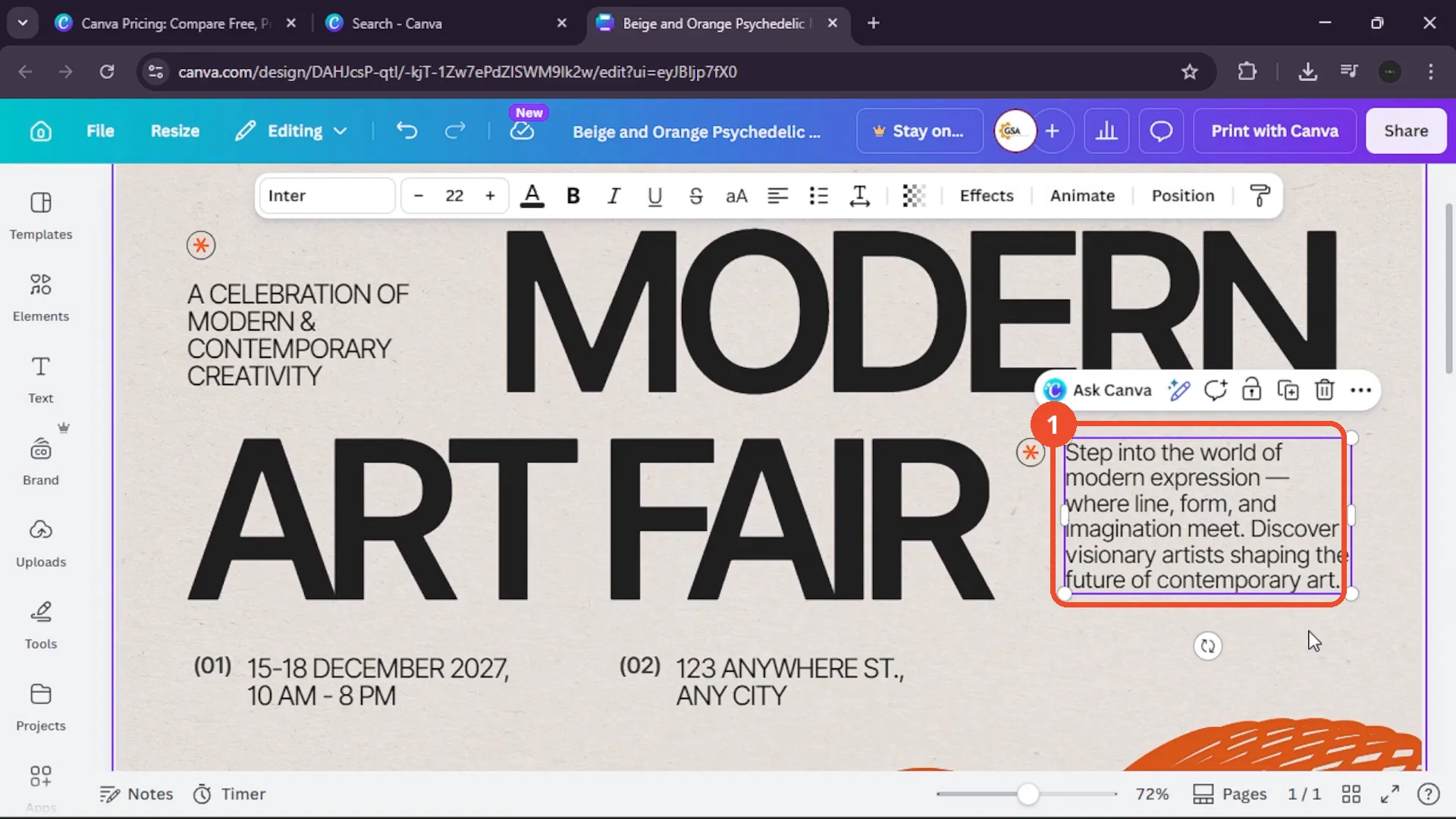
Line spacing lives in the spacing menu of the text toolbar. This guide uses the body text of a “MODERN ART FAIR” poster (“Step into the world of modern expression…”), whose line spacing starts at 1.09.
- SystemWeb app
- AppCanva web app
- Last verifiedNovember 26, 2026
Every screenshot below is taken from the actual recording on this device — no stock images.
Steps
Select the text box
Click the text box you want to change so it is selected — a purple border appears around it and the text toolbar opens at the top. The film uses the poster’s body text, set in Inter 22.
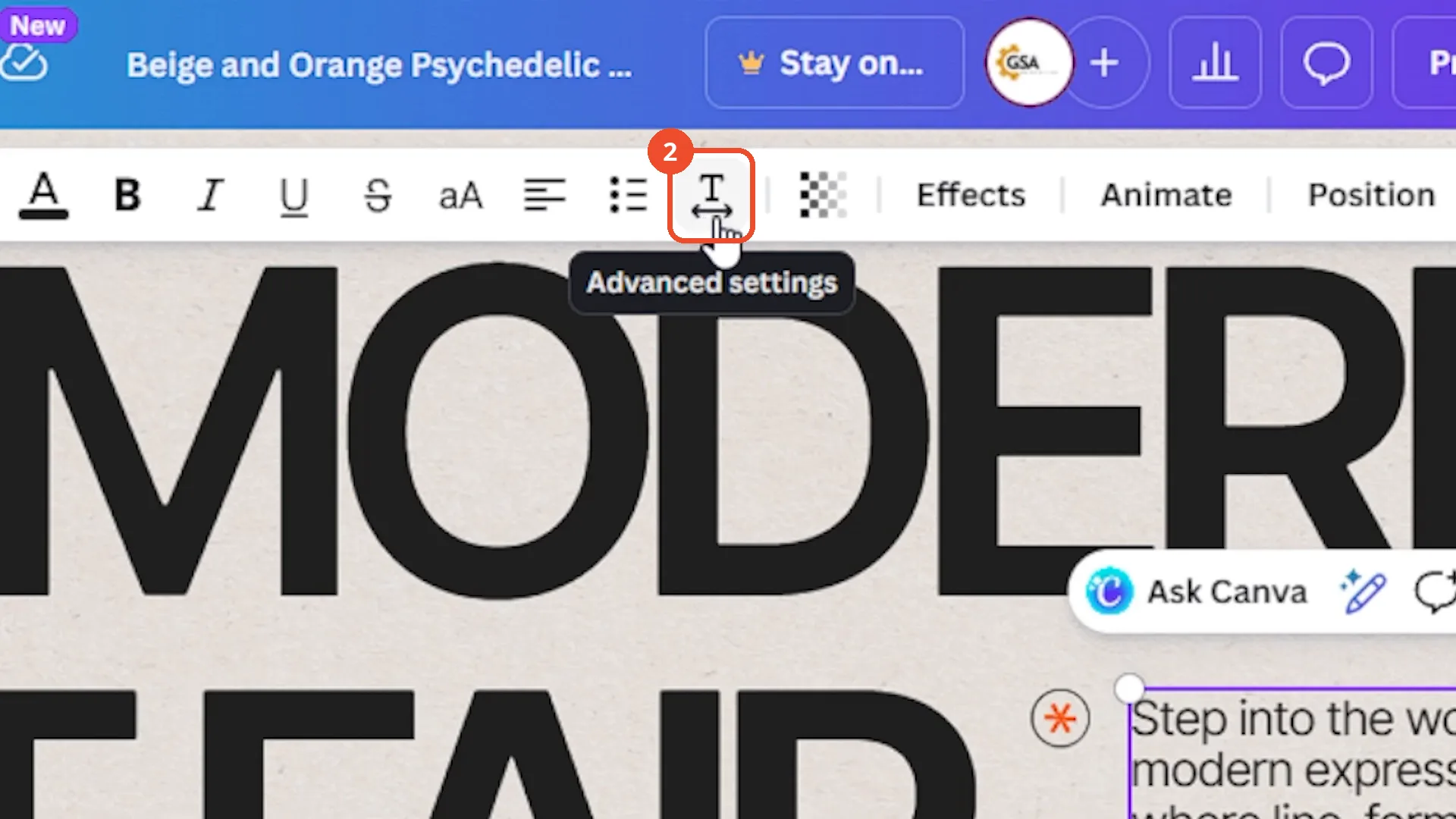
Click the spacing icon in the toolbar
In the text toolbar, click the spacing icon — the T with up-and-down arrows between the bulleted-list button and Effects. Its tooltip reads “Advanced settings”. This opens the spacing popover.
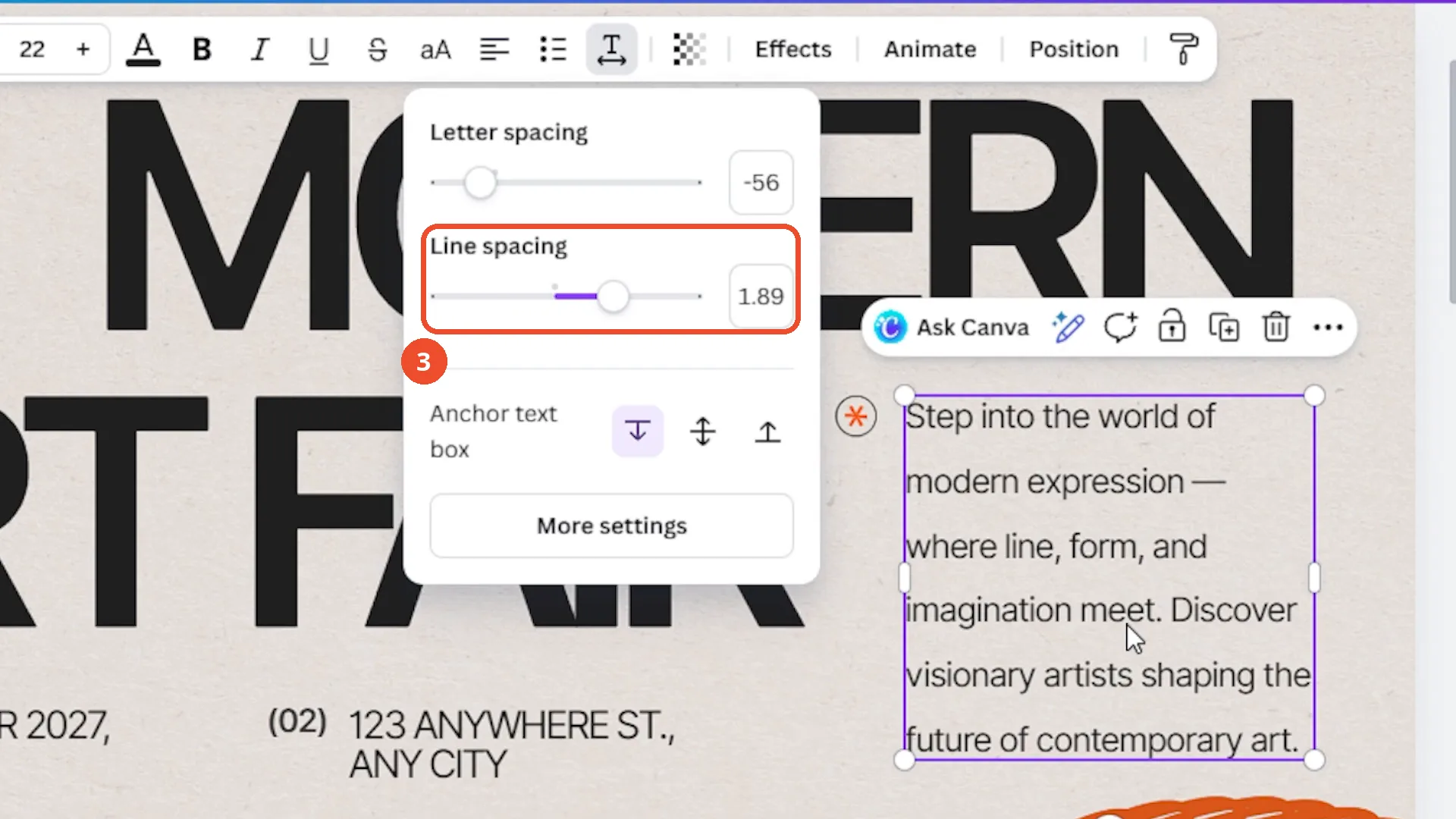
Drag the Line spacing slider
In the popover, drag the Line spacing slider. The film first drags it left to 0.82 (lines tighten), then right to settle at 1.89 (lines spread well apart) — watch the text reflow as you drag. Letter spacing stays at −56 throughout.
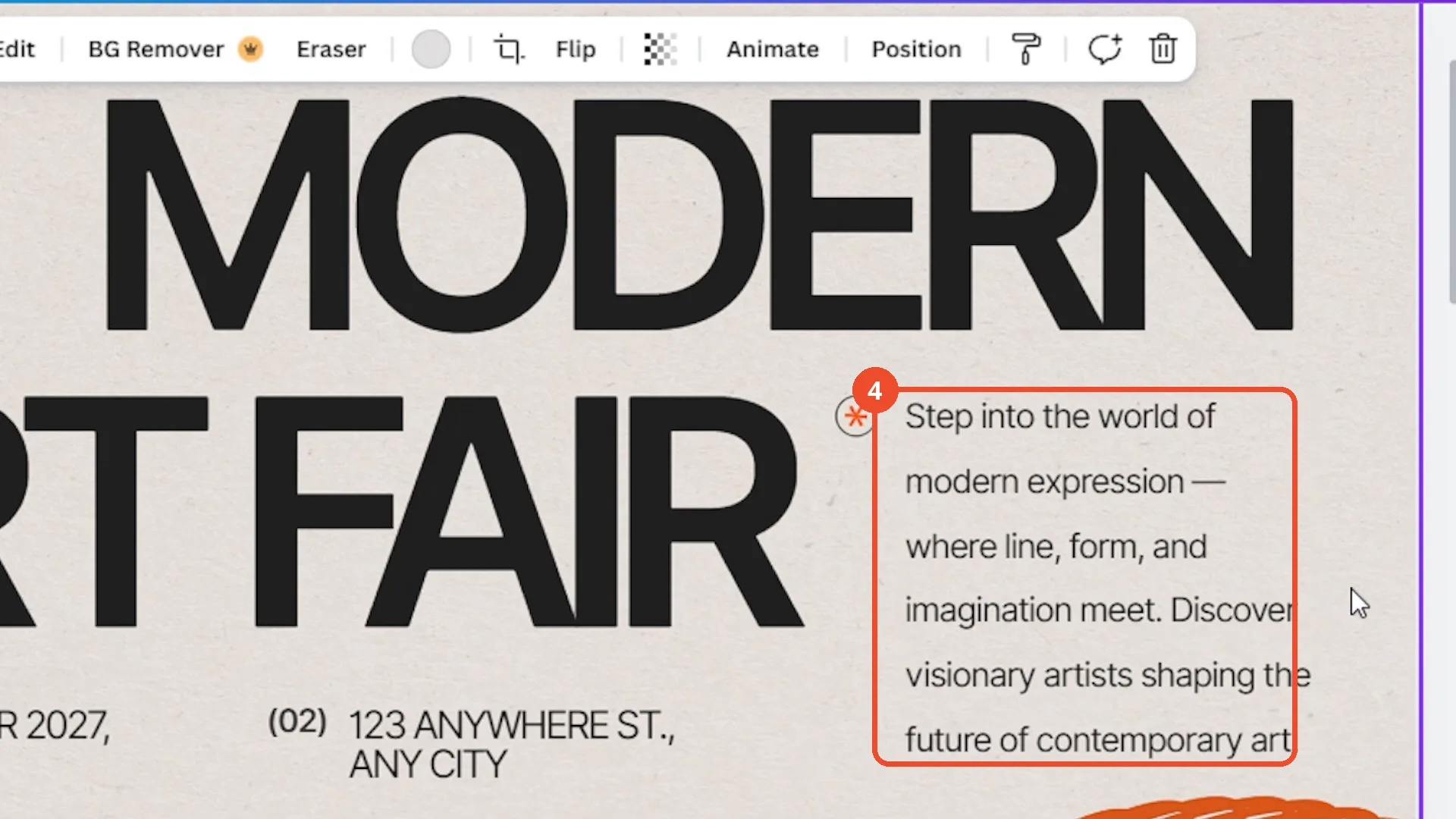
Check the reflowed text
Close the popover and check the result: the six lines of the body text now sit much further apart than at the original 1.09 spacing, with the same words in the same order.
Good to know
- The spacing icon’s tooltip reads “Advanced settings”, not “Spacing” — look for the T-with-arrows icon in the text toolbar.
- The narration describes the icon as having “an arrow pointing left and right”, but the arrows on screen point up and down — line spacing is vertical.
- The popover holds two sliders: Letter spacing (−56 here, untouched) and Line spacing. Only the Line spacing slider changes the gaps between lines.
- The same “Beige and Orange Psychedelic” poster design is used in the Blur Edges video — the two films share one Canva design.
More on Canva
- How to Add Transitions in Canva
- How to Flip a Shape in Canva
- How to Add Smooth Transitions in Canva
- How to Outline an Image in Canva
- How to Unlock a Canva Page
- How to Blur Edges in Canva
- How to Change DPI in Canva for High-Quality Prints
Guide complete
Every step above comes from the original recording, with a screenshot for each step. Want more like this? Browse all Canva guides.