How to Add Smooth Transitions in Canva
Transitions live in the gap between two pages: hover the join, click the + and pick a style. This guide follows a four-page retro “GROUP PROJECT” design — it adds a page first, then applies the Flow transition and sets its duration.
- SystemWeb app
- AppCanva web app
- Last verifiedNovember 25, 2026
Every screenshot below is taken from the actual recording on this device — no stock images.
Steps
Open your video project
Open your design in Canva. The film’s project is a retro design (“GROUP PROJECT” cover) with three pages — transitions only exist between pages, so you need a multi-page project.
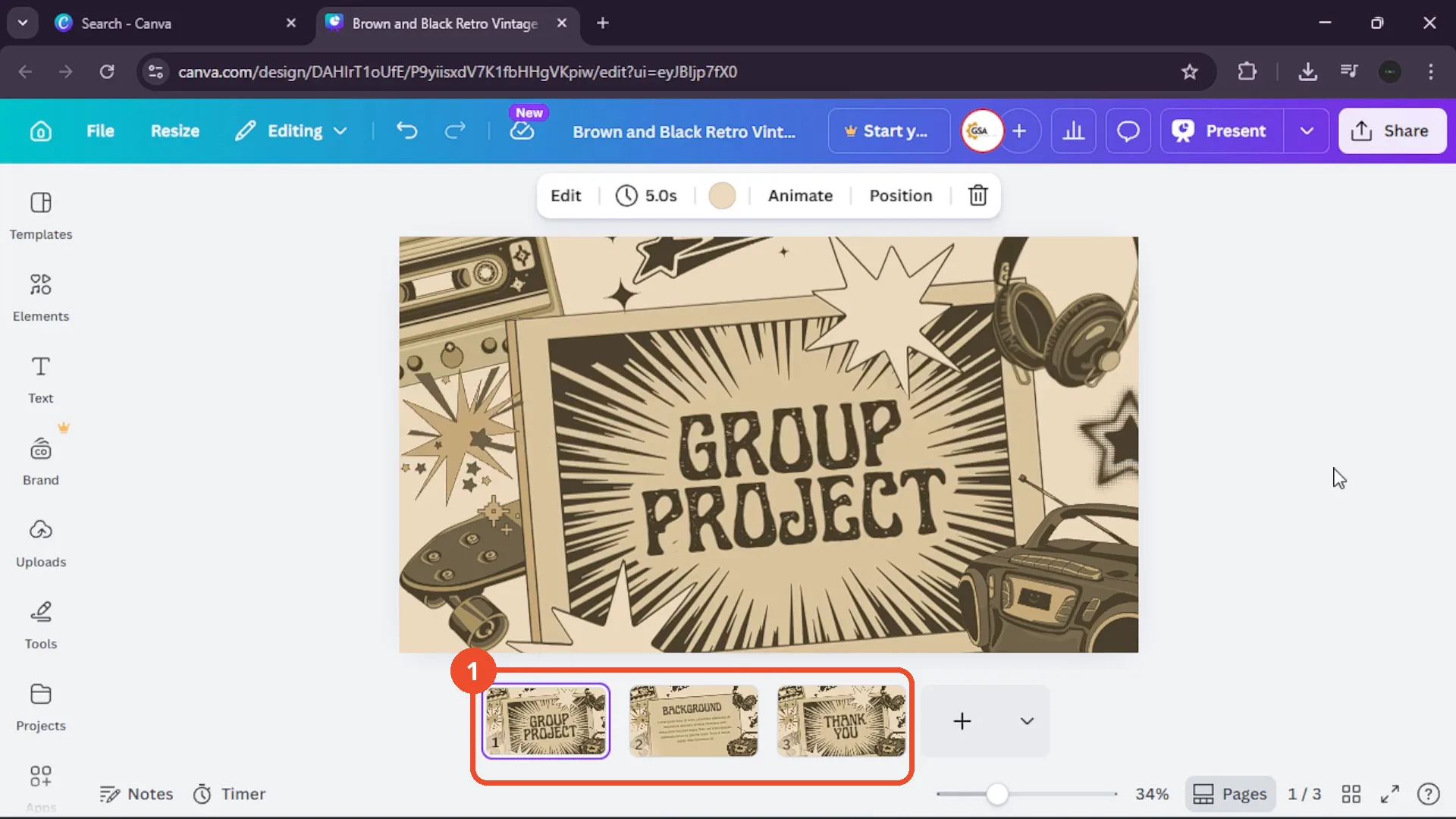
Make sure you have at least two pages
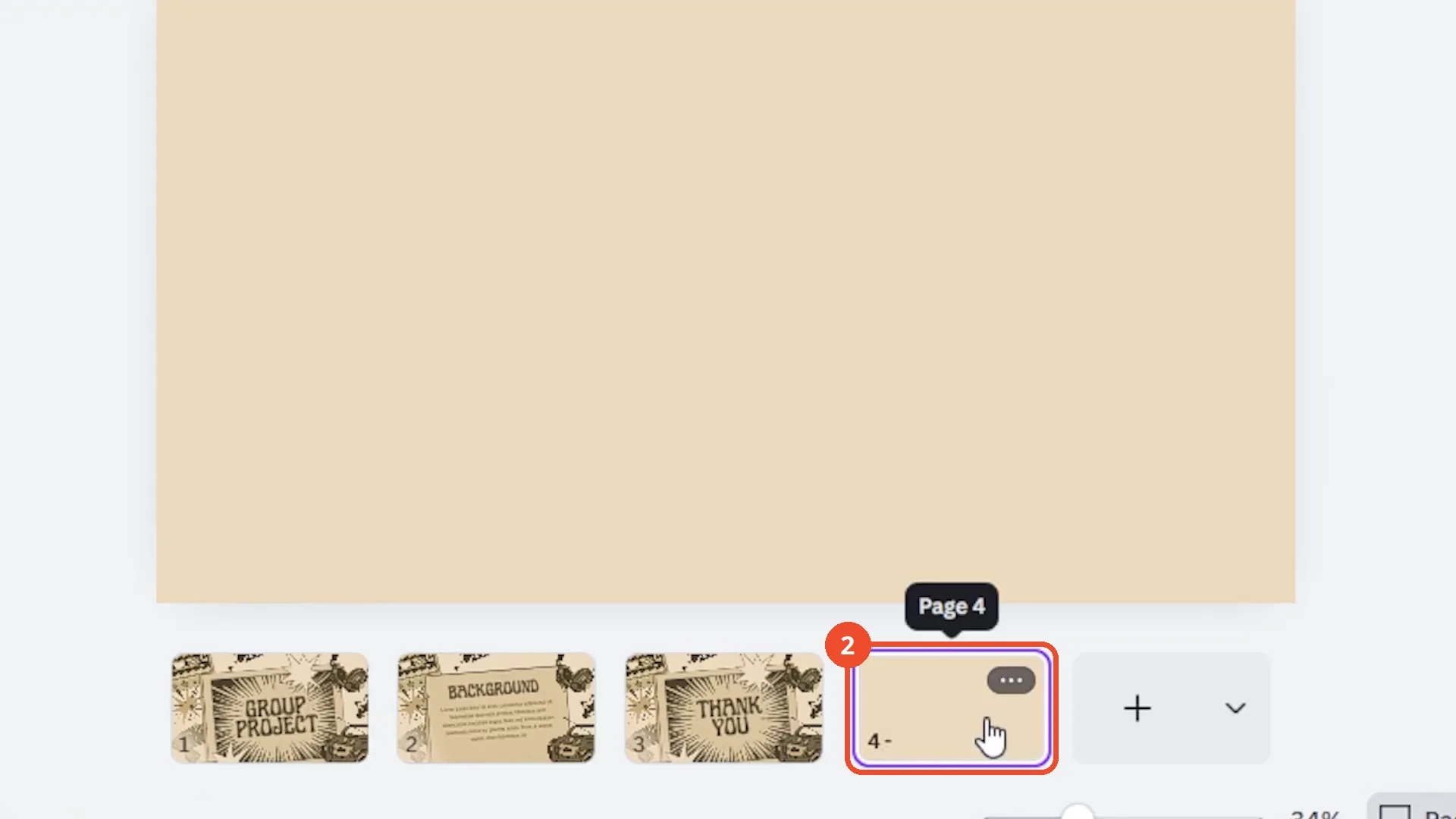
If your project has only one page, add another first: click the + at the end of the page filmstrip (or duplicate a page). The film adds a blank fourth page — the tooltip reads “Page 4” and the page counter changes to 1 / 4.
Hover between the pages to reveal the +
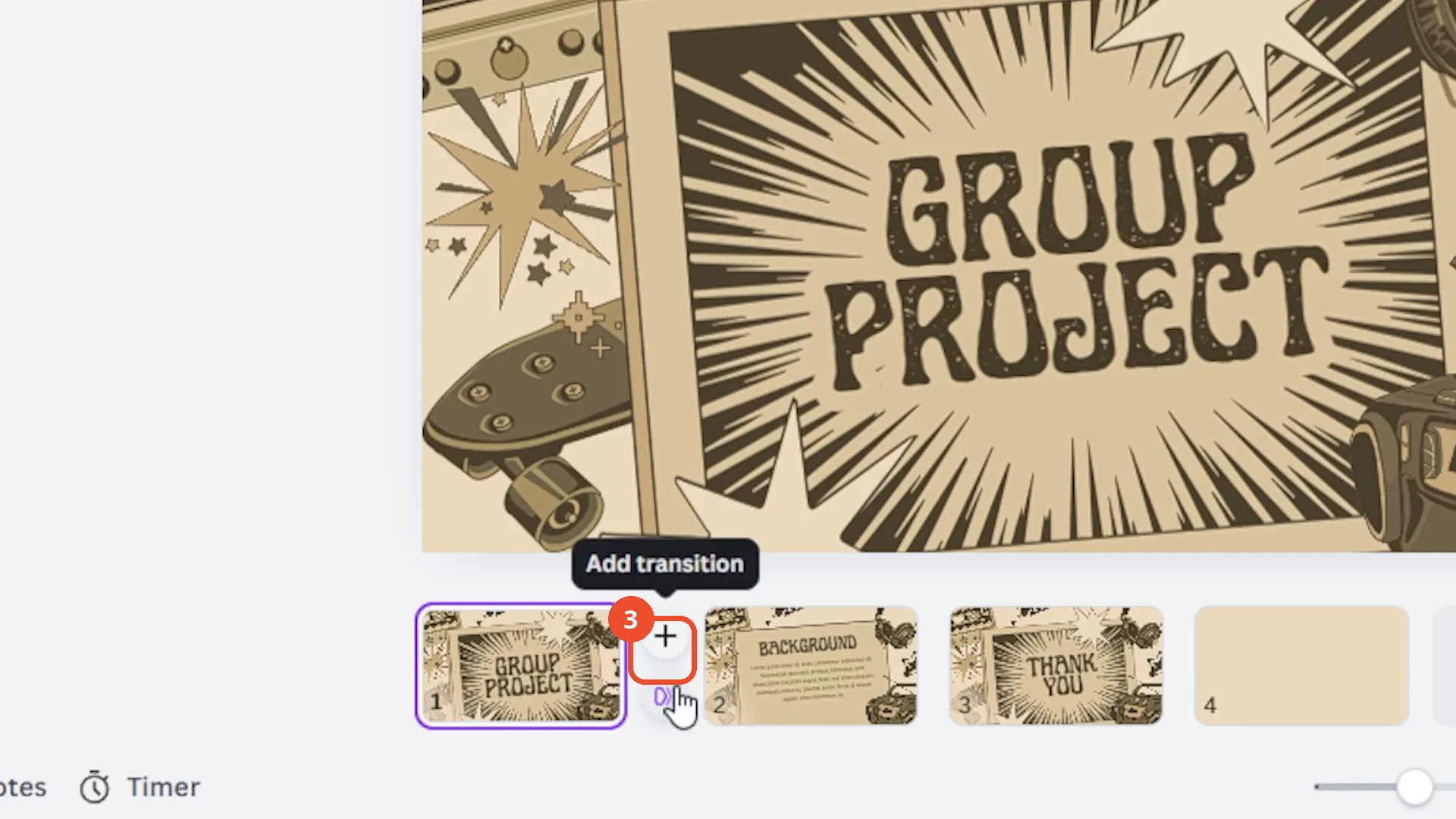
Move your cursor to the gap between two page thumbnails in the filmstrip at the bottom. A + button appears between them, with the tooltip “Add transition”.
Click the + to open the Transitions panel
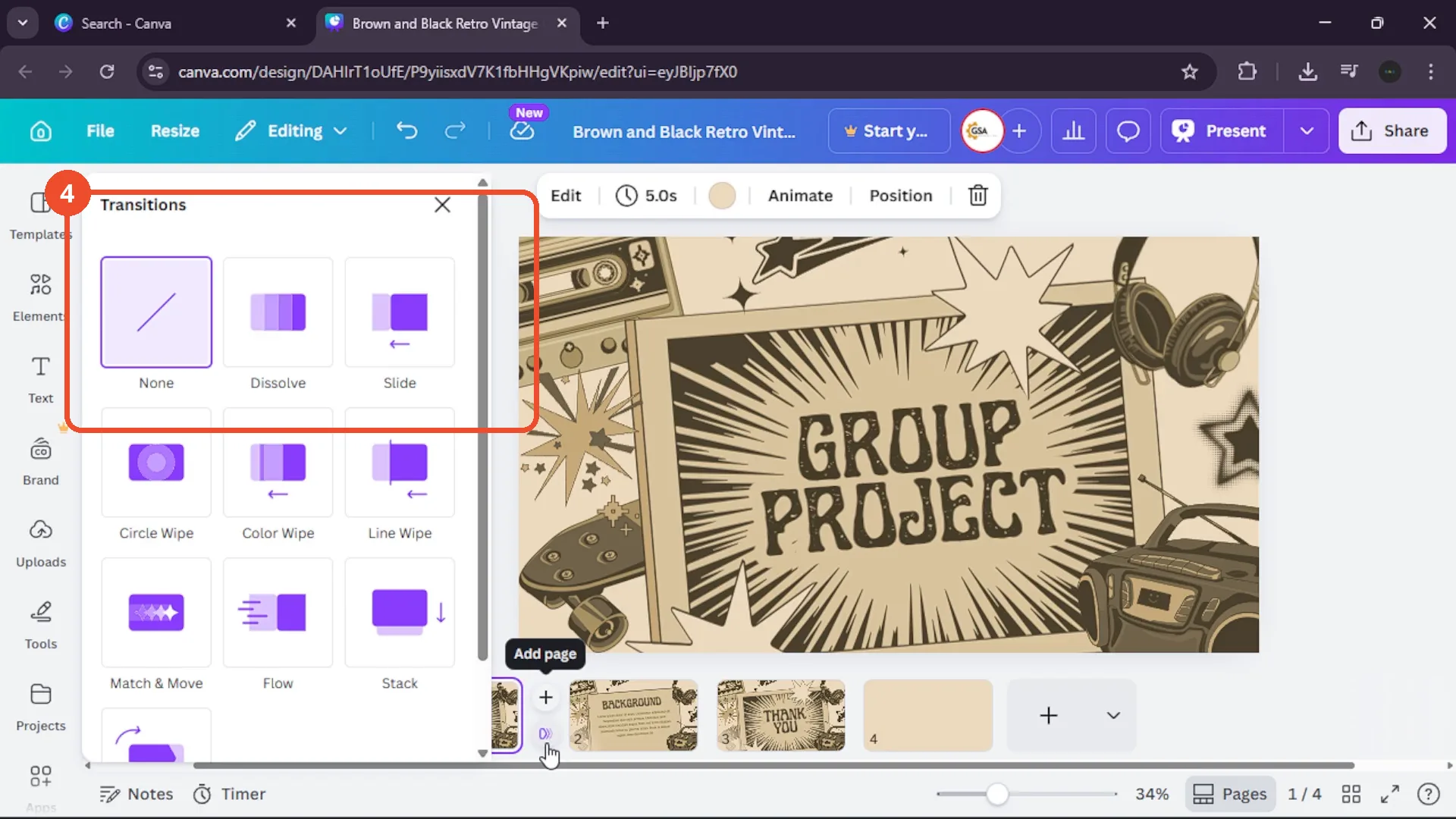
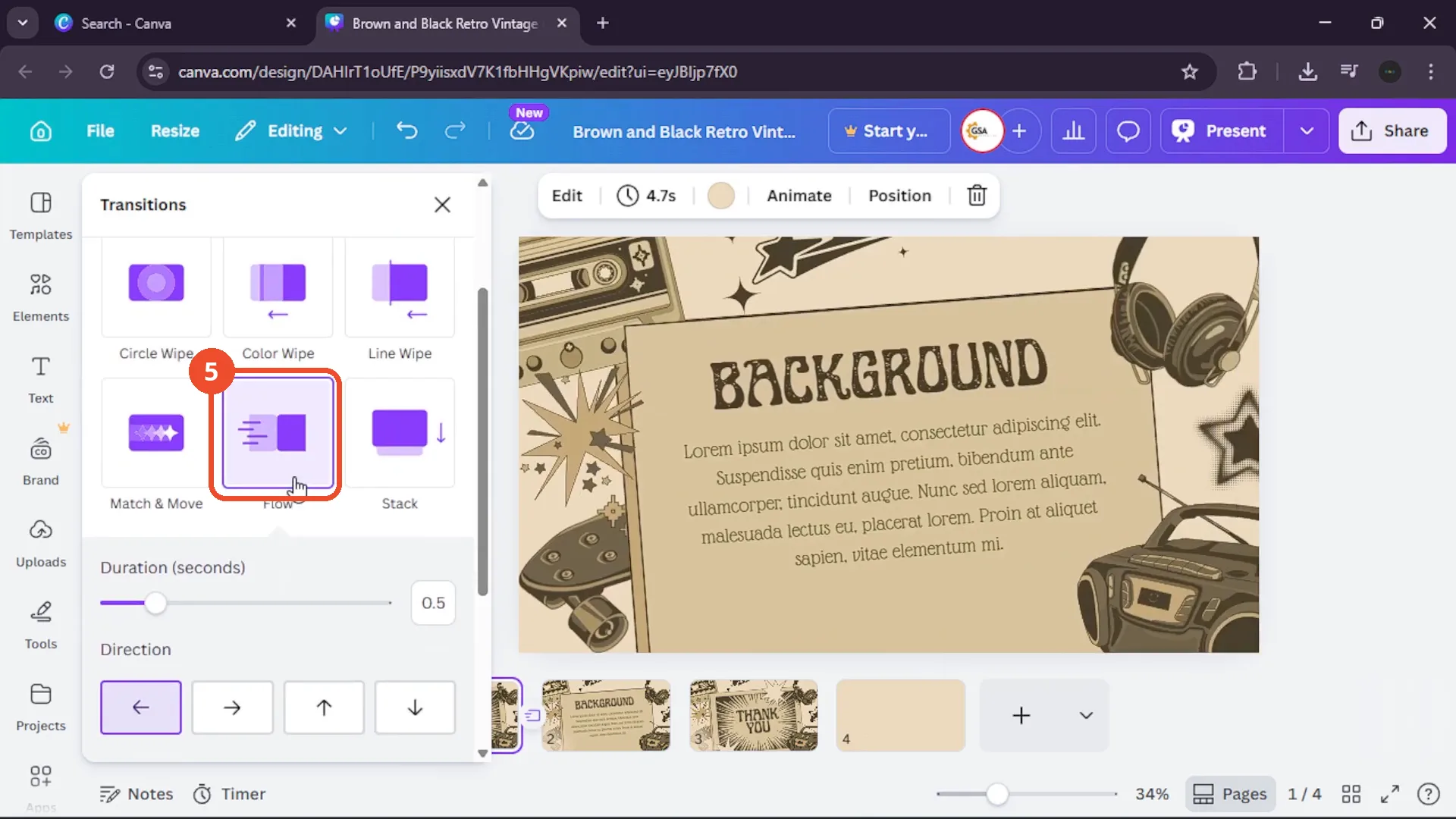
Click the + and the Transitions panel opens on the left, listing the styles: None, Dissolve, Slide, Circle Wipe, Color Wipe, Line Wipe, Match & Move, Flow, Stack and Chop. “None” is selected at this point, so no transition is applied yet.
Pick a transition — Flow
Click a style to apply it. The film picks Flow — its tile gets a purple border and the cursor rests on it. Note that no transition in Canva’s panel is actually called “Smooth”: the title’s “smooth” is a description, not a style name. The narration suggests Dissolve or Slide if you want a gentler effect, but the film settles on Flow.
Drag the Duration slider
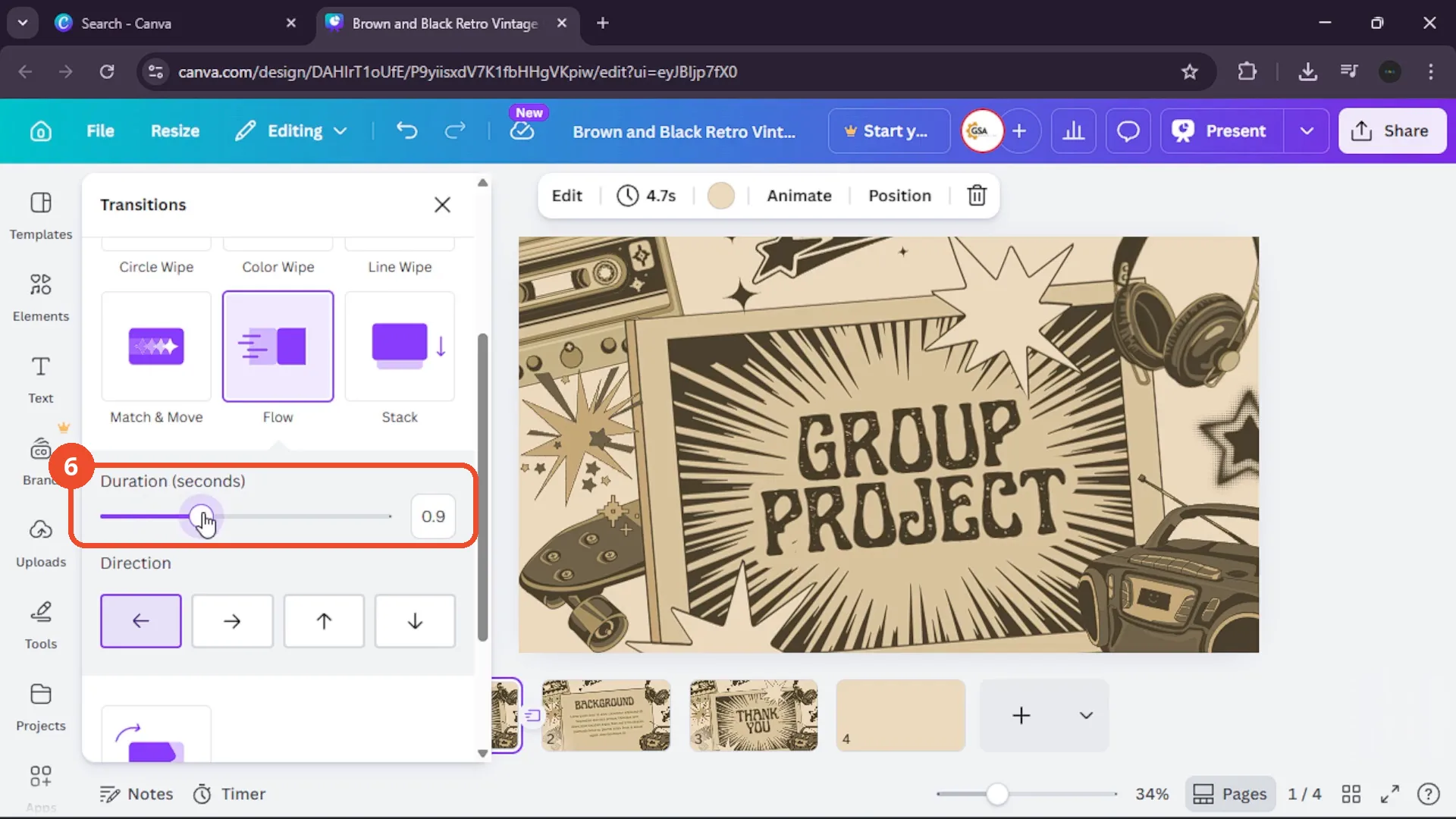
Below the styles, drag the Duration slider to set how long the transition lasts. The film drags it from 0.5 seconds to 0.9 while dragging, and it settles at 0.7 seconds. Direction is left as the default (left arrow selected).
Good to know
- A transition sits between two pages, so a one-page design has nowhere to put one — add a second page first.
- The word “smooth” is not a transition style in Canva. The panel lists None, Dissolve, Slide, Circle Wipe, Color Wipe, Line Wipe, Match & Move, Flow, Stack and Chop.
- Duration is in seconds and applies to that one join only — set it again for each gap between pages.
- To remove a transition, open the same panel and pick None.
More on Canva
- How to Add Transitions in Canva
- How to Unlock a Canva Page
- How to Flip a Shape in Canva
- How to Outline an Image in Canva
Guide complete
Every step above comes from the original recording, with a screenshot for each step. Want more like this? Browse all Canva guides.